
Introduction
Is your computer running slow, overheating, or making loud fan noises? Chrome using too much CPU is most likely the reason. This is one of the most common complaints from Google Chrome users worldwide, and it affects both Windows and Mac computers.
When Chrome high CPU usage happens, your entire system suffers. Programs freeze, your battery drains faster, and even simple tasks become painfully slow. The problem gets worse the longer you ignore it, because Chrome continues hogging your processor in the background.
But here is the good news — fixing Chrome using too much CPU is easier than you think. This guide walks you through 12 proven methods to reduce Chrome CPU usage quickly, even if you have zero technical experience. Let’s solve this right now.
Quick Answer: How to Fix Chrome Using Too Much CPU
The fastest way to fix Chrome using too much CPU is to press Shift + Esc to open Chrome’s built-in Task Manager. Find the tab or extension consuming the most CPU and close it. Then disable unnecessary extensions, update Chrome to the latest version, and turn off hardware acceleration. These steps resolve Chrome high CPU usage for most users in under five minutes.
Why Does Chrome Use So Much CPU?
Before you fix the problem, it helps to understand why Chrome uses too much CPU in the first place. Chrome is built to be powerful, but that power comes at a cost. Here are the top reasons for Chrome high CPU usage:
- Too many open tabs. Every open tab runs as its own process. The more tabs you open, the more CPU Chrome demands.
- Resource-heavy extensions. Many browser extensions run silently in the background and spike Chrome CPU usage without you knowing.
- Outdated Chrome version. Old versions of Chrome contain bugs that cause unnecessarily high CPU consumption.
- Hardware acceleration conflicts. This setting is supposed to help performance, but on older computers, it actually causes Chrome to use too much CPU.
- Malware or adware infections. Malicious software can hijack Chrome processes and push CPU usage too high.
- Auto-playing videos and heavy ads. Media-rich websites put enormous strain on your processor through Chrome.
- Corrupted Chrome profile. A damaged user profile creates abnormal background processes that increase CPU load.
- Too many background processes. Chrome can keep running processes even when you close the browser window.
Now that you know why Chrome uses so much CPU, let’s fix it.
How to Fix Chrome Using Too Much CPU (Step-by-Step Methods)
Fix 1: Use Chrome Task Manager to Identify the Cause
The first step to fix Chrome high CPU is finding what is causing the spike. Chrome has a built-in Task Manager for exactly this purpose.
- Open Google Chrome.
- Press Shift + Esc on your keyboard.
- Chrome Task Manager will open in a new window.
- Click the CPU column header to sort processes by CPU usage.
- Identify the tab or extension using the most CPU.
- Select it and click End Process.
This instantly kills the process causing Chrome to use too much CPU. Check if your system speeds up immediately.
Fix 2: Close Unnecessary Tabs to Lower Chrome CPU Usage
Open tabs are the number one reason for Chrome high CPU usage. Each tab consumes processor power, even when sitting idle.
- Review all your open tabs.
- Close every tab you are not actively using right now.
- Bookmark pages you want to revisit later using Ctrl + D.
Rule of thumb: Keep 10 or fewer tabs open to reduce Chrome CPU usage significantly.
Fix 3: Disable or Remove Unnecessary Extensions
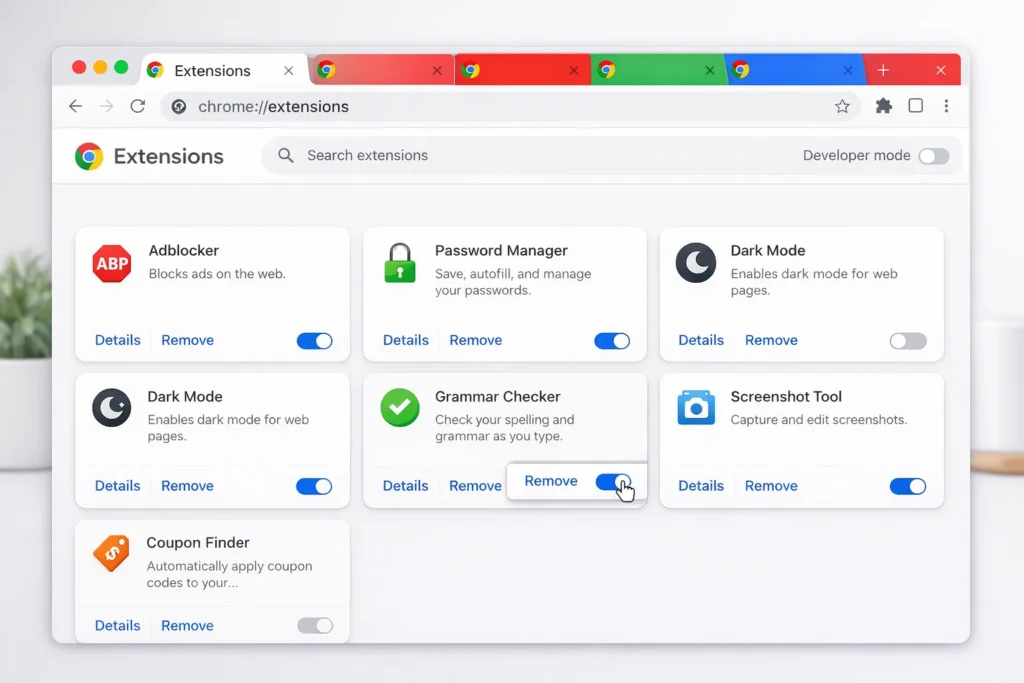
Extensions are a hidden cause of Chrome using too much CPU. Many run background scripts that eat processor resources constantly.
- Type chrome://extensions in the address bar and press Enter.
- Review every installed extension.
- Toggle off extensions you do not use daily.
- Click Remove on extensions you no longer need at all.
- Restart Chrome and check if Chrome CPU usage has dropped.
Pro tip: Keep a maximum of 3–5 essential extensions to prevent Chrome high CPU usage.
Fix 4: Update Chrome to the Latest Version
Running an outdated browser is a common cause of Chrome using too much CPU. Google frequently releases updates that fix CPU-related bugs.
- Click the three dots menu (top-right corner).
- Navigate to Help > About Google Chrome.
- Chrome will check for updates automatically.
- If an update is available, click Relaunch to install it.
Always keep Chrome updated. This single step prevents many Chrome high CPU problems before they start.
Fix 5: Turn Off Hardware Acceleration
Hardware acceleration is meant to improve performance, but it often causes Chrome CPU usage too high on older or low-end computers.
- Click the three dots menu > Settings.
- Click System in the left sidebar.
- Toggle off “Use hardware acceleration when available.”
- Click Relaunch to restart Chrome.
After disabling this, test your computer. Many users report this alone fixes Chrome using too much CPU.
Fix 6: Block Auto-Playing Videos
Websites with auto-playing videos are notorious for causing Chrome high CPU usage without your permission.
- Go to chrome://settings/content/sound.
- Select “Don’t allow sites to play sound.”
- Add exceptions only for websites you trust.
Blocking auto-play is an easy way to stop Chrome from using too much CPU on media-heavy websites.
Fix 7: Clear Chrome Cache and Browsing Data
A bloated cache forces Chrome to work harder, leading to increased Chrome CPU usage over time.
- Press Ctrl + Shift + Delete to open the Clear Browsing Data window.
- Set time range to All time.
- Check Cached images and files and Cookies and other site data.
- Click Delete data.
- Restart Chrome.
Clearing cache regularly helps reduce Chrome CPU usage and keeps the browser running lean.

Fix 8: Scan for Malware
Malware is a sneaky cause of Chrome using too much CPU. Malicious scripts can run inside Chrome without any visible signs.
- Open your antivirus software (Windows Defender, Malwarebytes, etc.).
- Run a Full System Scan.
- Remove any detected threats.
- Restart your computer and open Chrome.
Always rule out malware when troubleshooting Chrome high CPU usage.
Fix 9: Reset Chrome Settings to Default
If Chrome CPU usage is still too high after trying the fixes above, resetting Chrome to its default state can help.
- Go to chrome://settings/reset.
- Click “Restore settings to their original defaults.”
- Confirm by clicking Reset settings.
This disables all extensions, clears temporary data, and resets preferences. Your bookmarks and saved passwords stay safe. This is one of the most effective ways to fix Chrome high CPU caused by corrupted settings.
Fix 10: Create a New Chrome Profile
A corrupted user profile silently causes Chrome to use too much CPU in the background.
- Click your profile icon in the top-right corner of Chrome.
- Click Add to create a new profile.
- Set up the new profile and browse normally.
- Monitor whether Chrome CPU usage improves.
If the new profile runs smoothly, your old profile was the problem.
Fix 11: Disable Background Apps in Chrome
Chrome can run background processes even after you close the browser, which contributes to persistent Chrome high CPU usage.
- Go to chrome://settings/system.
- Toggle off “Continue running background apps when Google Chrome is closed.”
- Restart Chrome.
This ensures Chrome completely stops when you close it, preventing unnecessary CPU usage.
Fix 12: Enable Memory Saver Mode
Google added a built-in feature specifically to help reduce Chrome CPU usage.
- Navigate to chrome://settings/performance.
- Toggle on Memory Saver.
- Chrome will automatically deactivate inactive tabs.
Memory Saver mode is Google’s own answer to the Chrome using too much CPU problem. Enable it and leave it on permanently.
Additional Tips to Prevent Chrome High CPU Usage
Prevention is better than cure. Follow these habits to stop Chrome from using too much CPU in the future:
- Limit open tabs to 10 or fewer at all times.
- Audit extensions monthly — remove any you have not used in 30 days.
- Keep Chrome and your OS updated to benefit from the latest performance fixes.
- Restart Chrome daily if you tend to keep it running for long sessions.
- Use a lightweight content blocker to prevent heavy ads from increasing Chrome CPU usage.
- Monitor Chrome performance regularly using Chrome Task Manager (Shift + Esc).
🔧 Troubleshooting Tips
Use this checklist whenever Chrome is using too much CPU:
✅ Open Chrome Task Manager first (Shift + Esc) — always start here.
✅ Test in Incognito Mode (Ctrl + Shift + N). If CPU is normal, an extension is causing the problem.
✅ Open your system Task Manager (Ctrl + Shift + Esc on Windows) to see Chrome’s total CPU percentage.
✅ Apply one fix at a time and restart Chrome between changes.
✅ If Chrome consistently uses over 80% CPU, uninstall and reinstall Chrome completely.
✅ Check if the problem occurs on specific websites — some sites are poorly optimized and will always cause Chrome high CPU usage.
❌ Common Mistakes to Avoid
- Ignoring extensions — Most people never check which extensions are causing Chrome to use too much CPU.
- Skipping Chrome updates — Outdated Chrome versions are a top cause of high CPU usage.
- Opening duplicate tabs — Having the same website open in multiple tabs doubles the CPU cost.
- Blaming Chrome when malware is the cause — Always scan for malware first.
- Installing “speed booster” extensions — These add more processes and make Chrome CPU usage even worse.
- Resetting Chrome without noting your settings — Bookmarks survive, but custom configurations and extension setups are lost.
Frequently Asked Questions
Why does Chrome use so much CPU compared to other browsers?
Chrome runs each tab and extension as a separate process for better security and stability. This architecture is why Chrome uses too much CPU compared to lighter browsers. Closing unused tabs and extensions is the fastest way to reduce Chrome CPU usage.
Is it normal for Chrome to use 100% CPU?
No. Short spikes during video playback or heavy web apps are normal, but sustained 100% CPU means something is wrong. Follow the 12 fixes in this guide to resolve Chrome high CPU usage and bring your system back to normal.
Will adding more RAM fix Chrome using too much CPU?
Not directly. RAM and CPU are different resources. Extra RAM helps with memory problems, but it will not fix Chrome high CPU usage. Focus on closing tabs, removing extensions, and updating Chrome instead.
How do I stop Chrome from using too much CPU on Mac?
The same fixes apply. Open Activity Monitor (search in Spotlight) to check CPU usage. Then use Chrome Task Manager, disable extensions, update Chrome, and turn off hardware acceleration. These steps fix Chrome using too much CPU on both Mac and Windows.
Should I switch browsers if Chrome keeps using too much CPU?
Try every fix in this guide first. Most Chrome high CPU usage problems are completely solvable. However, if you use an older or underpowered computer and the problem persists, lightweight alternatives like Firefox or Microsoft Edge may work better for your hardware.
Conclusion
Chrome using too much CPU is a frustrating but completely fixable problem. Start with Chrome Task Manager (Shift + Esc) to find the root cause. Then systematically work through the 12 fixes: close extra tabs, remove heavy extensions, update Chrome, disable hardware acceleration, clear cache, scan for malware, and enable Memory Saver mode.
These steps fix Chrome high CPU usage for the vast majority of users. Adopt the prevention tips to keep Chrome running efficiently long-term. Bookmark this guide so you can come back to it anytime Chrome CPU usage spikes again.
Your computer deserves to run fast — and now you know exactly how to make that happen.
- Google Chrome Help Center — https://support.google.com/chrome/
- Microsoft Support — Task Manager — https://support.microsoft.com/en-us/windows/
- Apple Support — Activity Monitor — https://support.apple.com/guide/activity-monitor/



