Physical Address
304 North Cardinal St.
Dorchester Center, MA 02124
Physical Address
304 North Cardinal St.
Dorchester Center, MA 02124

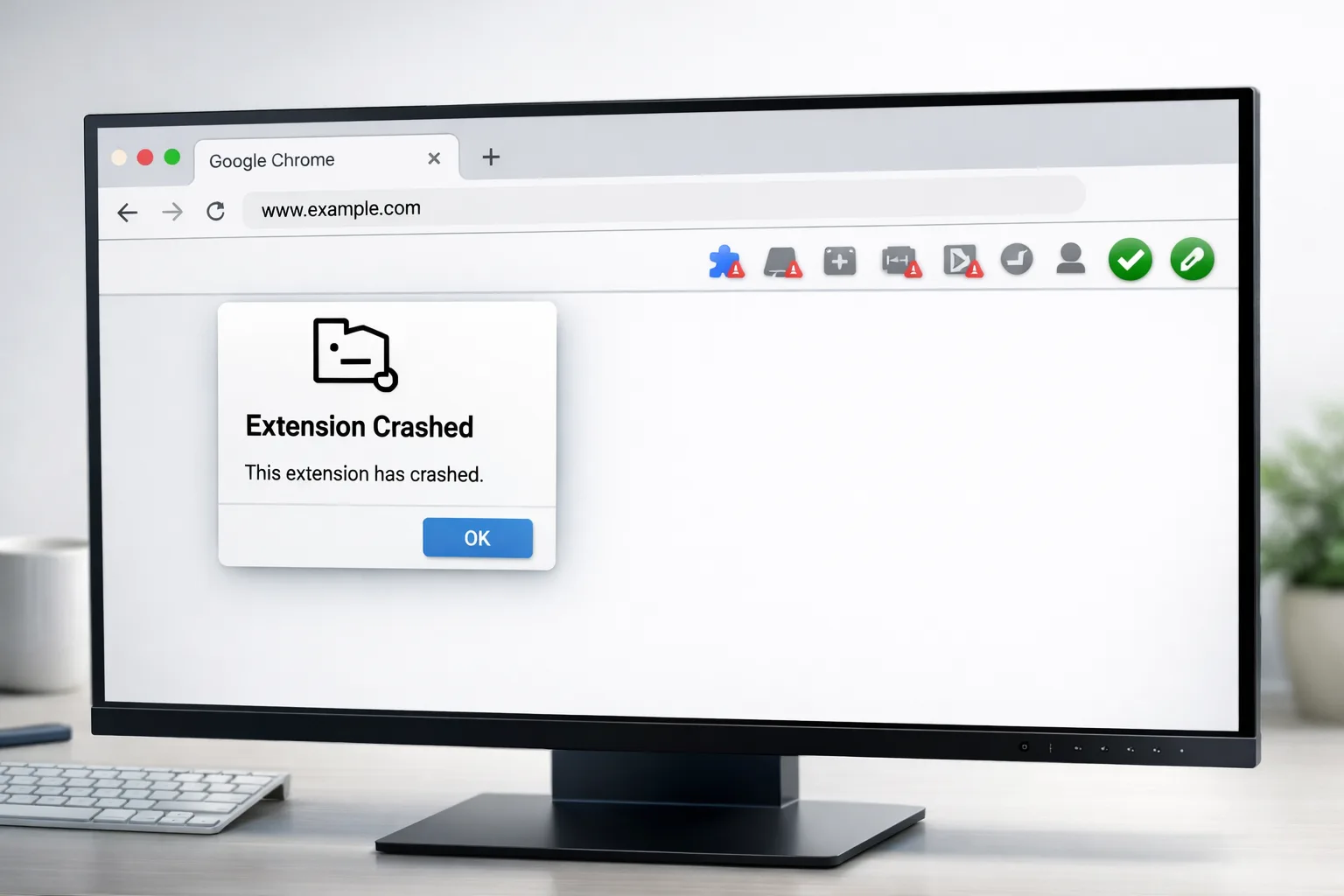
Chrome extensions not working is one of the most common and frustrating browser problems you can run into. One moment your ad blocker, password manager, or grammar tool is running perfectly — the next, it’s completely unresponsive, greyed out, or crashing on every click.
If your Chrome extensions stopped working after an update, after installing something new, or seemingly out of nowhere, you’re not alone. Millions of Chrome users face Chrome extension problems every single day.
The good news is that fixing Chrome extensions not working is usually quick and painless. This step-by-step guide covers every proven solution, from the simplest to the most advanced. No technical skills needed — just follow along.
If your Chrome extensions are not working, start by fully restarting Chrome (close it and end all Chrome processes in Task Manager). Then go to chrome://extensions and make sure each extension is toggled on. If the problem remains, clear your browser cache, update Chrome to the latest version, and reinstall the broken extension. These steps fix Chrome extensions for 90% of users.
Before jumping into fixes, it helps to understand why Chrome extensions stop working in the first place. Knowing the cause helps you pick the right solution faster.
Here are the most common reasons your extensions are not working in Chrome:
We’ve arranged these fixes from easiest to most advanced. Start with Fix 1 and work your way down until your Chrome extensions not working issue is resolved.
This is the fastest way to fix Chrome extensions that have suddenly stopped responding. A full restart clears temporary glitches in Chrome’s memory.
Steps:
Why this works: Chrome often keeps background processes running even after you close the window. These zombie processes can prevent extensions from loading properly. Killing them forces a truly fresh start.
Sometimes Chrome extensions appear greyed out or toggled off after a browser update. You might not even notice they’ve been disabled.
Steps:
Why this works: Chrome updates and crashes can automatically disable extensions as a safety measure. Manually re-enabling them is often all you need to repair Chrome extensions.
Running an outdated browser is one of the top reasons Chrome extensions are not working. Extension developers build for the latest Chrome version, so falling behind creates compatibility gaps.
Steps:
Device note: This works the same on Windows 10, Windows 11, and Mac. On Chromebooks, go to Settings > About ChromeOS > Check for updates.
Your Chrome browser might be current, but the extension itself may need an update to keep working.
Steps:
Why this works: Chrome doesn’t always update extensions immediately. Forcing a manual update ensures you’re running the latest compatible version, which often resolves Chrome extensions not loading issues.
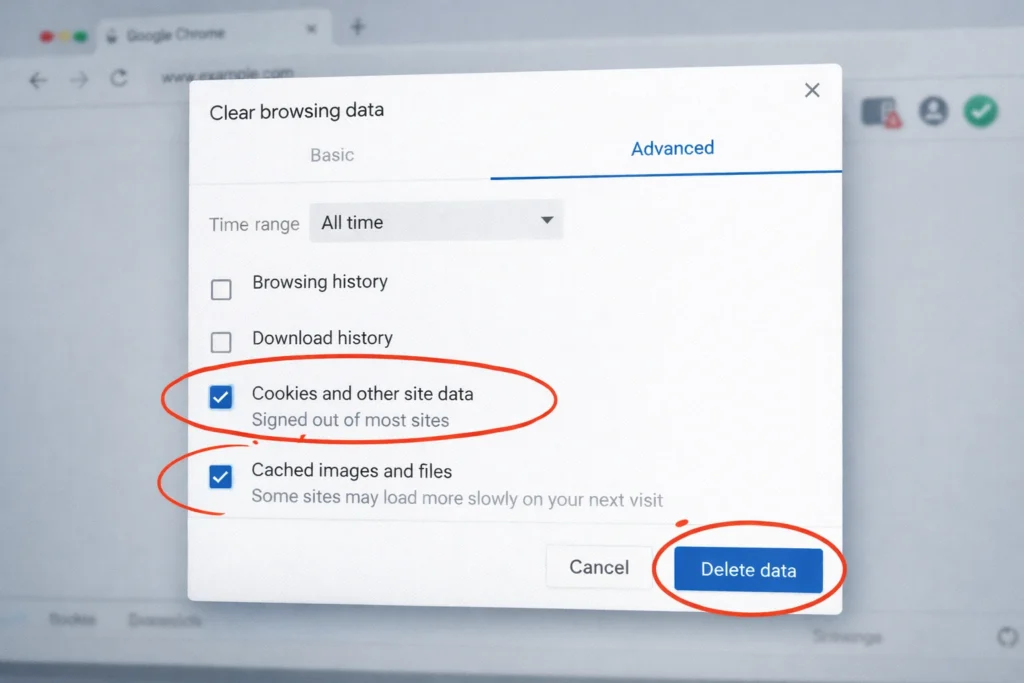
Corrupted cache files are a silent killer. They can block extensions from loading, cause Chrome extensions to crash, and create all kinds of unpredictable behavior.
Steps:
⚠️ Important: Clearing cookies will sign you out of most websites. Make sure you know your passwords before doing this step.
If you have many extensions installed, there’s a good chance two of them are conflicting. This is a very common cause of Chrome extension problems that users overlook.
Steps:
Pro tip: Extensions that do similar things (like two ad blockers or two VPN extensions) are the most likely to conflict with each other.
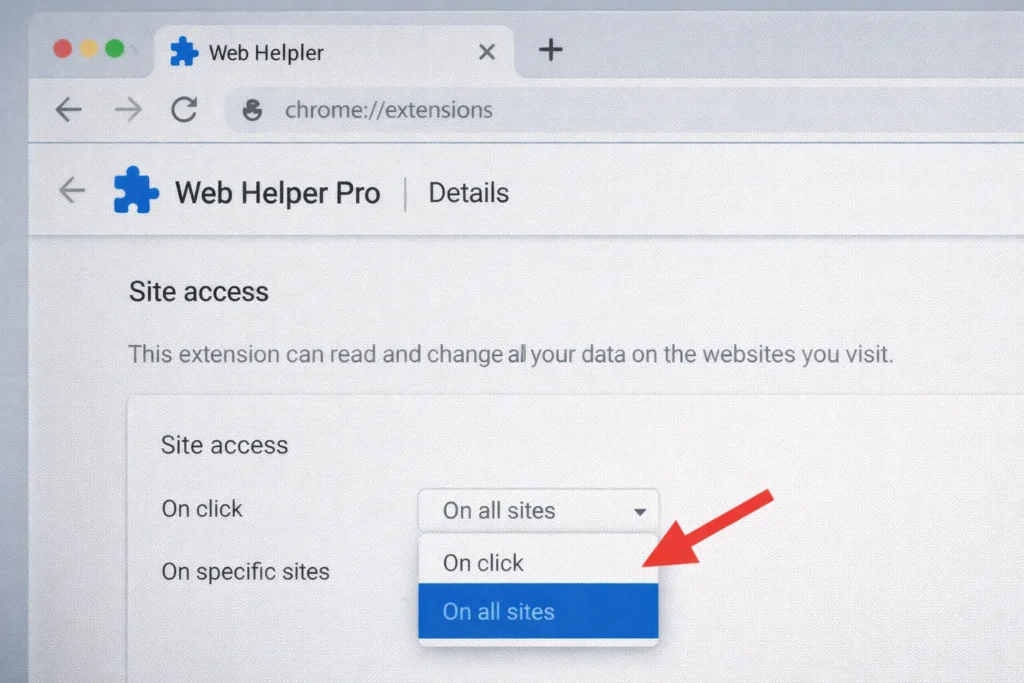
If a specific extension works on some websites but not on others, the issue is almost certainly a permissions problem. Chrome gives you granular control over where extensions can run.
Steps:
Chrome uses your computer’s GPU (graphics card) to speed up page rendering. However, this feature sometimes conflicts with extensions, especially those with visual overlays, pop-ups, or toolbars. Turning it off can fix Chrome extensions not working instantly.
Steps:
Why this works: Some Chrome extensions crash because they can’t render their visual elements through GPU acceleration. Switching to CPU rendering provides more stable performance.
Device note: This fix is especially effective on older Windows laptops and budget PCs with weak GPUs.
If you’ve tried everything above and your Chrome extensions are still not working, resetting Chrome clears deeper configuration issues without deleting your bookmarks or saved passwords.
Steps:
What this resets:
What it keeps:
A corrupted Chrome profile can cause persistent extension problems in Chrome that no other fix can resolve. Creating a new profile lets you test whether your profile is the root cause.
Steps:
If the extension works in the new profile: Your old profile is corrupted. You can migrate your bookmarks and passwords to the new profile and start using it as your main one.
Sometimes extension files become corrupted during installation or after a failed update. A clean reinstall gives you a fresh copy.
Steps:
Why this works: Reinstalling replaces all corrupted files with clean, current versions. This is one of the most reliable ways to fix Chrome extensions that have stopped loading.
If absolutely nothing has worked, a complete Chrome reinstall will resolve even the deepest Chrome extension problems. This is the nuclear option — use it only after trying everything else.
Steps:
| Tip | Details |
|---|---|
| One extension or all? | If only one extension is broken, the problem is with that specific extension. If all extensions stopped working, it’s a browser-level issue. |
| Test in Incognito | Press Ctrl+Shift+N. Enable the extension for Incognito in its settings, then test. If it works, your profile is likely corrupted. |
| Check Chrome flags | Type chrome://flags in the address bar. If you’ve changed experimental settings before, click Reset all at the top. Modified flags can cause Chrome extensions to stop working. |
| Work/school computer? | Your IT administrator may block extensions through Chrome policies. Contact your IT department for help. |
| Check extension status page | Some popular extensions (like LastPass or Grammarly) have status pages where they report known outages. |
🚫 Installing extensions from outside the Chrome Web Store. Sideloaded extensions are unstable and a security risk. They’re also the most likely to cause Chrome extensions not working issues.
🚫 Running 20+ extensions simultaneously. Every extension consumes memory and processing power. The more you run, the higher the chance of conflicts and crashes.
🚫 Ignoring Chrome update notifications. Outdated Chrome is the single biggest cause of Chrome extensions not loading. Always update promptly.
🚫 Skipping the easy fixes. Don’t jump straight to reinstalling Chrome. A simple restart or cache clear solves the problem for most people.
🚫 Granting unnecessary permissions. Some shady extensions request access they don’t need. Only install extensions from trusted developers with good ratings.
🚫 Never restarting Chrome. If you keep Chrome running for weeks without restarting, memory leaks and process errors accumulate, leading to extensions crashing in Chrome.
Prevention is always better than repair. Follow these habits to avoid Chrome extensions not working in the future:
The most common reason Chrome extensions suddenly stop working is a Chrome browser update that creates compatibility issues. Extensions may also break due to corrupted cache files, extension conflicts, or a damaged Chrome profile. Start by restarting Chrome, clearing your cache, and updating both Chrome and the extension.
Type chrome://extensions in your address bar and press Enter. You’ll see all your installed extensions listed with toggle switches. Click the toggle to turn on any extension that’s been disabled. If the extension is greyed out in Chrome, toggling it back on should bring it back to life.
No, Chrome extensions are disabled in Incognito mode by default. To enable a specific extension in Incognito, go to chrome://extensions, click Details on the extension, and toggle on Allow in Incognito. This is also a useful troubleshooting step for diagnosing profile corruption issues.
Absolutely. Each extension uses RAM and CPU resources. Running too many extensions at once can slow Chrome dramatically, cause individual extensions to stop working, and even crash the entire browser. We recommend keeping only the extensions you actively use and removing the rest.
The fixes are the same as outlined in this guide. On Windows 11 specifically, also make sure to:
Chrome extensions not working is incredibly common, but it’s almost always fixable with the methods in this guide. Start with the basics — restart Chrome, make sure extensions are enabled, clear your cache, and update everything. These simple steps resolve the issue for the vast majority of users.
For stubborn cases where Chrome extensions keep crashing or refusing to load, move on to resetting Chrome settings, creating a new profile, or doing a clean reinstall as a last resort.
The key to preventing Chrome extension problems long-term is simple: keep your browser updated, limit the number of extensions you run, and restart Chrome regularly.
Bookmark this page so you have it ready the next time your Chrome extensions stop working. You’ll have them running again in minutes.



