
Introduction
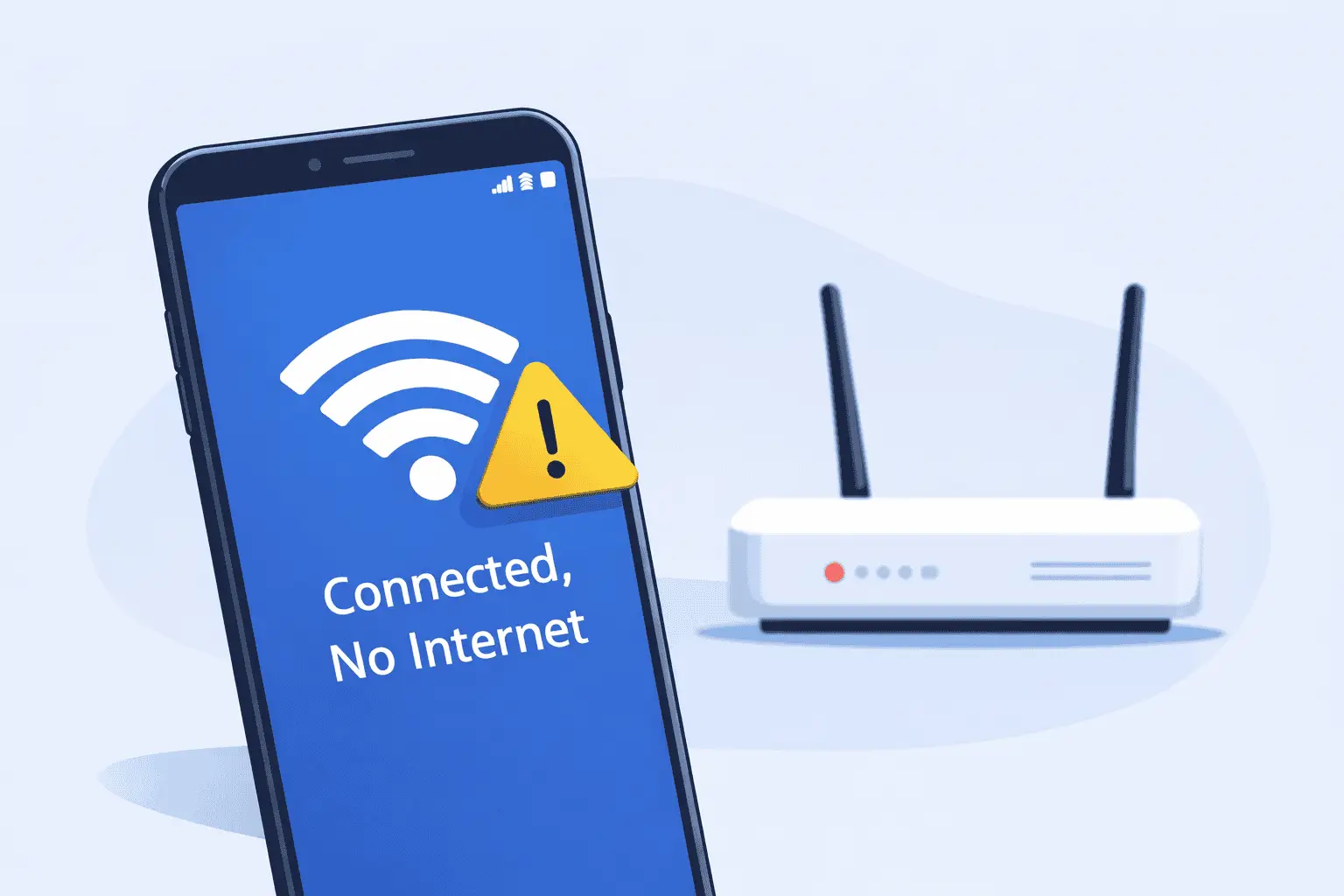
Your Android phone shows the WiFi icon. However, no internet. Apps fail to refresh. Web pages won’t open.
This usually means your phone is connected to the router, but the router is not reaching the internet. In other cases, a phone setting blocks the connection.
Thankfully, this is often easy to fix. Below, you’ll find simple steps you can follow in order.
Quick Answer (Fast Fix)
To fix WiFi connected but no internet on Android, do these four steps first:
- Turn Airplane mode ON for 10 seconds, then turn it OFF.
- Restart your Android phone.
- Restart your router/modem (unplug 30 seconds, then plug in).
- Forget and reconnect to WiFi: Settings → Network & internet → Internet/Wi‑Fi → your network → Forget → reconnect.
If the internet still does not work, use the full guide below.
Why This Problem Happens (No internet)
When you see WiFi connected but no internet on Android, your phone is connected to the WiFi router. Still, the phone cannot reach the internet.
Here are the most common reasons:
- The internet is down at your home or in your area (ISP outage).
- The router is stuck and needs a restart.
- Public WiFi requires a sign-in page (hotel, café, airport).
- Saved WiFi details are corrupted (an old or broken connection profile).
- VPN, Private DNS, or proxy settings block access.
- Incorrect date/time breaks secure websites.
- Weak signal causes random disconnects.
Related keywords people search:
- Android WiFi no internet
- Connected to WiFi but no internet access
- WiFi connected but can’t browse
- Connected without internet Android
How to Fix WiFi Connected But No Internet on Android (Step-by-Step)
Fix 1: Check if the WiFi Network Has Internet
First, confirm whether the WiFi itself has internet. This saves time.
Steps:
- Connect another device to the same WiFi (laptop, tablet, or another phone).
- Open a website like google.com.
- Check the result:
- If the other device also fails, the router or ISP is the issue.
- If the other device works, the problem is likely on your Android phone.
Next, move on to the phone fixes.
Fix 2: Restart Your Phone (No Internet)
A restart clears small network glitches. So it’s a good early step.
Steps:
- Hold the Power button.
- Tap Restart (or Power off, then turn it on again).
- Reconnect to WiFi and test the internet.
Fix 3: Toggle Airplane Mode
Airplane mode resets wireless connections fast. As a result, it often fixes temporary issues.
Steps:
- Swipe down to open Quick Settings.
- Tap Airplane mode to turn it on.
- Wait 10 seconds.
- Turn Airplane mode off.
- Turn WiFi on and test again.
Fix 4: Turn WiFi Off and On
Sometimes the WiFi session gets “stuck.” Turning WiFi off and on creates a fresh connection.
Steps:
- Open Settings.
- Tap Network & internet (or Connections).
- Tap Internet / Wi‑Fi.
- Switch WiFi Off.
- Wait 10 seconds.
- Switch WiFi On, then reconnect.
Fix 5: Forget the Network and Reconnect
This is one of the best fixes for WiFi connected but no internet on Android. It removes old settings and creates a clean connection.
Steps:
- Go to Settings → Network & internet → Internet / Wi‑Fi.
- Tap your WiFi network name.
- Tap Forget.
- Select the network again.
- Enter the password and connect.
- Open a browser and test.
Tip: If you do not know the password, check the router sticker or ask the network owner first.
Fix 6: Sign In to Public WiFi (Captive Portal)
Public WiFi often needs a login page. Until you sign in, Android may show “connected” but you won’t have internet.
Steps:
- Connect to the public WiFi.
- Open a browser (Chrome is fine).
- Go to: http://neverssl.com
(This page loads without HTTPS and often triggers the login screen.) - Sign in or accept the terms.
- After that, test a normal site like https://www.google.com.
If no login page appears, try turning WiFi off and on, then repeat.
Fix 7: Restart the Router or Modem
If you control the router, restart it. This can fix routing and internet signal problems.
Steps:
- Unplug power from the router (and modem if separate).
- Wait 30–60 seconds.
- Plug in the modem first (if you have one).
- Wait 1–3 minutes for stable lights.
- Plug in the router.
- Wait another 1–2 minutes.
- Reconnect your Android and test.
If you’re in a hotel or office, you may not be able to do this. In that case, continue with the next fixes.
Fix 8: Turn Off VPN, Private DNS, and Proxy
These settings can block internet access even when WiFi connects.
A) Turn off VPN (No Internet)
Steps:
- Open Settings.
- Tap Network & internet → VPN.
- Disconnect or switch it off.
B) Set Private DNS to Automatic or Off
Steps:
- Open Settings.
- Tap Network & internet → Private DNS.
- Choose Automatic (or Off).
- Test the internet.
C) Set Proxy to None (No Internet)
Steps:
- Open Settings → Network & internet → Internet/Wi‑Fi.
- Tap your connected network.
- Tap Edit (or Advanced).
- Find Proxy.
- Set it to None, then save.
Now test again. Often, this step alone fixes the issue.
Fix 9: Set Date and Time to Automatic
Wrong time can stop secure websites and apps. Therefore, it’s important to confirm this setting.
Steps:
- Open Settings.
- Tap System → Date & time (or search “date and time”).
- Turn on:
- Set time automatically
- Set time zone automatically
- Reconnect to WiFi and test.
Fix 10: Turn Off “Adaptive Connectivity” or Auto-Switching
Some phones switch networks in the background. That can break WiFi browsing.
Steps (common Android):
- Go to Settings → Network & internet.
- Tap Adaptive connectivity (or similar).
- Turn it Off.
Samsung path (often):
- Settings → Connections → Wi‑Fi
- Tap three dots → Advanced
- Turn off options like Switch to mobile data (name varies)
Then check your internet again.
Fix 11: Reset Network Settings
When nothing else works, reset network settings. This wipes saved WiFi networks and fixes broken network configs.
What it resets:
- Saved WiFi networks
- Bluetooth connections
- Mobile network settings
Steps:
- Open Settings.
- Tap System → Reset options.
- Tap Reset Wi‑Fi, mobile & Bluetooth.
- Tap Reset settings to confirm.
- Reconnect to WiFi using your password.
After that, test browsing.
Fix 12: Update Android (and the Apps That Use Internet)
Updates fix bugs. So it’s smart to check for them.
Steps:
- Open Settings → System → System update.
- Install any available update.
- Restart your phone.
- Update key apps too:
- Open Google Play Store
- Tap your profile icon
- Tap Manage apps & device
- Update apps
Finally, test WiFi again.
Troubleshooting Tips Box
Use this quick checklist when the issue is confusing:
Try these in order:
- Test another device on the same WiFi.
- Move closer to the router.
- Turn off VPN and Private DNS.
- Open http://neverssl.com to trigger a WiFi sign-in page.
- Try a different WiFi network or a phone hotspot.
Helpful clue:
If WiFi fails only in one app, the app may be the problem. In that case, restart the app or update it.
Common Mistakes to Avoid
Avoid these common issues. They slow down troubleshooting.
- Restarting the phone but not the router.
- Forgetting a WiFi network before saving the password.
- Leaving a VPN on and assuming WiFi is broken.
- Changing advanced WiFi settings you don’t understand.
- Testing only one app instead of testing a browser too.
Additional Tips to Prevent the Issue
After you fix the problem, these habits can help prevent it from coming back:
- Keep Android updated.
- Restart your router once in a while.
- Avoid unreliable VPN apps.
- Save WiFi passwords securely.
- Use a strong signal when possible (stay closer to the router).
Also, if your router is very old, a newer model may give a more stable connection.
Frequently Asked Questions
1) Why does my Android say WiFi connected but no internet?
Your phone connects to the router. However, the router may not have internet, or a setting like VPN/Private DNS is blocking access.
2) How do I fix “Connected without internet” on Android quickly?
Start with Airplane mode, restart the phone, then forget and reconnect to WiFi. After that, restart the router if you can.
3) Why does WiFi work on my laptop but not on my Android phone?
In many cases, your phone saved a bad WiFi profile. So “Forget network” and reconnecting fixes it. VPN or Private DNS can also cause this.
4) Can a VPN cause WiFi connected but no internet on Android?
Yes. A VPN can fail silently. As a result, your phone shows WiFi connected but apps can’t reach the internet. Turn the VPN off to test.
5) Should I reset network settings to fix Android WiFi no internet?
Yes, if the basic steps fail. It is safe for your photos and apps. Still, you will need to re-enter WiFi passwords afterward.
External Authority Sources
- Google Android Help: https://support.google.com/android/
- Google Wi‑Fi Help: https://support.google.com/wifi/
- Microsoft Wi‑Fi troubleshooting (general concepts): https://support.microsoft.com/windows/fix-wi-fi-connection-issues
If you have WIFI issue in Windows
Conclusion
When you see WiFi connected but no internet on Android, the fastest fixes are usually simple: restart your phone, restart the router, forget and reconnect to the network, and disable VPN/Private DNS.
Work through the steps in order. Most users solve the problem before needing a network reset, but if it keeps happening, resetting network settings and updating Android usually finishes the job.




[…] WiFi Connected But No Internet on Android […]
[…] WiFi Connected But No Internet on Android […]
[…] WiFi Connected But No Internet on Android […]
[…] WiFi Connected But No Internet on Android […]
[…] WiFi Connected But No Internet on Android […]
[…] WiFi Connected But No Internet on Android […]
[…] WiFi Connected But No Internet on Android […]
[…] WiFi Connected But No Internet on Android […]
[…] WiFi Connected But No Internet on Android […]
[…] WiFi Connected But No Internet on Android […]
[…] WiFi Connected But No Internet on Android […]
[…] WiFi Connected But No Internet on Android […]
[…] WiFi Connected But No Internet on Android […]
[…] WiFi Connected But No Internet on Android […]