
Introduction
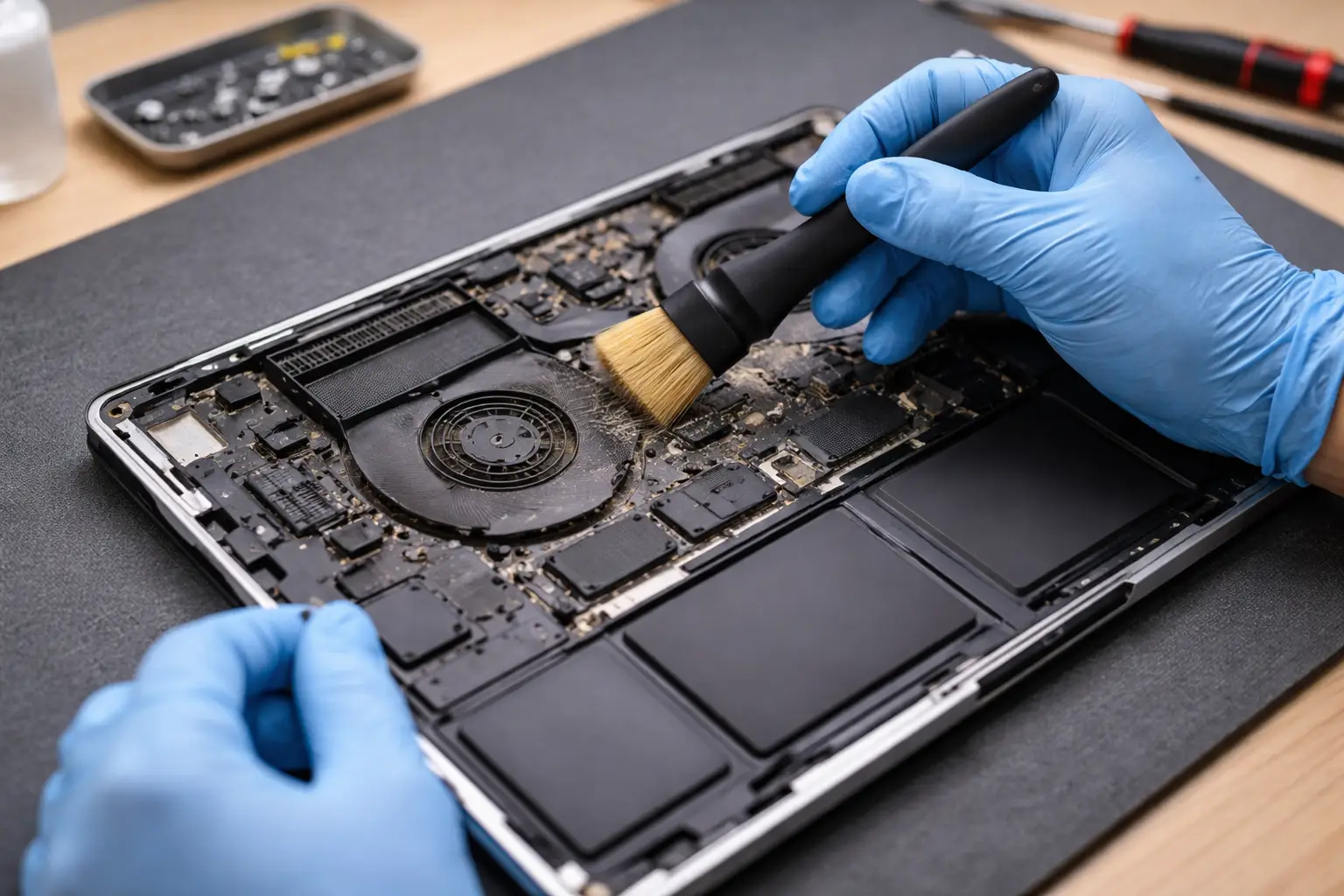
A laptop fan making noise all the time usually means your laptop is working harder than it should. The fan spins faster to cool down the CPU and GPU (the parts that create heat). When the fan can’t keep up, it gets noisy—sometimes even when you’re doing simple tasks like browsing or watching YouTube.
This problem is common on Windows laptops (Dell, HP, Lenovo, ASUS, Acer), MacBooks, and even gaming laptops. It often starts after a Windows update, installing new software, using the laptop on a bed/sofa, or after months of dust buildup.
The good news: most “laptop fan running loud all the time” issues can be fixed at home with a few simple checks.
Quick Answer (Fast Fix Summary)
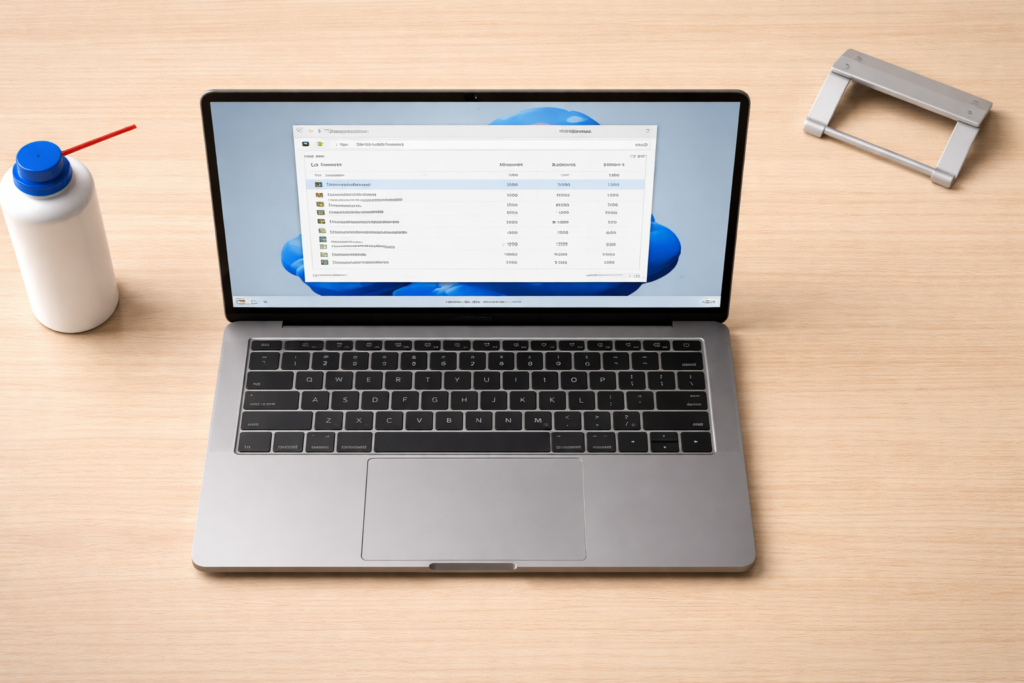
If your laptop fan making noise all the time, try this quick order:
- Restart your laptop and close extra apps/tabs.
- Check Task Manager/Activity Monitor for a process using high CPU.
- Switch to Balanced/Recommended power mode.
- Clean vents and use the laptop on a hard surface.
- Update Windows/macOS and drivers.
- If it still happens, clean internal dust (or get service) and replace thermal paste if needed.
Why This Problem Happens
A laptop fan runs loud all the time for a few main reasons:
- High CPU/GPU usage: Too many apps, browser tabs, or a stuck process makes the laptop hot. The fan speeds up to cool it.
- Dust buildup: Dust blocks vents and heatsinks. Air can’t flow, so the fan works harder and gets louder.
- Poor airflow: Using the laptop on a bed, blanket, or lap can block intake vents.
- Power settings: “High performance” mode can push the CPU to run faster even when it’s not needed.
- Updates and indexing: After Windows updates, the system may scan files, sync cloud storage, or rebuild search indexes.
- Old thermal paste or failing fan (hardware): Over time, thermal paste dries out and fans can wear out, causing constant loud noise.
Where screenshots could be added:
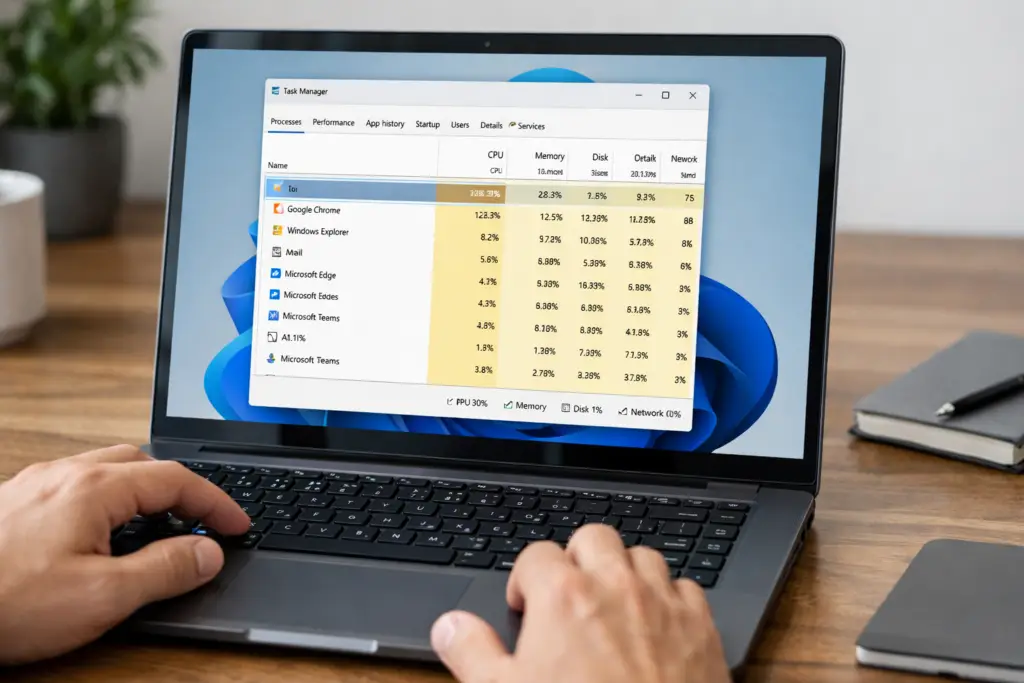
- Task Manager “Processes” tab (Windows)
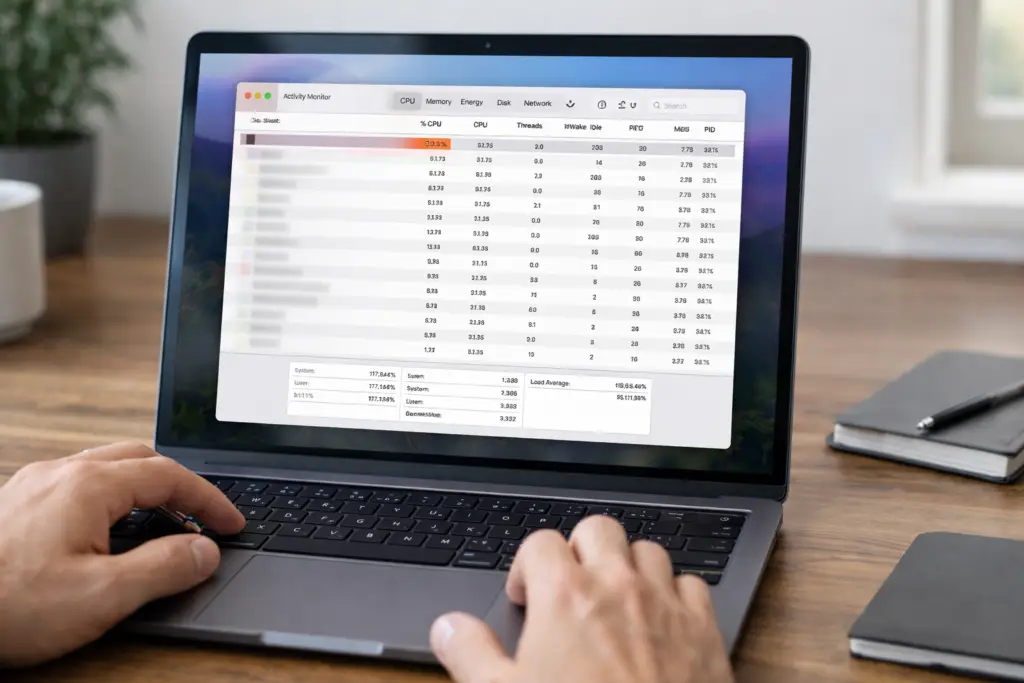
- Activity Monitor “CPU” tab (Mac)
- Windows Power mode settings page
How to Fix Laptop Fan Making noise All The Time (Step-by-Step)
1) Restart and cool it down
Why this works: A restart clears stuck tasks, memory leaks, and background activity that can keep the CPU running hot.
Steps:
- Save your work.
- Restart the laptop (not Shut Down if Fast Startup is enabled on Windows—Restart is better).
- After reboot, wait 2–3 minutes without opening anything.
- Listen: does the fan calm down?
If the fan goes quiet after restart but gets loud again later, something you open may be triggering high usage.
2) Check what’s using the CPU (most common)
Why this works: The fan is reacting to heat. Heat usually comes from a process using a lot of CPU or GPU.
On Windows 10/11 (Task Manager)
- Press Ctrl + Shift + Esc.
- Click Processes.
- Click the CPU column to sort highest to lowest.
- Look for anything staying above 20–30% when you’re doing nothing.
What to do next:
- If it’s a program you recognize (Chrome, Teams, a game launcher), close it and see if the fan slows.
- If it’s Windows tasks (like “Antimalware Service Executable”), let it run for a bit—sometimes it’s temporary.
On Mac (Activity Monitor)
- Open Finder → Applications → Utilities → Activity Monitor.
- Click the CPU tab.
- Sort by % CPU.
- Quit apps that are using a lot of CPU.
3) Reduce browser load (Chrome/Edge tabs)
Why this works: Modern websites and video playback can use CPU/GPU heavily, especially with many tabs open.
Steps:
- Close tabs you don’t need.
- Disable heavy extensions (ad blockers, video downloaders, shopping helpers can sometimes spike usage).
- In Chrome/Edge, open the browser’s Task Manager:
- Chrome: Shift + Esc
- Edge: Shift + Esc
- End tasks with high CPU.
Example: Watching 4K YouTube on an older Lenovo or HP can make the fan loud. Lower video quality to 1080p and check if the fan reduces.
4) Change power mode to reduce heat
Why this works: High-performance settings keep the CPU running at higher speeds, creating more heat and making the fan loud.
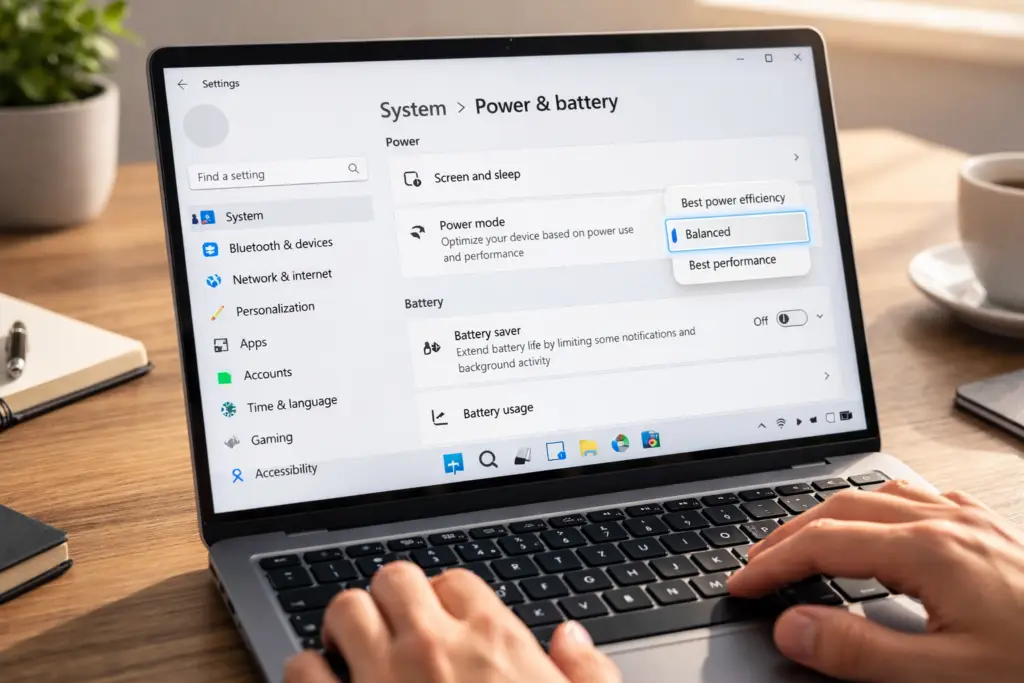
Windows 11/10
- Go to Settings → System → Power & battery.
- Set Power mode to Balanced (or Best power efficiency).
- If you’re on a laptop, unplug/plug the charger and test both ways.
MacBook
- Go to System Settings → Battery.
- Enable Low Power Mode (especially when browsing).
5) Improve airflow (surface + vents)
Why this works: If vents are blocked, heat gets trapped. The fan runs loud because it can’t move enough cool air.
Steps:
- Place the laptop on a hard, flat surface (desk/table).
- Avoid beds, blankets, couches, and thick carpets.
- Slightly raise the back using a laptop stand or even a book (do not block vents).
- Check where the vents are (bottom, sides, or back) and keep them clear.
6) Clean dust from vents (safe method)
Why this works: Dust prevents airflow and insulates heat. Cleaning vents often fixes a laptop fan running loud all the time.
What you need: a can of compressed air (or a soft brush).
Steps:
- Shut down the laptop.
- Unplug the charger and accessories.
- Hold the laptop so the vents face downward (dust falls out).
- Use short bursts of compressed air into the vents.
- Let the laptop sit 2 minutes, then power it on and test.
Important: Don’t use a vacuum directly on vents—it can create static electricity.
7) Update Windows/macOS and drivers
Why this works: Bad or outdated drivers can cause high CPU usage, wrong fan control, or overheating.
Windows updates
- Go to Settings → Windows Update.
- Install updates and restart.
Driver updates (Windows)
- Update graphics drivers (Intel/AMD/NVIDIA) and chipset drivers from your laptop brand’s support page (Dell/HP/Lenovo/ASUS).
- If the fan became loud after a driver update, you can try rolling it back in Device Manager.
Where screenshots could be added:
- Windows Update screen
- Device Manager → Display adapters
macOS updates
- Go to System Settings → General → Software Update.
- Install updates.
Why this works: Malware can run crypto miners or background processes that keep your CPU high, making the fan constantly loud.
Steps (Windows):
- Open Windows Security.
- Go to Virus & threat protection.
- Run a Full scan.
If you see unknown processes in Task Manager that return after you end them, take this step seriously.
9) Adjust graphics and background apps
Why this works: Background apps and high graphics settings can keep the GPU active, increasing heat and fan speed.
Steps (Windows):
- Turn off startup apps:
- Task Manager → Startup tab → disable apps you don’t need.
- Limit background apps:
- Settings → Apps → Installed apps → choose apps → set background permissions (where available).
- Lower game/app graphics settings (if the fan is loud during gaming).
- If you have a gaming laptop (ASUS ROG, Acer Nitro, MSI), check its control app (Armoury Crate, NitroSense, MSI Center):
- Use Balanced profile instead of Turbo for normal tasks.
10) Advanced: internal cleaning / thermal paste / service
Why this works: If dust is packed inside, or thermal paste is dried out, the CPU runs hot even at low usage. The fan then runs loud all the time.
Signs you may need service:
- Fan is loud even on the desktop with low CPU usage (under 10%).
- Laptop feels very hot near the keyboard/vents.
- Fan makes rattling, grinding, or clicking sounds.
- Laptop shuts down or shows overheating warnings.
Options:
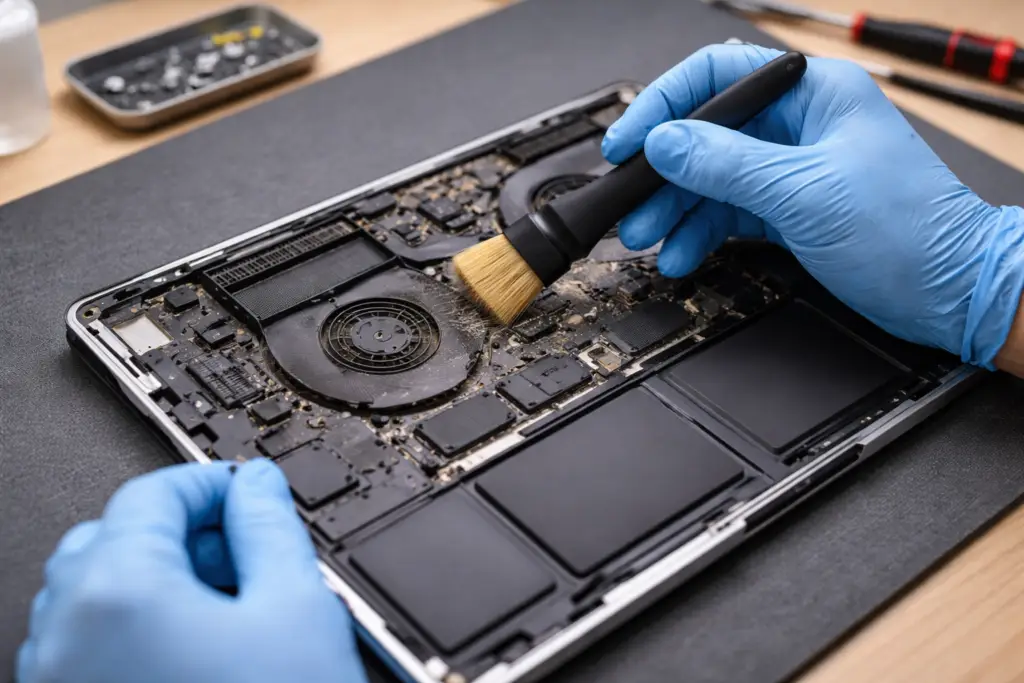
- Internal dust cleaning (more effective than vent cleaning).
- Replace thermal paste (common after 3–5 years).
- Replace the fan if it’s worn out.
If you’re a beginner, it’s often safer to take it to a repair shop—especially for thin laptops like MacBooks or ultrabooks.
Troubleshooting Tips Box
Use this quick test to narrow it down:
- Fan loud only during charging? Try a different charger or power mode (Balanced).
- Fan loud only in Chrome/Edge? Reduce tabs, disable extensions, lower video quality.
- Fan loud even when idle? Check Task Manager/Activity Monitor for high CPU processes.
- Fan loud + laptop hot + old device? Likely dust/thermal paste issue.
- Rattling noise? Possible failing fan—service recommended.
Common Mistakes
Avoid these problems that make the fan noise worse:
- Blocking vents by using the laptop on a bed or pillow
- Blowing compressed air for too long (can push dust deeper)
- Ignoring high CPU processes and only focusing on cleaning
- Using “High performance” mode all the time
- Installing random “fan control” tools from unknown websites
- Never updating graphics drivers (especially on Windows)
Additional Tips to Prevent the Issue
- Clean vents every 1–2 months if you have pets or dusty rooms.
- Use a laptop stand for better airflow.
- Keep the laptop out of direct sunlight and hot cars.
- Don’t leave 30+ browser tabs open all day.
- Uninstall apps you don’t use (they may run background services).
- If you do heavy work (gaming, video editing), consider a cooling pad.
Frequently Asked Questions
1) Why is my laptop fan so loud even when I’m not doing anything?
Usually a background process is using CPU (updates, antivirus scan, indexing) or dust is trapping heat. Check Task Manager/Activity Monitor first.
2) Is it bad if my laptop fan runs constantly?
It’s not always “bad,” but it often means extra heat or heavy workload. Long-term heat can reduce performance and shorten battery life, so it’s worth fixing.
3) How do I make my laptop fan quieter without opening the laptop?
Use Balanced power mode, close heavy apps/tabs, clean external vents with compressed air, and improve airflow by using a hard surface or laptop stand.
4) Can a Windows update cause loud fan noise?
Yes. After updates, Windows may run background tasks for a while. If it continues for days, check CPU usage and driver updates.
5) When should I replace the laptop fan?
Replace it if you hear grinding/clicking, the fan doesn’t spin properly, or temperatures stay high even after cleaning and software fixes.
- Google Chrome Help – Manage tabs and performance: https://support.google.com/chrome/
- Microsoft Support – Windows Update & performance tips: https://support.microsoft.com/
- Apple Support – Mac performance and Activity Monitor: https://support.apple.com/
If you have an Internet issue in WIFI
Conclusion
A laptop fan is running all the time loudly. Fix usually starts with simple steps: restart, check CPU usage, close heavy apps, and switch to a balanced power mode. Next, improve airflow and clean vents. If the laptop is still loud even at idle, the most likely causes are internal dust buildup, dried thermal paste, or a failing fan—at that point, professional service is the safest option.




[…] Laptop Fan Running Loud All The Time Fix […]
[…] Laptop Fan Running Loud All The Time Fix […]
[…] Laptop Fan Running Loud All The Time Fix […]
[…] Laptop Fan Running Loud All The Time Fix […]
[…] Laptop Fan Running Loud All The Time Fix […]