
Introduction
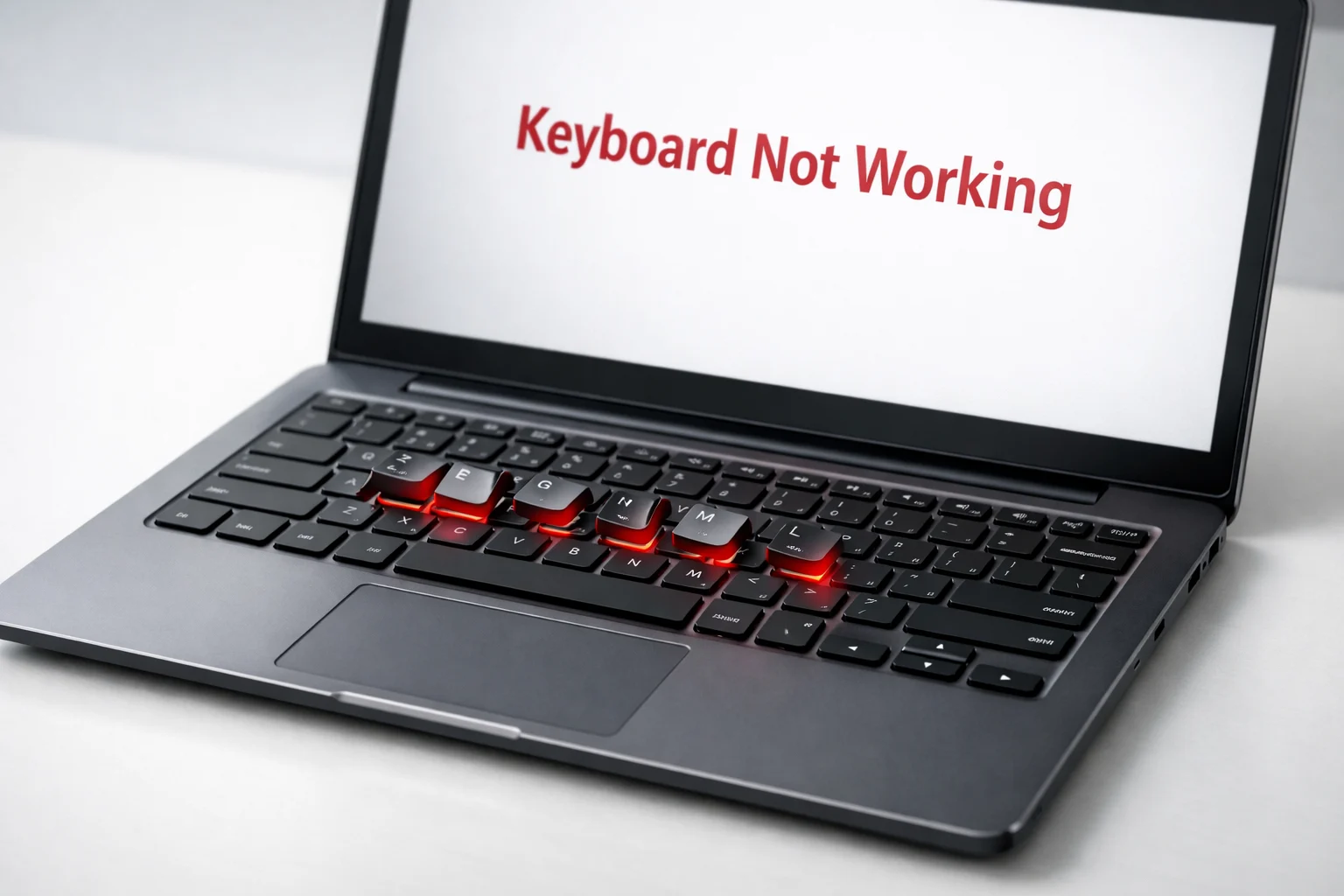
A laptop keyboard not working is one of the most frustrating problems you can face — especially when you are in the middle of something important. One moment everything is fine, and the next moment your keyboard stopped working completely or certain keys stop responding.
This problem happens to users of all laptop brands — Dell, HP, Lenovo, ASUS, Acer, Samsung, and more. Whether your laptop keyboard is not typing, a few keys have stopped working, or the entire keyboard is unresponsive, the root cause is almost always fixable at home.
In this guide, you will find 12 simple, step-by-step fixes for a laptop keyboard not working. We start with the easiest solutions and move toward more advanced ones. No technical experience is needed — just follow each step carefully.
⚡ Quick Answer
If your laptop keyboard is not working, try these fast fixes first:
- Restart your laptop — clears most software glitches instantly.
- Check if the keyboard is locked — press Fn + F6 (or similar).
- Update or reinstall the keyboard driver — Device Manager → Keyboards → Update Driver.
- Run Windows Troubleshooter — Settings → Troubleshoot → Keyboard.
If your laptop keyboard is still not responding, the full step-by-step fixes below will help you solve it.
Why Is My Laptop Keyboard Not Working?
Before jumping into fixes, it helps to understand what causes a laptop keyboard to stop working in the first place.
Most common reasons your laptop keyboard is not working:
- Driver issues — The keyboard driver gets corrupted, outdated, or missing after a Windows update.
- Accidental keyboard lock — A keyboard shortcut accidentally disables the keyboard without you realizing.
- Liquid damage — Even a small spill can cause your laptop keyboard to stop working immediately.
- Dust and debris — Food crumbs and particles build up under the keys and block them physically.
- Wrong language settings — The keyboard types the wrong characters, making it seem like the keyboard is broken.
- Windows update conflict — A recent update causes your laptop keys to stop working due to driver incompatibility.
- Overheating — Excessive heat can temporarily cause the keyboard to become unresponsive.
- Hardware damage — A loose or damaged internal ribbon cable disconnects the keyboard from the motherboard.
Understanding the cause makes it easier to pick the right fix when your laptop keyboard is not working.
How to Fix a Laptop Keyboard Not Working (Step-by-Step)
Fix 1: Restart Your Laptop
Why it works:
A restart clears all temporary system errors and reloads every driver — including the keyboard driver. This alone fixes the laptop keyboard not working issue in a surprising number of cases.
Steps:
- Click the Start menu.
- Select Power → Restart (not Shut Down — Restart fully reloads all drivers).
- Wait for the laptop to boot completely.
- Test your keyboard.
If your laptop keyboard is still not working after a restart, move to the next fix.
Fix 2: Check for Physical Damage or Debris
Why it works:
Sometimes the reason your laptop keyboard is not responding is purely physical. A damaged or blocked key cannot register a keystroke, no matter what software changes you make.
Steps:
- Look at each key — check for cracks, chips, or keys that are stuck down.
- Tilt the laptop gently and shake it lightly to loosen crumbs.
- Use a flashlight to look underneath the keys.
- Check if only certain laptop keys are not working — partial failure often points to a physical blockage.
If you recently spilled liquid and your laptop keyboard stopped working, turn the laptop off immediately, flip it upside down, and let it dry for at least 24–48 hours before turning it back on.
Fix 3: Check If the Keyboard Is Locked
Why it works:
Many laptops have a keyboard lock shortcut. If you accidentally press it, your laptop keyboard stops working instantly and silently — no error message, nothing.
Steps:
- Look at your function row keys (F1–F12) for a key with a keyboard or padlock icon.
- Press Fn + that key to toggle the keyboard back on.
- Common shortcuts:
- Lenovo: Fn + F6
- HP: Fn + F11
- Dell: Fn + F6 or Fn + F11
This is one of the most overlooked reasons for a laptop keyboard not working, especially on Lenovo and HP models.
Fix 4: Clean the Keyboard
Why it works:
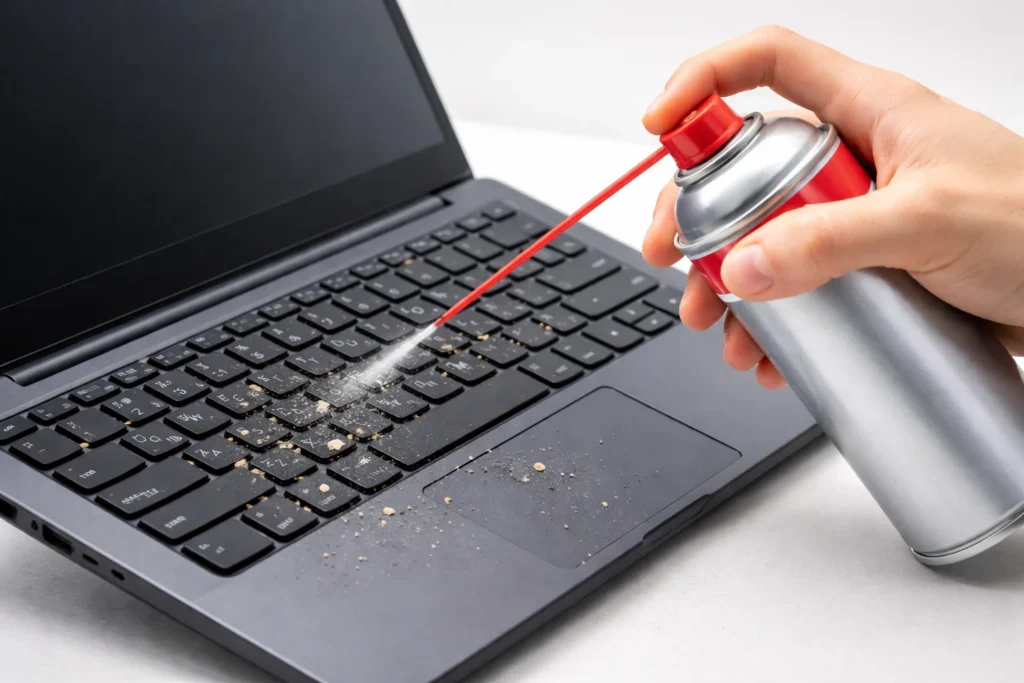
Dust and debris physically block the key mechanism. If some of your laptop keys are not working, cleaning is often all that is needed.
What you need: Compressed air can, soft brush, lint-free cloth.
Steps:
- Power off the laptop completely.
- Hold the laptop at a 45-degree angle.
- Spray compressed air between the keys in short bursts.
- Use a soft brush to sweep out loosened debris.
- Wipe the key surfaces with a slightly damp cloth — never wet.
- Let it dry fully before powering on.
⚠️ Do not use a vacuum directly on the keys — it can pull out key caps and damage switches.
Fix 5: Update or Reinstall Keyboard Drivers
Why it works:
An outdated or corrupted driver is the most common software-related reason a laptop keyboard stops working on Windows. Updating or reinstalling the driver reconnects the keyboard to the operating system.
To update the keyboard driver:
- Right-click the Start button → select Device Manager.
- Expand the Keyboards section.
- Right-click your keyboard (usually “Standard PS/2 Keyboard” or your brand name).
- Click Update driver → Search automatically for drivers.
- Restart after the update.
To reinstall the keyboard driver:
- Follow steps 1–3 above.
- Select Uninstall device → confirm.
- Restart your laptop — Windows reinstalls the driver automatically.
This fix resolves the laptop keyboard not working issue in most driver-related cases.
Fix 6: Run the Windows Keyboard Troubleshooter
Why it works:
Windows has a built-in diagnostic tool that automatically detects and fixes common reasons for a laptop keyboard not responding.
On Windows 10:
- Go to Settings → Update & Security → Troubleshoot.
- Click Additional troubleshooters.
- Select Keyboard → Run the troubleshooter.
On Windows 11:
- Go to Settings → System → Troubleshoot → Other troubleshooters.
- Find Keyboard → click Run.
Follow the on-screen prompts. This tool is especially useful if a Windows update caused the laptop keyboard to stop working.
Fix 7: Check Your Language and Input Settings
Why it works:
If your laptop keyboard is not typing the right characters, the issue may be a wrong language setting — not a broken keyboard. This makes it appear like the keyboard is not working properly.
Steps:
- Go to Settings → Time & Language → Language.
- Confirm the correct language is set (e.g., English US or English UK).
- Remove any extra languages or input methods added by mistake.
- Restart the laptop and test.
Fix 8: Disable Filter Keys
Why it works:
Filter Keys is a Windows accessibility feature that ignores brief or repeated keystrokes. When it is accidentally turned on, your laptop keyboard feels broken — keys only work sometimes or do not respond at all.
Steps:
- Go to Settings → Ease of Access → Keyboard.
- Find Filter Keys and switch it Off.
- Also make sure Sticky Keys and Toggle Keys are both off.
- Test your keyboard.
This is a quick fix that many users miss when their laptop keyboard is not working.
Fix 9: Check for Windows Updates
Why it works:
Sometimes Microsoft releases a patch that fixes a known bug causing the laptop keyboard to stop working. Keeping Windows updated ensures you have the latest bug fixes and driver compatibility improvements.
Steps:
- Go to Settings → Update & Security → Windows Update.
- Click Check for updates.
- Install all available updates.
- Restart when prompted and test the keyboard.
Fix 10: Test With an External Keyboard
Why it works:
Connecting an external keyboard is the fastest way to figure out if the laptop keyboard not working problem is a software issue or a hardware issue.
Steps:
- Plug a USB keyboard into any USB port on your laptop.
- Type something and check if it works.
- External keyboard works → Problem is with your laptop’s built-in keyboard hardware.
- External keyboard also does not work → Problem is software or driver related.
This single test saves hours of guessing when your laptop keyboard is not responding.
Fix 11: Perform a System Restore
Why it works:
If your laptop keyboard stopped working after installing a new program or after a Windows update, rolling the system back to an earlier point can undo whatever caused the problem.
Steps:
- Type System Restore in the Start menu search bar.
- Open Create a restore point → click System Restore.
- Select Choose a different restore point → pick a date before the keyboard stopped working.
- Follow the prompts and allow the laptop to restart.
⚠️ System Restore does not delete personal files. However, it will remove programs installed after the chosen restore date.
Fix 12: Contact Support or Replace the Keyboard
Why it works:
If you have tried everything above and the laptop keyboard is still not working, the physical keyboard hardware is most likely damaged and needs replacement.
Your options:
- Under warranty → Contact your manufacturer directly:
- Dell, HP, Lenovo, ASUS, Samsung, Acer all have official support portals.
- Out of warranty → Visit a local repair shop. A keyboard replacement typically costs $30–$80 depending on your laptop model.
- DIY replacement → Replacement keyboards are available online for $15–$40. Search your laptop model + “keyboard replacement” on YouTube for a visual guide.
Additional Tips to Prevent Your Laptop Keyboard From Stopping
Once your laptop keyboard is working again, these habits will help keep it that way:
- ☕ Keep food and drinks away from your laptop — liquid is the #1 cause of permanent keyboard damage.
- 🛡️ Use a silicone keyboard cover — cheap protection that blocks dust and spills.
- 🧹 Clean your keyboard once a month — a quick burst of compressed air prevents buildup.
- 🔄 Keep Windows and drivers updated — outdated drivers regularly cause the laptop keyboard to stop working.
- 💾 Create regular restore points — so you can roll back quickly if a future update breaks your keyboard.
- 🌡️ Avoid using your laptop on soft surfaces — blankets and pillows block vents and cause overheating, which can make the laptop keyboard unresponsive.
🛠️ Troubleshooting Tips Box
| Symptom | Most Likely Cause | Best Fix |
|---|---|---|
| Entire laptop keyboard not working | Driver issue or keyboard locked | Restart / Reinstall driver |
| Only some laptop keys not working | Physical debris or damaged keys | Clean keyboard |
| Keyboard types wrong characters | Wrong language setting | Fix language input settings |
| Keys work slowly or skip inputs | Filter Keys is enabled | Turn off Filter Keys |
| External keyboard works, built-in does not | Hardware damage | Contact support / replace keyboard |
| Laptop keyboard stopped working after update | Driver conflict | Roll back update / reinstall driver |
| Keyboard not responding after spill | Liquid damage | Dry out 24–48 hrs / visit repair shop |
❌ Common Mistakes to Avoid
When trying to fix a laptop keyboard not working, avoid these errors:
- ❌ Using a wet cloth — always use a barely damp cloth and allow full drying before powering on.
- ❌ Pressing keys harder when they do not respond — this permanently damages key switches.
- ❌ Forgetting to restart after driver changes — the fix will not apply until you restart.
- ❌ Continuing to use the laptop after a spill — power it off immediately to prevent further damage.
- ❌ Skipping the external keyboard test — this one step tells you whether it is a hardware or software problem.
- ❌ Spraying compressed air too close — hold the can at least 2–3 inches away to avoid damaging internal key components.
Frequently Asked Questions
Q1: Why is my laptop keyboard not working all of a sudden?
The most common causes of a laptop keyboard suddenly not working are a corrupted keyboard driver, an accidental keyboard lock shortcut, debris under the keys, or a conflicting Windows update. Start with a restart and work through the fixes in this guide.
Q2: Can a Windows update cause the laptop keyboard to stop working?
Yes. Some Windows updates conflict with existing keyboard drivers and cause the laptop keyboard to become unresponsive. Updating or rolling back the keyboard driver in Device Manager usually resolves this.
Q3: How do I fix my laptop keyboard not working if I cannot use the mouse either?
Use the on-screen keyboard by pressing Windows + Ctrl + O, or navigate using keyboard shortcuts if some keys still work. Alternatively, plug in an external USB keyboard to regain control and run the fixes.
Q4: Why are only some keys not working on my laptop keyboard?
When only certain laptop keys are not working, the most likely cause is physical debris blocking those specific keys, or individual key switch damage. Try cleaning the keyboard with compressed air first. If the problem continues, those individual keys may need to be replaced.
Q5: How much does it cost to fix a laptop keyboard not working?
If your laptop is under warranty, repairs are usually free. Out of warranty, a professional keyboard replacement costs between $30 and $80 at a repair shop. DIY replacement keyboards are available online for $15–$40 and are a cost-effective option if you are comfortable following a video tutorial.
Conclusion
A laptop keyboard not working is a stressful problem, but in most cases, it is completely fixable without visiting a repair shop. Start with the simple steps — restart your laptop, check the keyboard lock shortcut, and clean out any debris. Then move on to updating the keyboard driver and running the Windows troubleshooter.
The majority of laptop keyboard not working problems are solved within the first five fixes in this guide. If all 12 fixes fail, the hardware is likely damaged, and it is time to contact your manufacturer or a local technician.
Work through each fix one at a time, test after every step, and you will have your laptop keyboard working again in no time.
- Microsoft Support — Fix keyboard problems in Windows — official guidance on keyboard troubleshooter and driver updates.
- HP Support — HP laptop keyboard troubleshooting — manufacturer-specific keyboard fixes and driver downloads.
- Lenovo Support — Keyboard not working on Lenovo laptop — official Lenovo keyboard diagnostics and support.




[…] Laptop Keyboard Not Working? Here’s How to Fix It […]
Great article! I really like how clearly you explained the topic. The examples made it much easier to understand. Looking forward to reading more of your content. Industry standards are documented at Lump Sum Future Value Calculator.