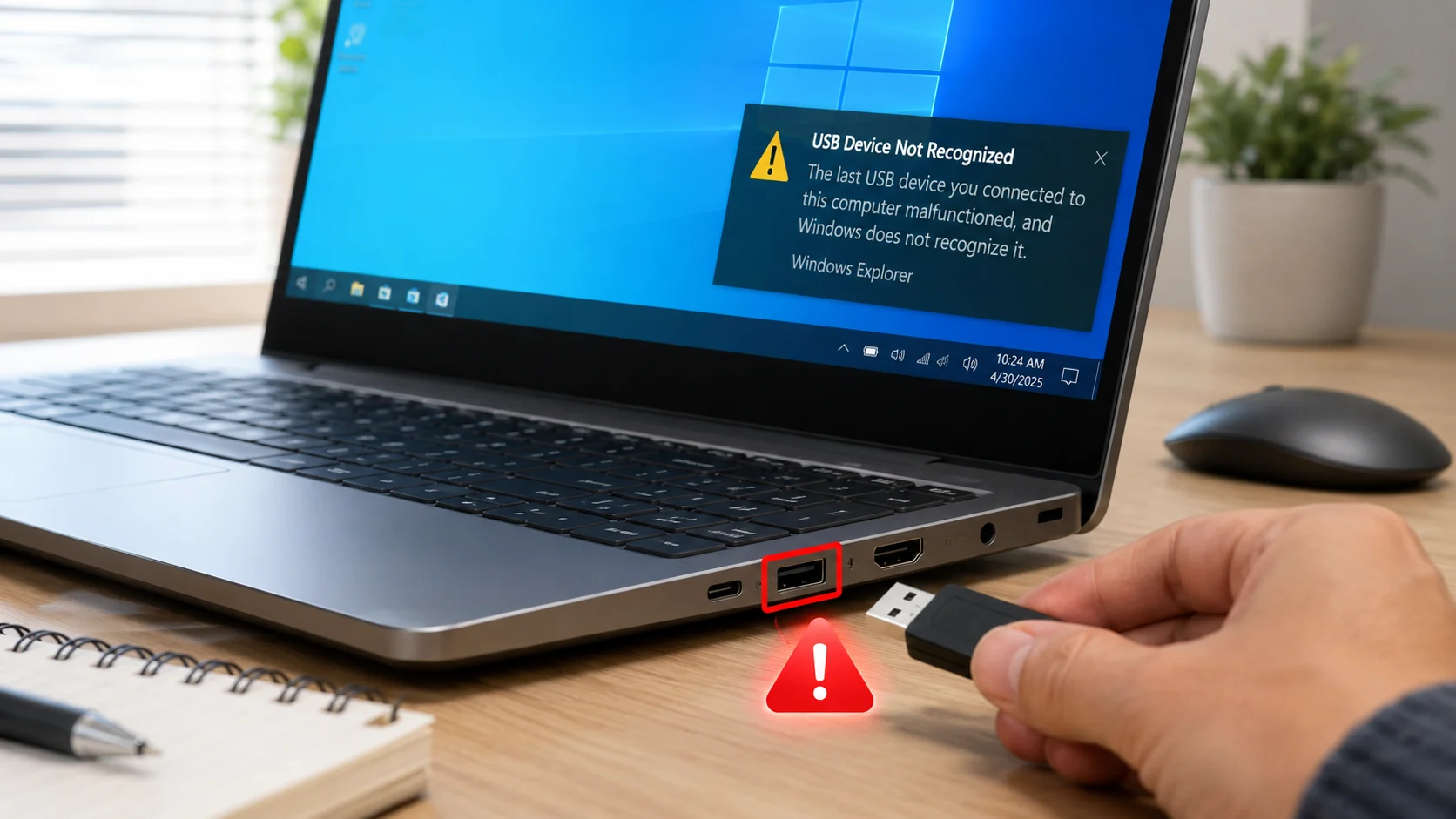
If your laptop USB ports not working problem is preventing you from connecting devices like a mouse, keyboard, USB flash drive, phone, or printer, you are not alone.
Many Windows laptop users face USB problems after updates, accidental damage, dust buildup, or driver issues. Sometimes only one USB port stops working, while in other cases all laptop USB ports fail completely.
The good news is that most USB ports not working on laptop problems can be fixed at home without technical experience. This guide explains the easiest and most effective solutions step by step.
Quick Answer: Laptop USB Ports Not Working
To fix laptop USB ports not working, try these quick solutions:
- Restart your laptop
- Test another USB device
- Try another USB port
- Clean the USB port
- Update USB drivers
- Reinstall USB controllers
- Disable USB power saving
- Check for hardware damage
In many cases, updating or reinstalling USB drivers solves the issue immediately.
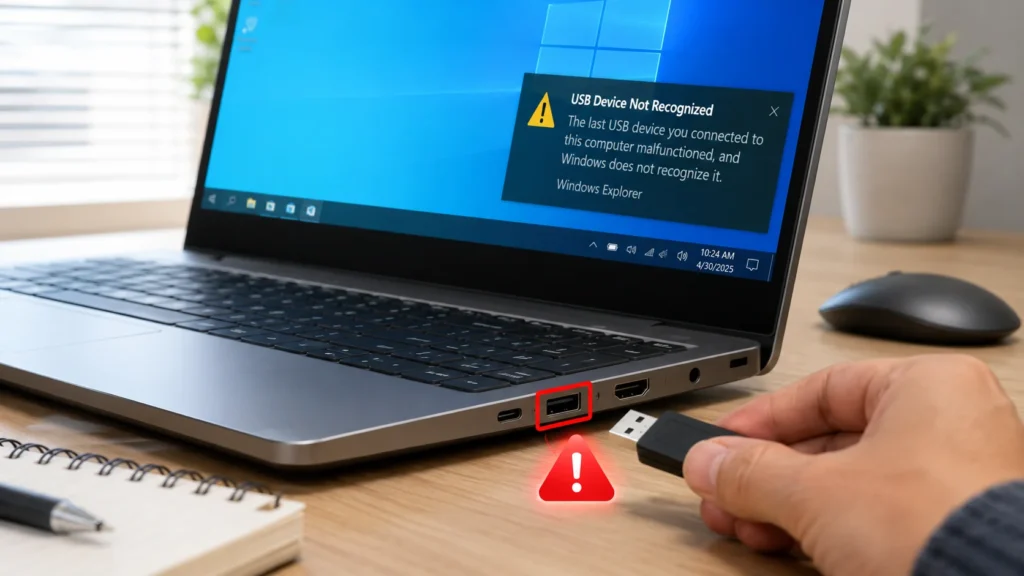
Why Laptop USB Ports Stop Working
The laptop USB ports not working issue can happen for several reasons.
Common causes include:
- Outdated USB drivers
- Windows update problems
- Dust inside USB ports
- Physical damage
- Faulty USB devices
- USB power-saving settings
- Motherboard issues
- BIOS configuration errors
For example:
- HP laptops may disable USB ports during sleep mode
- Dell laptops sometimes experience USB driver conflicts
- Lenovo laptops can stop detecting USB devices after updates
- ASUS gaming laptops may face USB power management issues
- Samsung laptops sometimes fail to detect Android phones properly
Understanding the cause helps you apply the correct laptop USB port fix faster.
How to Fix Laptop USB Ports Not Working
1. Restart Your Laptop
A temporary software glitch may cause USB ports not working on laptop problems.
Steps
- Save all work
- Shut down the laptop completely
- Wait 30 seconds
- Turn the laptop back on
- Test the USB port again
Why This Works
Restarting refreshes the USB controller and reloads Windows drivers.
2. Test Another USB Device
Sometimes the USB port is fine, but the connected device is faulty.
Test With:
- USB flash drive
- Mouse
- Keyboard
- External hard drive
- Android phone
- iPhone charging cable
For example:
- If your Xiaomi phone does not connect, try another phone
- If a flash drive fails, test a USB mouse
Why This Works
This helps determine whether the issue is the laptop or the USB device itself.
3. Try Another USB Port
If one USB port fails, another port may still work properly.
Steps
- Disconnect the USB device
- Plug it into another USB port
- Wait a few seconds
- Check if the device is detected
Why This Works
Different USB ports may use separate internal controllers.
This is one of the easiest fixes for USB ports stopped working issues.
4. Clean the USB Ports Carefully
Dust is a major reason for laptop USB ports not working.
Steps
- Turn off the laptop
- Disconnect the charger
- Use a flashlight to inspect the USB port
- Blow compressed air gently
- Use a soft brush carefully
Important
Do not insert metal objects into the USB port.
Why This Works
Dust blocks contact between the USB connector and internal pins.
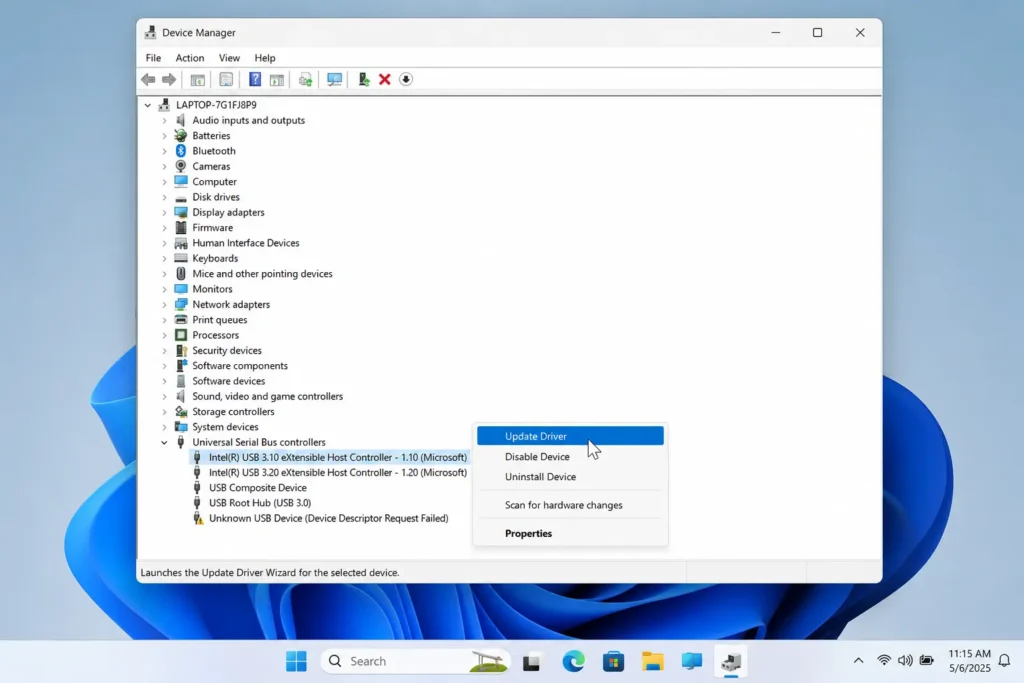
5. Update USB Drivers
Outdated drivers often cause USB device not recognized errors.
Steps
- Press Windows + X
- Open Device Manager
- Expand Universal Serial Bus Controllers
- Right-click each USB device
- Select Update Driver
- Click Search automatically for drivers
Why This Works
Drivers allow Windows to communicate with USB hardware correctly.
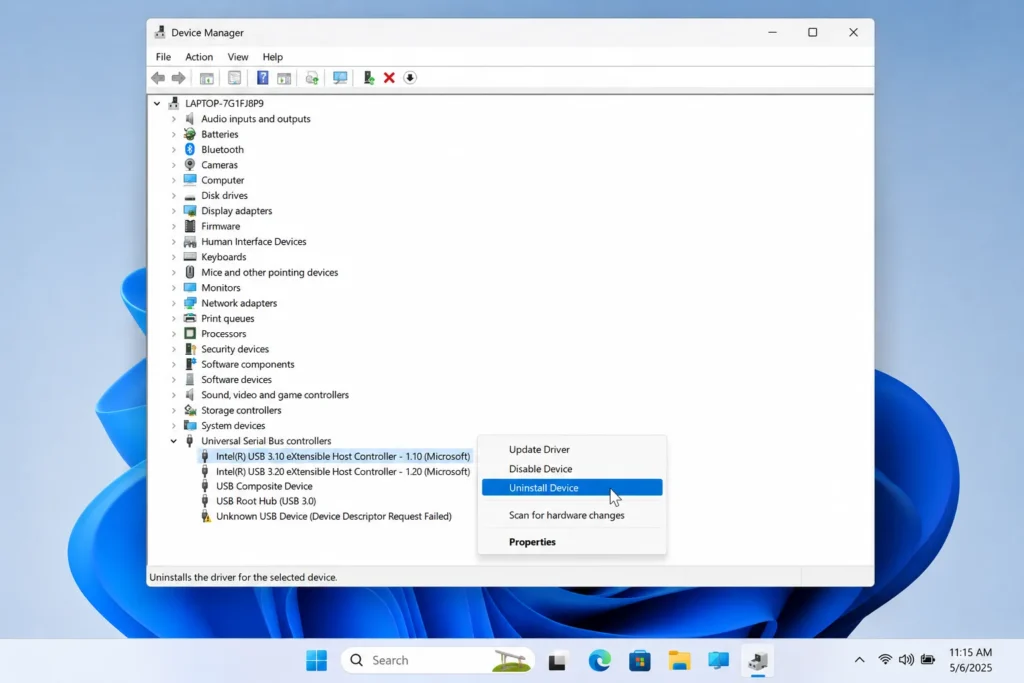
6. Reinstall USB Controllers
Corrupted USB drivers can stop all USB ports from functioning.
Steps
- Open Device Manager
- Expand Universal Serial Bus Controllers
- Right-click each controller
- Select Uninstall device
- Restart the laptop
Windows will reinstall fresh USB drivers automatically.
Why This Works
This removes damaged driver settings causing laptop not detecting USB problems.
7. Disable USB Power Saving
Windows sometimes disables USB ports to save battery power.
Steps
- Open Device Manager
- Expand Universal Serial Bus Controllers
- Right-click USB Root Hub
- Select Properties
- Open Power Management
- Uncheck:
- “Allow the computer to turn off this device to save power”
- Click OK
Repeat for all USB Root Hubs.
Why This Works
This prevents Windows from automatically disabling USB ports.
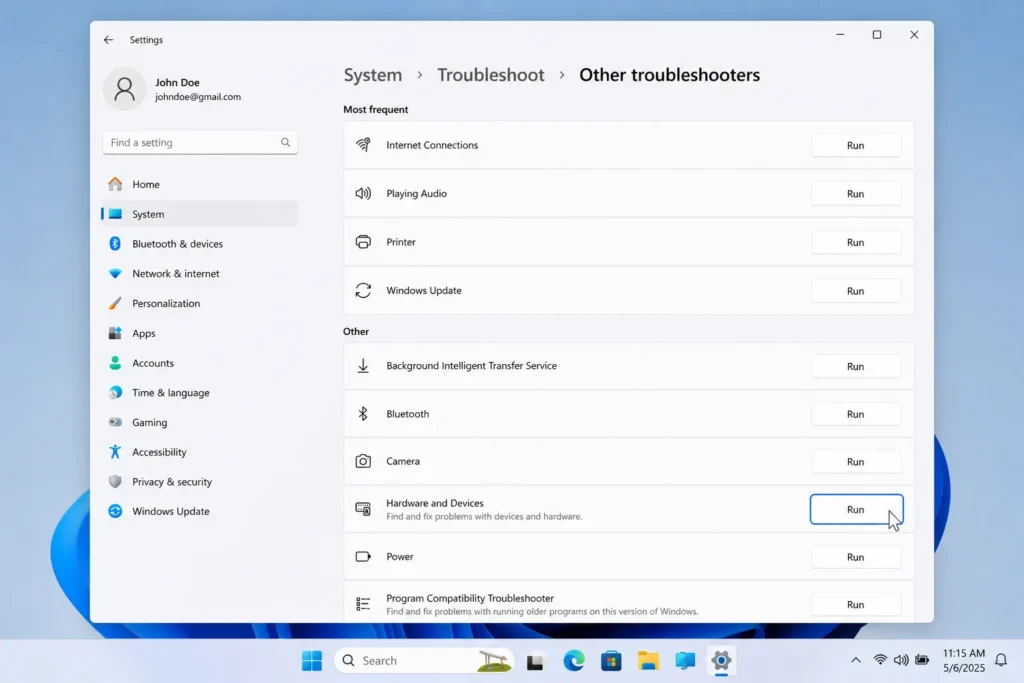
8. Run Windows Troubleshooter
Windows includes built-in troubleshooting tools.
Steps
- Open Settings
- Go to System
- Select Troubleshoot
- Click Other troubleshooters
- Run the Hardware troubleshooter
Why This Works
Windows automatically checks for driver and hardware issues.
9. Update Windows
Missing updates can cause Windows laptop USB issues.
Steps
- Open Settings
- Go to Windows Update
- Click Check for updates
- Install available updates
- Restart your laptop
Why This Works
Updates often contain USB compatibility fixes and driver improvements.
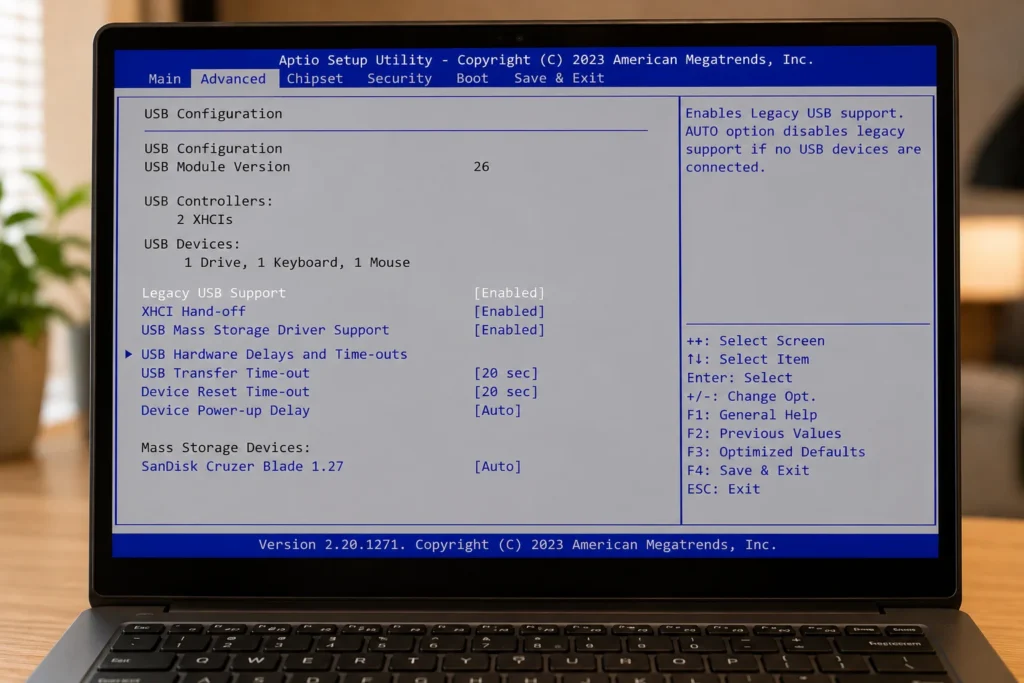
10. Check BIOS Settings
Sometimes USB ports are disabled inside BIOS settings.
Steps
- Restart the laptop
- Press BIOS key during startup:
- F2
- Delete
- Esc
- Find USB Configuration
- Ensure USB ports are enabled
- Save changes and exit
Why This Works
BIOS controls hardware settings before Windows starts.
11. Test USB Ports in Safe Mode
Safe Mode helps identify software conflicts.
Steps
- Press Windows + R
- Type:
msconfig - Open the Boot tab
- Enable Safe Boot
- Restart the laptop
- Test USB ports
Why This Works
If USB works in Safe Mode, another installed application may be causing the issue.
12. Check for Physical Damage
Physical damage can permanently affect USB ports.
Signs of Damage
- Loose USB connection
- Bent USB pins
- Burn marks
- USB disconnecting repeatedly
- Ports not charging devices
What You Can Do
- Visit a repair technician
- Replace damaged USB board
- Use an external USB hub temporarily
Why This Works
Hardware damage cannot be fixed through software settings.
Troubleshooting Tips
Quick Troubleshooting Box
- Restart the laptop first
- Test another USB device
- Avoid low-quality USB hubs
- Update USB drivers
- Clean dust from USB ports
- Disable USB power saving
- Check Device Manager errors
- Test both USB 2.0 and USB 3.0 ports
Common Mistakes to Avoid
Forcing USB Devices Into Ports
This can bend internal USB pins.
Ignoring Driver Updates
Outdated drivers are a common reason for USB ports not working on laptop problems.
Using Damaged USB Cables
A broken cable may charge but fail to transfer data.
Cleaning USB Ports With Metal Objects
Metal tools can damage the internal connectors.
Assuming the USB Port Is Dead
Many USB issues are software-related and easy to fix.
Additional Tips to Prevent USB Port Problems
Keep USB Ports Clean
Dust buildup can interrupt connections.
Use High-Quality Accessories
Cheap USB hubs and cables can damage laptop USB ports.
Safely Remove USB Devices
Always eject flash drives before unplugging them.
Keep Windows Updated
Regular updates improve USB compatibility.
Avoid Laptop Overheating
Excess heat may damage motherboard components and USB controllers.
Frequently Asked Questions
Why are my laptop USB ports not working suddenly?
This usually happens because of driver corruption, power-saving settings, Windows updates, or hardware issues.
How do I fix USB ports not working on my laptop?
Restart the laptop, update USB drivers, disable power-saving settings, and clean the USB ports.
Can dust cause laptop USB ports not working problems?
Yes. Dust can block the USB connector and prevent proper contact.
Why is my USB port charging but not detecting devices?
The power connection may work while the data pins or drivers are damaged.
Can Windows updates break USB ports?
Yes. Some updates install incompatible drivers that affect USB functionality.
Conclusion
The laptop USB ports not working issue is common but usually easy to fix.
Most users can solve the problem by restarting the laptop, updating USB drivers, cleaning the ports, or adjusting power settings. Start with simple solutions before moving to advanced fixes like BIOS settings or hardware repair.
If your laptop still does not detect USB devices after trying all methods, the USB hardware may be physically damaged and require professional repair.
Using the steps in this guide should help restore your laptop USB ports quickly and safely.
Internal Linking Suggestions
- How to Fix Laptop Not Charging
- Windows Laptop Running Slow Fix
- WiFi Connected But No Internet Solution