
Introduction
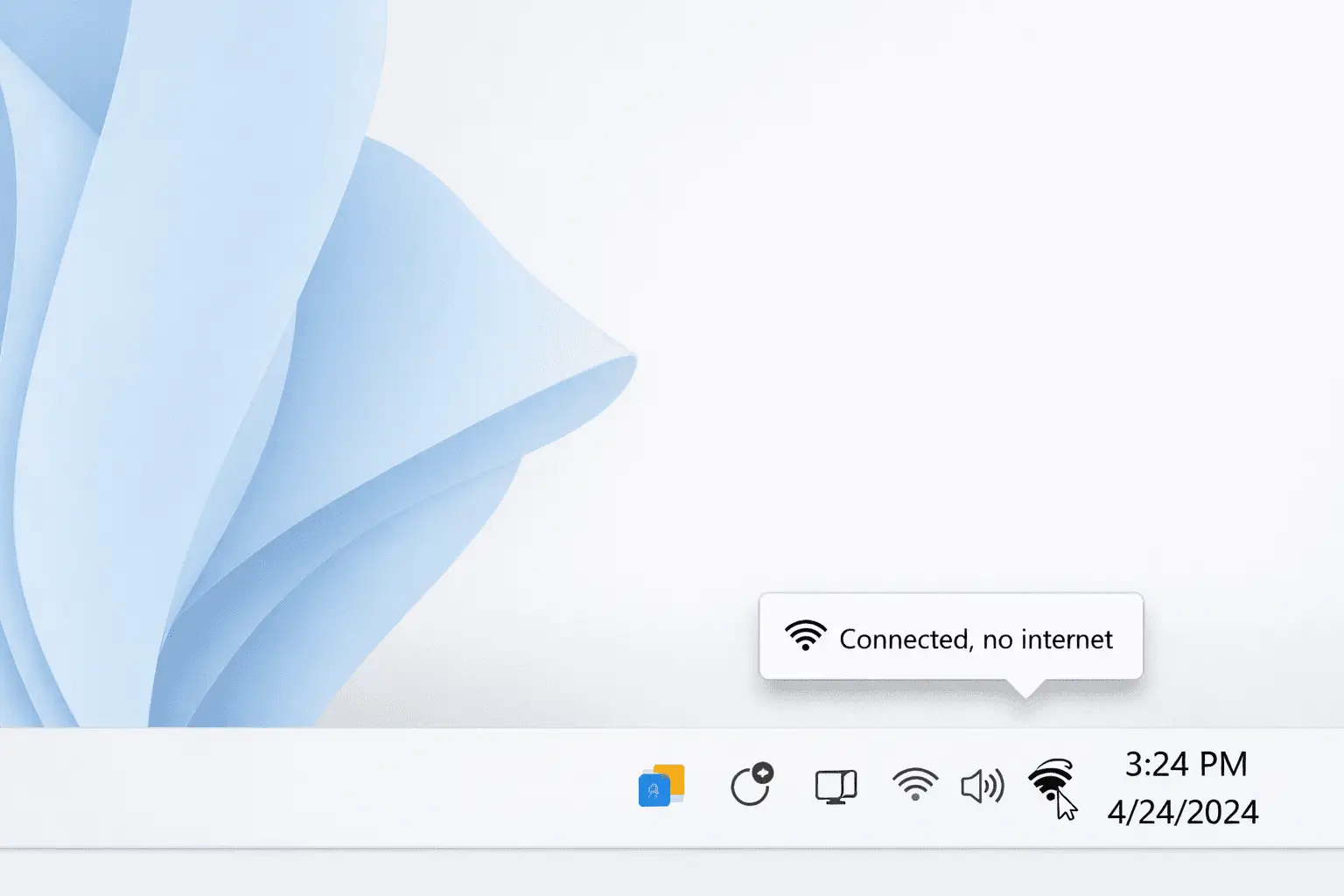
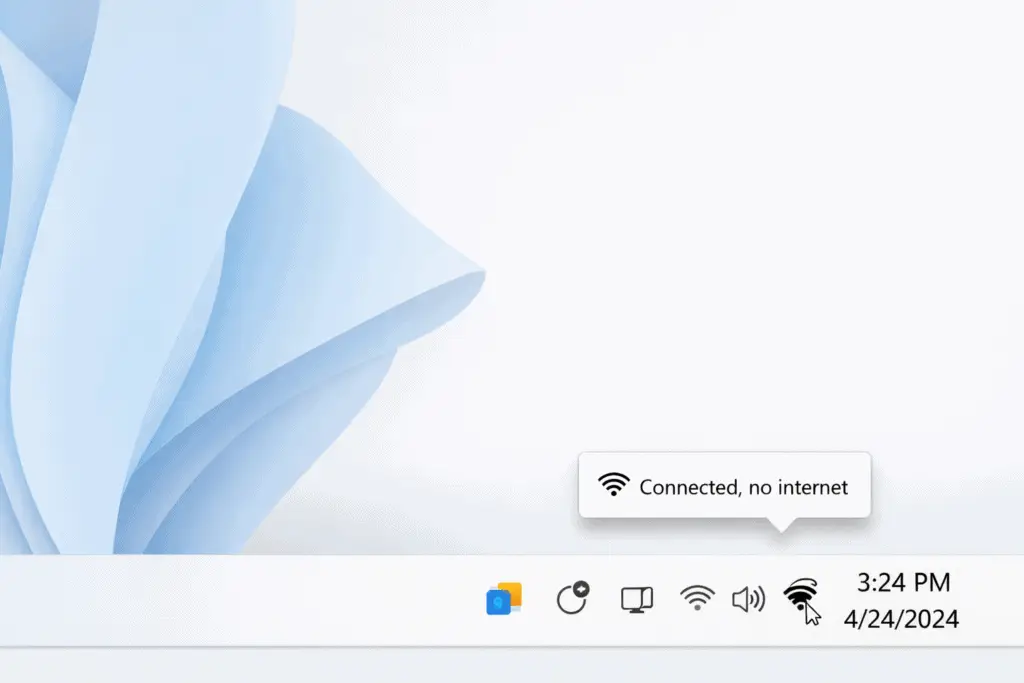
Seeing the WiFi icon connected but websites won’t load is one of the most common Windows 11 problems. Your laptop or PC shows it’s connected to your network, but you still get messages like “No internet”, “Connected, no internet”, or apps like YouTube, Chrome, and Microsoft Store won’t work.
This usually happens after a Windows update, a router restart, a power outage, changing WiFi passwords, or moving between networks (home WiFi, office WiFi, hotel WiFi). It can also happen when your phone (Samsung, iPhone, Xiaomi) works fine on the same WiFi, but your Windows 11 PC does not—meaning the issue is likely on the computer.
This guide gives beginner-friendly steps to fix WiFi connected but no internet on Windows 11—starting with the easiest solutions first.
Quick Answer (Fast Fix Summary)
Try these in order:
- Turn WiFi off/on and restart your PC
- Restart the router/modem (unplug 60 seconds)
- Forget the WiFi network and reconnect
- Run Windows Network Troubleshooter
- Set DNS to 8.8.8.8 and 1.1.1.1
- Use Network reset in Windows 11 settings
If your phone also has no internet on the same WiFi, it’s likely your router or internet provider, not Windows.
Why This Problem HappensNo internet
The WiFi connected but no internet issue on Windows 11 usually means one of these things:
- Router has WiFi, but no internet connection (ISP outage or modem issue)
- Your PC got the wrong IP address from the router (a “handshake” problem)
- DNS is failing (WiFi connects, but websites can’t translate names like google.com)
- VPN/proxy blocks traffic even though WiFi shows connected
- WiFi driver issue after a Windows update
- Captive portal (hotel/coffee shop login page didn’t open)
Why this matters: If you know whether the problem is the router or the PC, you won’t waste time doing the wrong fix.
How to Fix WiFi Connected But No Internet on Windows 11 (Step-by-Step Methods)
1) Check if the internet is actually down
Why this works: If the router or ISP is down, Windows 11 fixes won’t help.
Steps:
- Check another device on the same WiFi:
- Samsung/Xiaomi phone: open Chrome → try google.com
- iPhone: open Safari → try apple.com
- If all devices have no internet, it’s likely:
- ISP outage
- modem/router problem
- If only your Windows 11 PC has no internet, continue below.
Tip: Try switching your phone to mobile data, then open a website. If mobile data works but WiFi doesn’t, your home internet is the problem.
2) Restart your PC and toggle WiFi
Why this works: It clears temporary network glitches and reconnects properly.
Steps:
- Click Start → Power → Restart
- After reboot, click the WiFi icon (bottom-right)
- Toggle WiFi Off, wait 10 seconds, toggle WiFi On
- Try loading a website again
3) Restart the router/modem properly
Why this works: Routers get “stuck” and stop passing internet even though WiFi still broadcasts.
Steps:
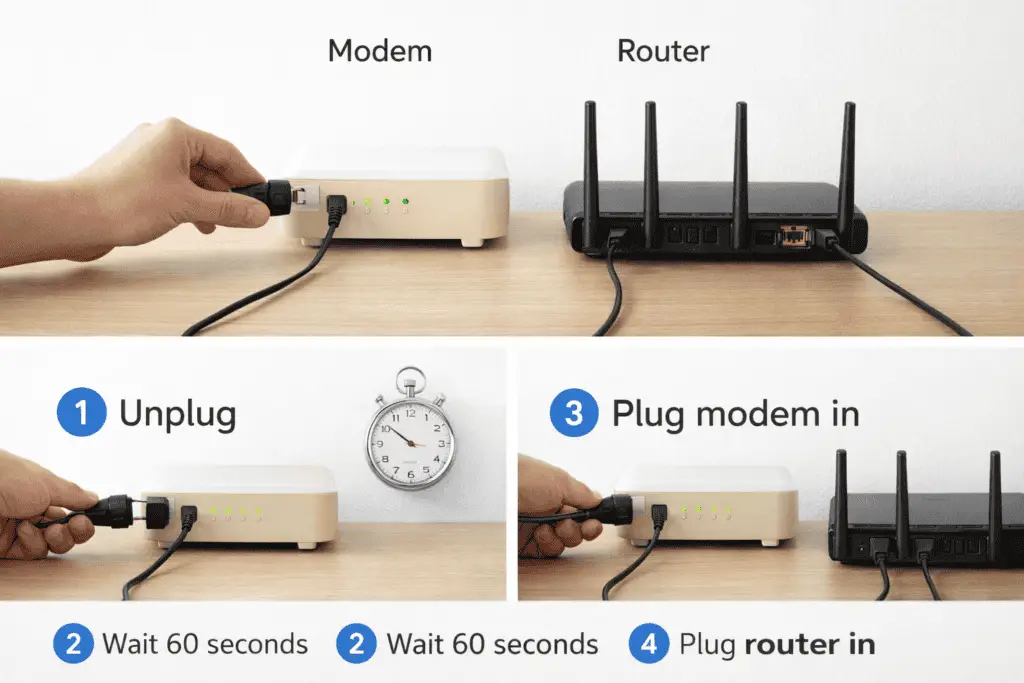
- Unplug power from modem and router
- Wait 60 seconds (important)
- Plug in the modem first (wait until lights stabilize: 1–3 minutes)
- Plug in the router
- On Windows 11, reconnect to WiFi and test internet
4) Forget and reconnect to the WiFi network
Why this works: If your saved password or network profile is corrupted, Windows may connect but fail to get full internet access.
Steps:
- Go to Settings → Network & internet → Wi-Fi
- Click Manage known networks
- Select your WiFi name → click Forget
- Reconnect:
- Click WiFi icon → choose your network
- Enter the password → Connect
- Test internet
5) Turn off Airplane mode and disable VPN/proxy
Why this works: VPNs and proxies can block internet or route traffic incorrectly.
Steps (Airplane mode):
- Click the Quick Settings panel (WiFi/sound/battery area)
- Make sure Airplane mode is Off
Steps (VPN):
- Go to Settings → Network & internet → VPN
- Disconnect any active VPN
- Test internet
Steps (Proxy):
- Go to Settings → Network & internet → Proxy
- Turn Use a proxy server Off
- Test internet
6) Run the Windows Network Troubleshooter
Why this works: Windows can automatically fix common settings like IP conflicts and adapter problems.
Steps:
- Go to Settings → System → Troubleshoot → Other troubleshooters
- Find Network and Internet → click Run
- Follow the on-screen suggestions
- Restart PC if prompted
7) Disable/enable the WiFi adapter
Why this works: It refreshes the WiFi hardware connection without rebooting.
Steps:
- Right-click Start → select Device Manager
- Expand Network adapters
- Right-click your WiFi adapter (often says Intel/Realtek/Qualcomm)
- Click Disable device → wait 10 seconds
- Right-click again → Enable device
- Test internet
8) Change DNS settings (easy and safe)
Why this works: Many “connected but no internet” cases are actually DNS problems. DNS helps your PC find websites.
Use these reliable DNS options:
- Google DNS: 8.8.8.8 and 8.8.4.4
- Cloudflare DNS: 1.1.1.1 and 1.0.0.1
Steps (Windows 11):
- Go to Settings → Network & internet → Wi-Fi
- Click your connected WiFi network
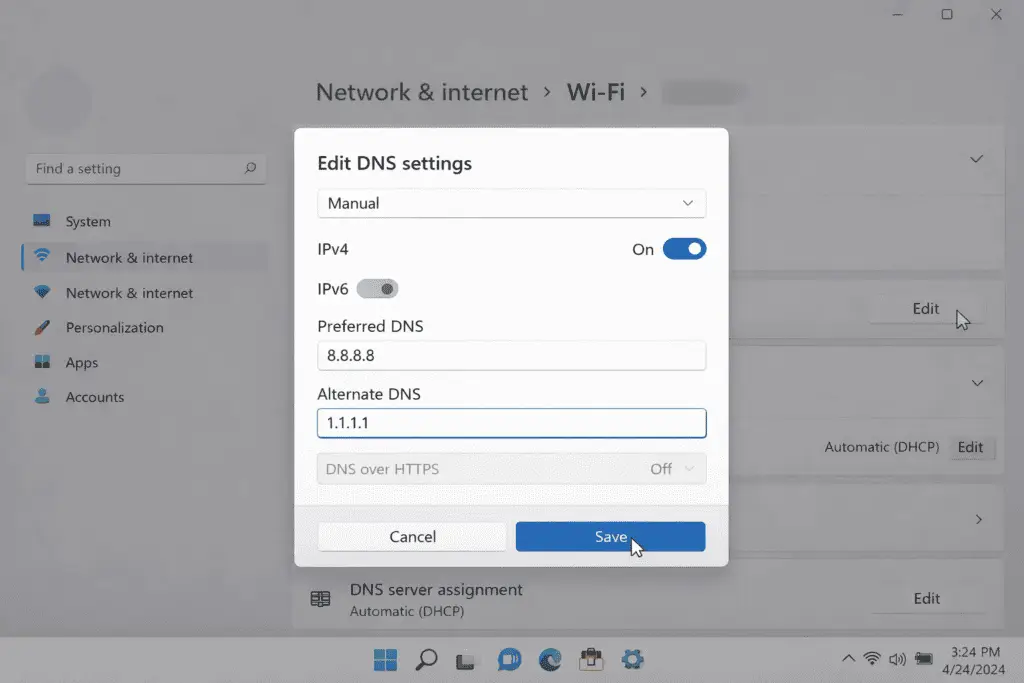
- Find DNS server assignment → click Edit
- Choose Manual
- Turn on IPv4
- Enter:
- Preferred DNS: 8.8.8.8
- Alternate DNS: 1.1.1.1
- Click Save and test internet
9) Reset network commands (Winsock/IP reset)
Why this works: It resets core network settings that can break after updates or software installs.
Steps:
- Click Start and type cmd
- Right-click Command Prompt → Run as administrator
- Type these commands one by one, pressing Enter after each:
- ipconfig /release
- ipconfig /flushdns
- ipconfig /renew
- netsh winsock reset
- netsh int ip reset
- Restart your PC
- Test the internet again
10) Update or reinstall the WiFi driver
Why this works: A broken or outdated driver can show WiFi connected but fail to pass data correctly.
Update steps:
- Right-click Start → Device Manager
- Expand Network adapters
- Right-click your WiFi adapter → Update driver
- Choose Search automatically for drivers
Reinstall steps (if update doesn’t help):
- Right-click the WiFi adapter → Uninstall device
- Check Attempt to remove the driver (if available)
- Restart PC (Windows usually reinstalls driver automatically)
- Reconnect to WiFi and test
11) Use Windows 11 Network Reset (last resort)
Why this works: It resets all network settings to default, fixing stubborn configuration issues.
Warning: You’ll need to reconnect to WiFi networks and re-enter passwords.
Steps:
- Go to Settings → Network & internet → Advanced network settings
- Scroll to Network reset
- Click Reset now
- Restart PC when finished
- Reconnect to WiFi and test
Additional Tips to Prevent the Issue
- Restart your router once a week if it often acts up
- Keep Windows updated: Settings → Windows Update
- Avoid installing multiple VPNs at the same time
- Save your WiFi password somewhere safe (so you can “Forget” and reconnect easily)
- If you use a hotspot (Android/iPhone), rename it and keep the password stable to avoid profile confusion
Troubleshooting Tips BoxNo internet
If you still have WiFi connected but no internet on Windows 11, check these clues:
- Only one website fails: The site may be down—try 2–3 sites.
- Apps work but browser doesn’t: Try a different browser (Edge/Chrome). Clear browser cache.
- Hotel/public WiFi: Open a browser and go to http://neverssl.com to trigger the login page.
- Ethernet works but WiFi doesn’t: It’s likely a WiFi adapter/driver issue.
- Your phone works but PC doesn’t: Focus on Windows fixes (DNS, driver, reset).
Common Mistakes
- Restarting only the PC but never rebooting the router/modem
- Forgetting that VPN/proxy can block internet
- Changing random settings without testing after each step
- Using “Network reset” too early (it wipes saved WiFi networks)
- Assuming “Connected” always means “Internet works” (WiFi and internet are different)
Frequently Asked Questions (5 FAQs)
1) Why does Windows 11 say “Connected, no internet” but my phone works?
Your router is fine, but your PC likely has a DNS problem, bad IP address, VPN/proxy interference, or a WiFi driver issue. Try DNS change and Winsock/IP reset first.
2) Will network reset delete my files on Windows 11?
No. Network reset does not delete personal files. It only resets network settings and removes saved WiFi networks.
3) How do I fix WiFi connected but no internet after a Windows update?No internet
Start with:
- Restart PC and router
- Run Network Troubleshooter
- Update/reinstall WiFi driver
- Run Winsock/IP reset commands
4) What DNS should I use on Windows 11 to fix no internet?
Try:
- 8.8.8.8 (Google) and 1.1.1.1 (Cloudflare)
These are reliable and often fix browsing issues when your ISP DNS fails.
5) Why does my Windows 11 internet work on Ethernet but not WiFi?No internet
That usually points to a WiFi adapter driver issue or corrupted WiFi profile. Forget/reconnect to WiFi, then update or reinstall the WiFi driver.
- Microsoft Support – Fix network connection issues in Windows: https://support.microsoft.com/windows
- Google Public DNS: https://developers.google.com/speed/public-dns
- Cloudflare DNS (1.1.1.1): https://1.1.1.1/
Conclusion
When you see WiFi connected but no internet on Windows 11, it usually comes down to a router issue, a DNS problem, a VPN/proxy block, or a driver/settings glitch. Start with the simple steps: restart PC, restart router, forget/reconnect WiFi, and run the troubleshooter. If it’s still not working, change DNS, reset network commands, update drivers, and use Network Reset as the final option.
If multiple devices (Samsung/iPhone/Xiaomi) also have no internet on the same WiFi, contact your internet provider or check the modem/router.
If you’re seeing WiFi issues on Android, follow our guide on WiFi connected but no internet on Android (how to fix).




[…] WiFi Connected But No Internet on Windows 11 Fix […]
[…] WiFi Connected But No Internet on Windows 11 Fix […]
[…] WiFi Connected But No Internet on Windows 11 Fix […]
[…] WiFi Connected But No Internet on Windows 11 Fix […]
[…] WiFi Connected But No Internet on Windows 11 Fix […]
[…] WiFi Connected But No Internet on Windows 11 Fix […]
[…] WiFi Connected But No Internet on Windows 11 Fix […]
[…] WiFi Connected But No Internet on Windows 11 Fix […]
[…] WiFi Connected But No Internet on Windows 11 Fix […]