
Introduction
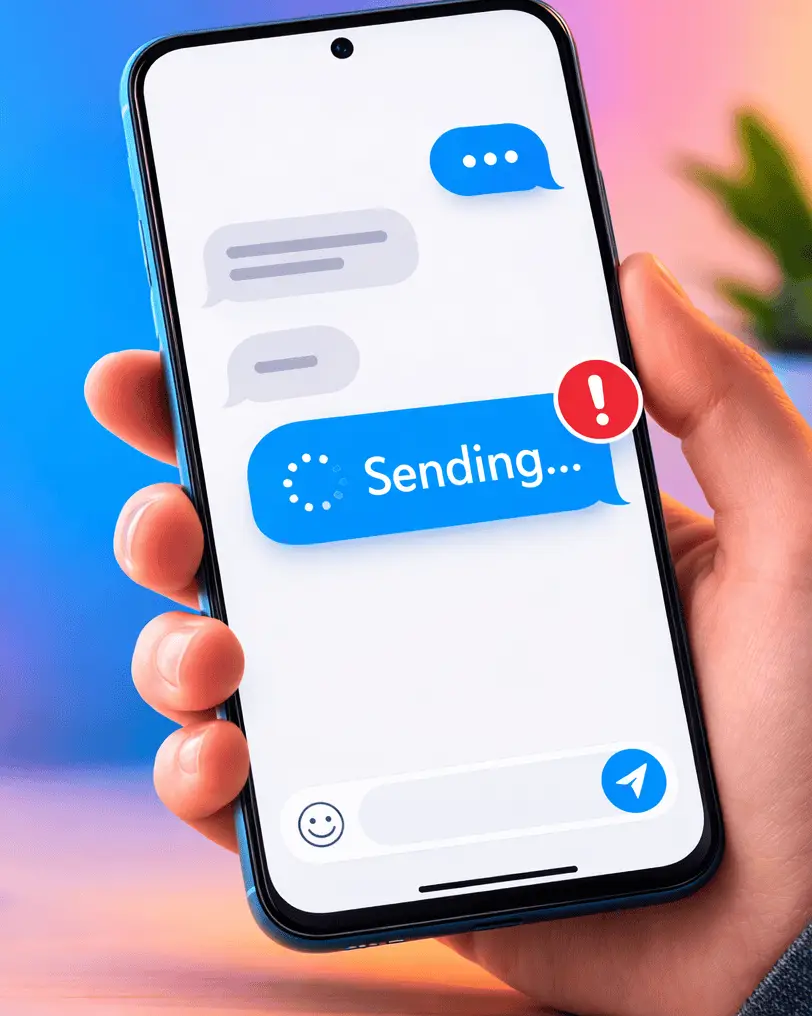
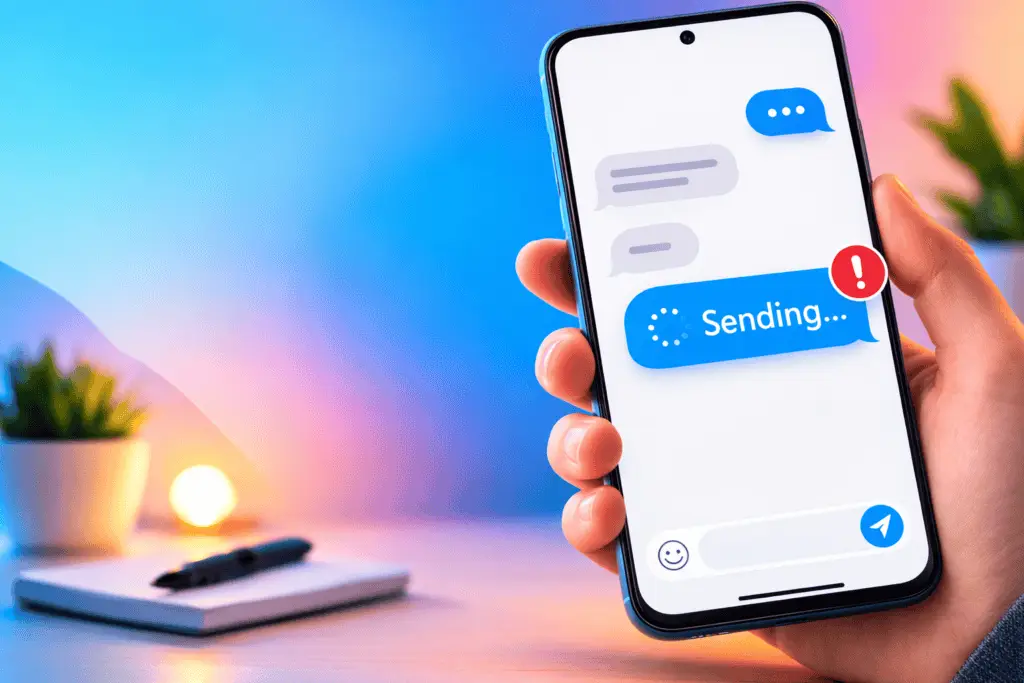
When Instagram messages are not sending, it can feel confusing and stressful—especially if everything looks “normal” in the app. You may see a spinning circle, “Sending…” that never finishes, or your message fails without a clear reason.
This problem can happen on iPhone or Android, on Wi‑Fi or mobile data, and it often shows up suddenly. The good news: most causes are simple, and you can fix them in minutes.
In this guide, you’ll learn why Instagram DMs fail and exactly what to do, step by step, using easy, beginner-friendly instructions.
Quick Answer Section (Fast Fix)
If Instagram messages are not sending, try this quick fix first:
- Switch internet (Wi‑Fi to mobile data, or mobile data to Wi‑Fi).
- Force close Instagram, then reopen it.
- Update Instagram in the App Store/Google Play.
- Restart your phone.
If that doesn’t work, follow the full list of fixes below.
Why This Problem Happens
Instagram messages may not send for a few common reasons:
- Weak or unstable internet (most common)
- Instagram app glitch (needs restart or update)
- Instagram server outage (nothing to fix on your side)
- Cache problems (especially on Android)
- Account limits (too many actions too fast)
- Privacy settings, restrictions, or blocks
- Large files (video/photo too big or failing upload)
The fixes below address all of these, starting with the easiest.
How to Fix Instagram Messages Not Sending (Step-by-Step Methods)
Fix 1: Check Your Internet Connection
If Instagram DMs won’t send, your internet may be slow or dropping.
Steps:
- Open a browser and load a website (like a news site).
- If it’s slow, move closer to your Wi‑Fi router.
- Switch connections:
- Turn Wi‑Fi off and try mobile data.
- Or turn mobile data off and try Wi‑Fi.
- Try sending the message again.
Tip: If photos/videos won’t send but text does, the internet is usually the problem.
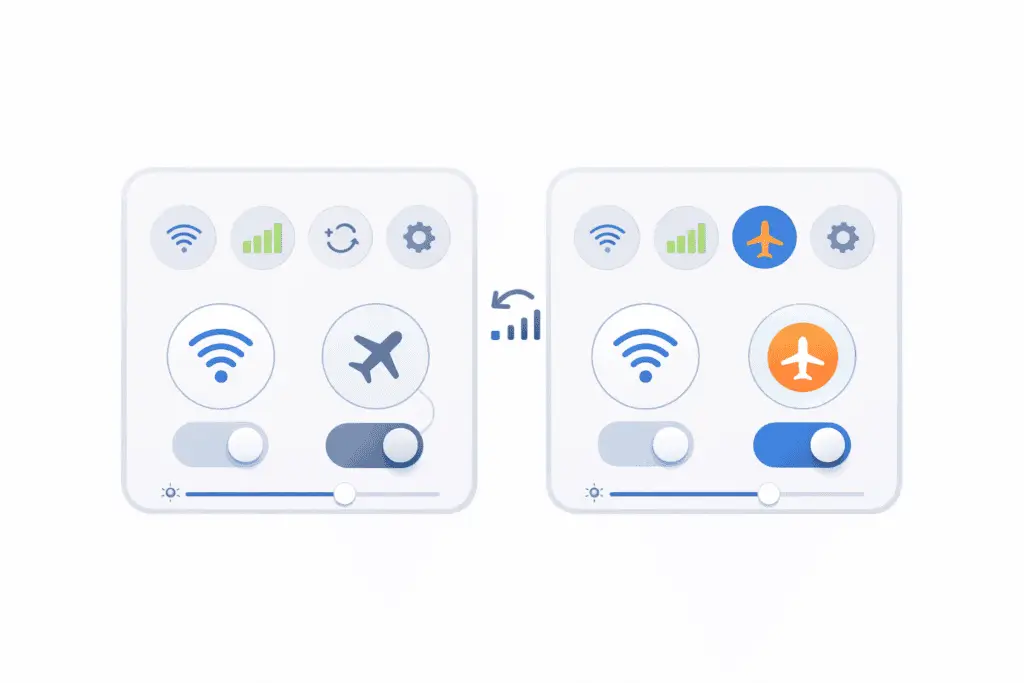
Fix 2: Turn Airplane Mode On and Off
This refreshes your phone’s network connection.
Steps:
- Open your phone’s Quick Settings (swipe down).
- Turn Airplane Mode ON.
- Wait 10 seconds.
- Turn Airplane Mode OFF.
- Reopen Instagram and try sending your DM.
Fix 3: Force Close Instagram and Reopen
Instagram may be stuck in the background.
On iPhone:
- Swipe up from the bottom (or double-click Home).
- Find Instagram.
- Swipe it away to close.
- Open Instagram again and test messages.
On Android:
- Open Recent Apps.
- Swipe Instagram away to close.
- Open Instagram again.
Fix 4: Log Out and Log Back In
This helps if your account session is bugged.
Steps:
- Open Instagram.
- Go to Profile > Menu (≡) > Settings and activity.
- Scroll down and tap Log out.
- Close Instagram completely.
- Open Instagram and log back in.
- Try sending a message.
Fix 5: Update the Instagram App
Outdated apps often cause DM problems.
Steps:
- Open App Store (iPhone) or Google Play Store (Android).
- Search Instagram.
- Tap Update (if you see it).
- Open Instagram and try messaging again.
Related keywords you may notice in the store: Instagram DM not working, Instagram chat problem, Instagram messages failed to send.
Fix 6: Clear Instagram Cache (Android) or Offload App (iPhone)
A corrupted cache can break messaging.
Android: Clear Cache
Steps:
- Go to Settings.
- Tap Apps > Instagram.
- Tap Storage.
- Tap Clear cache.
- Reopen Instagram and test DMs.
iPhone: Offload App (keeps data)
Steps:
- Go to Settings > General > iPhone Storage.
- Tap Instagram.
- Tap Offload App.
- Then tap Reinstall App.
- Open Instagram and try again.
Fix 7: Check If Instagram Is Down
If Instagram is having a server issue, your messages may not send no matter what you do.
Steps:
- Visit a trusted outage website (see sources at the end).
- Search for Instagram.
- If there’s a spike in reports, wait and try again later.
Signs Instagram is down:
- Messages stuck on “Sending…”
- Feed won’t refresh
- Stories won’t load
Fix 8: Check Message Requests and Privacy Settings
Sometimes it looks like your message didn’t send, but it’s blocked by settings.
Steps to check Message Requests:
- Open Instagram.
- Tap the Messenger/DM icon.
- Look for Requests at the top.
- Accept the request or reply there.
Steps to check who can message you:
- Go to Profile > Menu (≡).
- Tap Messages and story replies (wording may vary).
- Review settings for:
- Who can message you
- Message requests
- Set options to allow messages from the people you need.
Fix 9: Make Sure You’re Not Restricted or Blocked
If the other person restricted or blocked you, your DM may fail or never deliver.
What to look for:
- You can’t see their profile or posts
- You can’t message them
- Your messages never show as delivered
Steps:
- Try messaging a different account.
- If messages send to others but not one person, the issue is likely between accounts (blocked/restricted).
Fix 10: Check If You Hit a Temporary Limit
Instagram sometimes limits actions to stop spam. This can affect DMs.
Common triggers:
- Sending many messages quickly
- Copy/pasting the same message
- Messaging lots of new people in a short time
What to do:
- Stop sending messages for 1–24 hours.
- Avoid repeating the same text.
- After waiting, try again.
Fix 11: Try Sending a Different Type of Message
Sometimes only one message type fails (like a video or a link).
Steps:
- Send a simple text-only message like “Test”.
- If that works, try:
- A different photo
- A shorter video
- Removing links
- If a specific file fails, it may be too large or not uploading well.
Fix 12: Reinstall Instagram
If Instagram messages are not sending after all the basic fixes, reinstalling often solves it.
Steps:
- Delete Instagram from your phone.
- Restart your phone.
- Install Instagram again from the App Store/Google Play.
- Log in and try sending a DM.
Note: Make sure you know your login details before uninstalling.
Troubleshooting Tips Box
Try these quick checks if Instagram DMs still won’t send:
- Test Instagram on another device (tablet or friend’s phone).
- Try Instagram on the web version (instagram.com) to see if it’s an app issue.
- Turn off VPN (if you use one).
- Check if your phone has low storage (apps may glitch when storage is full).
- Make sure Date & Time is set to automatic on your phone.
Common Mistakes
Avoid these mistakes while fixing Instagram messages not sending:
- Only restarting Instagram but not switching internet
- Skipping updates (old versions often break DMs)
- Clearing “data” instead of “cache” on Android (data may log you out)
- Sending the same message repeatedly (can trigger limits)
- Ignoring outages (sometimes you just need to wait)
Additional Tips to Prevent the Issue
To prevent Instagram DM problems in the future:
- Keep Instagram updated regularly.
- Restart your phone once a week if it often slows down.
- Avoid sending too many DMs too fast.
- Use stable Wi‑Fi when sending photos and videos.
- Clear cache on Android every so often if Instagram feels slow.
- Don’t install unknown “helper” apps that claim to boost Instagram—they can cause account issues.
Frequently Asked Questions
1) Why are my Instagram messages not sending but my internet is fine?
This can happen due to an Instagram app glitch, an outdated app version, cache issues, or an Instagram server outage. Try force closing the app, updating it, and checking if Instagram is down.
2) How do I fix Instagram DMs stuck on “Sending”?
Switch your connection (Wi‑Fi/mobile), force close Instagram, then reopen it. If that fails, log out and back in, or reinstall the app.
3) Can someone block me and cause my Instagram message to not send?
Yes. If you can message others but not one person, you may be blocked or restricted, or they may have privacy settings that limit messages.
4) Why won’t Instagram send photos or videos in messages?
Media needs a stronger upload connection than text. Try using Wi‑Fi, sending a smaller file, or waiting if Instagram is having issues.
5) How long does an Instagram messaging limit last?
It varies. Some limits last a few hours; others can last 24 hours or more. Stop messaging for a while, then try again with normal use.
Conclusion
If Instagram messages are not sending, the fix is usually simple: check your internet, restart the app, update Instagram, and clear cache or reinstall if needed. If nothing works, Instagram may be down or your account may be temporarily limited.
Work through the steps in order, and you’ll solve the issue without any advanced technical skills.
- Google Play Help (update apps troubleshooting): https://support.google.com/googleplay/
- Meta Help Center (Instagram support): https://help.instagram.com/




[…] Instagram Messages Not Sending (Easy Fix) […]
[…] Instagram Messages Not Sending (Easy Fix) […]
[…] Instagram Messages Not Sending (Easy Fix) […]
[…] Instagram Messages Not Sending (Easy Fix) […]