
Introduction
Chrome not working is one of the most common problems users face. You try to open Google Chrome and something goes wrong. Maybe it crashes right away. Maybe it freezes, goes blank, or just refuses to open at all. Whatever the issue, one thing is clear — Chrome not working is frustrating and you need it fixed fast.
This is one of the most searched browser problems online. Millions of people deal with Chrome not working every single day. The frustrating part is that it can happen out of nowhere, even if everything was fine the day before.
The great news is that Chrome not working is almost always something you can fix yourself. You do not need to call a technician or be a tech genius. This guide walks you through 10 proven, beginner-friendly fixes — step by step — so you can get back online quickly.
⚡ Quick Answer
If Chrome is not working, try these fast fixes first:
- Restart Chrome completely
- Restart your computer
- Clear Chrome’s cache and cookies
- Update Chrome to the latest version
These steps fix Chrome not working for most users within minutes. If they do not work for you, keep reading for more detailed solutions below.
Why Chrome Stops Working
Before jumping into fixes, it helps to understand why Chrome stops working in the first place. The cause affects which fix will work best for you.
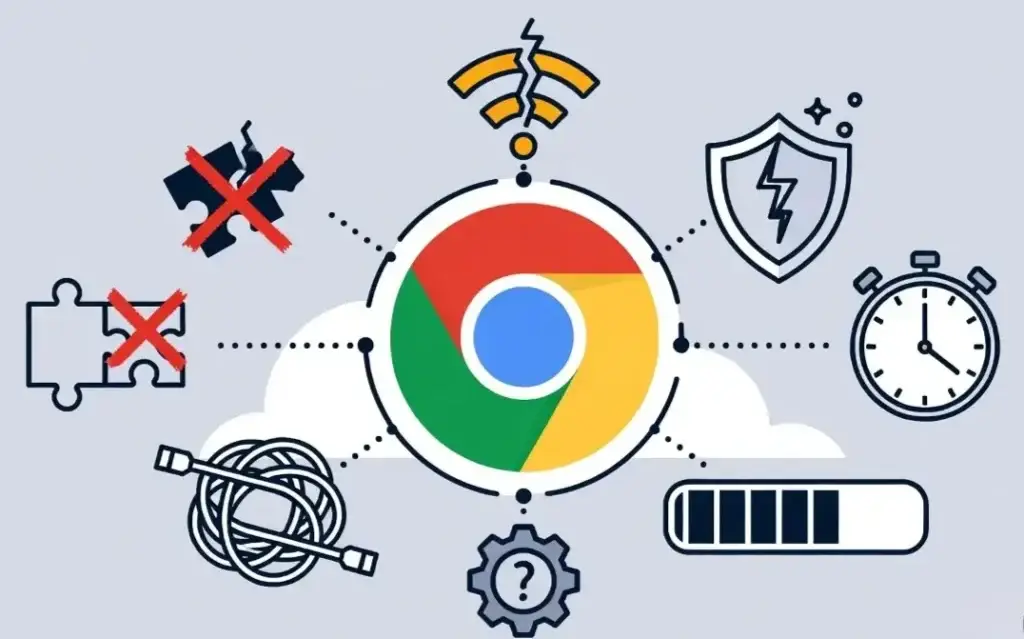
The most common reasons Chrome is not working include:
- Overloaded cache and cookies — Stored data builds up over time and causes Chrome to crash or freeze.
- Conflicting browser extensions — A bad or outdated extension can stop Chrome from working properly.
- Outdated Chrome version — Old versions of Chrome are full of bugs that cause crashes and errors.
- Not enough memory (RAM) — Too many open tabs use up memory and make Chrome unresponsive.
- Internet connection problems — A dropped or weak connection stops Chrome from loading anything.
- DNS issues — Chrome cannot find website addresses when DNS data becomes corrupted.
- Corrupted Chrome profile — Your user profile inside Chrome can become damaged over time.
- VPN or proxy interference — These tools sometimes block Chrome from connecting normally.
- Antivirus or firewall blocking Chrome — Security software can mistakenly flag Chrome and stop it.
- Corrupted Chrome installation — The Chrome app itself can become damaged and need reinstalling.
Now let’s fix the problem.
How to Fix Chrome Not Working (Step-by-Step Methods)
Fix 1: Restart Chrome Properly
Simply closing a tab is not the same as restarting Chrome. Chrome may still be running in the background.
Steps:
- Close all Chrome windows and tabs.
- Press Ctrl + Shift + Esc (Windows) to open Task Manager.
- On Mac, press Cmd + Space, search for Activity Monitor, and open it.
- Look for any process called Google Chrome.
- Click on it and press End Task (Windows) or Force Quit (Mac).
- Wait 10 seconds.
- Reopen Chrome and check if it is working.
Fix 2: Restart Your Computer
A simple restart clears temporary files, refreshes memory, and stops background processes that may be causing Chrome not to work.
Steps:
- Save anything important you are working on.
- Click Start → Power → Restart (Windows).
- On Mac, click the Apple menu → Restart.
- Wait for your computer to fully start up.
- Open Chrome and test it.
Fix 3: Check Your Internet Connection
Chrome not working is sometimes just a connection issue, not a Chrome issue.
Steps:
- Open a different browser like Firefox or Microsoft Edge.
- Try visiting google.com.
- If it loads fine, your internet is working and the problem is Chrome.
- If nothing loads on any browser, your internet is the problem.
- Restart your router — unplug it for 30 seconds, then plug it back in.
- Wait one full minute and try again.
Fix 4: Clear Cache and Cookies
This is one of the most effective fixes when Chrome is not working properly. Old cached data causes crashes, blank pages, and freezing.
Steps:
- Open Chrome (even if it is running slowly).
- Press Ctrl + Shift + Delete (Windows) or Cmd + Shift + Delete (Mac).
- A window will open. Set the Time range to All time.
- Check all three boxes:
- ✅ Browsing history
- ✅ Cookies and other site data
- ✅ Cached images and files
- Click Clear data.
- Restart Chrome and test.
Fix 5: Disable or Remove Extensions
Extensions add features to Chrome, but a broken or outdated extension is a very common reason Chrome stops working.
Steps:
- In Chrome’s address bar, type chrome://extensions and press Enter.
- You will see all your installed extensions listed.
- Toggle the switch off on every single extension.
- Close and reopen Chrome.
- If Chrome is now working, turn extensions back on one at a time.
- After turning each one on, test Chrome.
- When Chrome stops working again, you have found the bad extension.
- Click Remove on that extension to delete it.
Fix 6: Update Google Chrome
Running an outdated version of Chrome is a leading cause of Chrome not working. Updates fix bugs, improve speed, and patch security issues.
Steps:
- Open Chrome.
- Click the three vertical dots in the top right corner.
- Go to Help → About Google Chrome.
- Chrome will automatically start checking for updates.
- If an update is available, it will download automatically.
- Click Relaunch to finish the update.
- Test Chrome after relaunching.
Fix 7: Flush Your DNS Cache
Your computer stores website address data in something called a DNS cache. When that data becomes outdated or broken, Chrome cannot connect to websites — making it seem like Chrome is not working.
Steps for Windows:
- Press the Windows key + R on your keyboard.
- Type cmd and press Enter.
- In the black command window, type the following exactly:
ipconfig /flushdns - Press Enter.
- You should see: “Successfully flushed the DNS Resolver Cache.”
- Close the window and restart Chrome.
Steps for Mac:
- Press Cmd + Space and search for Terminal.
- Open Terminal.
- Type the following command:
sudo dscacheutil -flushcache; sudo killall -HUP mDNSResponder - Press Enter and type your password if asked.
- Restart Chrome.
Fix 8: Reset Chrome to Default Settings
If Chrome is not working due to changed or corrupted settings, resetting it brings everything back to factory default. This is a powerful fix.
Steps:
- Open Chrome.
- Click the three dots → Settings.
- On the left sidebar, click Reset and clean up.
- Click Restore settings to their original defaults.
- A confirmation box will appear. Click Reset settings.
Important: This turns off all extensions and clears temporary site data. It does not delete your bookmarks, saved passwords, or browsing history.
Fix 9: Disable VPN or Proxy Settings
A VPN or proxy changes how your internet traffic flows. Sometimes these tools conflict with Chrome and stop it from working correctly.
Steps:
- Turn off your VPN app completely — look for it in your taskbar or apps list.
- In Chrome, go to Settings → System.
- Click Open your computer’s proxy settings.
- In the proxy window:
- Turn ON the option that says Automatically detect settings.
- Turn OFF any manual proxy toggle.
- Save the changes.
- Restart Chrome and test.
Fix 10: Uninstall and Reinstall Chrome
If Chrome is still not working after trying everything else, a fresh reinstall is the most reliable final step.
Steps for Windows:
- Press Windows key + I to open Settings.
- Go to Apps → Installed Apps.
- Find Google Chrome and click Uninstall.
- Restart your computer after uninstalling.
- Go to google.com/chrome on another browser.
- Download and install the latest version of Chrome.
Steps for Mac:
- Open the Applications folder.
- Drag Google Chrome to the Trash.
- Empty the Trash.
- Restart your Mac.
- Download Chrome fresh from google.com/chrome.
Additional Tips to Prevent Chrome From Stopping Working
Once you fix Chrome not working, follow these habits to stop the problem returning.
- Clear your cache and cookies once a month to stop data buildup.
- Keep Chrome set to update automatically so you always have the latest version.
- Limit the number of extensions you install — only keep ones you truly use.
- Do not open too many tabs at once — this drains memory and causes Chrome to freeze.
- Restart your computer at least once a week to keep things running smoothly.
- Run a malware scan regularly — malware often targets Chrome specifically.
- Use Chrome’s built-in cleanup tool — Go to Settings → Reset and clean up → Clean up computer.
🛠️ Troubleshooting Tips Box
Quick checks if Chrome is still not working:
- Chrome opens but pages won’t load → Try Fix 3 (check internet) and Fix 7 (flush DNS).
- Chrome crashes immediately on opening → Try Fix 1 (restart properly) and Fix 5 (disable extensions).
- Chrome is very slow and freezing → Try Fix 4 (clear cache) and close extra tabs.
- Getting an error code like ERR_CONNECTION_REFUSED → Try Fix 7 (flush DNS) and Fix 9 (disable VPN/proxy).
- Chrome works in Incognito but not normally → The problem is an extension. Use Fix 5.
(Open Incognito with Ctrl + Shift + N)- Chrome won’t open at all → Try Fix 2 (restart computer) and Fix 10 (reinstall Chrome).
Common Mistakes to Avoid
When trying to fix Chrome not working, many people make these errors that waste time or make things worse:
- ❌ Only closing the tab instead of fully restarting Chrome — Chrome can keep running in the background.
- ❌ Skipping the internet connection check — Always rule out your connection first.
- ❌ Clearing cache but forgetting cookies — You need to clear both at the same time.
- ❌ Ignoring Chrome updates — Outdated Chrome is one of the biggest reasons it stops working.
- ❌ Leaving antivirus disabled after testing — Always turn it back on after checking.
- ❌ Reinstalling Chrome without restarting first — Always restart your computer between uninstalling and reinstalling.
Frequently Asked Questions
1. Why is Chrome not working on my computer?
Chrome not working happens for many reasons including cache buildup, bad extensions, or an outdated browser — too much cached data, a bad extension, an outdated version, or a corrupted installation. Start by clearing your cache, disabling extensions, and making sure Chrome is up to date. Those three steps fix the problem in most cases.
2. Why is Chrome not working but other browsers are?
If Edge or Firefox works fine but Chrome is not working, the issue is specific to Chrome — not your internet. Try clearing Chrome’s cache and cookies, resetting Chrome settings, or reinstalling Chrome completely. Fix 4, Fix 8, and Fix 10 are your best options here.
3. How do I fix Chrome not working on Android?
On Android:
- Go to Settings → Apps → Chrome.
- Tap Storage → Clear Cache and Clear Data.
- Open the Google Play Store and update Chrome.
- Restart your phone and open Chrome again.
4. Why did Chrome suddenly stop working after an update?
Occasionally a new Chrome update can introduce a bug. If Chrome stopped working right after updating, try:
- Clearing cache and cookies.
- Disabling all extensions.
- Resetting Chrome settings to default.
If none of that helps, check Google’s official support page for any known issues with the latest update.
5. Will reinstalling Chrome delete my passwords and bookmarks?
If you are signed into a Google account in Chrome, your passwords and bookmarks are safely saved to your Google account. They will automatically restore when you sign back in after reinstalling. To be extra safe, export your bookmarks before you uninstall Chrome.
Conclusion
Chrome not working is one of the most common tech problems people face — but it is also one of the most solvable. You do not need professional help to fix it.
Start simple: restart Chrome, restart your computer, and clear your cache. These three steps alone solve the problem for most users. If Chrome is still not working, move through the list — disable extensions, update Chrome, flush your DNS, or reset your settings.
As a last resort, uninstalling and reinstalling Chrome gives you a completely clean start and almost always works. Bookmark this guide so you always have a reliable fix ready the next time Chrome stops working.
- “How to Speed Up a Slow Google Chrome Browser”: “clear your cache to speed up Chrome.”
- “Best and Worst Chrome Extensions to Install in 2024”: “a bad or outdated extension”
- “How to Fix ERR_CONNECTION_REFUSED in Chrome”: “ERR_CONNECTION_REFUSED error.”
External Authority Sources:
- Microsoft Support – Fix Network Connection Issues — https://support.microsoft.com/en-us/windows/fix-wi-fi-connection-issues-in-windows
- Google Chrome Help Center — https://support.google.com/chrome
- Google Chrome Release Updates — https://chromereleases.googleblog.com




[…] Chrome Keeps Crashing Android Fix: 10 Easy Solutions That Actually Work […]
[…] Chrome Keeps Crashing Android Fix: 10 Easy Solutions That Actually Work […]