
Introduction
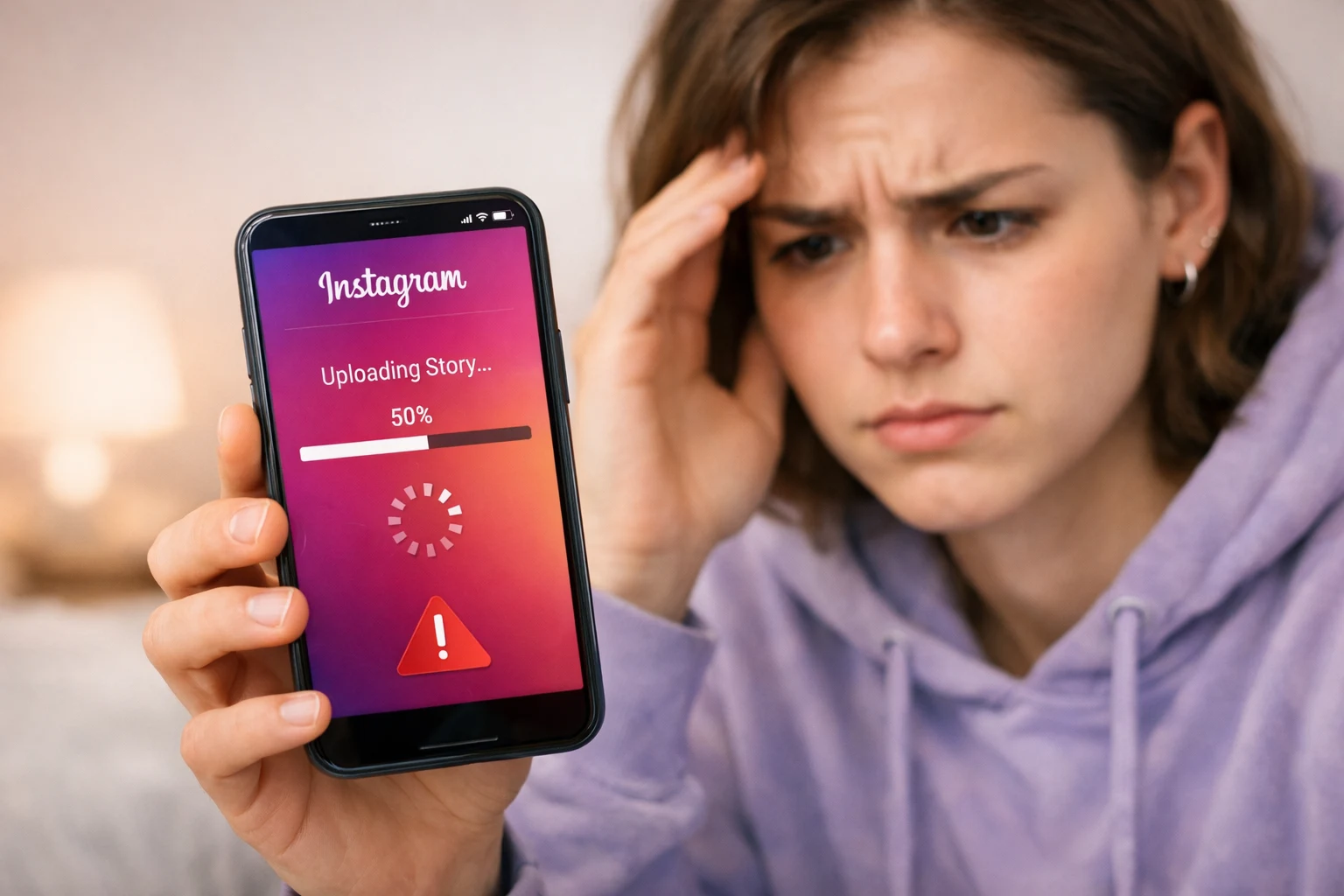
Trying to share a moment on Instagram, only to watch your story freeze or fail to upload — it’s frustrating. You tap the share button, wait, and Instagram story not uploading. The spinning circle just keeps going.
This is one of the most common Instagram problems people deal with every day. Whether you’re posting a photo, video, or Reel to your story, the upload can suddenly stop working for no clear reason.
The good news? Most of the time, the fix is simple. You don’t need to be tech-savvy to solve it. This guide walks you through every possible reason your Instagram story is not uploading and shows you exactly how to fix it — step by step.

✅ Quick Answer
If your Instagram story is not uploading, start here:
- Check your internet connection
- Restart the Instagram app
- Update Instagram to the latest version
- Clear the app cache
- Log out and log back in
These five steps fix the problem for most users. If they don’t work, keep reading for more detailed solutions.
Why This Problem Happens
Before jumping into fixes, it helps to understand what causes your Instagram story not to upload. Here are the most common reasons:
- Weak or unstable internet connection — Instagram needs a steady connection to upload media files.
- Outdated Instagram app — Old versions of the app are full of bugs that can block uploads.
- Full phone storage — If your phone has no storage space, the app can’t process new files.
- Corrupted app cache — Temporary files stored by Instagram can become damaged and cause errors.
- Instagram server issues — Sometimes Instagram itself is down. This is rare but it happens.
- Large video file size — Videos that are too long or too large may fail to upload.
- VPN or firewall blocking the app — Some VPNs block Instagram’s connection to its servers.
- Software bugs after an update — A new phone or app update can temporarily break features.
Understanding the cause helps you pick the right fix faster.
How to Fix Instagram Story Not Uploading (Step-by-Step Methods)
Fix 1: Check Your Internet Connection
A poor connection is the number one reason an Instagram story won’t upload.
- Open your phone’s Settings.
- Check if Wi-Fi or Mobile Data is turned on.
- Try opening a website or YouTube video to test if the internet is working.
- If Wi-Fi is slow, move closer to your router or switch to mobile data.
- Turn airplane mode on for 10 seconds, then turn it off again. This refreshes your connection.
Fix 2: Restart the Instagram App
Sometimes the app just needs a fresh start.
- Close Instagram completely — don’t just press the home button.
- On iPhone: Swipe up from the bottom of the screen and swipe Instagram away.
- On Android: Tap the recent apps button and swipe Instagram off the screen.
- Wait 10 seconds.
- Open Instagram again and try uploading your story.
Fix 3: Update Instagram to the Latest Version
An outdated app often causes upload errors.
On iPhone (App Store):
- Open the App Store.
- Tap your profile icon in the top right.
- Scroll down to find Instagram.
- Tap Update if available.
On Android (Google Play Store):
- Open the Google Play Store.
- Tap your profile icon.
- Tap Manage apps & device.
- Find Instagram and tap Update.
After updating, try your story upload again.
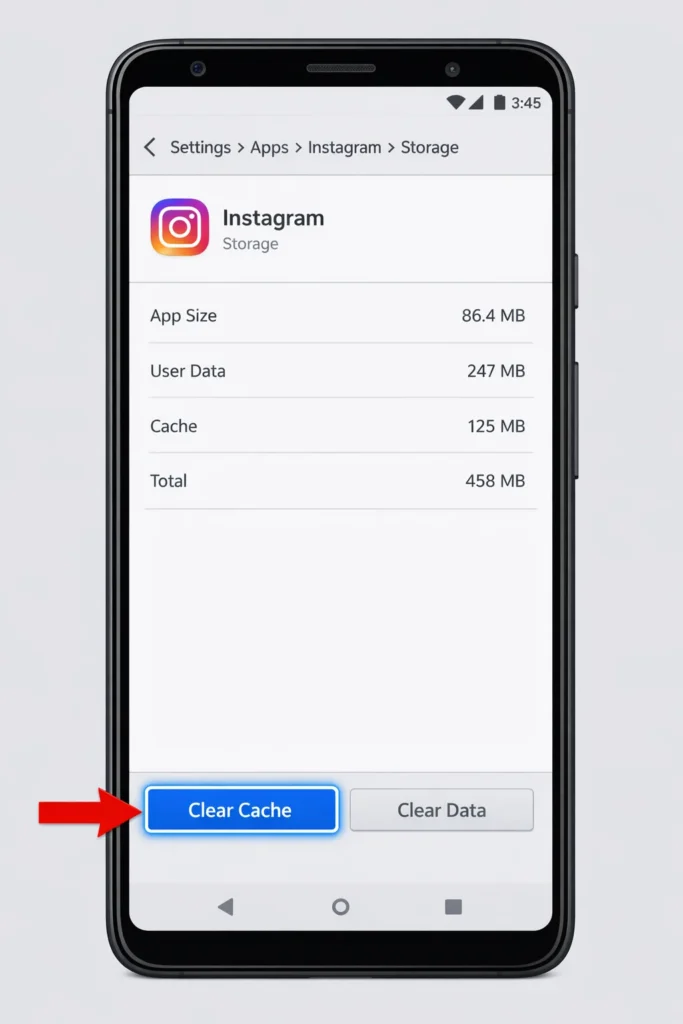
Fix 4: Clear Instagram’s Cache (Android)
A cluttered cache can block uploads. This step is for Android users.
- Go to your phone’s Settings.
- Tap Apps or Application Manager.
- Find and tap Instagram.
- Tap Storage.
- Tap Clear Cache.
- Reopen Instagram and try again.
iPhone users: You can’t clear the cache directly. Instead, delete and reinstall Instagram (see Fix 7).
Fix 5: Check Instagram’s Server Status
If Instagram’s servers are down, no fix on your end will work — you just have to wait.
- Open your browser and go to downdetector.com.
- Search for Instagram.
- Check if other users are reporting problems.
- If servers are down, wait 30–60 minutes and try again.
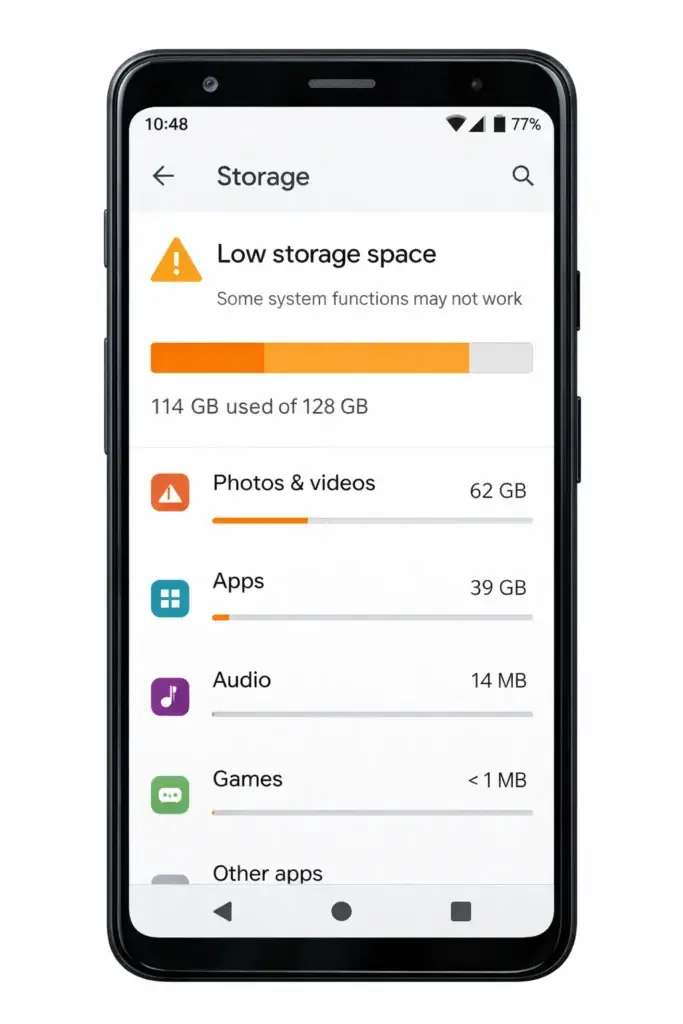
Fix 6: Free Up Storage Space on Your Phone
If your phone storage is nearly full, Instagram can’t save or upload files.
- Go to Settings > Storage on your phone.
- Delete old photos, videos, or apps you don’t need.
- Aim to keep at least 1–2 GB of free space.
- Try uploading your Instagram story again.
Fix 7: Delete and Reinstall Instagram
This is one of the most effective fixes for persistent upload issues.
- Delete Instagram from your phone.
- iPhone: Press and hold the app, tap Remove App.
- Android: Press and hold the app, tap Uninstall.
- Restart your phone.
- Go to the App Store or Google Play Store.
- Search for Instagram and reinstall it.
- Log back in and try uploading your story.
Fix 8: Log Out and Log Back In
This refreshes your account connection and often clears upload errors.
- Open Instagram.
- Go to your Profile (bottom right).
- Tap the three lines (menu) in the top right.
- Tap Settings and Privacy.
- Scroll down and tap Log Out.
- Log back in with your username and password.
- Try uploading your story.
Fix 9: Check Your Video File Size and Length
Instagram has limits on story content:
- Photos: Must be under 8 MB.
- Videos: Maximum 15 seconds per story clip, up to 4 GB in file size.
- Supported formats: MP4, MOV (for video), JPG, PNG (for photos).
If your video is too long, trim it using your phone’s built-in editor before uploading.
Fix 10: Disable VPN or Proxy
A VPN can block Instagram from connecting to its servers.
- Go to your phone’s Settings.
- Look for VPN or Network Settings.
- Turn off any active VPN.
- Try uploading your Instagram story again.
🛠️ Troubleshooting Tips Box
Quick Troubleshooting Checklist
- ✅ Is your internet working on other apps?
- ✅ Is your Instagram app updated?
- ✅ Is your phone storage full?
- ✅ Have you restarted the app recently?
- ✅ Is Instagram down for everyone right now?
- ✅ Is your video within the 15-second limit?
- ✅ Is your VPN turned off?
Run through this checklist before trying advanced fixes. It saves time.
Common Mistakes to Avoid
Many users make these mistakes when dealing with an Instagram story not uploading:
- Uploading very long videos without trimming them first.
- Closing the app mid-upload — wait for it to finish.
- Using Instagram on a slow public Wi-Fi — these networks often block media uploads.
- Ignoring app updates for weeks or months.
- Not checking server status before spending time troubleshooting.
- Skipping the simple steps like restarting the app and going straight to reinstalling.
Additional Tips to Prevent the Issue
Once you fix the problem, here’s how to stop it from happening again:
- Keep Instagram updated. Turn on automatic updates so you always have the latest version.
- Regularly clear the app cache on Android — do this once a month.
- Keep at least 2 GB free on your phone at all times.
- Use a strong Wi-Fi connection when uploading longer videos.
- Trim videos before uploading to stay within Instagram’s limits.
- Avoid uploading during peak hours (evenings and weekends) when Instagram servers are busiest.
- Restart your phone once a week to keep everything running smoothly.
These simple habits prevent most Instagram story upload problems before they start.
Frequently Asked Questions
1. Why does my Instagram story keep failing to upload?
The most common reasons are a weak internet connection, an outdated app, or a full storage on your phone. Start by checking your Wi-Fi or mobile data, then update Instagram and clear the cache.
2. Why is my Instagram story stuck on sending?
If your story is stuck on “sending,” it usually means your internet connection dropped during the upload. Turn airplane mode on and off, then try again. You can also try switching from Wi-Fi to mobile data.
3. How do I fix Instagram story upload failed on iPhone?
On iPhone, try: restarting the app, updating Instagram, checking your internet, logging out and back in, or deleting and reinstalling the app. iPhones don’t allow direct cache clearing, so reinstalling is the most effective cache fix.
4. Why can’t I post to my Instagram story today?
Instagram may be experiencing a temporary outage. Check Downdetector.com to see if other users are having the same issue. If Instagram’s servers are down, wait and try again later.
5. Does video size affect Instagram story upload?
Yes. Videos that are too large or too long can fail to upload. Instagram supports story videos up to 15 seconds per clip and up to 4 GB in file size. Trim or compress your video if it doesn’t upload.
Conclusion
An Instagram story not uploading is annoying, but it’s almost always fixable. In most cases, the problem comes down to one of a few simple causes: a bad internet connection, an outdated app, or full phone storage.
Work through the fixes in order — start with the easy ones like checking your connection and restarting the app, then move to clearing the cache or reinstalling if needed. Don’t forget to check Instagram’s server status if nothing else works.
With this guide, you now have everything you need to get your Instagram stories uploading smoothly again. Bookmark this page so you can come back to it whenever the problem returns.
- Instagram Help Center — https://help.instagram.com (for official story specs and upload limits)
- Google Support – Android App Management — https://support.google.com/googleplay (for clearing cache and updating apps)
- Apple Support – Managing iPhone Storage — https://support.apple.com (for freeing storage and reinstalling apps on iPhone)




[…] Instagram Story Not Uploading Fix […]
[…] Instagram Story Not Uploading Fix […]
[…] Instagram Story Not Uploading Fix […]