
Introduction
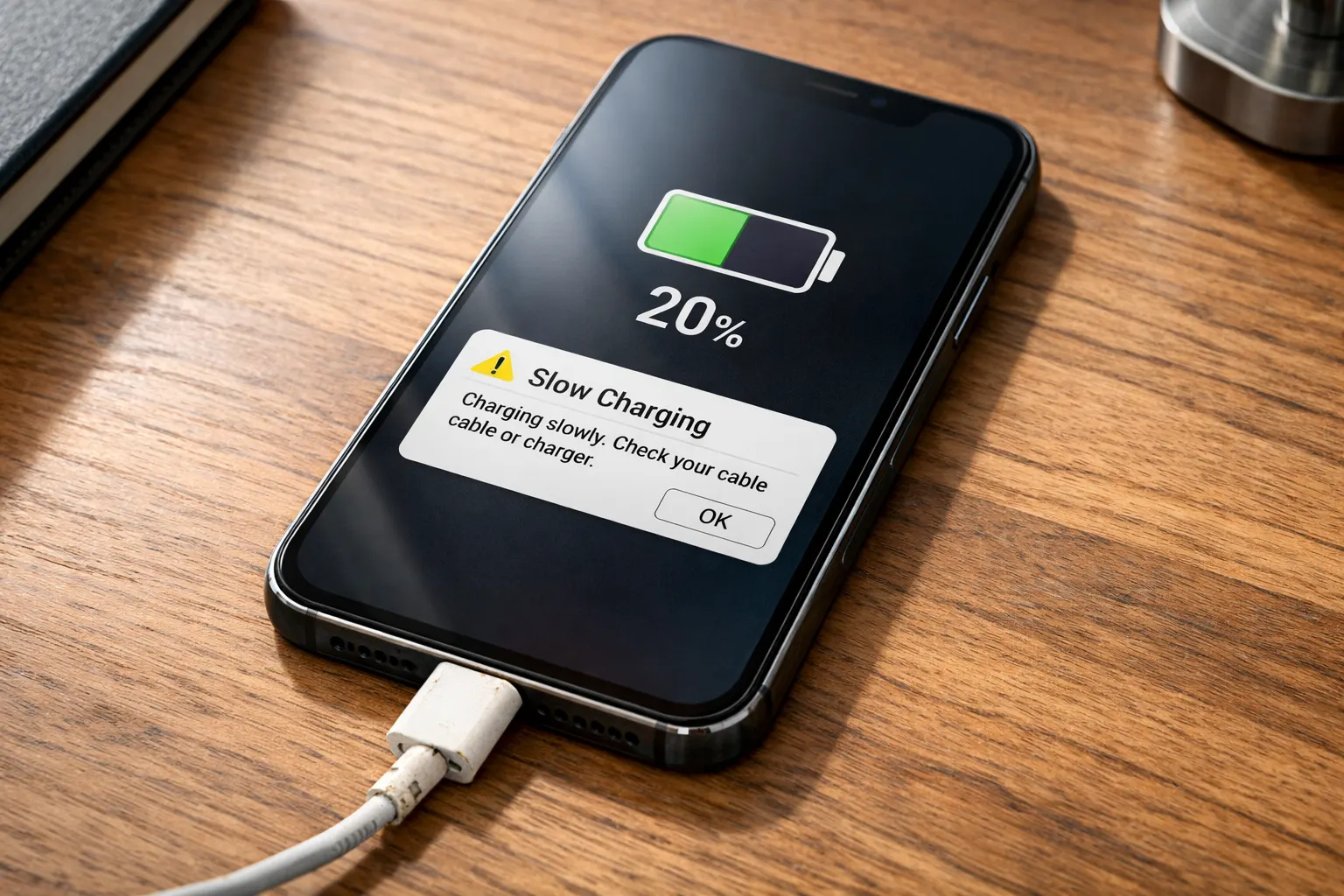
Is your phone taking forever to charge? You plug it in before bed and wake up to find it’s only at 60%. This simple phone charging slowly fix takes just seconds to apply. that it can barely keep up with your usage. This is a frustrating problem — and a very common one.
The good news is that a phone charging slowly fix is rarely complicated. In most cases, the Phone Charging Slowly Fix takes just a few minutes. You don’t need to be a tech expert to solve it.
In this guide, you’ll get a complete phone charging slowly fix with clear, step-by-step instructions. and get clear, step-by-step instructions to fix it today. Whether you have an iPhone or an Android, these tips will work for you.
⚡ Quick Answer
Looking for a fast phone charging slowly fix? Start here:
- Check your charging cable — replace it if it’s worn or frayed
- Clean the charging port — dust and debris are the #1 hidden cause
- Use the original charger — third-party chargers are often underpowered
- Turn on Airplane Mode while charging to speed things up
These four steps fix the problem for most people. Keep reading for a complete breakdown of every possible fix.
Why This Problem Happens
Your phone charges slowly for many different reasons. Understanding the cause helps you find the right phone charging slowly fix faster.
The most common reasons include:
- A damaged or low-quality charging cable
- A dirty or clogged charging port
- Using the wrong charger (wrong wattage)
- Too many apps running in the background
- An old or worn-out battery
- Charging from a weak power source (like a laptop USB port)
- Software bugs or outdated operating system
- Extreme heat or cold affecting battery performance
Most of these causes are easy to fix at home. Let’s go through each solution one by one.
How to Fix Phone Charging Slowly (Step-by-Step Methods)
Fix 1: Check and Replace Your Charging Cable
A damaged cable is the most common reason for slow charging. Even if it looks fine on the outside, the wires inside can be broken.
Steps:
- Look at your cable from end to end — check for bends, fraying, or kinks
- Try borrowing a different cable from a friend or family member
- Plug it in and see if charging speed improves
- If it does, your old cable was the problem — replace it
Tip: Always buy cables that are MFi Certified (for iPhones) or rated for your Android’s charging standard.
Fix 2: Clean the Charging Port
Lint, dust, and debris collect inside your charging port over time. This is one of the top reasons your phone is charging slowly.
Steps:
- Turn your phone OFF before cleaning
- Use a wooden toothpick or a soft toothbrush (never metal!)
- Gently scrape along the inside edges of the port
- Use a can of compressed air to blow out loose debris
- Plug in your charger and check if it fits more snugly now
- Turn your phone back on and monitor the charging speed
Warning: Never use water or sharp metal objects inside the port.
Fix 3: Use the Right Charger
Not all chargers are equal. A cheap or underpowered charger can take twice as long to charge your phone.
Steps:
- Find the original charger that came with your phone
- Check the wattage — it’s usually printed on the charger (e.g., 5W, 18W, 25W)
- Make sure you’re using a charger with the same or higher wattage
- Avoid using cheap, unbranded chargers from unknown sellers
Good to know: Fast chargers (18W and above) can charge your battery to 50% in about 30 minutes on most modern phones.
Fix 4: Enable Airplane Mode While Charging
When your phone is searching for Wi-Fi, running apps, and checking notifications, it uses power while charging — slowing everything down.
Steps:
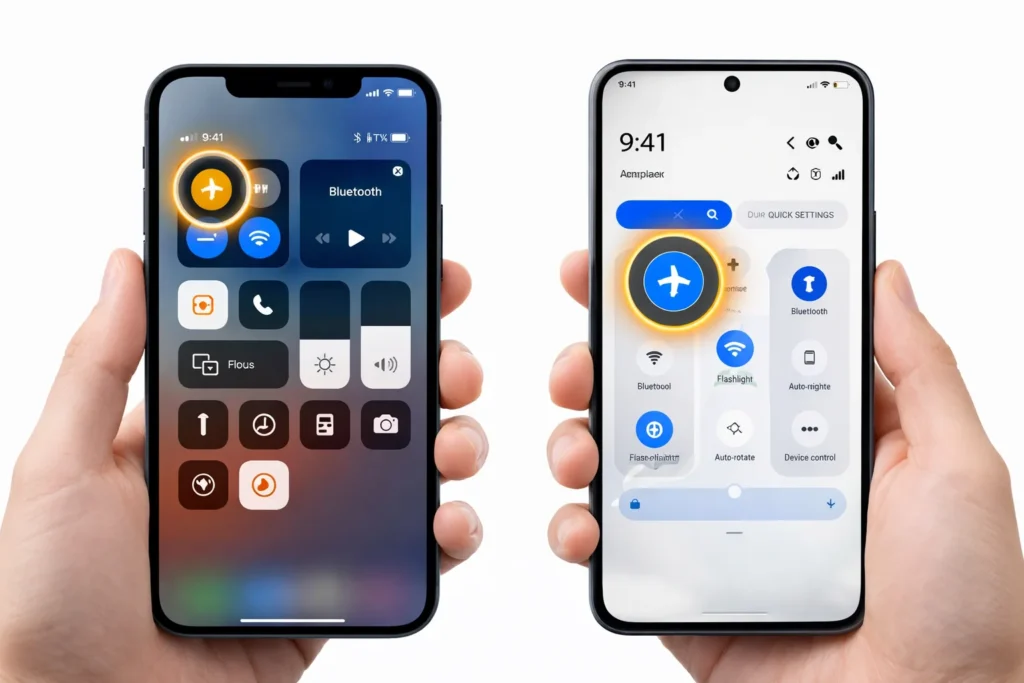
- Swipe down from the top of your screen to open the quick settings panel
- Tap the Airplane Mode icon
- Plug in your charger
- Leave it to charge — you’ll notice it charges noticeably faster
- Turn Airplane Mode off once your battery is at a comfortable level
Fix 5: Restart Your Phone
Sometimes a simple restart clears small software glitches that slow down charging.
Steps:
- Hold the power button on your phone
- Tap Restart or Reboot
- Wait for the phone to fully start up again
- Plug in your charger and check the charging speed
Fix 6: Close Background Apps
Apps running in the background drain your battery while it’s trying to charge.
Steps:
- Press the Recent Apps button (square icon on Android) or swipe up and hold on iPhone
- Close all open apps by swiping them away
- Plug your phone in and allow it to charge without opening apps
Fix 7: Check for Software Updates
Outdated software can cause battery and charging issues. Updates often include bug fixes that directly help with a phone charging slowly fix.
Steps:
- Go to Settings
- Scroll down to Software Update (Android) or General > Software Update (iPhone)
- Tap Check for Updates
- Download and install any available updates
- Restart your phone and try charging again
Fix 8: Try a Different Power Source
Charging from a laptop USB port or a low-powered wall adapter? That could be your problem.
Steps:
- Plug your charger directly into a wall socket instead of a USB hub or laptop
- Make sure the wall socket is working properly
- Try a different socket in your home if needed
Fix 9: Replace the Battery
If your phone is more than 2–3 years old and still charges slowly after trying everything else, your battery may be worn out. Batteries lose their ability to hold a charge over time.
Steps:
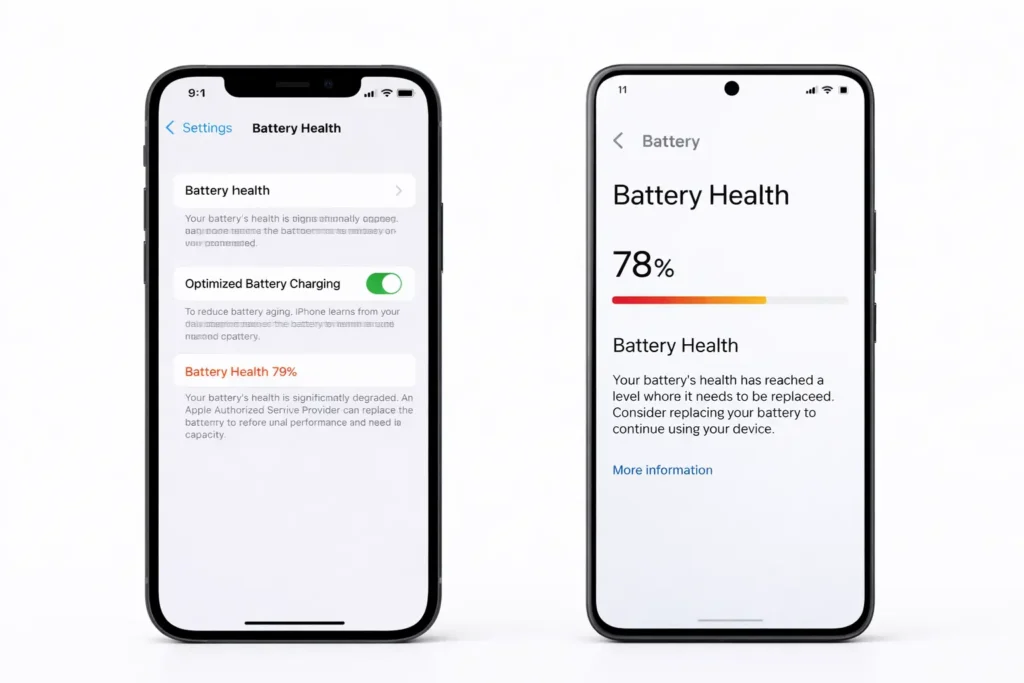
- Go to Settings > Battery to check battery health
- On iPhone: Settings > Battery > Battery Health
- On Android: Settings > Battery > Battery Health (varies by brand)
- If x is below 80%, consider a replacement
- Contact your phone manufacturer or a trusted repair shop
Fix 10: Check Your Phone Case
Some thick or metal phone cases can cause your phone to overheat during charging. Heat slows down charging speed as a safety measure.
Steps:
- Remove your phone case while charging
- Charge your phone and see if the speed improves
- If it does, consider switching to a thinner, non-metallic case
🛠️ Troubleshooting Tips Box
| Problem | Most Likely Cause | Quick Fix |
|---|---|---|
| Charges very slowly overnight | Weak charger or background apps | Use original charger + Airplane Mode |
| Charger keeps disconnecting | Dirty or damaged port | Clean port or replace cable |
| Phone warm while charging | Overheating or thick case | Remove case, charge in cool area |
| Charges fine sometimes | Loose cable connection | Replace cable |
| Battery drains as fast as it charges | Too many apps running | Close all apps while charging |
Common Mistakes to Avoid
Many people accidentally make their phone charging slowly problem worse. Here are the biggest mistakes to avoid:
- ❌ Using cheap cables from dollar stores — they’re often underpowered and unsafe
- ❌ Charging through a laptop USB port — these deliver very little power
- ❌ Ignoring a dirty charging port — even a little lint can cut charging speed in half
- ❌ Charging with the screen on and apps open — this fights against the charging process
- ❌ Leaving the phone in direct sunlight while charging — heat damages the battery
- ❌ Always charging to 100% — consistently charging to 100% can wear out the battery faster over time
Additional Tips to Prevent Slow Charging
Once you’ve applied your phone charging slowly fix, here’s how to keep your phone charging at full speed:
- Store cables carefully — don’t wrap them tightly or bend them sharply near the ends
- Clean your charging port monthly — a quick clean prevents buildup
- Keep your phone cool — avoid leaving it in hot cars or in direct sunlight
- Use a quality charging brick — invest in a certified charger from your phone’s brand
- Update your software regularly — updates often contain battery performance improvements
- Enable Optimized Battery Charging — both iPhones and many Android phones have this setting to extend battery life
Frequently Asked Questions
1. Why is my phone charging slowly all of a sudden?
If your phone suddenly started charging slowly, the most likely causes are a damaged cable, a clogged charging port, or a software glitch. Try cleaning the port, swapping the cable, and restarting your phone first.
2. Does Airplane Mode really make your phone charge faster?
Yes, it does. Airplane Mode turns off Wi-Fi, Bluetooth, and mobile data, which reduces the power your phone uses while charging. This means more power goes toward filling the battery.
3. How do I know if my charger is the problem?
Borrow a known-working charger and plug it in. If your phone charges faster with the borrowed charger, your original charger is the problem and needs to be replaced.
4. Is it bad to charge your phone overnight?
Modern phones have built-in protections that stop overcharging. However, keeping your phone at 100% for long periods can slowly reduce battery health. Use Optimized Battery Charging in your settings to manage this automatically.
5. How long should it take to fully charge a phone?
Most modern smartphones take 1.5 to 3 hours to fully charge with a compatible fast charger. If your phone regularly takes 4–6 hours or more, something is wrong and you should follow the fixes in this guide.
Conclusion
A slow-charging phone is annoying, but it’s almost always fixable. Start with the basics: check your cable, clean the port, and use the right charger. These three steps solve the problem for the majority of people.
If the issue continues, work through the rest of the fixes in this guide — from closing background apps to checking your battery health. Most solutions take less than five minutes and cost nothing.
Take care of your charging cable, keep your port clean, and use a quality charger. Your phone’s battery will thank you — and you’ll never need another phone charging slowly fix again.
- Apple Support — Battery and charging information for iPhone: https://support.apple.com/en-us/HT208387
- Google Support — Fix Android charging problems: https://support.google.com/android/answer/7664323
- Samsung Support — Galaxy phone charging tips and troubleshooting: https://www.samsung.com/us/support/answer/ANS00076952/




[…] Phone Charging Slowly Fix: 10 Easy Ways to Speed Up Your Phone’s Charging […]