
Introduction
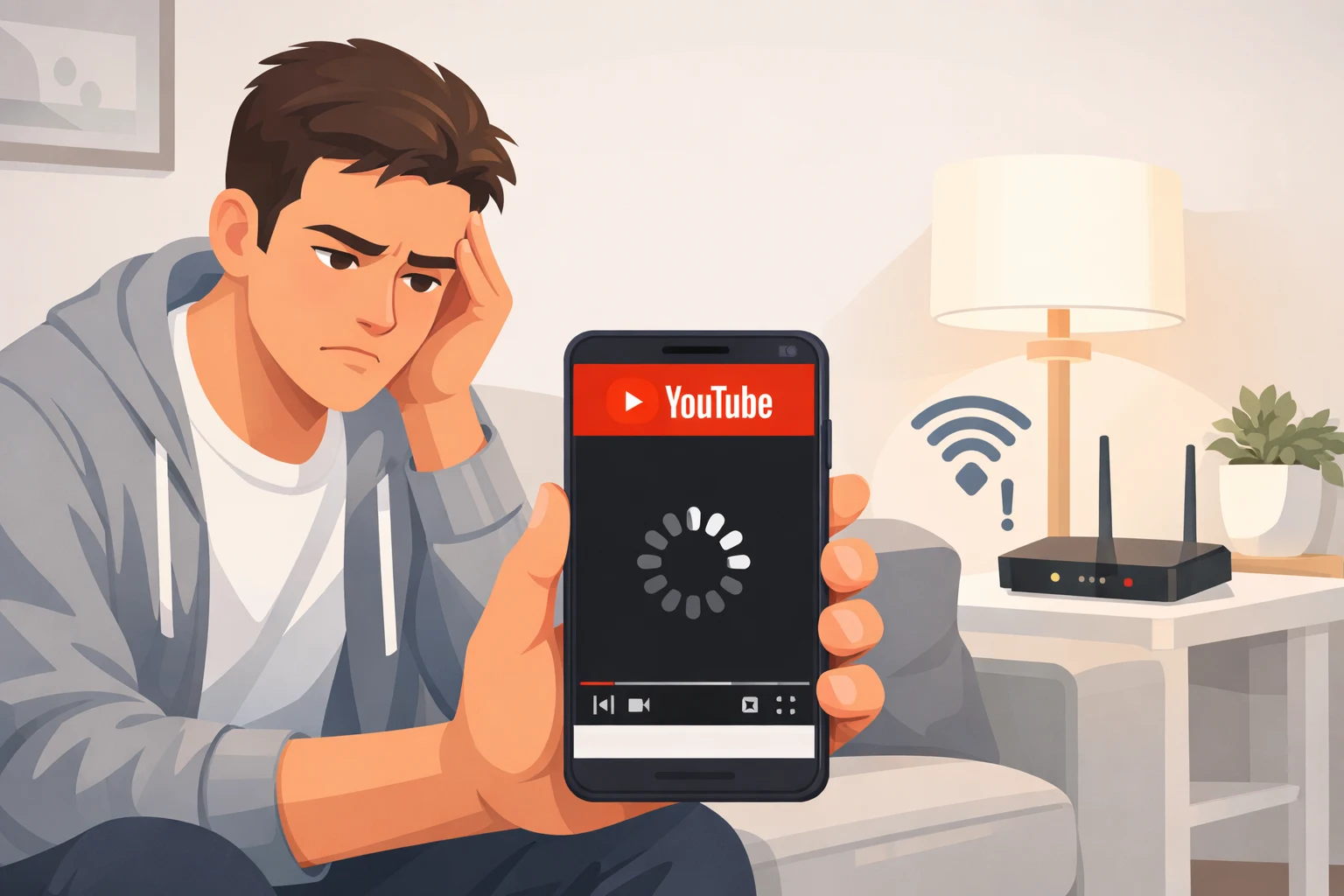
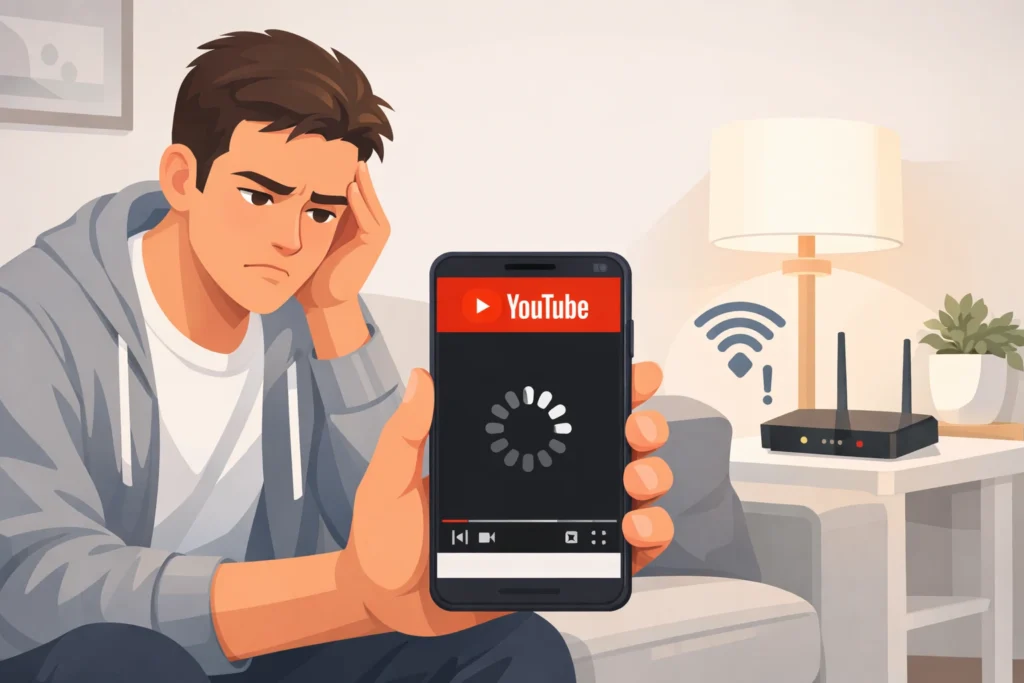
Nothing is more frustrating than sitting down to watch a YouTube video and seeing that spinning circle again and again. If YouTube keeps buffering, you’re not alone — this is one of the most common streaming problems people face today. The good news is there’s a simple YouTube keeps buffering fix that works for most people in under five minutes.
The problem can happen on any device — a Samsung Galaxy phone, an iPhone, a Windows laptop, or a smart TV. It doesn’t matter how new your device is. If your internet connection or app settings are off, YouTube will keep buffering no matter what.
This guide will walk you through every possible fix — starting with the easiest ones first. You don’t need to be a tech expert. Just follow the steps in order and you’ll be back to smooth streaming in no time.
⚡ Quick Answer
If YouTube keeps buffering, start with these four steps right now:
- Restart your Wi-Fi router (unplug for 30 seconds, plug back in)
- Lower the video quality to 480p or 360p
- Clear the YouTube app cache
- Close other apps or browser tabs using your internet
These four steps fix the YouTube buffering problem for most people. If they don’t work, keep reading for more detailed solutions.
Why This Problem Happens
Understanding why YouTube keeps buffering is the first step to fixing it for good.
YouTube buffering happens when your device can’t download the video fast enough to play it smoothly. Think of it like a water pipe — if the water flows too slowly, the glass doesn’t fill fast enough.
Here are the most common reasons YouTube keeps buffering:
- Slow internet connection — the most common cause
- Weak Wi-Fi signal — you may be too far from your router
- Too many devices on the same network — everyone is sharing bandwidth
- Full app cache — saved junk data slowing things down
- Outdated YouTube app — old versions have bugs
- VPN or proxy interference — can slow down video loading
- High video quality selected — your connection can’t handle 1080p or 4K
- YouTube server issues — rare, but sometimes it’s on their end
Once you identify the cause, the YouTube buffering fix becomes much easier to apply.
YouTube Keeps Buffering Fix: Step-by-Step Methods
Fix 1: Check Your Internet Speed
Why it works: YouTube needs at least 5 Mbps to stream in HD. If your speed is lower, YouTube will keep buffering constantly. Knowing your actual speed tells you whether the problem is your internet or something else.
Steps:
- Open your browser and go to fast.com or speedtest.net
- Run the speed test and wait for the result
- Check your download speed number
Minimum speeds needed to stop YouTube buffering:
| Video Quality | Speed Required |
|---|---|
| Standard (360p) | 1–3 Mbps |
| HD (720p) | 5 Mbps |
| Full HD (1080p) | 8 Mbps |
| 4K Ultra HD | 20+ Mbps |
If your speed is below these numbers, the problem is your internet connection — not your device or the YouTube app.
📸 [Screenshot suggestion: Show the Speedtest.net results page with download speed number highlighted]
Fix 2: Restart Your Router
Why it works: Routers can get overwhelmed over time. A simple restart refreshes the entire connection and clears temporary glitches that cause YouTube to keep buffering.
Steps:
- Locate your Wi-Fi router at home
- Unplug the power cable from the back of the router
- Wait a full 30 seconds — don’t rush this step
- Plug the power cable back in
- Wait 1–2 minutes for it to fully reconnect
- Open YouTube and test your video
This single step fixes the YouTube buffering problem for a huge number of people. Always try this before anything else.
📸 [Screenshot suggestion: Show the back of a router with the power cable being unplugged]
Fix 3: Lower the Video Quality
Why it works: Streaming 4K or 1080p requires a very fast and stable connection. Dropping the quality to 480p reduces the amount of data your device needs to download, which immediately stops YouTube from buffering.
Lowering video quality is one of the fastest YouTube buffering fixes available and works on every device.
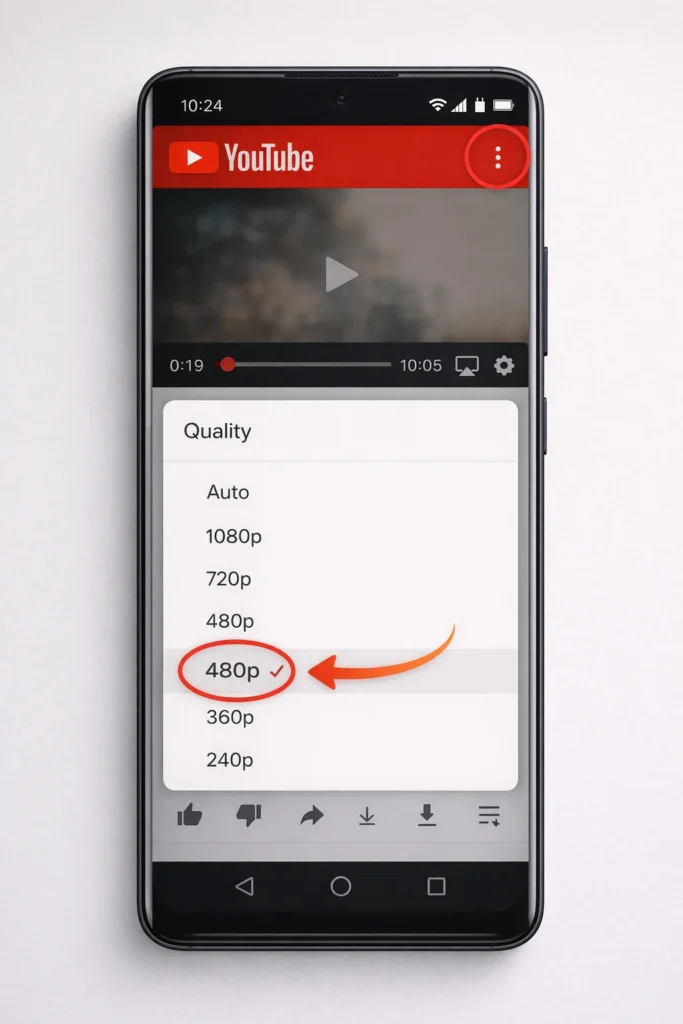
Steps on Mobile (Android & iPhone):
- Open the YouTube video that is buffering
- Tap the three dots icon (⋮) in the top right corner of the video
- Tap Quality
- Select 480p or 360p
- The video will reload — buffering should stop immediately
Steps on Desktop (Windows & Mac):
- Click the gear icon (⚙️) at the bottom right of the video player
- Click Quality
- Select 480p or lower
- Continue watching
Fix 4: Clear the YouTube App Cache
Why it works: Over time, the YouTube app stores a lot of temporary data on your device. This “cache” can become corrupted or too large, causing the app to slow down and making YouTube keep buffering. Clearing it gives the app a fresh start.
A full cache is one of the top reasons YouTube keeps buffering on Android phones like Samsung and Xiaomi.
Steps on Android (Samsung, Xiaomi, Oppo, etc.):
- Open Settings on your phone
- Tap Apps or App Manager (name varies by brand)
- Scroll down and tap YouTube
- Tap Storage
- Tap Clear Cache (do NOT tap “Clear Data” — that logs you out)
- Go back and open YouTube to test
Steps on iPhone or iPad:
- iPhones do not have a direct “Clear Cache” button for apps
- Instead: Delete the YouTube app from your phone
- Then reinstall it from the App Store
- Sign back in and test
📸 [Screenshot suggestion: Show the Android Storage settings screen with the “Clear Cache” button visible]
Fix 5: Close Background Apps
Why it works: When other apps run in the background, they use your internet bandwidth. This leaves less speed available for YouTube, causing it to buffer. Closing them gives YouTube the full connection speed it needs.
Steps on Android:
- Tap the Recent Apps button (the square icon at the bottom of your screen)
- Swipe left or right to close all apps you’re not using
- Return to YouTube and try again
Steps on iPhone:
- Swipe up from the bottom of the screen and hold (or double-tap the Home button on older iPhones)
- Swipe up on all apps to close them
- Reopen YouTube
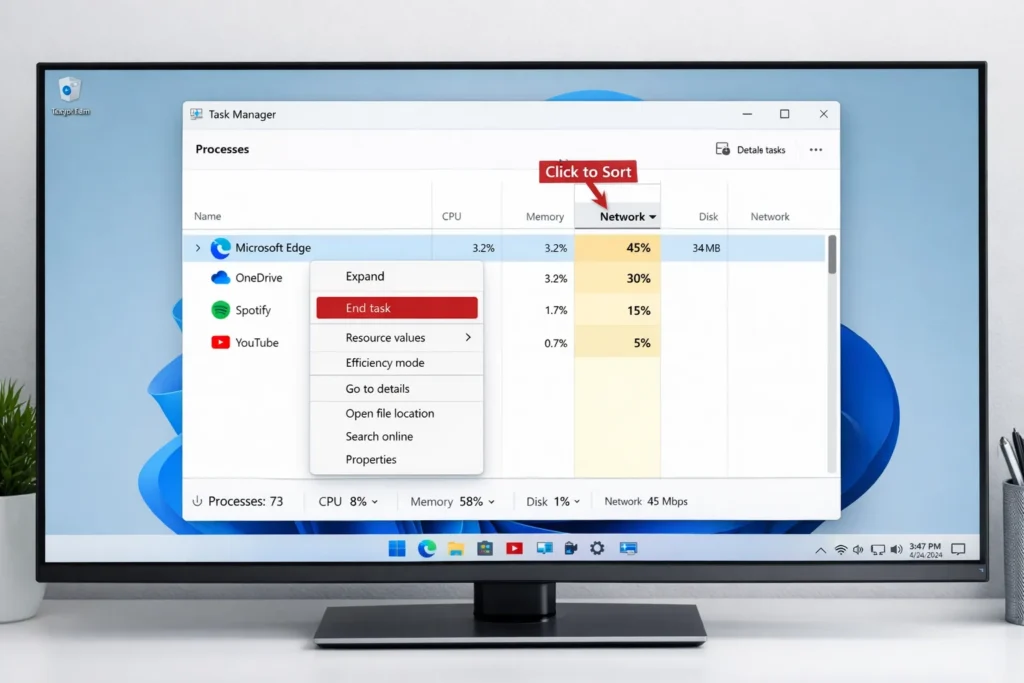
Steps on Windows PC:
- Press Ctrl + Alt + Delete on your keyboard
- Click Task Manager
- Click the Network column header to sort by internet usage
- Right-click any app using a lot of network data
- Click End Task
Fix 6: Update the YouTube App
Why it works: Older versions of the YouTube app can have bugs that cause streaming issues. Developers release updates to fix these bugs. If your app is outdated, YouTube will keep buffering even when nothing else is wrong.
Steps on Android:
- Open the Google Play Store
- Tap the search bar and type YouTube
- If you see an Update button, tap it
- Wait for the update to finish, then open YouTube
Steps on iPhone/iPad:
- Open the App Store
- Tap your profile picture in the top right corner
- Scroll down to find YouTube in the list
- If there’s an Update button next to it, tap it
📸 [Screenshot suggestion: Show the Google Play Store page for YouTube with the Update button visible]
Fix 7: Switch Between Wi-Fi and Mobile Data
Why it works: Sometimes your Wi-Fi signal is weak or your router has a problem. Switching to mobile data — or vice versa — tests whether the issue is with your Wi-Fi network specifically. This is a quick way to identify the source of the YouTube buffering problem.
Steps on Android:
- Swipe down from the top of your screen to open quick settings
- Tap the Wi-Fi icon to turn it off
- Make sure Mobile Data is turned on
- Open YouTube and test the video
Steps on iPhone:
- Open Settings
- Tap Wi-Fi and toggle it off
- Make sure Cellular Data is turned on
- Open YouTube and test
Important: If YouTube works fine on mobile data but not on Wi-Fi, your home router or internet connection is the problem. Go back to Fix 2 and restart your router.
Fix 8: Turn Off Your VPN or Proxy
Why it works: A VPN routes all your internet traffic through extra servers in other locations. This extra journey adds delay and slows down your connection speed. If you have a VPN running, it could easily be why YouTube keeps buffering even when your internet is fast.
Steps:
- Open your VPN app on your phone or computer
- Tap Disconnect or toggle it off
- Open YouTube and play a video
- Check if the buffering stops
If YouTube streams smoothly without the VPN, your VPN is the cause. You can either:
- Turn off the VPN while watching YouTube
- Switch to a faster, premium VPN service that is built for streaming
Fix 9: Free Up Storage Space on Your Device
Why it works: When your phone or computer’s storage is nearly full, apps struggle to save the temporary video data they need to play videos smoothly. Low storage is an often-overlooked reason why YouTube keeps buffering on older phones.
Steps on Android:
- Open Settings
- Tap Storage or Device Care
- Check how much free space is available
- If you have less than 1 GB free, delete unused apps, old photos, or large files
Steps on Windows:
- Open File Explorer
- Right-click your C: drive
- Click Properties
- Check how much free space is shown
Aim to keep at least 2–3 GB of free space on your device at all times for smooth app performance.
Fix 10: Reinstall the YouTube App
Why it works: If none of the above fixes have worked, the YouTube app itself may be corrupted or broken. A fresh installation removes all corrupted data, broken settings, and old bugs — giving you a completely clean version of the app.
Think of this as the final YouTube keeps buffering fix when everything else fails.
Steps on Android:
- Press and hold the YouTube app icon
- Tap Uninstall
- Confirm by tapping OK
- Restart your phone
- Open the Google Play Store
- Search for YouTube and tap Install
- Sign in and test
Steps on iPhone:
- Press and hold the YouTube app icon
- Tap Remove App
- Tap Delete App to confirm
- Restart your iPhone
- Open the App Store and reinstall YouTube
- Sign in and test
📸 [Screenshot suggestion: Show the “Uninstall” option appearing on an Android phone when the YouTube icon is held]
Additional Tips to Prevent YouTube Buffering
Following these tips will stop YouTube from buffering and keep your streaming smooth long-term.
- Restart your router once a week — keeps your connection fresh and fast
- Use the 5GHz Wi-Fi band instead of 2.4GHz — it’s faster and less congested (check your router settings)
- Move closer to your Wi-Fi router when streaming videos
- Avoid streaming during peak hours (7 PM–11 PM on weekdays) — internet traffic is highest then
- Enable YouTube’s “Auto” quality setting so it automatically adjusts to your current connection speed
- Keep your YouTube app updated at all times so you always have bug fixes
- Don’t run video calls and YouTube at the same time — they both use a lot of bandwidth
🛠️ Troubleshooting Tips Box
Still dealing with YouTube buffering? Run through this checklist:
- ✅ Is your internet download speed above 5 Mbps?
- ✅ Have you restarted your router in the last 24 hours?
- ✅ Is your video quality set to 480p or lower?
- ✅ Is your YouTube app updated to the latest version?
- ✅ Is your VPN turned completely off?
- ✅ Do you have at least 1 GB of free storage on your device?
- ✅ Have you tried watching on a different device or network?
If you answered No to any of these, that is most likely your problem. Go back to the matching fix above.
Common Mistakes to Avoid
Many people try to fix the YouTube buffering problem the wrong way. Here’s what not to do:
❌ Refreshing or restarting the video repeatedly — this wastes time and does not fix the root cause
❌ Tapping “Clear Data” instead of “Clear Cache” — Clear Data logs you out and removes your settings. Always choose Clear Cache only.
❌ Skipping the video quality setting — This is the fastest YouTube buffering fix but most people skip right past it
❌ Assuming it’s always YouTube’s fault — 90% of the time, the issue is on the user’s side, not YouTube’s servers
❌ Keeping your VPN on while streaming — Unless you use a premium VPN, it almost always slows down your YouTube streaming speed
❌ Ignoring available app updates — An outdated YouTube app is a common hidden cause of buffering
Frequently Asked Questions
1. Why does YouTube keep buffering even with fast internet?
Even with fast internet, YouTube can keep buffering if your Wi-Fi signal is weak, your router is overloaded, or too many devices are connected at once. Try moving closer to your router or restarting it. Also check if your video quality is set too high for your current connection.
2. Why does YouTube buffer on my phone but not on my laptop?
This usually means the problem is with the YouTube app on your phone specifically — not your internet connection. Try clearing the YouTube app cache on your Android phone, or reinstalling the app on your iPhone. That should fix the YouTube buffering issue on your phone.
3. Why does YouTube keep buffering at night?
Internet traffic is at its highest in the evenings. Your internet service provider (ISP) may be congested with too many users at the same time. Try lowering the video quality to 480p or watching earlier in the day when traffic is lower.
4. Does clearing cache fix YouTube buffering?
Yes, in many cases it does. Clearing the YouTube cache removes old and corrupted temporary files that slow down the app. It is one of the most effective YouTube buffering fixes for Android users and takes less than one minute to do.
5. How much internet speed do I need to stop YouTube from buffering?
You need at least 3 Mbps for standard quality video, 5 Mbps for HD (720p), 8 Mbps for Full HD (1080p), and 20 Mbps or more for 4K streaming without any buffering. Run a speed test at fast.com to check your current speed.
Conclusion
YouTube keeps buffering for many reasons — slow internet, weak Wi-Fi signal, full app cache, outdated apps, active VPN, or low device storage. The good news is that the YouTube keeps buffering fix is almost always simple and fast.
Start with the easiest solutions: check your internet speed, restart your router, and lower the video quality. If those don’t work, move on to clearing the cache, closing background apps, and updating or reinstalling the app.
Whether you’re dealing with YouTube buffering on your phone, laptop, or TV, one of the 10 fixes in this guide will solve your problem. Bookmark this page so you can come back whenever the buffering problem returns.
- Google Help – YouTube Troubleshooting:
https://support.google.com/youtube - Speedtest by Ookla (referenced in Fix 1):
https://www.speedtest.net - Fast.com by Netflix (referenced in Fix 1):
https://fast.com




[…] YouTube Keeps Buffering Fix: 10 Simple Solutions That Actually Work […]
[…] YouTube Keeps Buffering Fix: 10 Simple Solutions That Actually Work […]
[…] YouTube Keeps Buffering Fix: 10 Simple Solutions That Actually Work […]
[…] YouTube Keeps Buffering Fix: 10 Simple Solutions That Actually Work […]