
Introduction
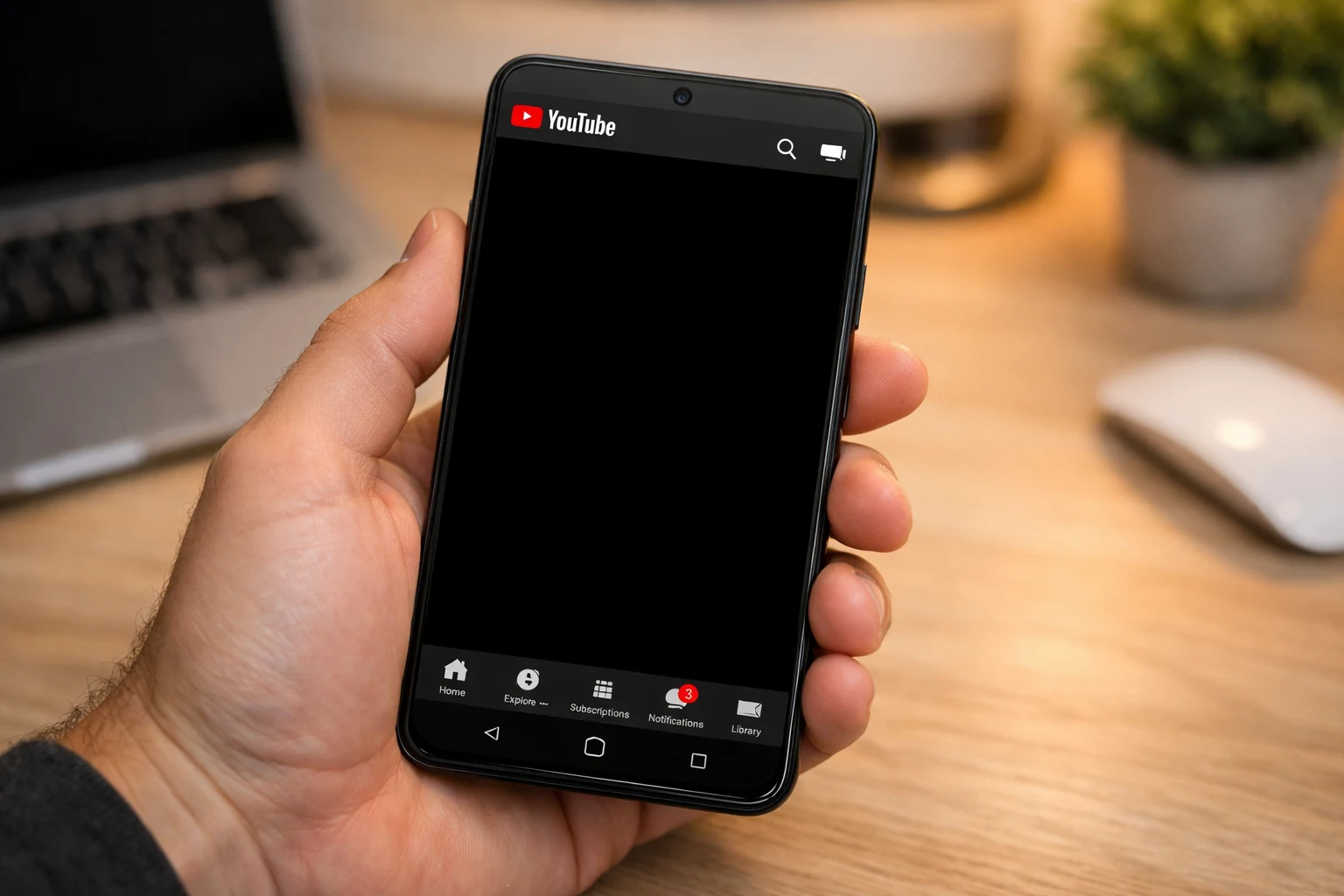
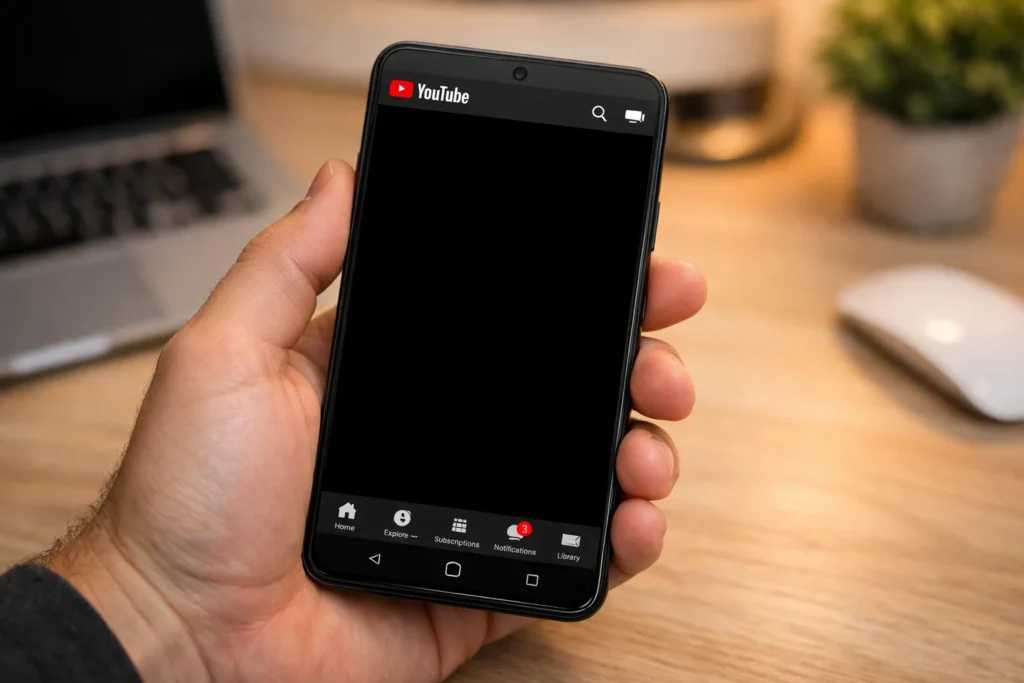
Opening YouTube only to see a YouTube black screen on Android is one of the most frustrating things that can happen on your phone. You tap a video, the screen goes dark, and nothing loads — or worse, you hear audio but see nothing at all.
The YouTube black screen Android problem affects nearly every Android brand, including Samsung, Pixel, OnePlus, Xiaomi, Motorola, and more. Whether you are dealing with a YouTube app black screen on Android after an update or a random glitch, you are not alone. Millions of users search for this fix every month.
This complete guide walks you through 12 proven ways to fix the YouTube black screen on Android. Every method is explained in simple, beginner-friendly steps so you can get back to watching videos in minutes.
Quick Answer
The fastest way to fix a YouTube black screen on Android is to force close the app and clear its cache. Go to Settings > Apps > YouTube > Force Stop, then tap Storage > Clear Cache. Reopen YouTube. This resolves the YouTube black screen Android problem for the majority of users in under one minute.
Still seeing a black screen on YouTube Android? Follow the 12 complete fixes below.
Table of Contents
- Why This Problem Happens
- How to Fix YouTube Black Screen on Android (Step-by-Step Methods)
- Troubleshooting Tips
- Common Mistakes to Avoid
- Additional Tips to Prevent the Issue
- Frequently Asked Questions
- Conclusion
Why This Problem Happens
Before jumping into the fixes, it helps to understand what causes the YouTube black screen on Android phone in the first place. Here are the most common triggers:
- Corrupted app cache — Temporary YouTube files get damaged over time and cause display errors.
- Outdated YouTube app — Running an older version of the YouTube app on Android can trigger the black screen glitch.
- Outdated Android OS — System-level bugs may block proper video playback.
- Slow or unstable internet — A weak Wi-Fi or mobile data connection prevents videos from rendering, resulting in a YouTube video black screen on Android.
- Hardware acceleration conflicts — Your phone’s graphics processor may conflict with the app.
- Google account sync issues — A sync error in your Google account can disrupt YouTube loading.
- Battery saver mode — Power-saving modes restrict background processes and sometimes cause a YouTube dark screen on Android.
- Third-party overlay apps — Screen dimmers, blue light filters, or floating chat heads can block the YouTube video layer and trigger the black screen on YouTube Android issue.
How to Fix YouTube Black Screen on Android (Step-by-Step Methods)
Below are 12 methods to fix the YouTube black screen on Android, listed from easiest to most advanced. Start with Fix 1 and work your way down.
Fix 1: Force Close and Restart YouTube
The quickest way to tackle the YouTube black screen Android problem is a simple force close.
- Open Settings on your Android phone.
- Tap Apps (or Apps & notifications).
- Find and tap YouTube.
- Tap Force Stop.
- Confirm by tapping OK.
- Wait 10 seconds, then reopen the YouTube app.
If the YouTube screen goes black on Android again, move to Fix 2.
Fix 2: Clear YouTube App Cache
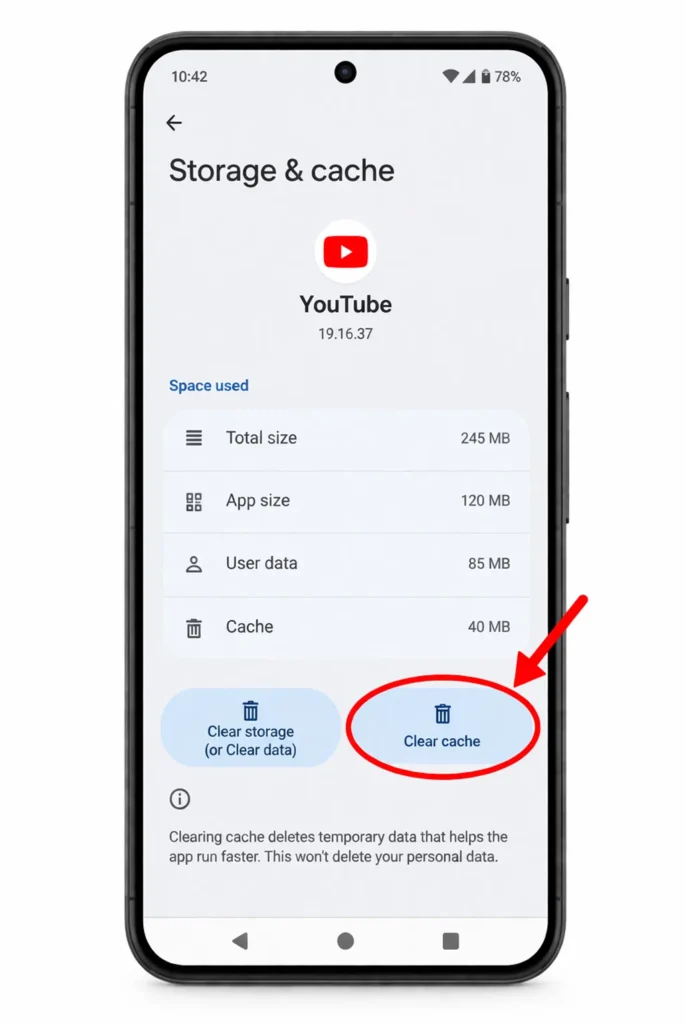
Corrupted cache is the single biggest cause of the YouTube black screen on Android.
- Go to Settings > Apps > YouTube.
- Tap Storage & cache.
- Tap Clear Cache.
- Do not tap “Clear Data” yet (that comes in Fix 3).
- Reopen YouTube and test a video.
This fix alone resolves the YouTube app black screen Android issue for most users.
Fix 3: Clear YouTube App Data
If clearing cache did not fix the YouTube black screen on Android phone, clearing data gives the app a complete reset.
- Go to Settings > Apps > YouTube.
- Tap Storage & cache.
- Tap Clear Data.
- Tap OK to confirm.
- Open YouTube and sign back in with your Google account.
Note: This removes your downloaded videos and app preferences. Your subscriptions and watch history are safe on Google’s servers.
Fix 4: Update the YouTube App
An outdated app is a leading cause of the YouTube video black screen on Android.
- Open the Google Play Store.
- Tap your profile icon in the top right.
- Tap Manage apps & device.
- Tap Updates available.
- Find YouTube and tap Update.
- Once updated, reopen YouTube and check if the black screen on YouTube Android is gone.
Fix 5: Update Your Android Operating System
System updates contain patches that can resolve the YouTube black screen Android bug at the OS level.
- Open Settings.
- Scroll down and tap System (or Software update).
- Tap System update (or Check for updates).
- If available, tap Download and install.
- Restart your phone after the update completes.
- Open YouTube and test playback.
Fix 6: Check and Fix Your Internet Connection
A weak connection often causes the YouTube black screen but audio plays on Android problem.
- Open your browser and load any website to test your connection.
- If the page fails to load, try these steps:
- Toggle Wi-Fi off and back on.
- Switch from Wi-Fi to mobile data (or vice versa).
- Move closer to your Wi-Fi router.
- Restart your router by unplugging it for 30 seconds.
- Once stable, reopen YouTube.
Minimum speed requirements for YouTube:
- SD (480p): 3 Mbps
- HD (720p): 5 Mbps
- Full HD (1080p): 10 Mbps
Fix 7: Restart Your Android Phone
A basic restart clears temporary memory errors that cause the YouTube black screen on Android.
- Press and hold the Power button for 3–5 seconds.
- Tap Restart (or Reboot).
- Wait for your phone to fully boot up.
- Open YouTube and play a video.
Fix 8: Disable Battery Saver Mode
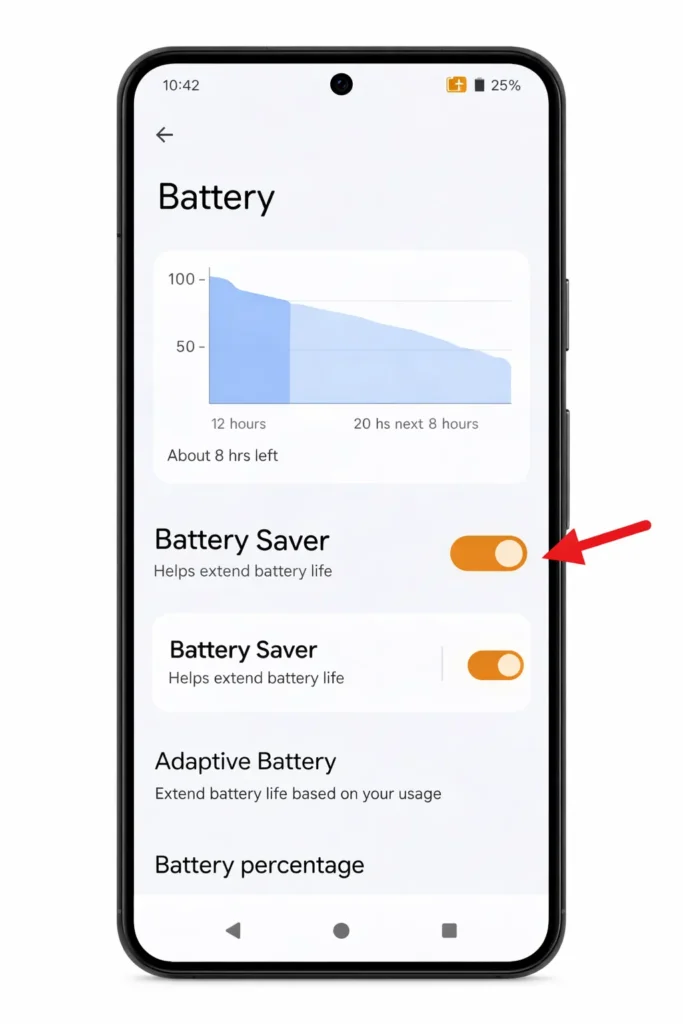
Battery saver restricts app performance and is a hidden cause of the YouTube dark screen on Android.
- Go to Settings > Battery.
- If Battery Saver (or Power Saving Mode) is enabled, tap to turn it off.
- Open YouTube and test video playback.
Fix 9: Uninstall YouTube App Updates
If the YouTube black screen on Android started after a recent app update, rolling back often fixes it.
- Go to Settings > Apps > YouTube.
- Tap the three dots in the top right corner.
- Tap Uninstall updates.
- Confirm by tapping OK.
- Open YouTube and verify the black screen on YouTube Android issue is resolved.
- You can update the app again later once Google releases a stable version.
Fix 10: Disable Screen Overlay Apps
Overlay apps are a sneaky cause of the YouTube app black screen on Android that many users overlook.
- Go to Settings > Apps.
- Tap the three dots menu and select Special access.
- Tap Display over other apps (or Appear on top).
- Turn off permission for overlay apps such as:
- Twilight
- Lux
- Facebook Messenger chat heads
- Any screen dimmer or blue light filter
- Restart YouTube and test playback.
Fix 11: Sign Out and Re-Sign Into Your Google Account
Account sync problems can trigger the YouTube black screen on Android phone.
- Open Settings > Accounts.
- Tap your Google account.
- Tap Remove account and confirm.
- Restart your phone.
- Go to Settings > Accounts > Add account > Google.
- Sign back in.
- Open YouTube and check if the issue is resolved.
Fix 12: Factory Reset Your Android Phone (Last Resort)
If none of the above methods fix the YouTube black screen on Android, a factory reset is the final option.
- Back up all your data first (photos, contacts, messages, files).
- Go to Settings > System > Reset options.
- Tap Erase all data (factory reset).
- Confirm and wait for the process to complete.
- Set up your phone fresh and install YouTube from the Google Play Store.
⚠️ Warning: This deletes everything on your phone. Use this only after trying all 11 other fixes.
Troubleshooting Tips
🔧 Quick Diagnostic Checklist for YouTube Black Screen Android
- ✅ Always force close YouTube before applying any fix.
- ✅ Clear cache first — only clear data if cache does not help.
- ✅ Run a speed test to rule out internet issues.
- ✅ Try playing a different video — the problem might be with one specific upload.
- ✅ Open YouTube in Chrome browser to check if the black screen on YouTube Android is app-only.
- ✅ Visit the Google Workspace Status Dashboard to check if YouTube servers are experiencing downtime.
- ✅ Try using YouTube on another device to isolate the problem to your phone.
Common Mistakes to Avoid
When trying to fix the YouTube black screen on Android, users commonly make these errors:
- Jumping straight to factory reset — Always try simpler fixes like clearing cache first.
- Ignoring YouTube app updates — Old app versions invite bugs. Keep the app updated.
- Forgetting about VPNs — Some VPN apps interfere with YouTube video loading. Disable your VPN temporarily and test.
- Installing YouTube from unknown sources — Never download YouTube APK files from third-party websites. Always use the official Google Play Store.
- Skipping the phone restart — Many fixes only take full effect after a device restart.
- Blaming hardware immediately — The YouTube black screen Android problem is almost always a software issue, not a broken screen.
Additional Tips to Prevent the Issue
Follow these simple habits to stop the YouTube black screen on Android from happening again:
- Enable auto-updates in the Google Play Store to always run the latest YouTube version.
- Clear YouTube cache once a month as part of routine phone maintenance.
- Install Android system updates as soon as they become available.
- Use a strong, stable internet connection when streaming YouTube videos.
- Avoid unreliable third-party apps that claim to enhance or modify YouTube.
- Restart your Android phone at least once a week to clear temporary memory issues.
- Limit the use of overlay apps that draw over other applications on your screen.
Frequently Asked Questions
Why is my YouTube screen black but audio still plays on Android?
The YouTube black screen but audio plays on Android issue usually means the video renderer is malfunctioning while the audio stream loads normally. Clear the YouTube app cache, disable any screen overlay apps, and restart your phone. This combination fixes the problem in most cases.
How do I fix YouTube not working on my Android phone?
To fix YouTube not working on Android, start with three basic steps: force close YouTube, clear its cache, and check your internet connection. If those fail, update the YouTube app and your Android OS. The 12 fixes in this guide cover every common cause of YouTube not working on Android.
Does clearing YouTube cache delete my subscriptions and watch history?
No. Clearing the cache only removes temporary files stored locally on your Android device. Your subscriptions, watch history, liked videos, and playlists are all saved on Google’s servers. They remain untouched when you clear the cache to fix the YouTube black screen on Android.
Why does YouTube show a black screen after updating the app?
Sometimes a new YouTube update contains a bug that causes the YouTube app black screen on Android. To fix this, go to Settings > Apps > YouTube > Uninstall updates. This rolls the app back to its original version. Wait a few days and update again once Google pushes a stable patch.
Is the YouTube black screen on Android a hardware problem?
In 99% of cases, the YouTube black screen Android problem is a software issue, not a hardware defect. If your phone screen works perfectly in all other apps, your hardware is fine. Follow the 12 software fixes in this guide before considering any hardware diagnosis or repair.
Conclusion
The YouTube black screen Android problem is extremely common but almost always fixable with simple steps. For most users, force closing the YouTube app and clearing its cache is the only fix needed.
If that does not work, updating the app, checking your internet connection, disabling battery saver mode, or removing overlay apps will resolve the black screen on YouTube Android in nearly every case.
Always start with the easiest fix and work your way to more advanced methods. A factory reset should be your absolute last resort. Bookmark this guide so you have it ready the next time the YouTube black screen on Android interrupts your viewing.
- Google YouTube Help Center — Official troubleshooting documentation from Google.
- Google Play Store Help — Update Apps — Official guide to updating Android apps.
- Android Help — Check & Update Your Android Version — Official guide from Google for OS updates.



