
Introduction
You go to sleep with a fully charged phone. You wake up, and the battery is nearly dead. If your phone battery draining overnight sounds familiar, you’re not alone. This is one of the most reported smartphone problems across Android, iPhone, Samsung, Xiaomi, Pixel, and every major brand.
The good news? Phone battery draining overnight almost never means your device is broken. In most cases, hidden background activity is silently eating your charge while you sleep. Apps refreshing data, location services pinging satellites, software glitches, or a weak cellular signal can all cause overnight battery drain without any warning.
This step-by-step guide gives you 10 practical fixes for phone battery draining overnight — from the simplest quick wins to advanced solutions. No tech experience needed. Just follow along.
Quick Answer
If your phone battery drains overnight, the fastest fix is to turn on Battery Saver mode (or Low Power Mode on iPhone) before bed. This instantly restricts background activity, stops apps from refreshing, and limits syncing — the top reasons behind battery draining at night. For a permanent solution, read the complete guide below to find and eliminate the exact cause.
Why Does Phone Battery Drain Overnight?
Before jumping to fixes, it helps to understand why your phone battery drains overnight in the first place. Knowing the cause helps you pick the right fix faster.
Here are the most common reasons for overnight battery drain:
- Background apps: Social media, email, and news apps constantly refresh and sync data — even when your screen is off.
- Location services: GPS tracking runs silently in the background, consuming significant power.
- Poor cellular signal: When your phone struggles to find a network, it boosts its radio power, which causes rapid battery draining at night.
- Push notifications: Every notification wakes your phone’s processor. Dozens of these overnight add up fast.
- Always-On Display: Features that keep part of your screen lit 24/7 steadily consume battery.
- Software bugs: A recent update or misbehaving app can trigger abnormal overnight battery drain.
- Degraded battery: If your phone is over 2–3 years old, the battery itself may no longer hold a proper charge.
How to Fix Phone Battery Draining Overnight — 10 Step-by-Step Methods
Fix 1: Turn On Battery Saver Mode
This is the fastest way to stop battery drain overnight. Battery Saver mode limits background processes, reduces performance slightly, and halts unnecessary syncing.
On Android (Samsung, Xiaomi, Pixel, OnePlus):
- Open Settings.
- Tap Battery (or Battery and Device Care on Samsung).
- Tap Battery Saver (or Power Saving Mode).
- Toggle it On.
- Optionally, schedule it to activate automatically every night.
On iPhone:
- Open Settings.
- Tap Battery.
- Toggle Low Power Mode on.
Why this works: Battery Saver pauses most background activity at once — the exact activity that causes your phone battery to drain overnight.
Fix 2: Find Apps Draining Battery Overnight
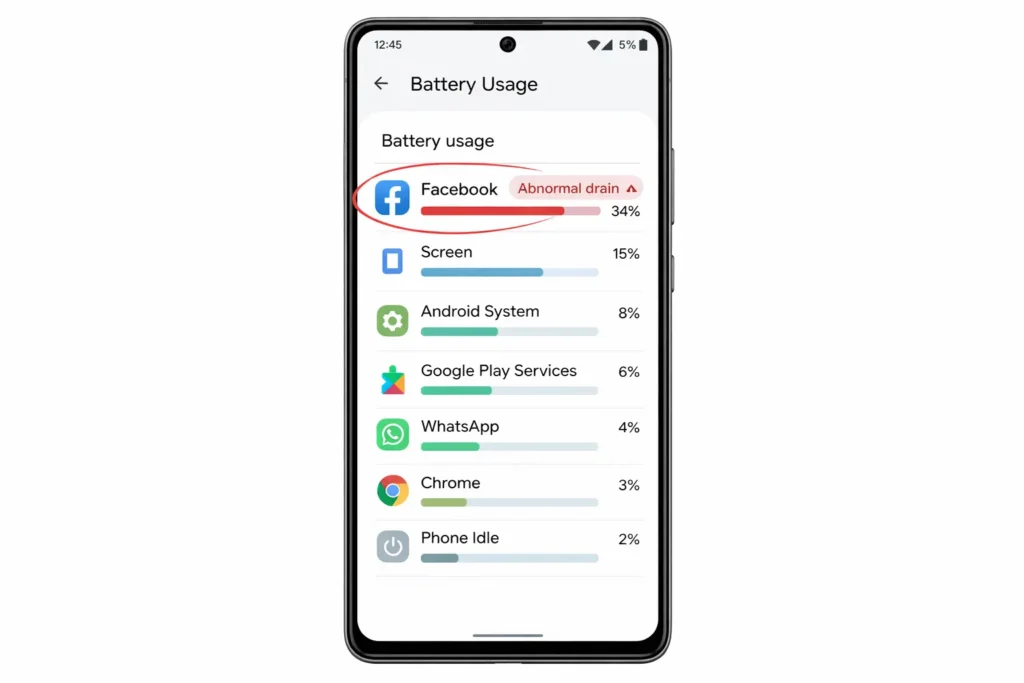
Your phone tracks exactly which apps consume the most power. This is often the fastest way to discover why your phone loses charge overnight.
On Android:
- Go to Settings > Battery > Battery Usage.
- Review apps ranked by battery consumption.
- Any app using more than 10–15% without you actively using it is likely causing overnight battery drain.
On iPhone:
- Go to Settings > Battery.
- Scroll down to see battery usage by app over the last 24 hours.
- Look for apps with high “Background Activity.”
What to do next: Force stop, uninstall, or restrict background access for any suspicious app.
Fix 3: Turn Off Background App Refresh
Background App Refresh allows apps to update their content silently. This is a major contributor to phone battery draining overnight.
On iPhone:
- Go to Settings > General > Background App Refresh.
- Turn it Off entirely, or disable it for non-essential apps.
On Android:
- Go to Settings > Apps.
- Select the problematic app.
- Tap Battery.
- Choose Restricted or Optimized.
Why this works: When apps cannot refresh in the background, they stop consuming battery while you sleep.
Fix 4: Disable Location Services at Night
GPS is one of the biggest reasons behind phone battery draining at night. Many apps request location access even when you’re not actively using them.
On Android:
- Swipe down from the top of the screen.
- Tap the Location icon to turn it off before bed.
On iPhone:
- Go to Settings > Privacy & Security > Location Services.
- Set apps to While Using the App instead of Always.
Why this works: GPS hardware uses substantial power. Disabling it when you’re home and asleep significantly reduces overnight battery drain.
Fix 5: Turn Off Wi-Fi and Bluetooth When Not Needed
Wi-Fi and Bluetooth constantly scan for connections, even when idle. Turning them off at night helps stop your phone battery from draining overnight.
- Swipe down to open Quick Settings.
- Toggle off Wi-Fi and Bluetooth.
Pro tip: Use Airplane Mode at night. This disables all wireless connections at once and is the single most effective way to fix phone battery draining overnight.
⚠️ Note: Airplane Mode disables phone calls and texts. Only use it if you don’t need to receive calls while sleeping.
Fix 6: Reduce Screen Wake-Ups and Notifications
Every notification that lights up or vibrates your phone uses battery. Over a full night, this is a hidden cause of phone losing battery overnight.
- Go to Settings > Notifications.
- Disable notifications for non-essential apps (games, shopping, social media).
- On Android: Go to Settings > Display and disable Lift to Wake and Tap to Wake.
- On iPhone: Disable Raise to Wake under Settings > Display & Brightness.
Why this works: Fewer wake-ups mean your screen and processor stay asleep longer.
Fix 7: Install Software Updates
Software bugs are a frequent cause of abnormal phone battery draining overnight. Manufacturers release updates specifically to fix battery issues.
On Android:
- Go to Settings > Software Update (or System > System Update).
- Tap Check for Updates.
- Install and restart your phone.
On iPhone:
- Go to Settings > General > Software Update.
- Download and install any available update.
Why this works: Updates include battery optimization patches that directly address overnight battery drain bugs.
Fix 8: Turn Off Always-On Display
Samsung Galaxy phones, Google Pixel devices, and iPhone 14 Pro and later models feature Always-On Display (AOD). While convenient, it’s a steady drain on your battery.
- Go to Settings > Display (or Lock Screen).
- Find Always-On Display.
- Toggle it Off.
Battery impact: AOD can consume 1–5% per hour. Over 8 hours of sleep, that’s potentially 40% of your battery — a massive contributor to your phone battery dying overnight.
Fix 9: Reset Network Settings
If your phone constantly searches for a cellular signal at night, it burns through battery. This is especially common in basements or rural areas. Resetting network settings can resolve this cause of battery draining overnight.
On Android:
- Go to Settings > General Management > Reset > Reset Network Settings.
- Confirm and restart.
On iPhone:
- Go to Settings > General > Transfer or Reset iPhone > Reset > Reset Network Settings.
- Enter your passcode and confirm.
⚠️ Important: This erases saved Wi-Fi passwords. Make sure you know your Wi-Fi password before proceeding.
Fix 10: Factory Reset as a Last Resort
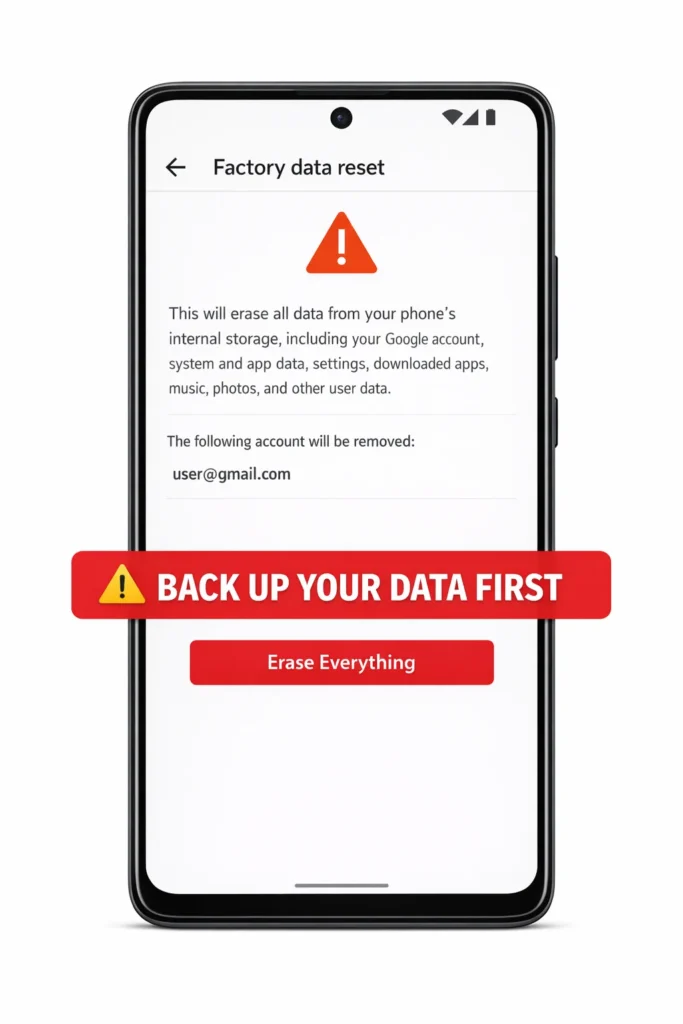
If your phone battery keeps draining overnight despite trying every fix above, a factory reset can eliminate deep software issues.
Before resetting:
- Back up all data (photos, contacts, messages, files).
- Save your Google or Apple ID login credentials.
On Android:
- Go to Settings > General Management > Reset > Factory Data Reset.
- Follow the on-screen instructions.
On iPhone:
- Go to Settings > General > Transfer or Reset iPhone > Erase All Content and Settings.
Why this works: A factory reset wipes all apps, settings, and potential software corruption — giving your phone a completely fresh start.
Troubleshooting Tips
🔧 Quick Diagnostic Checklist for Phone Battery Draining Overnight
Use this checklist to pinpoint the problem:
✅ Charge to 100% and note the exact time before bed.
✅ Check the percentage immediately when you wake up.
✅ Normal overnight drain: 1–5% over 8 hours. Abnormal: anything over 10%.
✅ Check Settings > Battery first thing in the morning to identify what consumed power.
✅ Test with Airplane Mode for one night. If the drain stops, the problem is connectivity or syncing-related.
✅ Test in Safe Mode (Android only) for one night. If drain stops, a third-party app is the cause.
✅ If drain continues even in Airplane Mode, the battery hardware likely needs professional replacement.
Common Mistakes That Make Overnight Battery Drain Worse {#common-mistakes}
Many users unknowingly make phone battery draining overnight worse. Avoid these errors:
- Force-closing all apps constantly. This actually uses more battery because your phone reloads each app from scratch when reopened.
- Installing “battery cleaning” or “RAM booster” apps. These are almost always useless and often run their own background processes that increase overnight battery drain.
- Keeping auto-brightness at maximum levels. If your screen wakes at night, auto-brightness may spike unnecessarily.
- Charging to 100% and leaving it plugged in all night every night. Repeated overcharging can degrade battery health over time.
- Ignoring app updates. Outdated apps may contain bugs that cause excessive battery draining at night.
- Skipping the battery usage screen. Most users never check which app is actually causing the problem — always check your battery stats first.
Additional Tips to Prevent Phone Battery Draining Overnight
Once you’ve fixed the immediate problem, use these habits to prevent phone battery draining overnight permanently:
- Schedule Do Not Disturb mode from bedtime to morning. This silences notifications and reduces processor wake-ups.
- Enable Adaptive Battery (Android) or Optimized Battery Charging (iPhone). These features learn your habits and limit unnecessary background activity.
- Uninstall apps you no longer use. Even idle apps can run hidden background services that cause battery drain at night.
- Monitor battery health regularly. On iPhone: Settings > Battery > Battery Health. On Samsung: Settings > Battery > Battery Health. Replace the battery when health drops below 80%.
- Avoid temperature extremes. Heat and cold accelerate battery degradation.
- Use dark mode on phones with OLED screens (Samsung Galaxy, Pixel, iPhone 12+). Dark pixels use significantly less power.
- Restart your phone once a week. This clears temporary files and stops stuck background processes that contribute to overnight battery drain.
Frequently Asked Questions
Why does my phone battery drain overnight even when I’m not using it?
Background apps, push notifications, location services, and cellular signal searching all consume power while your screen is off. These hidden processes are the primary reason for phone battery draining overnight. Follow the fixes above to identify and disable them.
How much battery drain overnight is normal?
Losing 1–5% over 8 hours with the screen off is normal. If your phone loses more than 10% battery overnight, something is running in the background that shouldn’t be. Use your Battery Usage screen to find the culprit.
Does Airplane Mode stop phone battery draining overnight?
Yes. Airplane Mode is one of the most effective ways to fix phone battery draining overnight. It disables cellular, Wi-Fi, and Bluetooth connections, which are major battery consumers. The trade-off is you won’t receive calls or messages until you turn it off.
Can a bad battery cause my phone to die overnight?
Yes. If your phone is over 2–3 years old or battery health is below 80%, the battery may no longer hold a proper charge. In this case, no software fix will fully solve the overnight battery drain — you’ll need a professional battery replacement.
Should I turn off my phone at night to save battery?
Turning off your phone will completely prevent battery draining overnight, but it’s usually unnecessary. Enabling Battery Saver mode or Airplane Mode provides nearly the same benefit without the inconvenience of a full shutdown. However, powering off is a reasonable option for phones with severely degraded batteries.
Conclusion
Phone battery draining overnight is almost always caused by background apps, location services, notifications, or connectivity issues — not a broken device. Start with the simplest fixes: turn on Battery Saver mode, check your battery usage stats, and disable Background App Refresh. If those don’t solve the problem, try turning off Always-On Display, resetting network settings, or testing with Airplane Mode.
For most users, one or two of these solutions completely fix overnight battery drain. If your phone still loses battery overnight after trying everything in this guide, it’s likely time for a professional battery replacement.
Save this guide and revisit it anytime your phone battery starts draining overnight again — especially after software updates or new app installations.
- Apple – iPhone Battery and Performance
- Google – Pixel Phone Battery Troubleshooting
- Samsung – Galaxy Battery Optimization Guide



