
Introduction
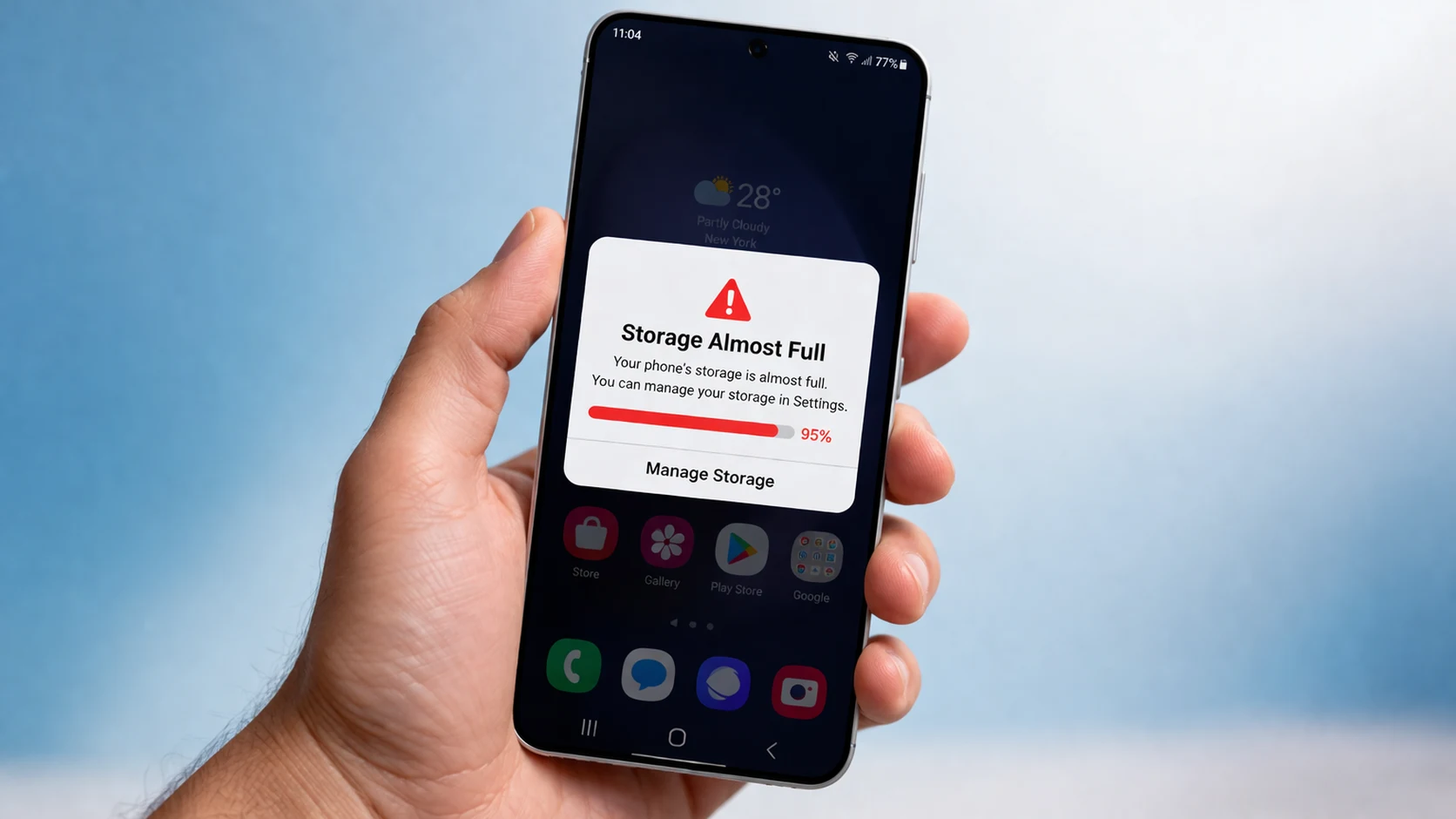
There’s nothing more frustrating than picking up your phone to take a photo, download an app, or install an update — only to see that dreaded “Storage Almost Full” notification. If you need to free up space on Android, you’re not alone. This is one of the most common problems Android users face, whether you own a Samsung Galaxy, Xiaomi Redmi, Google Pixel, OnePlus, or any other Android device.
Your Android storage gets full when internal memory is packed with apps, photos, videos, cached data, and system files. Over time, these files pile up silently in the background, eating away at your available space without you noticing.
The good news? You don’t need to be a tech expert to fix this. This complete guide walks you through every proven method to free up space on Android phones — starting with the easiest fixes and working toward advanced solutions. By the end, your phone will feel faster and lighter.
Quick Answer: Android Storage Full Fix
If you’re in a hurry, here’s the fastest way to free up space on Android:
- Delete unused apps — Go to Settings > Apps and uninstall anything you don’t use.
- Clear cached data — Go to Settings > Storage > Cached Data and clear it.
- Move photos and videos to Google Photos — then delete the local copies.
- Delete old downloads and large files — Use the built-in Files app to find and remove them.
- Use a microSD card (if your phone supports one) to move media off internal storage.
For a deeper cleanup and long-term prevention, keep reading the full Android storage full fix guide below.
Why This Problem Happens
Understanding why your Android phone runs out of space helps you prevent it from happening again. Here are the main culprits behind phone storage full warnings:
- App cache buildup — Every app stores temporary files (cache) to load faster. Over months, this can grow to several gigabytes.
- Photos and videos — Your camera roll is usually the single biggest storage hog, especially if you shoot in high resolution or 4K video.
- WhatsApp and social media — Messaging apps automatically download photos, videos, GIFs, and voice notes sent by others.
- Downloads folder — PDFs, APK files, and documents pile up in your Downloads folder and are easy to forget about.
- System updates — Android system files and update packages take up space that you can’t easily see.
- Duplicate files — Multiple copies of the same photo or document waste significant storage.
- Pre-installed bloatware — Some phones (especially Samsung and Xiaomi) come with apps you never asked for that eat into your storage.
Even phones with 64GB or 128GB of Android internal storage can fill up quickly without regular management. That’s why learning how to free up space on Android is essential for every user.
How to Free Up Space on Android (Step-by-Step Methods)
Method 1: Check What’s Using Your Storage
Before deleting anything, find out what’s consuming the most space on your Android phone.
- Open Settings on your phone.
- Tap Storage (on Samsung, go to Battery and Device Care > Storage).
- You’ll see a breakdown: Apps, Images, Videos, Audio, Documents, and Other.
This breakdown tells you exactly where to focus your cleanup when trying to free up storage on your Android phone.
Method 2: Clear Cached Data
Clearing cache is the fastest Android storage full fix available. Cache is temporary data that apps store to load faster. Removing it is safe and won’t delete personal files.
On stock Android (Pixel, Motorola, Nokia):
- Go to Settings > Storage.
- Tap Cached Data.
- Tap OK to clear.
On Samsung Galaxy:
- Go to Settings > Apps.
- Tap any app (e.g., Instagram, Chrome).
- Tap Storage.
- Tap Clear Cache.
- Repeat for your largest apps.
On Xiaomi:
- Go to Settings > About Phone.
- Tap Storage > Clear up.
- Follow the on-screen prompts.
Why this works: Cache files accumulate over time and can consume 2–5 GB or more. Clearing them is an instant way to free up space on Android without losing important data.
Method 3: Delete Unused Apps
Removing apps you no longer use is one of the most effective ways to clear storage on Android.
- Go to Settings > Apps.
- Sort apps by Size (tap the three-dot menu or filter option).
- Identify apps you haven’t used in months.
- Tap the app and select Uninstall.
Alternatively: Long-press any app icon on your home screen and drag it to Uninstall.
Why this works: Games can take up 1–3 GB each. Social media apps like Facebook and TikTok grow significantly over time. Removing them can instantly free up phone space.
Method 4: Remove Old Downloads
Your Downloads folder is a hidden storage trap that causes Android storage full problems.
- Open the Files app (or My Files on Samsung).
- Tap Downloads.
- Sort by Size or Date.
- Select old files you no longer need.
- Tap Delete.
Look for old PDFs, APK installer files, zip archives, and duplicate documents. This simple step can free up space on Android by several hundred megabytes or more.
Method 5: Delete Large Files and Videos
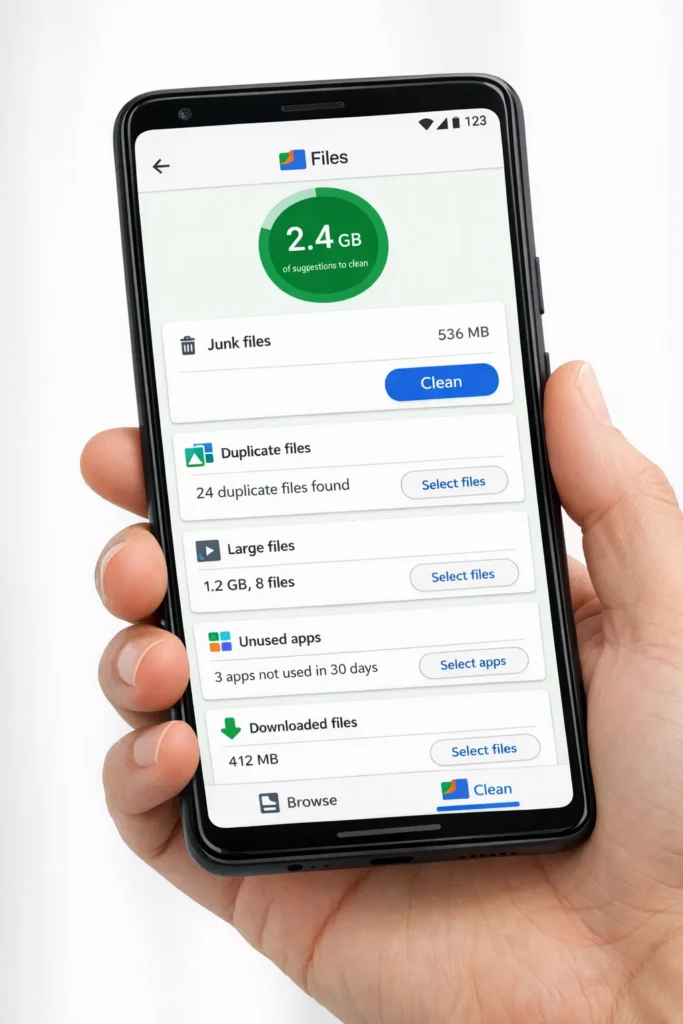
- Open the Files by Google app (download it free from the Play Store if you don’t have it).
- Tap Clean at the bottom.
- Look for the Large Files section.
- Review and delete videos, recordings, and files you don’t need.
Why this works: A single 4K video can be 300 MB to 1 GB. Removing even a few large videos can free up massive amounts of Android storage instantly.
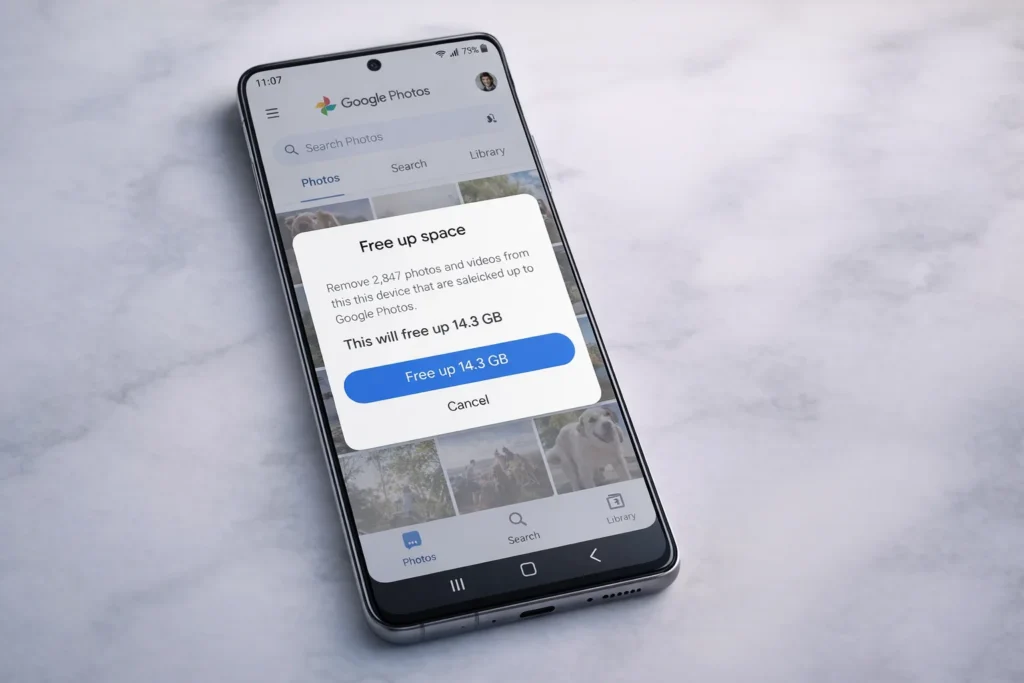
Method 6: Move Photos to Cloud Storage
Instead of keeping thousands of photos on your device, back them up to the cloud to free up space on your Android phone.
- Open Google Photos (pre-installed on most Android phones).
- Tap your profile picture > Photos settings > Backup.
- Turn on Backup and choose Storage saver quality.
- Once backed up, tap Free up space in the app to delete local copies.
Your photos stay safely in the cloud and can be accessed anytime. This is one of the best long-term methods to manage storage on Android and prevent future full storage warnings.
Method 7: Clear WhatsApp and Messaging App Data
WhatsApp is one of the biggest reasons your Android phone storage gets full.
- Open WhatsApp > Settings > Storage and Data > Manage Storage.
- See which chats are using the most space.
- Select large media files, old videos, and forwarded content.
- Tap Delete.
Stop future buildup:
- Go to WhatsApp > Settings > Storage and Data > Media Auto-Download.
- Set all options to No Media or Wi-Fi only.
Cleaning WhatsApp media alone can free up 5–15 GB of space on Android for heavy users.
Method 8: Use Google Files (Smart Storage Manager)
Google Files is the best free tool to free up space on Android automatically.
- Download Files by Google from the Play Store.
- Open the app and tap Clean.
- It will suggest: junk files, duplicate photos, old screenshots, large files, and unused apps.
- Review each suggestion and tap Delete or Free up.
This is the easiest all-in-one Android storage full fix for beginners who want a guided cleanup experience.
Method 9: Move Apps and Files to an SD Card
If your phone has a microSD card slot (common on Samsung Galaxy A series, Xiaomi Redmi, and Motorola phones), you can free up Android internal storage by moving content to the card.
- Insert a microSD card.
- Go to Settings > Apps.
- Tap an app, then tap Storage.
- Tap Change and select SD Card.
- Tap Move.
Note: Not all apps support this feature. System apps and some large apps must remain on internal storage.
Method 10: Delete Offline Maps and Music
Offline downloads are a hidden cause of Android storage full problems.
- Google Maps: Open Maps > Profile picture > Offline maps > Delete old areas.
- Spotify: Open Spotify > Settings > Storage > Delete cache.
- YouTube Music: Go to Library > Downloads > Remove downloads.
Removing unused offline content is a quick way to free up space on Android that many users overlook.
Method 11: Factory Reset (Last Resort)
If you’ve tried everything and your Android storage is still full due to system bloat or corrupted files:
- Back up everything to Google Drive, your computer, or an SD card.
- Go to Settings > General Management > Reset > Factory Data Reset.
- Tap Reset Device and confirm.
⚠️ Warning: This erases everything on your phone. Only use this Android storage full fix when other methods haven’t worked.
Why this works: A factory reset removes all accumulated junk, corrupted cache, and leftover data, giving you a completely fresh start with maximum available storage.
Method 12: Use a USB OTG Drive for Backup
If your phone supports USB OTG (most modern Android phones do), you can free up Android phone space by transferring files to an external drive.
- Buy a USB OTG adapter or a dual USB-C flash drive.
- Plug it into your phone.
- Open your file manager and move large files, photos, and videos to the external drive.
This is an excellent offline alternative to cloud storage for users who want to clear storage on Android without an internet connection.
🔧 Troubleshooting Tips
Storage still showing full after deleting files? Restart your phone. Sometimes Android takes a moment to recalculate available storage after you free up space.
Can’t uninstall certain apps? They might be system apps. Go to Settings > Apps > select the app > tap Disable instead.
“Insufficient storage” error when installing apps? You need at least 500 MB–1 GB of free space for the system to function. Use the methods above to free up space on Android before trying again.
Storage shows “Other” taking up lots of space? This is usually system data and cached files. Clearing app caches and restarting usually reduces the “Other” category.
Phone running slow even after freeing storage? You may also be low on RAM. Close background apps and restart your device.
❌ Common Mistakes to Avoid
- Using “cleaner” or “booster” apps from unknown developers. Most are scams or adware. Stick with Files by Google to safely free up space on Android.
- Clearing app data instead of app cache. Clearing data will log you out and delete your app settings. Only clear cache unless you intend to reset the app completely.
- Ignoring WhatsApp media. Many users don’t realize WhatsApp can use 5–15 GB of storage from auto-downloaded media alone.
- Never backing up photos. If you wait until storage is critically full, you risk losing data. Set up automatic cloud backups today.
- Buying a new phone instead of fixing the problem. A proper cleanup can recover 10–30 GB of storage, making your current phone feel brand new.
Additional Tips to Prevent the Issue
Preventing Android storage full problems is easier than fixing them. Follow these habits:
- Set up automatic Google Photos backup so photos are always saved to the cloud.
- Review your storage once a month. A 5-minute monthly cleanup prevents the problem from returning.
- Use streaming instead of downloads for music and videos when possible.
- Install “Lite” versions of apps — Facebook Lite, Messenger Lite, and Twitter Lite use far less storage.
- Disable auto-downloads in WhatsApp, Telegram, and other messaging apps.
- Choose your next phone wisely — if you take lots of photos and videos, get a phone with at least 128GB storage or expandable SD card support.
Following these tips means you’ll rarely need to worry about how to free up space on Android again.
Frequently Asked Questions
1. Why does my Android phone say storage is full when it’s not?
This usually happens because of hidden cached files, system data, or the “Other” storage category. To fix this Android storage full error, clear your app cache, restart your phone, and use Files by Google to scan for junk files. The storage reading typically updates correctly after a reboot.
2. How do I free up space on Android without deleting anything?
You can free up space on Android without permanently losing files by moving photos to cloud storage (like Google Photos), transferring files to a microSD card, or using a USB OTG drive. Your files are preserved but no longer consuming internal storage.
3. What is “Other” in Android storage, and can I delete it?
“Other” typically includes system files, app data, cached data, and miscellaneous files. You can reduce it by clearing app caches and restarting your phone. A factory reset will clear it completely, but back up your data first.
4. Is it safe to clear cached data on Android?
Yes, absolutely. Clearing cache is completely safe and is the quickest way to free up space on Android. It only removes temporary files that apps will recreate when you use them next. You won’t lose passwords, accounts, photos, or personal data.
5. How much free storage should I keep on my Android phone?
Experts recommend keeping at least 10–15% of your total storage free for your phone to run smoothly. On a 64GB phone, that means maintaining roughly 6–10 GB available. This ensures apps can update, the system functions properly, and your phone doesn’t slow down.
Conclusion
Learning how to free up space on Android doesn’t require any special skills. In most cases, you can reclaim gigabytes of storage in just 10–15 minutes by clearing cache, deleting unused apps, cleaning up WhatsApp media, and backing up photos to the cloud. Start with the simple fixes first — they solve the Android storage full problem for the vast majority of users.
The key to preventing this issue from returning is regular maintenance. Set up automatic backups, do a quick monthly storage check, and disable auto-downloads in messaging apps. Your phone will stay fast, responsive, and clutter-free.
If you’ve tried every Android storage full fix on this list and still can’t resolve the issue, visit your phone manufacturer’s support page or a local repair shop for further assistance.
- Google Support – Free up storage space: https://support.google.com/android/answer/7431795
- Samsung Support – Manage storage on Galaxy devices: https://www.samsung.com/us/support/troubleshooting/TSG01203568/
- Google Play – Files by Google: https://play.google.com/store/apps/details?id=com.google.android.apps.nbu.files




[…] How to Free Up Space on Android: 12 Easy Storage Full Fixes […]
[…] How to Free Up Space on Android: 12 Easy Storage Full Fixes […]
[…] How to Free Up Space on Android: 12 Easy Storage Full Fixes […]