
Introduction
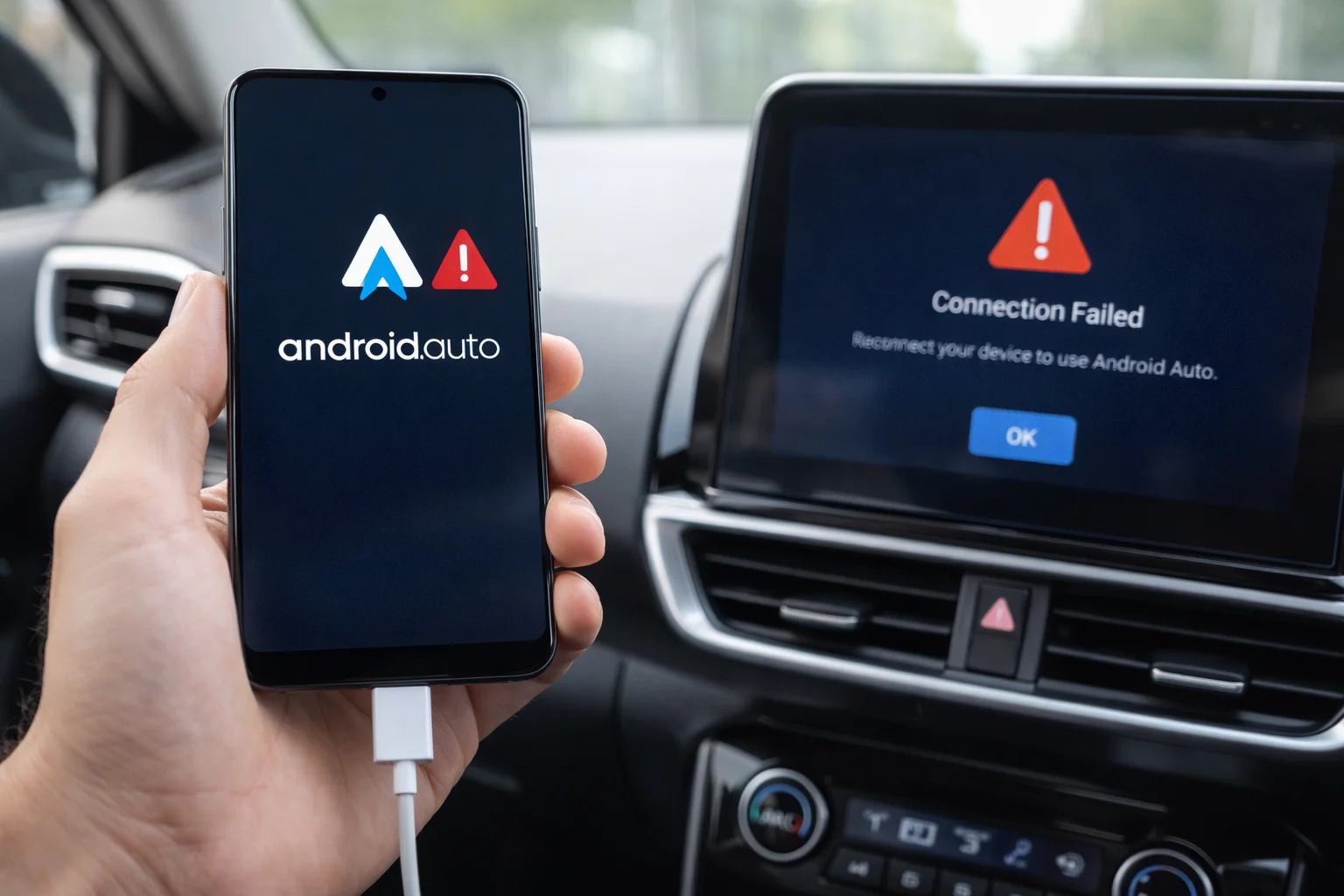
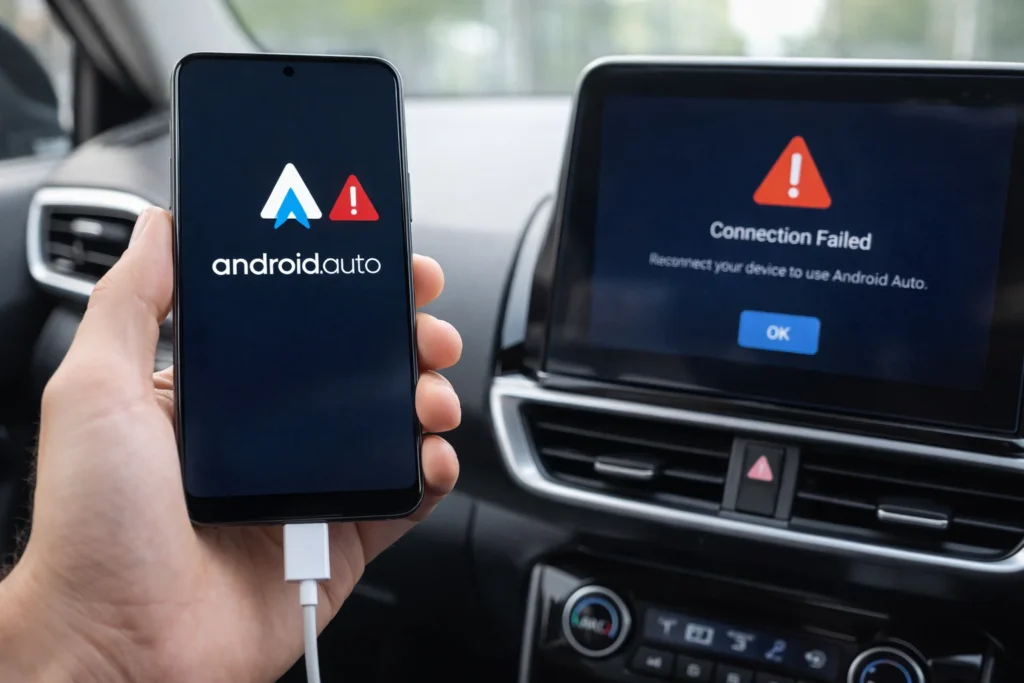
There is nothing more frustrating than getting into your car, plugging in your phone, and realizing Android Auto is not working. You depend on it for Google Maps navigation, hands-free calling, and music streaming — and when it suddenly fails, your whole driving experience suffers.
Android Auto not working is one of the most common complaints among Android phone users. It can happen on Samsung Galaxy, Google Pixel, Xiaomi, OnePlus, and virtually every other Android device. The problem often appears after a phone software update, when connecting to a new car, or completely without warning.
If your Android Auto stopped working and you are not sure what to do, you are in the right place. This guide walks you through 12 proven fixes for Android Auto not working, starting with the easiest solutions and moving toward more advanced methods. No technical background required.
Quick Answer: How to Fix Android Auto Not Working
If Android Auto is not working on your phone, start with these three steps:
- Unplug your USB cable, restart your phone, and reconnect.
- Switch to a different USB data cable (preferably the one that came with your phone).
- Clear the cache and data for the Android Auto app.
These three steps alone resolve Android Auto not connecting issues for the majority of users. If your problem persists, continue through the full guide below.
Why Android Auto Stops Working {#why-android-auto-stops-working}
Before jumping into fixes, it helps to understand why Android Auto is not working in the first place. Knowing the root cause helps you choose the right solution faster.
The most common reasons Android Auto stops working include:
- Damaged or unsupported USB cable. This is the single biggest cause of Android Auto not connecting. Cheap charging-only cables cannot transfer data.
- Outdated app or phone software. Running old versions creates bugs and compatibility failures.
- Corrupted app cache. Temporary data files become corrupted over time, especially after updates, causing Android Auto problems.
- Wrong phone settings. Battery optimization, missing permissions, or USB configuration issues can prevent Android Auto from launching.
- Car infotainment system glitches. Sometimes the Android Auto issue is on the car’s side.
- Phone or car not compatible. Not every device and vehicle supports Android Auto.
Understanding these causes makes the fixes below much easier to follow.
How to Fix Android Auto Not Working — 12 Step-by-Step Methods {#how-to-fix-android-auto-not-working}
Here are 12 tested methods to fix Android Auto not working on any phone. Work through them in order for the best results.
Fix 1: Restart Your Phone
When Android Auto is not working, always start with a restart. It is the fastest fix and works surprisingly often.
Steps:
- Press and hold the Power button.
- Tap Restart.
- Wait for your phone to fully boot up.
- Plug your phone into your car and check if Android Auto is working again.
Why it works: Restarting clears temporary glitches and refreshes all background processes that Android Auto depends on.
Fix 2: Replace Your USB Cable
A faulty USB cable is the #1 reason Android Auto won’t connect. Many users unknowingly use a cable that only charges but does not transfer data.
Steps:
- Disconnect your current cable.
- Switch to the original cable that came with your phone.
- If you do not have it, use a certified USB-C data cable (USB 2.0 or higher).
- Plug it firmly into both your phone and the car’s Android Auto USB port.
- If your car has multiple USB ports, try each one — only one may support Android Auto.
Reliable cable brands: Samsung, Google, Anker, Belkin.
Why it works: Android Auto requires high-speed data transfer. Charging-only cables physically lack the data wires needed, so Android Auto will not work with them.
Fix 3: Enable Android Auto and Grant Permissions
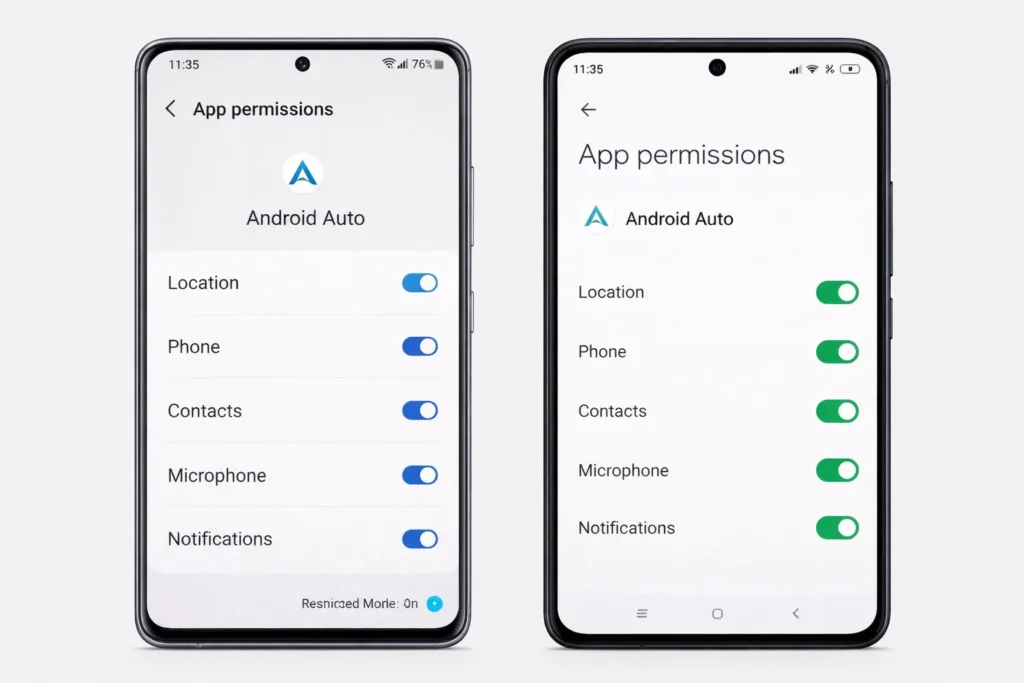
On many phones, Android Auto is not working simply because it has not been enabled or given the permissions it needs.
Steps:
- Open Settings on your phone.
- Search for “Android Auto.”
- Make sure it is turned on.
- Tap Permissions and enable: Location, Phone, Contacts, Notifications, Microphone.
- On Samsung phones: Go to Settings > Connected Devices > Android Auto.
- On Xiaomi phones: Go to Settings > Apps > Manage Apps > Android Auto > Permissions.
Why it works: Without full permissions, Android Auto cannot access navigation, calls, or messages — causing it to fail or not launch at all.
Fix 4: Update the Android Auto App
If Android Auto stopped working after an update — or if you have not updated in a while — an outdated app version could be causing the problem.
Steps:
- Open the Google Play Store.
- Search for “Android Auto.”
- If you see an Update button, tap it immediately.
- Wait for the update to complete.
- Reconnect your phone to your car and test.
Why it works: Google regularly releases patches to fix Android Auto problems caused by bugs and compatibility issues. Staying updated is essential.
Fix 5: Update Your Phone Software
An outdated Android operating system often conflicts with the Android Auto app, causing Android Auto issues on many devices.
Steps:
- Go to Settings > Software Update (Samsung) or Settings > System > System Update (Pixel).
- Tap Check for Updates.
- Download and install any available update.
- Restart your phone after installation.
Why it works: System updates include security patches and compatibility improvements that Android Auto relies on to function correctly.
Fix 6: Clear Android Auto Cache and Data
Corrupted cached files are a very common reason Android Auto is not working properly. Clearing them forces a fresh start.
Steps:
- Go to Settings > Apps (or App Management).
- Find and tap Android Auto.
- Tap Storage.
- Tap Clear Cache. Reconnect and test.
- If Android Auto is still not working, go back and tap Clear Data.
Important: Clearing data resets your Android Auto preferences (launcher layout, theme) but does not delete personal files from your phone.
Why it works: Corrupted cache and data files prevent the app from loading correctly. Clearing them removes the bad files so Android Auto can rebuild clean ones.
Fix 7: Verify Car Compatibility
If Android Auto is not working and you have never successfully used it in your current vehicle, your car may not support it.
Steps:
- Visit the official Android Auto compatibility list.
- Search for your car’s make, model, and year.
- Confirm whether your vehicle supports wired Android Auto, wireless Android Auto, or neither.
Note: Some cars manufactured before 2016 do not support Android Auto unless you install an aftermarket head unit.
Why it works: No amount of phone troubleshooting will fix Android Auto if the car itself does not support the feature.
Fix 8: Forget and Re-Pair Your Car
A corrupted Bluetooth or USB connection profile can cause persistent Android Auto not connecting issues.
Steps:
- On your phone: Go to Settings > Connected Devices.
- Find your car’s name and tap Forget / Unpair.
- On your car’s infotainment screen: Delete your phone from the saved devices list.
- Restart both your phone and your car’s infotainment system.
- Plug your phone in via USB cable.
- Follow the on-screen prompts to set up Android Auto fresh.
Why it works: Re-pairing eliminates corrupted connection data and establishes a clean, new link between your phone and car.
Fix 9: Disable USB Debugging
If you have ever turned on Developer Options, USB Debugging may be interfering with Android Auto.
Steps:
- Go to Settings > Developer Options.
- Turn USB Debugging OFF.
- Better yet, toggle the entire Developer Options OFF if you do not need it.
- Reconnect to your car and check if Android Auto is working now.
Why it works: USB Debugging changes how your phone handles USB connections, which directly conflicts with how Android Auto communicates with your car.
Fix 10: Switch to Wireless Android Auto
If wired connection keeps failing and your Android Auto won’t connect via cable, try going wireless.
Requirements:
- Phone running Android 11 or higher (Android 10 for Samsung and Google Pixel)
- Car with wireless Android Auto support
- Wi-Fi and Bluetooth turned on
Steps:
- Enable Wi-Fi and Bluetooth on your phone.
- On your car’s infotainment screen, navigate to Wireless Android Auto settings.
- Select your phone from the available devices.
- Accept the pairing prompt on your phone.
Why it works: Wireless Android Auto completely bypasses USB cable issues, which are the most common reason Android Auto is not working.
Fix 11: Turn Off Battery Optimization for Android Auto
Aggressive battery management can kill Android Auto’s background processes before it fully connects. This is an especially common cause of Android Auto not working on Samsung and Xiaomi phones.
Steps:
- Go to Settings > Battery > Battery Optimization.
- Find Android Auto in the app list.
- Set it to “Not Optimized” or “Unrestricted.”
- On Samsung: Settings > Apps > Android Auto > Battery > Unrestricted.
- On Xiaomi: Settings > Apps > Manage Apps > Android Auto > Battery Saver > No Restrictions.
Why it works: When battery optimization is enabled, your phone may shut down Android Auto’s processes to save power, causing connection failures.
Fix 12: Factory Reset the Android Auto App
If none of the above methods worked and Android Auto is still not working, a full app reset is your last step before contacting support.
Steps:
- Go to Settings > Apps > Android Auto.
- Tap Uninstall Updates (this reverts the app to its original factory version).
- Restart your phone.
- Open the Google Play Store.
- Search for Android Auto and install the latest update.
- Connect to your car and complete the setup process.
Why it works: Factory resetting the app removes any buggy update files and gives you a completely clean installation — the most thorough way to fix Android Auto problems.
Common Mistakes That Cause Android Auto Problems {#common-mistakes}
Avoid these mistakes that frequently lead to Android Auto not working:
🚫 Using a charging-only USB cable — Always verify your cable supports data transfer.
🚫 Skipping software updates — Outdated phone OS and app versions cause the majority of Android Auto issues.
🚫 Plugging into the wrong USB port — Only specific car USB ports support Android Auto. Look for a phone icon or “AA” label.
🚫 Having too many Bluetooth devices connected — Disconnect other devices to prevent conflicts.
🚫 Ignoring app permissions — Android Auto needs Location, Phone, Microphone, Contacts, and Notifications permissions to function.
🚫 Using phone cases that block the USB port — Thick cases can prevent a secure cable connection.
Troubleshooting Tips Checklist {#troubleshooting-tips}
🔧 Use this quick checklist when Android Auto is not working:
✅ Restart your phone AND your car’s infotainment system
✅ Try a certified data-transfer USB cable
✅ Update the Android Auto app to the latest version
✅ Update your phone’s operating system
✅ Clear Android Auto cache and data
✅ Check your car’s Android Auto compatibility
✅ Remove old pairings and reconnect fresh
✅ Disable battery optimization for Android Auto
✅ Try a different USB port on your car
✅ Test with wireless Android Auto if supported
Additional Tips to Prevent Android Auto Issues {#prevent-android-auto-issues}
Follow these habits to stop Android Auto problems before they start:
- Keep a spare quality USB cable in your glove box. Cables degrade with daily use.
- Enable automatic updates for both your phone and apps so you always have the newest bug fixes.
- Clear the Android Auto cache once a month to prevent file buildup.
- Do not force-stop Android Auto unless you are actively troubleshooting.
- Check Google’s official release notes after major updates to see if known issues affect your phone.
- Restart your car’s infotainment system periodically — head units can develop glitches too.
Frequently Asked Questions {#faq}
Why does my Android Auto keep disconnecting?
If Android Auto keeps disconnecting, the most likely cause is a loose or damaged USB cable. Replace it with a high-quality data cable. Also check that battery optimization is turned off for Android Auto, as your phone may be killing the connection in the background.
Why is Android Auto not working after a phone update?
Phone updates sometimes change settings or introduce temporary bugs. If Android Auto stopped working after an update, clear the app cache, update the Android Auto app itself, and re-pair your car. This resolves most post-update Android Auto issues.
Does Android Auto work with every car?
No. Android Auto only works with compatible vehicles. Check Google’s official compatibility list. If your car is not listed, you may need an aftermarket head unit to use Android Auto.
Can I use Android Auto without a USB cable?
Yes. Wireless Android Auto is available on phones running Android 11+ and cars that support the wireless feature. Enable Bluetooth and Wi-Fi, then pair through your car’s infotainment settings. This also solves Android Auto not working problems caused by cable issues.
How do I completely reset Android Auto on my phone?
Go to Settings > Apps > Android Auto > Storage > Clear Data, then tap Uninstall Updates. Restart your phone, reinstall the latest version from the Google Play Store, and reconnect to your car. This is the most effective way to fix Android Auto not working when all else fails.
Conclusion
Android Auto not working is one of the most common issues Android users face — but it is almost always fixable. In most cases, the solution is as simple as swapping your USB cable, clearing the app cache, or updating your software.
This guide gave you 12 proven methods to fix Android Auto not working on Samsung, Pixel, Xiaomi, OnePlus, and every other Android phone. Start with Fix 1, work your way down, and you will likely have Android Auto running again within minutes.
Keep your cables in good condition, your apps updated, and your permissions set correctly — and you should rarely encounter Android Auto problems again.
- Google Android Auto Help Center — https://support.google.com/androidauto
- Google Android Auto Compatibility List — https://www.android.com/auto/compatibility/
- Samsung Support — Android Auto Troubleshooting —



