
Introduction
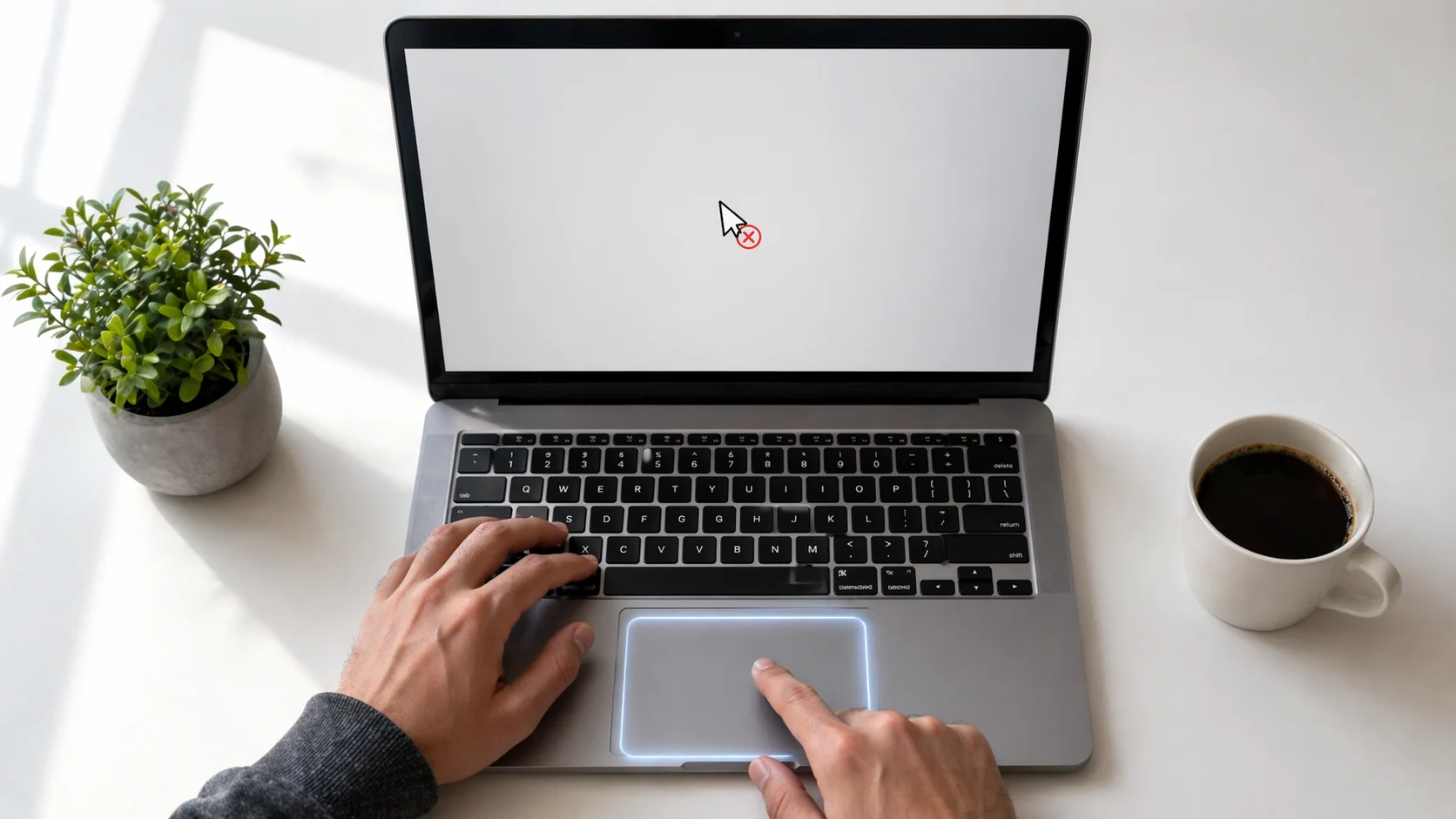
Is your laptop touchpad not working? You’re not alone. A non-responsive laptop touchpad can be frustrating, especially when you’re in the middle of important work. Touchpad issues on Windows laptops can occur due to software glitches, outdated drivers, or accidental changes in system settings.GeeksforGeeks
Whether your cursor is not moving, the touchpad stopped working suddenly, or your laptop touchpad gestures are not working, the problem affects users across all major brands — HP, Dell, Lenovo, ASUS, and Acer. Whether you have a Dell, HP, Lenovo, or Asus laptop, these fixes will help you get your touchpad back to working condition.
The good news? Most laptop touchpad not working issues can be fixed in minutes — no tech experience needed. This guide walks you through 10 proven methods to fix touchpad problems on Windows 10 and Windows 11 laptops.
⚡ Quick Answer: Laptop Touchpad Not Working Fix
If your laptop touchpad is not working, try these three steps first:
- Press the touchpad toggle key (usually Fn + F5/F6/F7/F9) — your touchpad may be accidentally disabled.
- Restart your laptop — a simple reboot resolves most temporary glitches that cause a touchpad not responding issue.
- Check Windows Settings — go to Settings > Bluetooth & Devices > Touchpad and make sure the touchpad toggle is On.
If these quick fixes don’t resolve your laptop touchpad not working problem, continue with the detailed methods below.
Why Your Laptop Touchpad Is Not Working
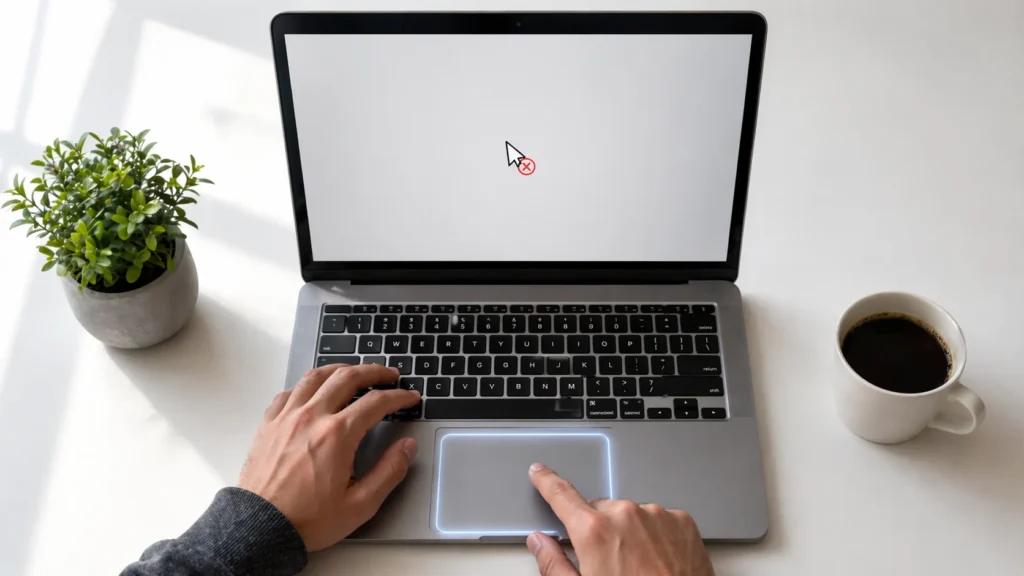
There are many reasons your laptop touchpad stopped working. Here are the most common causes:GeeksforGeeks
- Touchpad Disabled — The touchpad might be accidentally disabled through settings or a keyboard shortcut.
–GeeksforGeeks Outdated or Corrupted Drivers — The touchpad driver could be outdated or corrupted, causing functionality issues.
–GeeksforGeeks External Mouse Interference — Many laptops disable the touchpad automatically when an external mouse is connected.
–GeeksforGeeks Hardware Issues — Physical damage or internal hardware malfunctions could prevent the touchpad from working.
–GeeksforGeeks Software Conflicts — Third-party applications or Windows updates might interfere with touchpad functionality. - Dirty Touchpad Surface — Oils, food residue, or grime on the touchpad can block capacitive input, making the cursor not move on your laptop.GeeksforGeeks
- BIOS Settings Changed — Sometimes BIOS updates or changes can disable the touchpad.
- Swollen Battery — A swelling battery can press upward against the touchpad, causing it to feel stiff or become unresponsive.
Understanding why your laptop touchpad is not working helps you pick the right fix faster.
How to Fix Laptop Touchpad Not Working (Step-by-Step Methods)
Fix 1: Check If Your Laptop Is Frozen
Before troubleshooting the touchpad, make sure your entire laptop isn’t locked up.
- Press the Windows key on your keyboard.
- Try pressing Ctrl + Alt + Delete.
3.TechUpdateLab | Late… If your touchpad stops working as a one-off occurrence, your computer could be totally locked up. In that case, neither the touchpad nor the keyboard will work. - If nothing responds, hold the power button for 10 seconds to force a shutdown, then restart.
If your keyboard works fine but the touchpad is not responding, move to Fix 2.MakeUseOf
Fix 2: Use the Touchpad Toggle Key (Function Key)
This is the #1 reason a laptop touchpad stops working — and the easiest fix.
Most, if not all, Windows laptops dedicate one of the function keys to disabling and enabling the laptop touchpad. The icon on the key often depicts an older-style touchpad with a line through it.How-To Geek
Press and hold the Function key (usually labeled as “fn”) and press the touchpad disable/enable key in the row of function keys.
Common touchpad toggle keys by brand:
| Brand | Key Combination |
|---|---|
| HP | Fn + F5 |
| Dell | Fn + F3 or Fn + F5 |
| ASUS | Fn + F6 or Fn + F9 |
| MSI | Fn + F3 or Fn + F4 |
| Lenovo | Fn + F6 or Fn + F8 |
You should see a message on the screen telling you that the touchpad is enabled or disabled. If the message says enabled, check the touchpad to see if it is now working.
Fix 3: Restart Your Laptop
A simple restart can fix many laptop touchpad not working problems.
- Save any open work.
- Click Start > Power > Restart (or use Ctrl + Alt + Delete and select Restart).
- Wait for the laptop to fully reboot.
- Test the touchpad immediately after login.How-To Geek
A restart clears driver state and resets stuck services. If the touchpad stopped working due to a temporary glitch, this alone may resolve it.https://thelinuxcode…
Fix 4: Enable Touchpad in Windows Settings
Your laptop touchpad not working might simply be a settings issue. Both Windows and macOS allow you to disable the touchpad in the settings. If anyone else uses the laptop, the touchpad could have been disabled in this way.
For Windows 10/11:
- Press Windows key + I to open Settings.
- Go to Bluetooth & Devices > Touchpad (Windows 11) or Devices > Touchpad (Windows 10).
3.How-To Geek Make sure the Touchpad On/Off toggle switch is set to On. If it’s Off, change it to the On position.
For Mac:
- Click Apple menu > System Settings > Trackpad.
- Check that tracking speed isn’t set to the lowest.
- Verify that “Tap to Click” is enabled.
This is one of the fastest ways to enable your touchpad on Windows 11 or 10.https://www.computer…
Fix 5: Disconnect External Mice
Sometimes, Windows 11 automatically turns off the laptop’s touchpad as soon as an external mouse is connected.
- Unplug any USB mouse.
- Turn off Bluetooth and remove any wireless mouse adapter.
- Test if the laptop touchpad starts working again.
To keep both touchpad and mouse active at the same time:https://www.tweaktow…
- Go to Settings > Bluetooth & Devices > Touchpad.
- Click the Touchpad section to expand it, and then check the box next to “Leave Touchpad on When a Mouse Is Connected.”How-To Geek
Fix 6: Clean the Touchpad Surface
A dirty touchpad is an overlooked cause of a laptop touchpad not working correctly.
Ensure the touchpad and your finger do not have any dirt, grease, liquids, or food on them (the touchpad has to make good contact with your finger to work correctly).dell
- Turn off your laptop.
- Clean the touchpad gently with a soft, lint-free cloth to remove dust, oil, or smudges.
- For stubborn grime, lightly dampen the cloth with isopropyl alcohol — never spray liquid directly.
- Let it dry completely before turning the laptop back on.GeeksforGeeks
Fix 7: Update or Reinstall Touchpad Drivers
If a touchpad isn’t working, it might be a result of a missing or out-of-date driver. Updating or reinstalling the touchpad drivers might help solve the problem.
To update your touchpad driver:
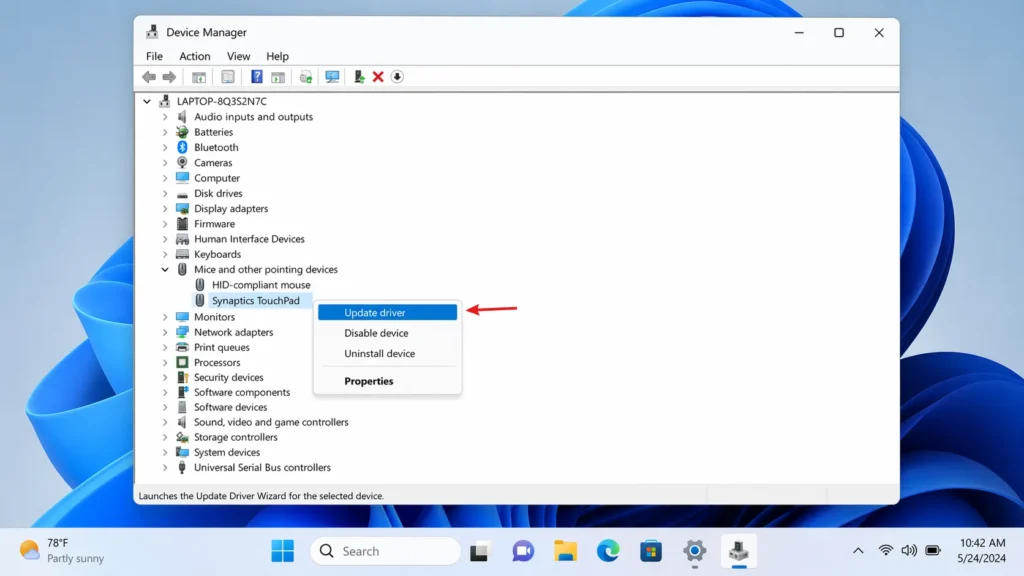
- Press Windows key + X and select Device Manager.
- Expand Mice and other pointing devices.
- Right-click on your touchpad device (e.g., “Synaptics Touchpad” or “HID-compliant mouse”).
- Select Update driver > Search automatically for drivers.
- Restart your laptop.
To reinstall the touchpad driver:
- In Device Manager, right-click the touchpad device.
- Select Uninstall device.
- Restart your laptop.
4.support.microsoft Reinstalling the touchpad forces the latest drivers to download from Windows Update.
A touchpad driver update is one of the most effective fixes when a laptop touchpad is not working after a Windows update.
Fix 8: Run the Windows Hardware Troubleshooter
Windows has built-in tools that can automatically detect and fix touchpad problems.
- Open Settings > System > Troubleshoot (Windows 11) or Settings > Update & Security > Troubleshoot (Windows 10).
- Click Other troubleshooters (or Additional troubleshooters).
- Run the Hardware and Devices troubleshooter.
- Follow the on-screen instructions and restart if prompted.support.microsoft
Fix 9: Check BIOS/UEFI Settings
If all software fixes have failed and your laptop touchpad is still not working, the touchpad may be disabled at the hardware level.
Restart the laptop and enter the BIOS/UEFI setup (usually by pressing F2, F10, Esc, or Delete at boot). Look for a Pointing Device or Touchpad setting and ensure it’s Enabled. Sometimes BIOS updates or changes can disable the touchpad.
- Shut down your laptop.
- Turn it on and immediately press F2, F10, F12, or Del (varies by brand).
- Navigate to Advanced settings and look for Touchpad, Internal Pointing Device, or Trackpad.
- Make sure it is set to Enabled.
- Save changes and exit BIOS.
Fix 10: Use System Restore
If your touchpad stopped working after an update or a recent software change, rolling back may help.
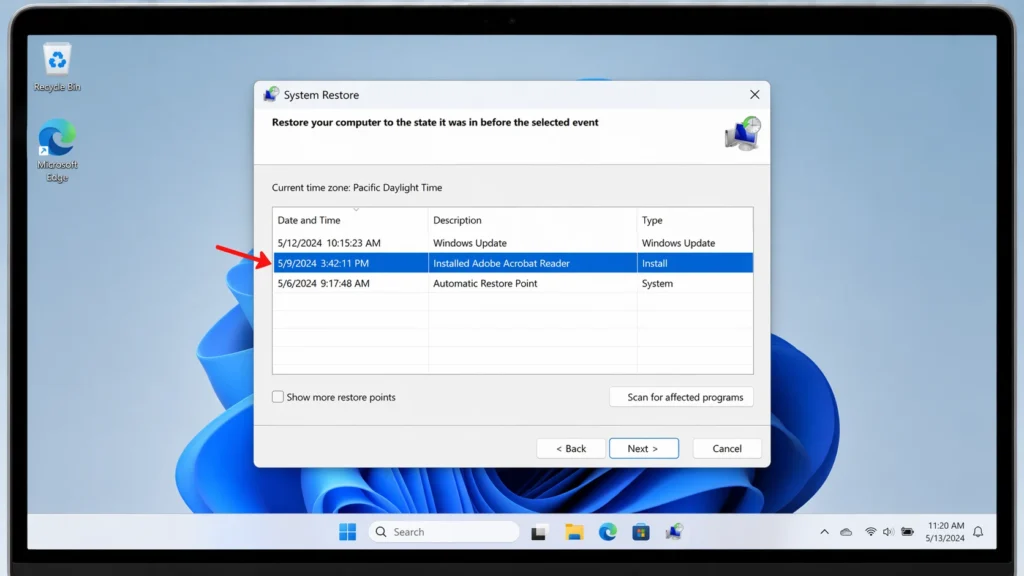
- Press the Windows key and type System Restore.
- Select Create a restore point, then click System Restore.
- Choose a restore point from before the laptop touchpad not working issue started.
- Follow the on-screen prompts to complete the restore.
- After the restore, test your touchpad.
🔧 Troubleshooting Tips Box
Before you start fixing a laptop touchpad not working issue:
- Plug in a USB mouse so you can navigate while troubleshooting.
- Make sure your laptop is charged or plugged into power.
- Write down any recent changes (Windows updates, new software, driver installs).
–TechUpdateLab | Late… If the touchpad still cannot operate in the BIOS/UEFI screen, it might be a hardware issue with the touchpad. We recommend visiting an authorized service center for further diagnosis.- If you notice the bottom of your laptop is bulging, stop using it immediately — a swollen battery can be a safety hazard.
Common Mistakes to Avoid
Many users make these errors when trying to fix a laptop touchpad not working problem:
- Ignoring the Fn key toggle — This is the most overlooked cause. Always check the function key shortcut first.
- Using harsh chemicals — Never spray liquid directly on the touchpad. Always use a lightly dampened microfiber cloth.Official Support | A…
- Installing unverified driver tools — You need to reinstall/update touchpad drivers from your device manufacturer’s website. Avoid third-party driver download websites.learn.microsoft
- Skipping the restart — Sometimes, a simple restart can fix minor glitches. Restart your laptop to reset the touchpad and Windows processes that may be causing the problem.
- Forgetting about Bluetooth mice — A wireless mouse you forgot about may be preventing the touchpad from working.
- Not checking BIOS — If all Windows-level fixes fail, the BIOS is often the culprit.
- Panicking and reinstalling Windows — Exhausting all 10 fixes above should come before any drastic action.
Additional Tips to Prevent Laptop Touchpad Not Working Issues
Follow these tips to avoid future laptop touchpad problems:
- Keep your touchpad clean — Wipe it regularly with a dry microfiber cloth.
- Wash your hands before use — Oils and residue reduce touchpad sensitivity.dell
- Keep drivers updated — Regularly updating BIOS, Windows, and drivers can enhance system stability and performance.
- Adjust palm rejection settings — If your cursor jumps while typing, adjust touchpad sensitivity in Settings > Bluetooth & Devices > Touchpad.
- Avoid eating over your laptop — Food crumbs and grease are common causes of touchpad not responding issues.
- Don’t ignore battery swelling — If the touchpad area feels raised or stiff, have your battery inspected by a professional.Official Support | A…
- Create regular system restore points — These give you a quick rollback option if a Windows update causes your touchpad to stop working.
Frequently Asked Questions
Why did my laptop touchpad suddenly stop working?
This problem happens when the touchpad is accidentally disabled, but it can also be caused by incorrect settings, outdated drivers, disabled gestures, or other issues. Start by pressing the Fn + touchpad toggle key, restarting your laptop, and checking Windows Settings.https://www.tweaktow…
How do I enable my touchpad on Windows 11?
Go to Settings > Bluetooth & Devices > Touchpad and make sure the toggle is switched to On. Also go to Bluetooth & Devices > Touchpad, expand the “Touchpad” menu, and enable the option “Leave touchpad on when a mouse is connected.”https://www.tweaktow…
Can a Windows update cause my laptop touchpad not working?
Yes. Third-party applications or Windows updates might interfere with touchpad functionality. If your touchpad stopped working after an update, try updating or reinstalling the touchpad driver via Device Manager, or use System Restore to roll back the change.GeeksforGeeks
How do I fix my laptop touchpad if the driver is missing?
Open Device Manager, expand Mice and other pointing devices or Human Interface Devices. If Windows doesn’t find drivers, check your laptop maker’s support site. Download the correct touchpad driver for your exact model and install it manually.TechUpdateLab | Late…
Should I replace my laptop touchpad if nothing works?
Only consider hardware repair if all software fixes fail. If your touchpad is still not responding after trying all methods, it’s likely a hardware issue that requires technician support. If your laptop is under warranty, contact the manufacturer for assistance.
Conclusion
A laptop touchpad not working is a common but usually fixable issue. In most cases, the solution is simple — toggle the function key, restart your laptop, check Windows settings, or update your touchpad drivers. For more stubborn problems, checking the BIOS, running the Hardware Troubleshooter, or performing a System Restore can resolve the issue.
If you’ve tried all 10 fixes and your laptop touchpad is still not working, the problem is likely hardware-related. Contact your laptop manufacturer’s support team or visit a certified repair center.
Remember: keep your touchpad clean, your drivers updated, and always check the simple fixes first before moving to advanced troubleshooting. Bookmark this guide for the next time your touchpad stops working — it’ll save you time and stress.
Other problem solutions from this Blogger.
- Android Phone Stuck on Boot Screen Fix: 10 Proven Methods That Actually Work (2026)
- Android Phone Keeps Restarting Fix: 10 Proven Solutions (2026 Guide)
- How to Free Up Space on Android: 12 Easy Storage Full Fixes



