
Introduction
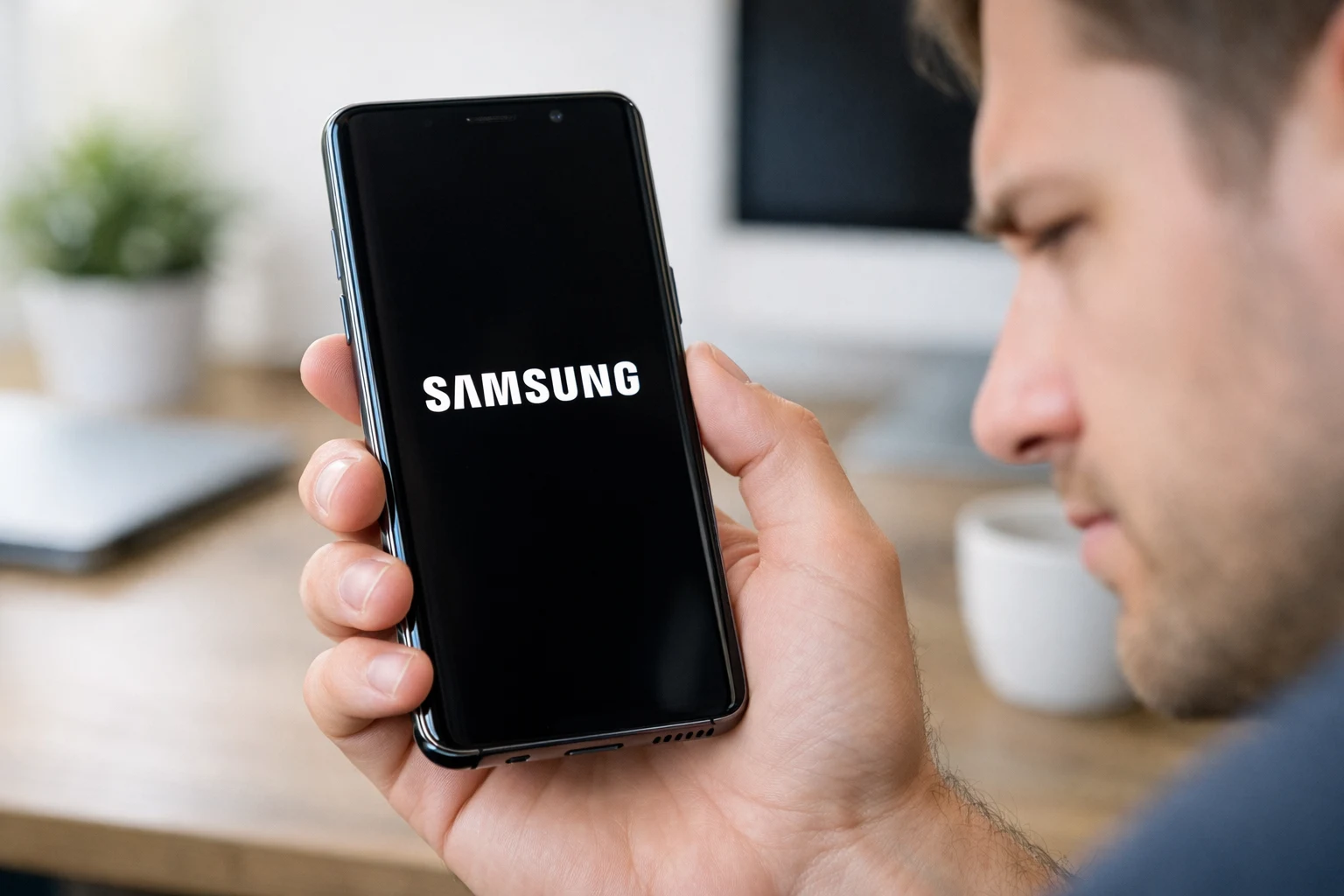
An Android phone stuck on boot screen is one of the most common and frustrating problems Android users face. You press the power button expecting your home screen, but instead, your phone freezes on the manufacturer logo and refuses to go further.
When your Android phone is stuck on the boot screen, it can feel like your device is completely dead. But don’t panic. This problem affects Samsung Galaxy, Xiaomi, OnePlus, Google Pixel, Motorola, and nearly every other Android brand. It usually happens after a software update, a new app installation, or when storage runs critically low.
Whether your phone is stuck on the logo screen or caught in an endless restart loop, this guide gives you 10 step-by-step solutions to fix the Android boot screen issue — starting with the easiest methods first. No technical experience required.
Quick Answer
If your Android phone is stuck on the boot screen, start by holding the Power button for 20–30 seconds to force a restart. If the phone still won’t boot past the logo, enter Recovery Mode and wipe the cache partition. These two steps fix the Android boot screen freeze in about 80% of cases. If they don’t work, follow the remaining methods below.
Why This Problem Happens {#why-this-problem-happens}
Before you fix an Android phone stuck on boot screen, it helps to understand what causes it. Knowing the root cause lets you pick the most effective solution.
Here are the most common reasons your Android won’t boot past the logo:
- Failed or interrupted software update – If your phone lost power or the update was corrupted during installation, the operating system can’t load properly, leaving your Android stuck on the startup screen.
- Incompatible or corrupt app – A recently installed app can conflict with the system and trigger an Android boot loop.
- Full storage – When internal storage is nearly full, Android may not have enough space to complete the boot process.
- Corrupt cache files – Temporary system files become damaged over time and block normal startup.
- Custom ROMs or rooting gone wrong – Modifying system software can corrupt critical boot files.
- Hardware failure – In rare cases, a damaged battery, motherboard, or display causes the boot screen freeze on Android.
- Malware or virus – Malicious software can corrupt the files Android needs to start up.
📌 Key takeaway: The vast majority of Android boot screen problems are software-related, meaning you can fix them yourself at home.
How to Fix Android Phone Stuck on Boot Screen (Step-by-Step) {#how-to-fix}
Below are 10 proven methods to fix an Android phone stuck on boot screen. Work through them in order. Start simple and only move to advanced steps if needed.
Method 1: Force Restart Your Phone
Why this works: A force restart clears temporary glitches in system memory. It’s the fastest way to fix a phone stuck on the boot screen caused by a minor software hiccup.
Steps:
- Press and hold the Power button for 20–30 seconds.
- Wait for the phone to vibrate or the screen to go completely black.
- Release the button.
- Wait 10 seconds, then press the Power button normally to restart.
Device-specific instructions:
- Samsung Galaxy: Hold Power + Volume Down together for 10–15 seconds.
- Xiaomi/Redmi: Hold the Power button for 15 seconds.
- Google Pixel: Hold Power for 30 seconds.
If your phone boots normally, the Android boot screen freeze was a one-time glitch. If it’s still stuck on the boot screen, continue to Method 2.
Method 2: Charge Your Phone First
Why this works: A critically low battery gives your phone enough power to show the logo but not enough to complete the boot. This makes it look like your Android phone is stuck on the boot screen when it’s actually just out of battery.
Steps:
- Connect your phone to the original charger and cable.
- Plug it into a wall outlet (not a computer USB port or power bank).
- Leave it charging for at least 30 minutes without touching it.
- After 30 minutes, try a force restart (Method 1).
💡 Tip: If the charging indicator doesn’t appear, try a different cable and adapter. A faulty cable is a surprisingly common culprit.
Method 3: Boot into Safe Mode
Why this works: Safe Mode starts your phone with only the built-in system apps. All third-party apps are disabled. If your phone boots successfully in Safe Mode, a downloaded app is causing the Android boot loop.
Steps:
- Press and hold the Power button until the power menu appears.
- Tap and hold the “Power Off” option.
- A prompt will appear asking to Reboot to Safe Mode. Tap OK.
- Your phone will restart with “Safe Mode” in the bottom-left corner.
If your phone is completely frozen and you can’t reach the power menu:
- Force restart the phone (Method 1).
- As soon as the boot logo appears, press and hold the Volume Down button.
- Keep holding until the home screen loads with “Safe Mode” displayed.
Once in Safe Mode:
- Go to Settings > Apps.
- Uninstall any apps you recently installed before the boot screen freeze started.
- Restart your phone normally.
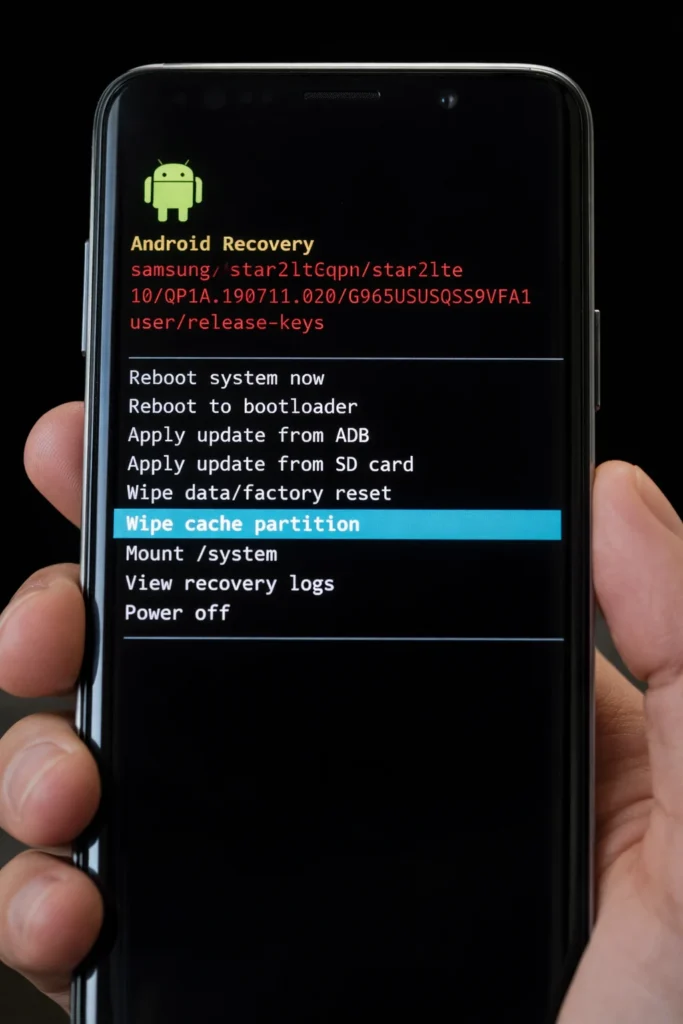
Method 4: Wipe Cache Partition in Recovery Mode
Why this works: Android stores temporary system files (cache) to speed up processes. When these files become corrupted, your Android phone gets stuck on the boot screen. Wiping the cache partition clears these files without deleting your personal data.
Steps:
- Turn off your phone completely. If it’s frozen, hold the Power button for 20 seconds.
- Enter Recovery Mode using the correct button combination:
- Samsung: Hold Volume Up + Power simultaneously.
- Google Pixel: Hold Power + Volume Down, then navigate to “Recovery Mode.”
- Xiaomi: Hold Power + Volume Up.
- OnePlus: Hold Power + Volume Down.
- Use the Volume buttons to scroll to “Wipe Cache Partition.”
- Press the Power button to select it.
- Confirm by selecting “Yes.”
- Select “Reboot System Now.”
⚠️ Important: This does NOT erase your photos, messages, or apps. It only removes temporary system files. This is one of the safest ways to fix an Android phone stuck on boot screen.
Method 5: Remove the SD Card and SIM Card
Why this works: A corrupted SD card or faulty SIM card can interfere with Android’s startup process, making your phone stuck on the logo screen.
Steps:
- Power off your phone (force it off if necessary).
- Use an ejector tool to remove the SIM tray.
- Take out both the SIM card and SD card (if installed).
- Reinsert the tray without the cards.
- Try turning the phone on.
If the phone boots successfully, the SD card is likely corrupted. Back up its data on a computer and format it before reinserting it.
Method 6: Check for Physical Damage
Why this works: Physical damage to internal components can mimic a software boot screen freeze on Android. If your phone was recently dropped, exposed to water, or is showing signs of a swollen battery, hardware could be the real problem.
What to look for:
- Cracked or unresponsive screen
- Swollen or bulging back panel (stop using immediately — battery hazard)
- Red or pink water damage indicator inside the SIM tray slot
- Overheating during boot attempts
If you notice physical damage, skip the remaining software methods and go directly to Method 10.
Method 7: Use Android Debug Bridge (ADB)
Why this works: ADB lets you communicate with your Android phone stuck on the boot screen directly from a computer. You can force a reboot or enter Recovery Mode through commands.
Steps:
- Download and install ADB on your computer from the official Android developer website.
- Connect your phone to the computer via USB cable.
- Open Command Prompt (Windows) or Terminal (Mac).
- Type: adb devices — confirm your phone is detected.
- Type: adb reboot — to force a clean reboot.
- If that doesn’t work, type: adb reboot recovery — to enter Recovery Mode remotely.
⚠️ Note: This method only works if USB Debugging was already enabled on your phone before the boot issue occurred.
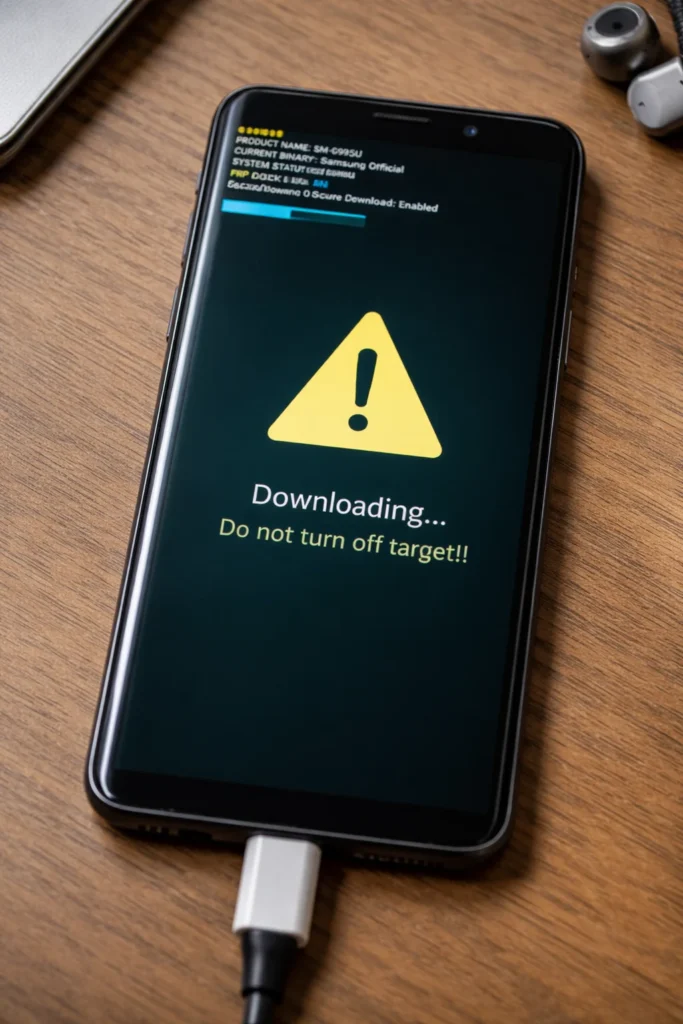
Method 8: Flash Stock Firmware
Why this works: Flashing reinstalls the entire Android operating system from scratch. If your Android is stuck on the boot screen due to deep system corruption, this replaces all damaged files with a clean copy.
Steps (general process):
- Download the correct stock firmware for your exact phone model from the manufacturer’s website.
- Download the appropriate flashing tool:
- Samsung: Odin
- Xiaomi: Mi Flash Tool
- Google Pixel: Android Flash Tool (web-based)
- Boot your phone into Download Mode (usually Power + Volume Down).
- Connect the phone to your computer.
- Load the firmware file into the flashing tool and follow on-screen instructions.
⚠️ Warning: Flashing the wrong firmware can permanently brick your device. Double-check your exact model number under Settings > About Phone (check on the box if you can’t access settings).
Method 9: Factory Reset via Recovery Mode
Why this works: A factory reset erases everything and restores your phone to its original out-of-the-box state. This eliminates all software corruption causing the Android boot screen freeze. Use this as your last resort before professional repair.
Steps:
- Enter Recovery Mode (see Method 4 for button combinations).
- Use Volume buttons to scroll to “Wipe Data/Factory Reset.”
- Press the Power button to select it.
- Confirm by selecting “Yes — delete all user data.”
- Wait for the process to complete.
- Select “Reboot System Now.”
⚠️ Warning: This WILL permanently delete all your data — photos, apps, contacts, messages, everything. Only use this method if nothing else has fixed your Android phone stuck on the boot screen.
Method 10: Contact the Manufacturer or a Repair Shop
If your Android phone is still stuck on the boot screen after trying all nine methods above, the problem is almost certainly hardware-related.
Your options:
- Contact your manufacturer’s support (Samsung, Google, Xiaomi, Motorola, etc.)
- Visit an authorized service center for professional diagnosis
- Check your warranty status — repairs may be free if your phone is still covered
- Visit a reputable local repair shop if the warranty has expired
🔧 Troubleshooting Tips {#troubleshooting-tips}
- Always start with Method 1 (force restart) before trying anything else.
- If you can enter Recovery Mode, your phone’s hardware is likely fine — the boot screen issue is software-related.
- Write down your phone’s exact model number before searching for firmware or contacting support.
- If your phone keeps restarting in a loop (Android boot loop), the cache wipe or factory reset usually fixes it.
- Make sure your phone has at least 30% battery before attempting Recovery Mode operations.
- Try connecting your phone to a computer — if it’s recognized, you can use ADB (Method 7).
❌ Common Mistakes to Avoid {#common-mistakes}
- Repeatedly pressing the power button rapidly — Be patient. Give each restart attempt 30 seconds before trying again.
- Jumping straight to factory reset — You’ll lose all your data unnecessarily. Always try the cache wipe and Safe Mode first to fix the Android boot screen issue without data loss.
- Downloading firmware from unofficial websites — This risks installing malware or permanently bricking your phone. Only use the manufacturer’s official website.
- Forcing open a sealed phone to remove the battery — Most modern Android phones have non-removable batteries. Opening the case voids your warranty and can cause further damage.
- Ignoring overheating — If your Android phone gets stuck on the boot screen and feels hot, let it cool down completely before attempting any fix.
- Using a friend’s charger instead of the original — Low-quality chargers can deliver inconsistent power and worsen boot issues.
Additional Tips to Prevent the Issue {#prevention-tips}
Now that you know how to fix an Android phone stuck on boot screen, here’s how to prevent it from happening again:
- Keep your phone updated — Install software updates promptly, but ensure your battery is above 50% before starting.
- Never interrupt updates — Don’t turn off your phone or unplug it during a system update. Interrupted updates are the #1 cause of Android boot screen freeze.
- Only install apps from Google Play Store — Sideloaded apps from unknown sources frequently cause Android boot loops.
- Maintain free storage — Keep at least 10–15% of your internal storage free at all times.
- Back up regularly — Use Google Backup, Samsung Cloud, or another backup service so you don’t lose data if a factory reset becomes necessary.
- Avoid rooting unless you’re experienced — Modifying system software significantly increases the risk of your phone getting stuck on the boot screen.
- Restart your phone weekly — A regular restart clears temporary files and prevents cache corruption.
Frequently Asked Questions {#faqs}
1. Why is my Android phone stuck on the boot screen?
Your Android phone is stuck on the boot screen most likely because of a failed software update, a corrupt app, full storage, or damaged cache files. In rare cases, hardware failure is the cause. Follow the 10 methods in this guide to diagnose and fix the issue.
2. How do I fix my Android phone stuck on boot screen without losing data?
Use Methods 1 through 7 in this guide. A force restart, Safe Mode, and cache partition wipe all fix the Android boot screen problem without erasing your personal files. Only Method 9 (factory reset) deletes your data.
3. How long should I wait if my phone is stuck on the boot screen?
Wait 5 minutes. Some phones take longer to boot after a major update. If the logo hasn’t changed or the screen hasn’t progressed after 5 minutes, your Android phone is genuinely stuck on the boot screen and you should try a force restart.
4. Can a virus cause my Android phone to get stuck on the boot screen?
Yes. Malware can corrupt critical system files needed for startup, leaving your Android stuck on the boot screen. Boot into Safe Mode to uninstall suspicious apps. If that doesn’t work, a factory reset will remove the malware completely.
5. How do I fix my Samsung phone stuck on the Samsung logo?
If your Samsung Galaxy is stuck on the boot screen showing only the Samsung logo, hold Volume Up + Power to enter Recovery Mode. Select “Wipe Cache Partition” first. If that doesn’t resolve it, select “Wipe Data/Factory Reset.” This fixes the Samsung logo boot screen freeze in most cases.
Conclusion {#conclusion}
An Android phone stuck on boot screen is a stressful experience, but it’s almost always fixable. The 10 methods in this guide cover every possible scenario — from a simple force restart to flashing stock firmware.
Start with Method 1 and work your way down. In most cases, a force restart or cache partition wipe will fix the Android boot screen problem in minutes. Only resort to a factory reset if nothing else works, and always seek professional help if you suspect hardware damage.
Remember: the key to fixing a phone stuck on the boot screen is patience and working through solutions in the right order. Bookmark this guide so you’re prepared if the problem ever returns.
- Google Support — Troubleshoot Android device issues:
https://support.google.com/android/answer/7668719 - Samsung Support — Phone keeps restarting or freezing:
https://www.samsung.com/us/support/troubleshooting/ - Google Support — Reset Android device to factory settings:
https://support.google.com/android/answer/6088915




[…] Android Phone Stuck on Boot Screen Fix: 10 Proven Methods That Actually Work (2026) […]
[…] Android Phone Stuck on Boot Screen Fix: 10 Proven Methods That Actually Work (2026) […]
[…] Android Phone Stuck on Boot Screen Fix: 10 Proven Methods That Actually Work (2026) […]