
Introduction
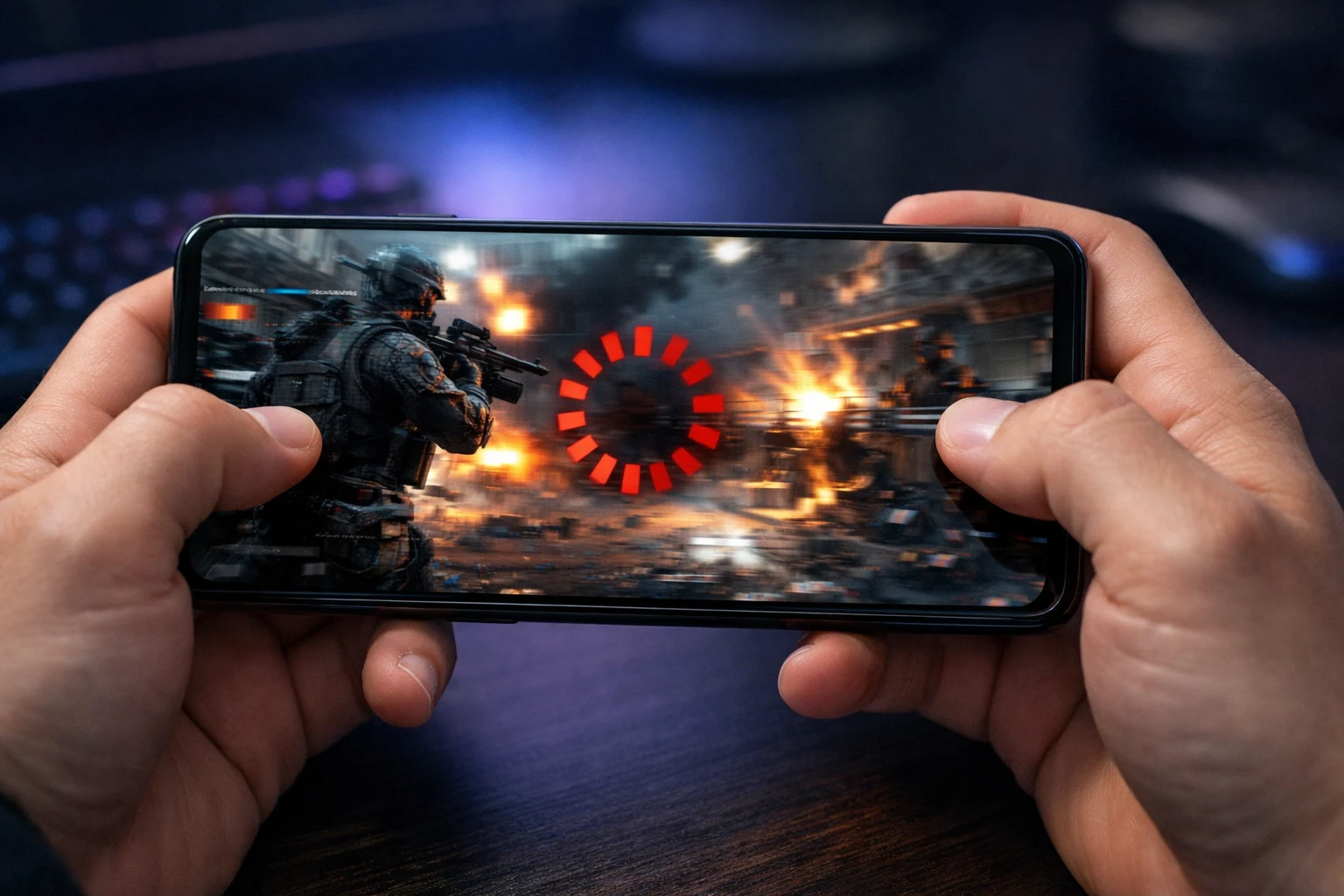
Nothing ruins a gaming session faster than your Android phone lagging while gaming. Whether you’re playing Call of Duty Mobile, Genshin Impact, PUBG Mobile, or Roblox, game lag on Android can make your phone feel completely unusable.
If your phone is stuttering during games, you’re not alone. Over time, background apps consume RAM, cached files pile up, and your device struggles to keep up with demanding games. The result? Frame drops, freezing, and frustrating lag spikes.
The good news? You don’t need a new phone. This guide will show you exactly how to fix game lag on Android — from the simplest tweaks to advanced solutions — using plain, step-by-step instructions anyone can follow.
Quick Answer: How to Fix Game Lag on Android
If your Android phone is lagging while playing games, do these five things immediately:
- Restart your phone before launching a game
- Close all background apps
- Clear cache data for the lagging game
- Enable Game Mode (Samsung, Xiaomi, OnePlus)
- Lower in-game graphics settings
These quick steps solve the Android gaming lag fix for most users. Keep reading for detailed instructions and 11 complete methods to stop Android lag while gaming for good.
Why Does My Phone Lag When I Play Games?
Before you can fix game lag on Android, you need to understand what causes it. Several hardware and software factors affect gaming performance on Android devices.
Here are the most common reasons your phone is lagging while playing games:
- Too many background apps: Apps running simultaneously consume RAM and CPU power, leaving fewer resources for your game.
- Overheating (thermal throttling): When your phone gets too hot during gaming, it automatically reduces CPU and GPU speeds to cool down — this causes sudden lag and frame drops.
- Low storage space: When your phone’s storage is nearly full, it has no room to operate efficiently, which directly increases game lag on Android.
- Outdated software: Outdated Android versions and unpatched games often have performance bugs that cause stuttering during gameplay.
- Graphics settings too high: Running games at maximum settings on a mid-range or budget phone will always cause lag. Lowering graphics can significantly reduce game lag on Android.
- Battery saver mode active: Power-saving modes throttle your processor speed to conserve battery, which kills gaming performance.
Understanding these causes helps you pick the right fix below.
How to Fix Game Lag on Android (11 Step-by-Step Methods)
Here are 11 proven ways to fix game lag on Android, organized from easiest to most advanced. Start at Fix 1 and work your way down until the problem is resolved.
Fix 1: Restart Your Phone
This is the simplest and often most effective way to reduce game lag on Android.
Why it works: Restarting clears temporary memory, closes apps stuck in loops, and fixes minor software glitches that cause your phone to lag while playing games.
Steps:
- Press and hold the Power button for 3 seconds.
- Tap Restart (or Reboot).
- Wait for 1–2 minutes after restart before launching your game.
- Test your game and check if the lag is gone.
📸 Suggested screenshot: Power menu showing the Restart option.
Fix 2: Close Background Apps
One of the biggest reasons for Android phone lagging while gaming is too many apps running in the background. Every open app eats into your RAM and CPU — resources your game desperately needs.
Steps:
- Tap the Recent Apps button (square icon or swipe up and hold).
- Swipe away each app you don’t need.
- Tap Close All if your phone has that option.
- Now launch your game.
For deeper control on Samsung, Xiaomi, or Pixel:
- Go to Settings > Apps.
- Look for apps using data or running in the background.
- Tap Force Stop on apps you don’t need active.
This alone can dramatically fix game lag on Android for most users.
📸 Suggested screenshot: Recent apps screen with “Close All” button highlighted.
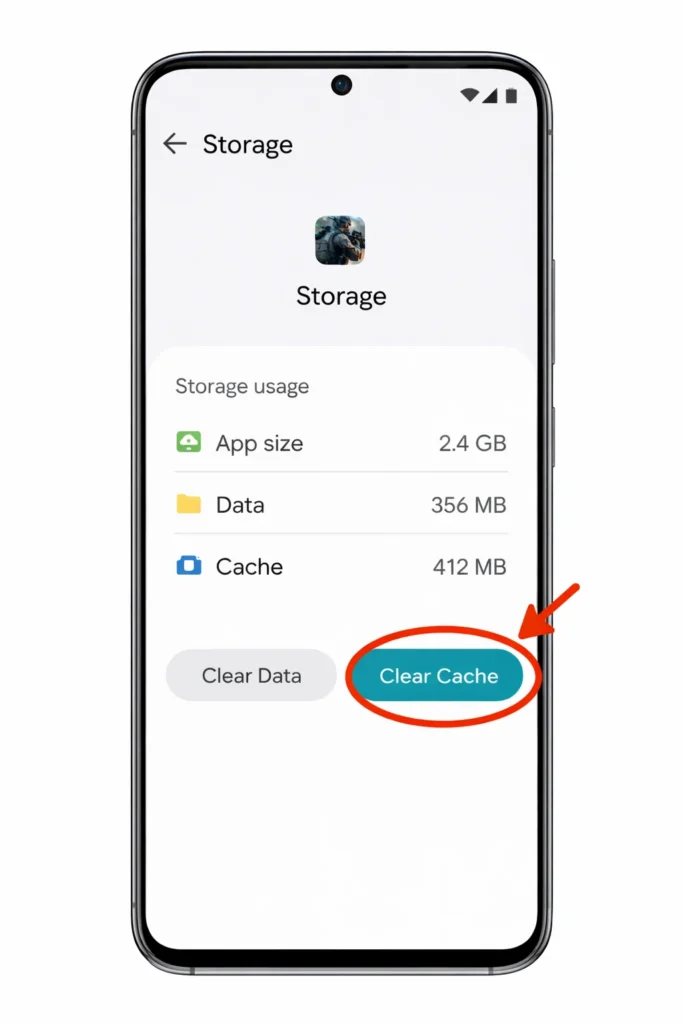
Fix 3: Clear Game Cache Data
Corrupted or bloated cache files are a hidden cause of phone stuttering during games. Clearing them gives your game a fresh start.
Why it works: Cached data piles up over time and can become corrupted. Clearing it forces the game to create fresh, clean temporary files — which often eliminates lag.
Steps:
- Open Settings > Apps.
- Find the lagging game (e.g., PUBG Mobile, Roblox, Genshin Impact).
- Tap Storage > Clear Cache.
- Repeat for other heavy apps and games.
- Relaunch the game and test.
You can also install Files by Google to bulk-clean junk files across your entire device.
📸 Suggested screenshot: App info page with “Clear Cache” button visible.
Fix 4: Lower In-Game Graphics Settings
If you want to fix game lag on Android without touching system settings, start here. High graphics settings are the #1 reason games lag on mid-range and budget phones.
Why it works: Lowering resolution, shadow quality, and visual effects allows your phone’s GPU to render frames faster — resulting in smoother gameplay.
Steps:
- Open the game.
- Go to Settings or Graphics menu inside the game.
- Set Graphics Quality to Low or Medium.
- Turn off Shadows, Anti-Aliasing, and High Frame Rate if available.
- Save settings and restart the game.
This is especially important to reduce game lag on Android budget devices like the Samsung Galaxy A series, Xiaomi Redmi line, and older Google Pixel models.
Fix 5: Turn Off Battery Saver Mode
Battery saver mode limits your processor speed to save power — but it’s a major cause of Android phone lagging while gaming.
Steps:
- Open Settings > Battery.
- Toggle Battery Saver or Power Saving Mode off.
- Make sure your phone is charged above 20% before gaming.
Why it matters: Below 20% battery, most Android phones automatically activate low-power throttling, which reduces CPU/GPU performance and causes your phone to lag while playing games.
Fix 6: Enable Game Mode to Boost Gaming Performance on Android
Many modern Android phones come with built-in gaming modes that allocate more system resources to your game and block background interruptions. This is one of the best ways to fix game lag on Android.
How to enable Game Mode by brand:
- Samsung: Settings > Advanced Features > Game Launcher
- Xiaomi: Security App > Game Turbo
- OnePlus: Settings > Utilities > Gaming Mode
- Google Pixel: Use Game Dashboard via Settings > Notifications during gameplay
Why it works: Game Mode prioritizes CPU and GPU power for your game while minimizing notifications, background downloads, and other distractions.
📸 Suggested screenshot: Samsung Game Launcher toggle or Xiaomi Game Turbo screen.
Fix 7: Update Your Phone Software and Games
Running outdated software is a silent gaming performance killer. Software updates often include critical bug fixes and performance optimizations that directly reduce game lag on Android.
Steps to update your Android OS:
- Go to Settings > System (or About Phone).
- Tap Software Update.
- If an update is available, tap Download and Install.
Steps to update your games:
- Open the Google Play Store.
- Tap your Profile icon > Manage Apps & Device.
- Tap Update All.
- Restart your phone after updates finish.
Fix 8: Free Up Storage Space
Low storage is a sneaky cause of Android gaming lag. Your phone needs at least 15–20% of its total storage free to run smoothly during gaming.
Steps:
- Go to Settings > Storage.
- Delete unused apps, old photos, and large videos.
- Move media to Google Photos or an SD card.
- Clear WhatsApp forwarded files and downloads.
- Use Files by Google to remove junk files and duplicates.
The more free space you have, the better your phone performs — especially during heavy gaming sessions.
Fix 9: Prevent Overheating to Stop Android Lag While Gaming
Phones automatically reduce performance when they overheat. This is called thermal throttling, and it’s a major cause of phone stuttering during games — especially during long sessions.
Tips to keep your phone cool:
- Remove your phone case while gaming
- Stay out of direct sunlight
- Close all background apps before launching a game
- Take a 10-minute break every 30–45 minutes
- Never charge your phone while gaming — this generates extra heat
- Consider a portable phone cooling fan for long play sessions
Keeping your phone cool is essential to fix game lag on Android during extended gameplay.
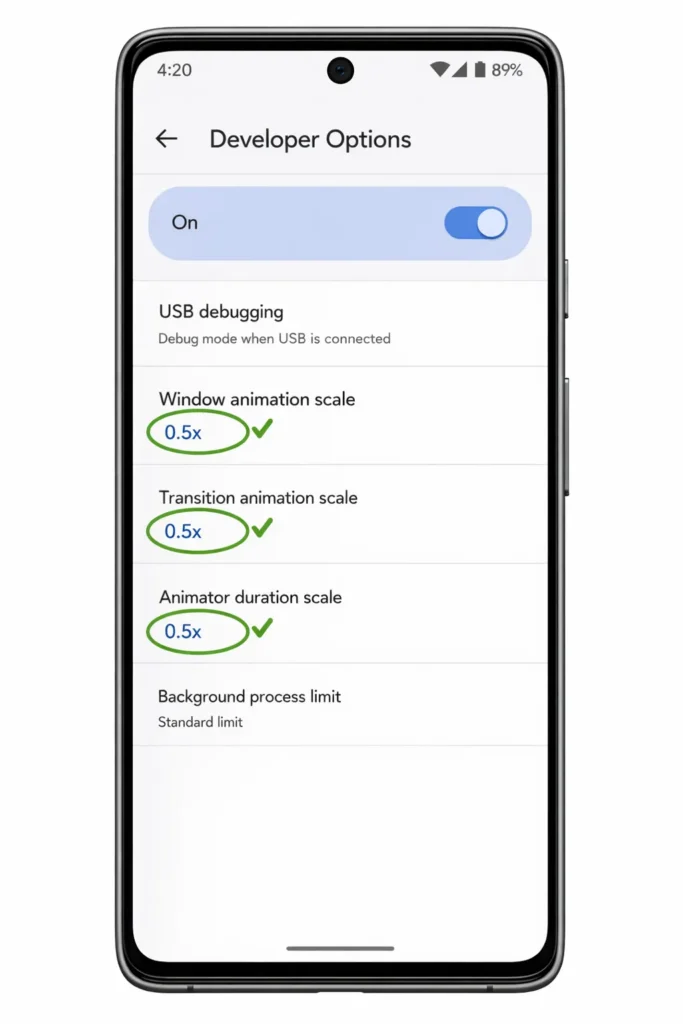
Fix 10: Reduce Animations in Developer Options
This hidden Android setting makes your phone feel noticeably faster and can help reduce game lag on Android by freeing up GPU resources.
Steps:
- Go to Settings > About Phone.
- Tap Build Number seven times to unlock Developer Options.
- Go back to Settings > Developer Options.
- Find these three settings and set each to 0.5x or Off:
- Window Animation Scale
- Transition Animation Scale
- Animator Duration Scale
- Also set Limit Background Processes to 2–3 apps.
📸 Suggested screenshot: Developer Options showing animation scale set to 0.5x.
Fix 11: Factory Reset (Last Resort Android Gaming Lag Fix)
If you’ve tried every method above and your Android phone is still lagging while gaming, a factory reset wipes your device clean and gives it a completely fresh start.
⚠️ Warning: This erases ALL data. Back up everything first.
Steps:
- Back up your data to Google Drive (photos, contacts, app data).
- Go to Settings > System > Reset Options.
- Tap Erase All Data (Factory Reset).
- Confirm and wait for the phone to restart.
- Set up your phone fresh — only reinstall the apps you actually need.
A factory reset eliminates accumulated software issues and is the most thorough way to fix game lag on Android when nothing else works.
🔧 Troubleshooting Tips
| Symptom | Likely Cause | Quick Fix |
|---|---|---|
| Lag only in online games | Weak internet connection | Switch to 5GHz Wi-Fi or move closer to your router |
| Lag after 15–20 min of gaming | Overheating / thermal throttling | Remove case, take a break, use a cooling fan |
| Lag in ALL apps, not just games | Low storage or too many apps | Clear cache, uninstall unused apps, free storage |
| Lag started after a phone update | Software bug | Check for a newer patch or clear system cache |
| Sudden random frame drops | Background app spike | Close all background apps, enable Game Mode |
| Game crashes completely | Insufficient RAM or corrupted data | Clear game cache, reinstall game, or factory reset |
❌ Common Mistakes to Avoid
- Playing while charging: Generates excessive heat and triggers thermal throttling — one of the worst things you can do for Android gaming lag.
- Using “RAM booster” or “cleaner” apps: Most of these consume more resources than they free. They run constantly in the background, making lag worse.
- Leaving auto-updates on while gaming: Automatic app and system updates consume bandwidth and CPU resources mid-game. Disable them during play.
- Ignoring overheating warnings: Don’t push through lag caused by heat. Let your phone cool down for 10 minutes.
- Filling storage to 95%+: Always keep at least 15–20% of your storage free to prevent your phone from lagging while playing games.
- Skipping software updates: Outdated Android versions and games often have unpatched performance bugs.
Additional Tips to Prevent Game Lag on Android
Follow this pre-game checklist every time you play to keep lag away permanently:
✅ Restart your phone at least once every 2–3 days
✅ Close all background apps before launching any game
✅ Clear cache for heavy games weekly
✅ Keep at least 20% storage free at all times
✅ Always launch games via Game Mode
✅ Adjust graphics per game title — not every game needs max settings
✅ Uninstall games and apps you no longer use
✅ Use a stable Wi-Fi connection for online games
✅ Turn off Wi-Fi and Bluetooth scanning in Settings > Location > Scanning — your phone constantly scans for networks, consuming RAM and CPU
✅ Keep your phone’s software and games updated
These habits will help you boost gaming performance on Android and prevent lag before it starts.
Frequently Asked Questions
1. Why does my Android phone lag only when playing games?
Games require far more CPU, GPU, and RAM than regular apps like messaging or browsing. When your phone’s resources are stretched thin — due to background apps, overheating, or high graphics — it stutters. Following the steps above to fix game lag on Android will solve this for most devices.
2. Does clearing cache really improve gaming performance on Android?
Yes. Cached data from games and apps can become bloated or corrupted over time. Clearing it frees up storage and forces games to write fresh temporary files, which often eliminates stuttering and frame drops.
3. Is Game Mode actually helpful for reducing Android gaming lag?
Absolutely. Game Mode allocates more CPU and GPU resources to your game while blocking background processes and notifications. Samsung Game Launcher, Xiaomi Game Turbo, and OnePlus Gaming Mode are all effective tools to reduce game lag on Android.
4. Can overheating cause my phone to lag during games?
Yes. Overheating triggers thermal throttling — your phone intentionally slows down the processor to prevent hardware damage. Keeping your device cool by removing the case, avoiding direct sunlight, and taking breaks is essential to stop Android lag while gaming.
5. When should I buy a new phone instead of trying to fix game lag on Android?
If your phone is more than 4 years old, has less than 3GB of RAM, and you’ve tried every fix in this guide without improvement, your hardware likely can’t keep up with modern games. At that point, upgrading to a newer device is the best solution for a lag-free gaming experience.
Conclusion
An Android phone lagging while gaming is frustrating, but it’s almost always fixable. Now you know exactly how to fix game lag on Android — starting with simple steps like restarting your phone, closing background apps, and clearing cache, then moving to advanced solutions like Developer Options, Game Mode, and factory reset.
The key is to work through these fixes systematically. Start simple. Most users solve their mobile game lag fix within the first 3–5 methods. With the optimization tips and pre-game checklist in this guide, even budget Android phones can deliver a noticeably smoother gaming experience.
Bookmark this page and come back anytime your phone starts lagging again.
- Google Android Developers — Game Performance Optimization: https://developer.android.com/games/optimize
- Google Support — Manage Storage on Android: https://support.google.com/android/answer/7431795
- Samsung Official — Game Launcher Guide: https://www.samsung.com/us/support/troubleshooting/TSG01203568/



