
Introduction
Instagram Reels not working is one of the most common complaints among Instagram users in 2025. Whether you’re trying to watch, create, or share short videos, running into problems with Reels can be incredibly frustrating.
If your Instagram Reels are not loading, not playing, showing a black screen, or crashing unexpectedly, you’ve come to the right place. These Instagram Reels issues affect millions of users on both Android and iPhone every single day.
The good news? Most Instagram Reels problems are easy to fix. This step-by-step guide covers 12 proven solutions to get your Instagram Reels working again — even if you have zero technical knowledge. Let’s dive in.
Quick Answer
If Instagram Reels is not working on your phone, start by force closing the app and reopening it. Then check your internet connection. If the problem persists, clear the app cache, update Instagram to the latest version, and restart your phone. These five quick steps fix Instagram Reels for most users within minutes.
Why Instagram Reels Is Not Working
Before jumping into fixes, it helps to understand why Instagram Reels stops working. Here are the most common causes behind this problem:
- Poor internet connection — Since Reels are videos, they need a strong and stable Wi-Fi or mobile data connection. A weak signal is the #1 reason Instagram Reels are not playing.
- Outdated Instagram app — Running an old version of the app can cause Reels to break, glitch, or disappear entirely.
- Corrupted app cache — Temporary files stored by Instagram can become corrupted and cause Reels not working on Instagram.
- Instagram server outage — Sometimes the problem is on Instagram’s end. When servers go down, Instagram Reels won’t load for anyone.
- Outdated phone software — An old operating system can conflict with the newest Instagram updates.
- Account or region restrictions — Instagram may limit Reels access in certain countries or for accounts that violate community guidelines.
- Low phone storage — When your phone runs out of space, video-heavy features like Reels stop functioning.
- VPN interference — A VPN can block or limit certain Instagram features, causing Instagram Reels not loading issues.
How to Fix Instagram Reels Not Working (12 Step-by-Step Methods)
Below are 12 tested methods to fix Instagram Reels not working on any device. Follow them in order for the best results.
Fix 1: Force Close and Reopen Instagram
The quickest way to fix Instagram Reels not working is to force close the app.
On iPhone:
- Swipe up from the bottom of your screen and pause in the middle.
- Find Instagram in the app switcher.
- Swipe it up to close it completely.
- Tap the Instagram icon to reopen it.
On Android:
- Tap the recent apps button (square icon) at the bottom.
- Find Instagram and swipe it away.
- Reopen Instagram and check if Reels work now.
Fix 2: Check Your Internet Connection
A weak internet connection is the most common cause of Instagram Reels not loading.
- Open your phone’s browser and load any website (like google.com).
- If the page doesn’t load, your internet is the problem.
- Switch from Wi-Fi to mobile data, or the other way around.
- Move closer to your Wi-Fi router if the signal is weak.
- Toggle Airplane Mode on, wait 10 seconds, then toggle it off.
Pro tip: Instagram Reels need at least 3–5 Mbps to stream smoothly. Test your speed at fast.com.
Fix 3: Clear the Instagram Cache
Corrupted cache files are a leading cause of Instagram Reels problems and glitches.
On Android:
- Go to Settings > Apps > Instagram.
- Tap Storage.
- Tap Clear Cache (do NOT tap “Clear Data” — that will log you out).
On iPhone:
iPhones don’t let you clear cache for individual apps directly. Instead:
- Go to Settings > General > iPhone Storage.
- Find and tap Instagram.
- Tap Offload App, then reinstall it from the App Store.
Clearing the cache is one of the most effective ways to fix Instagram Reels not working on any device.
Fix 4: Update Instagram to the Latest Version
An outdated app is a major reason Reels are not working on Instagram. Updates contain bug fixes that solve these exact problems.
- Open the App Store (iPhone) or Google Play Store (Android).
- Search for Instagram.
- If you see an Update button, tap it immediately.
- Wait for the update to complete.
- Open Instagram and test whether Reels work.
Fix 5: Restart Your Phone
A simple restart fixes many background issues that cause Instagram Reels not playing errors.
- Press and hold the power button on your phone.
- Tap Restart or Power Off.
- Wait 30 seconds.
- Turn your phone back on.
- Open Instagram and try loading Reels again.
Fix 6: Check if Instagram Servers Are Down
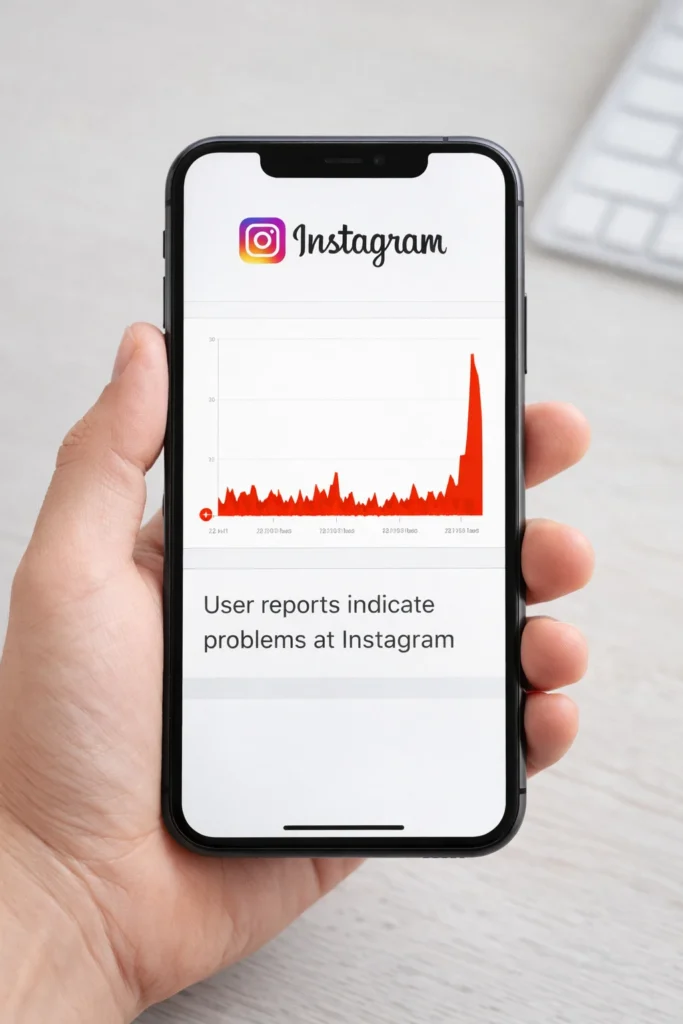
Sometimes Instagram Reels not working has nothing to do with your phone. The problem may be on Instagram’s servers.
- Visit Downdetector’s Instagram page.
- See if other users are reporting the same Instagram Reels issues.
- Check Instagram’s official account on Twitter/X: @instagram.
- If servers are down, wait it out. Outages usually resolve within minutes to a few hours.
Fix 7: Update Your Phone’s Operating System
Outdated phone software can cause compatibility problems that make Instagram Reels stop working.
On iPhone:
- Go to Settings > General > Software Update.
- If an update is available, tap Download and Install.
On Android:
- Go to Settings > System > Software Update.
- Tap Check for updates.
- Install any available updates and restart your phone.
Fix 8: Reinstall Instagram
If clearing the cache didn’t solve the Instagram Reels not working issue, a clean reinstall usually does.
- Delete Instagram from your phone.
- Restart your phone.
- Go to the App Store or Google Play Store.
- Download and install Instagram fresh.
- Log in to your account.
- Open Reels and check if the problem is gone.
Important: Remember your login credentials before uninstalling.
Fix 9: Disable Your VPN or Proxy
Using a VPN can sometimes block Instagram features and cause Reels not loading problems.
- Open your VPN app.
- Tap Disconnect or toggle it off.
- Open Instagram and test Reels.
- If Reels start working without the VPN, your VPN was the issue.
Consider switching to a different VPN server or disabling VPN while using Instagram.
Fix 10: Free Up Phone Storage
Low storage space can prevent Reels from loading or playing. This is a hidden cause of Instagram Reels not working that many users overlook.
How to check storage:
- iPhone: Settings > General > iPhone Storage
- Android: Settings > Storage
How to free up space:
- Delete unused apps
- Remove old photos and videos
- Move files to cloud storage (Google Drive, iCloud)
- Clear old downloads
Keep at least 1–2 GB of free space for smooth Instagram performance.
Fix 11: Log Out and Log Back Into Instagram
Logging out refreshes your session and can resolve account-related bugs causing Instagram Reels issues.
- Open Instagram and go to your Profile.
- Tap the three horizontal lines (menu) in the top-right corner.
- Tap Settings and Privacy.
- Scroll to the bottom and tap Log Out.
- Close the app completely.
- Reopen Instagram and log back in.
- Navigate to Reels and check if the problem is fixed.
Fix 12: Report the Problem to Instagram
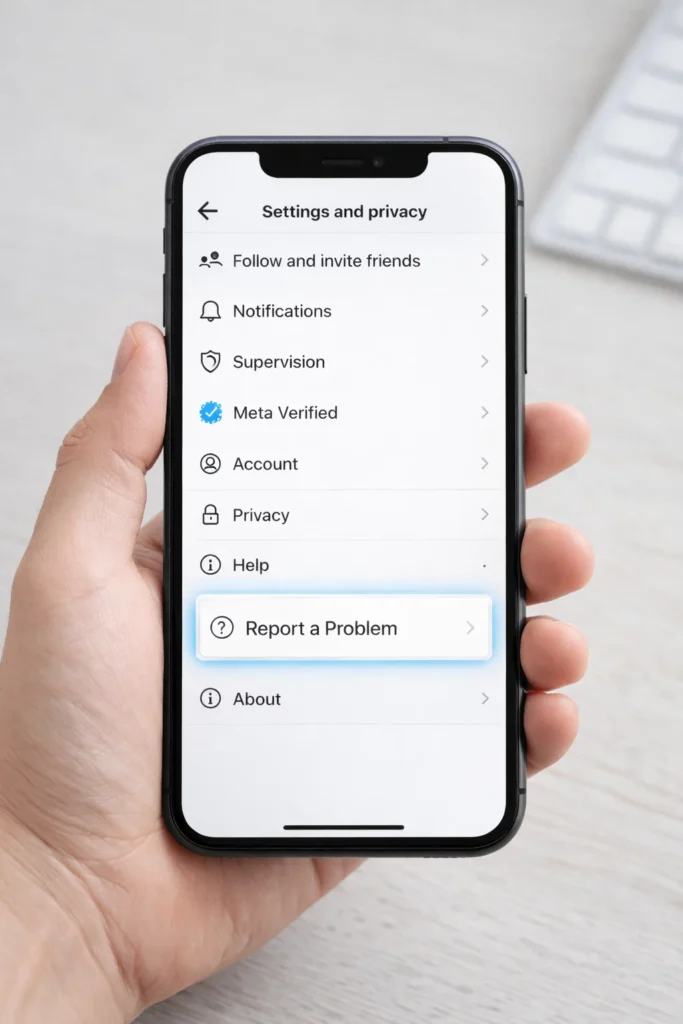
If you’ve tried everything above and Instagram Reels is still not working, it’s time to report the issue directly.
- Open Instagram.
- Go to Profile > Settings and Privacy > Help > Report a Problem.
- Clearly describe the issue. Mention that Instagram Reels are not working, what you’ve tried, and your device model.
- Submit the report.
- Wait for Instagram’s support team to respond.
Troubleshooting Tips
🔧 Quick Troubleshooting Checklist for Instagram Reels Not Working:
- ✅ Is your internet connection stable and fast?
- ✅ Is the Instagram app updated to the newest version?
- ✅ Have you cleared the Instagram cache recently?
- ✅ Have you restarted your phone?
- ✅ Is your phone’s operating system up to date?
- ✅ Do you have at least 1–2 GB of free storage?
- ✅ Are Instagram servers currently online?
- ✅ Is your VPN turned off?
Go through every item on this checklist before attempting more advanced fixes. This alone solves Instagram Reels not working for the majority of users.
Common Mistakes to Avoid
When trying to fix Instagram Reels, users often make these errors that waste time or create new problems:
- Tapping “Clear Data” instead of “Clear Cache” on Android — Clear Data erases your login and app settings. You only need to clear the cache.
- Skipping app updates for weeks — Old app versions miss critical bug fixes. Always keep Instagram updated.
- Using weak or unstable Wi-Fi — Your feed might load on slow Wi-Fi, but video-heavy Reels won’t. Switch to a stronger connection.
- Downloading Instagram from unofficial sources — Always use the official App Store or Google Play Store. Third-party files can cause serious Instagram Reels problems.
- Troubleshooting your device when servers are down — Check Downdetector first. If Instagram is experiencing a global outage, no device fix will help.
- Ignoring phone storage warnings — Low storage directly impacts app performance. Free up space regularly.
Additional Tips to Prevent Instagram Reels Issues
Follow these simple habits to keep Instagram Reels working smoothly and avoid future problems:
- Enable automatic app updates so you always have the latest Instagram version with the newest bug fixes.
- Restart your phone at least once a week to clear temporary memory and prevent background glitches.
- Maintain at least 2 GB of free storage on your phone at all times.
- Clear the Instagram cache once a month to prevent corrupted files from building up.
- Always use a reliable, fast internet connection when browsing or creating Reels.
- Avoid Instagram beta versions unless you’re comfortable encountering occasional bugs.
- Keep your phone’s operating system updated to maintain full compatibility with Instagram.
Frequently Asked Questions
Why are my Instagram Reels not working?
Your Instagram Reels may not be working due to a slow internet connection, an outdated app version, corrupted cache files, or an Instagram server outage. Start by checking your internet, updating the app, and clearing the cache.
How do I fix Instagram Reels not loading?
To fix Instagram Reels not loading, switch to a stronger internet connection, clear the Instagram cache, update the app, and restart your phone. If the problem persists, reinstall Instagram completely.
How do I fix Instagram Reels black screen?
The Instagram Reels black screen issue usually means a loading failure. Force close Instagram, clear the cache, ensure your internet is stable, and update the app. Reinstalling Instagram also resolves this in most cases.
Why did the Reels tab disappear from Instagram?
The Reels tab can disappear if you’re running an outdated version of Instagram or if Instagram is testing different layouts in your region. Update Instagram to the latest version, restart your phone, and check again.
Do Instagram Reels work on mobile data without Wi-Fi?
Yes, Instagram Reels work on mobile data. However, you need a stable connection with speeds of at least 3–5 Mbps. If your data plan is exhausted or your signal is weak, Reels will not load or play properly.
Conclusion
Instagram Reels not working is a common and frustrating problem, but it’s almost always fixable with simple steps. Start with the basics — restart the app, check your internet, and clear the cache. Then move on to updating the app, restarting your phone, or doing a clean reinstall.
Always check if Instagram’s servers are down before spending time troubleshooting your device. And adopt good habits like keeping your app updated and maintaining enough phone storage to prevent Instagram Reels issues from happening again.
Follow the 12 fixes in this guide from top to bottom. One of them will get your Instagram Reels working again.
- Google Support — Clear App Cache on Android: https://support.google.com/android
- Apple Support — Manage iPhone Storage: https://support.apple.com/en-us/108324
- Instagram Help Center — Report a Problem: https://help.instagram.com




[…] Instagram Reels Not Working? Here’s How to Fix It (12 Easy Solutions) […]
[…] Instagram Reels Not Working? Here’s How to Fix It (12 Easy Solutions) […]