
Introduction
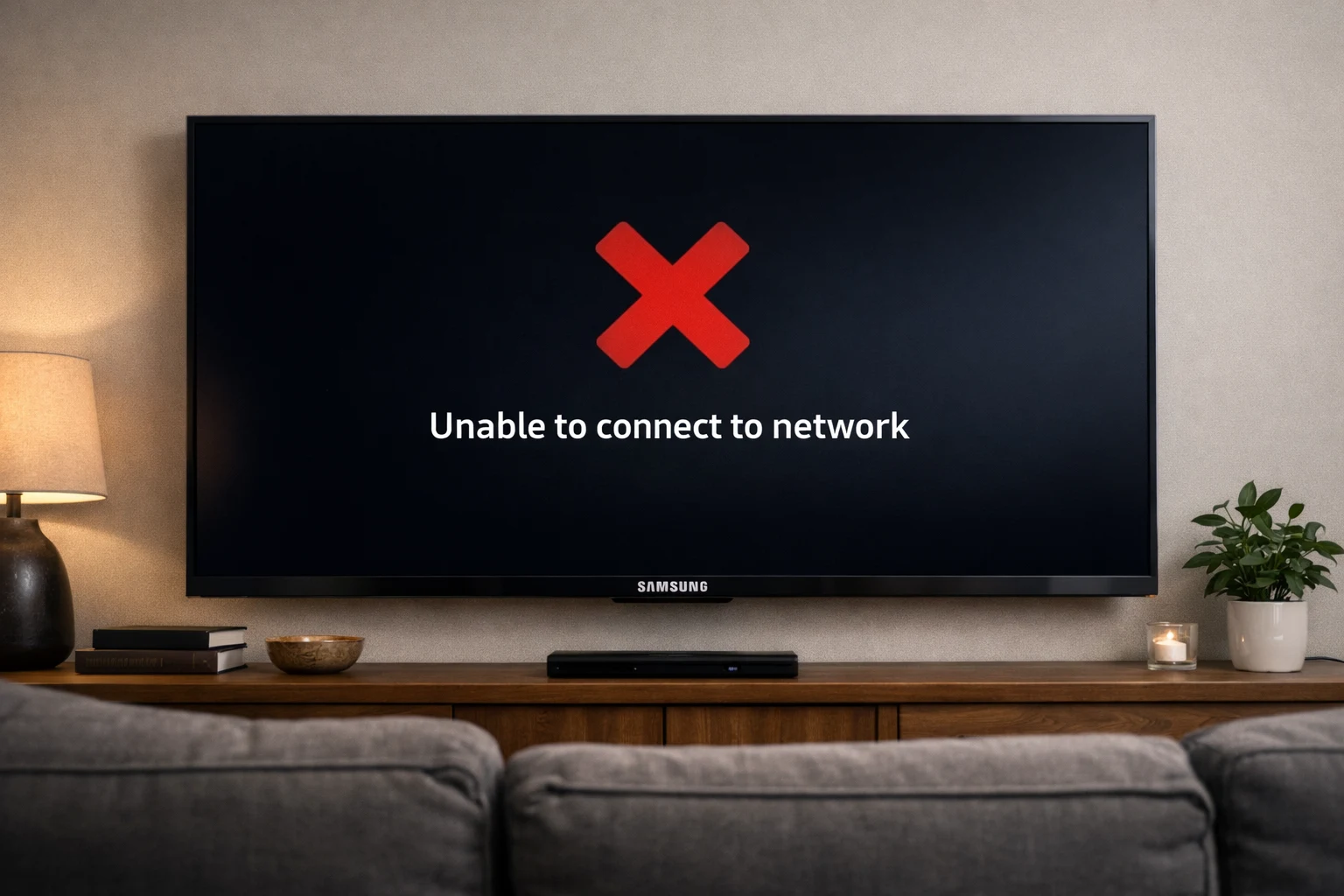
Is your Samsung TV not connecting to WiFi? You are staring at a loading screen, getting a network error, or your WiFi network is not even showing up on the TV. This is one of the most common Samsung Smart TV WiFi problems — and it happens to millions of users every year.
The good news is that a Samsung TV not connecting to WiFi issue is almost always fixable without calling a technician. The root cause is usually a temporary glitch, a router hiccup, or an outdated setting that takes just minutes to correct.
Whether your Samsung TV WiFi stopped working out of nowhere or it has never connected successfully, this step-by-step guide covers every proven solution. Follow the fixes below in order, and you will be back online fast.
Quick Answer
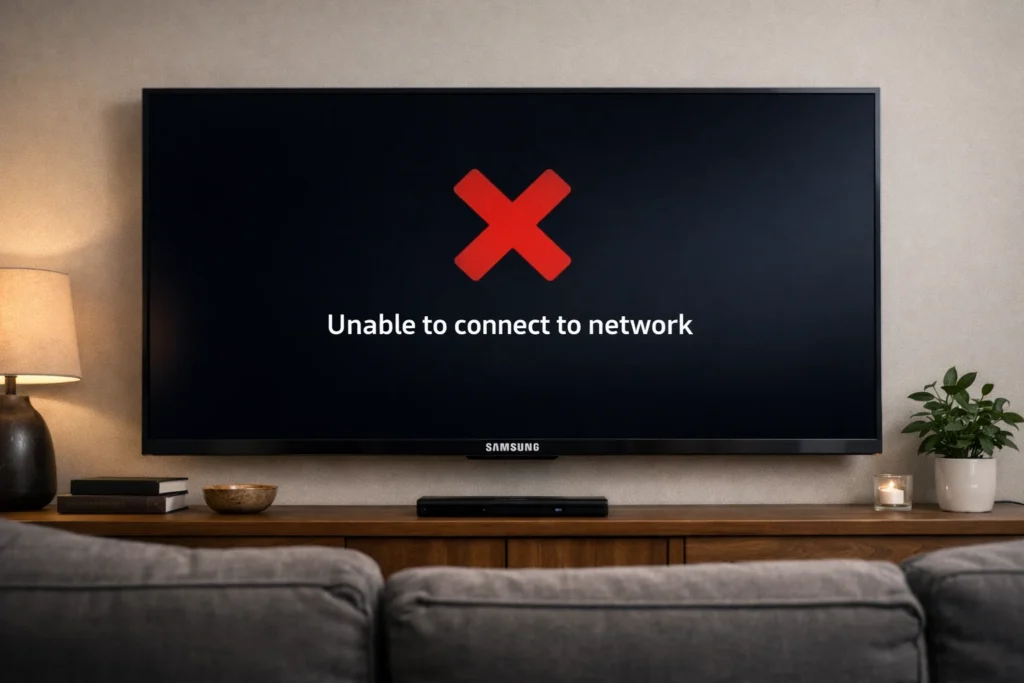
If your Samsung TV is not connecting to WiFi, unplug the TV from the wall and wait 60 seconds. At the same time, restart your WiFi router by unplugging it for 30 seconds. Plug both back in and try connecting again. This simple power cycle is the most effective Samsung TV WiFi fix and resolves the issue for the majority of users. If it does not work, follow the detailed methods below.
Why Is My Samsung TV Not Connecting to WiFi? {#why}
Before jumping into fixes, it helps to understand why your Samsung TV won’t connect to WiFi in the first place. Here are the most common reasons:
- Temporary software glitch — The TV’s system freezes internally, blocking the WiFi module from working properly.
- Router crash or overload — Your router may have frozen or hit its maximum device limit.
- Weak WiFi signal — The TV is too far from the router, or walls and appliances are blocking the signal.
- Incorrect DNS settings — Default DNS servers sometimes cause Samsung TV internet connection problems.
- Outdated TV firmware — Samsung releases regular updates. Old software often causes Samsung TV WiFi not working errors.
- Wrong WiFi password — A single mistyped character will prevent the connection.
- MAC address filtering — Your router may be blocking the TV’s network address.
- IP address conflict — Two devices on your network may share the same IP, causing a collision.
Understanding these causes makes it much easier to pick the right Samsung TV WiFi fix from the list below.
How to Fix Samsung TV Not Connecting to WiFi (12 Step-by-Step Methods) {#how-to-fix}
Fix 1: Power Cycle Your Samsung TV
This is the single most effective solution when your Samsung TV is not connecting to WiFi.
- Turn off your Samsung TV with the remote.
- Unplug the TV power cord from the wall outlet.
- Wait 60 full seconds — this allows the TV to fully clear its memory cache.
- Plug the TV back in.
- Turn it on and navigate to Settings > General > Network > Open Network Settings.
- Select your WiFi network and test the connection.
⚡ This fix alone resolves Samsung Smart TV WiFi problems for roughly 60% of users.
Fix 2: Restart Your WiFi Router
If your Samsung TV won’t connect to WiFi, the problem might be your router — not the TV.
- Unplug your WiFi router from its power source.
- Wait 30 seconds.
- Plug it back in and allow 2–3 minutes for it to fully boot up.
- On your Samsung TV, go to Settings > General > Network > Open Network Settings.
- Select Wireless, choose your network, and enter the password.
Fix 3: Forget and Reconnect to the WiFi Network
A corrupted saved network profile can cause persistent Samsung TV WiFi connection issues.
- Go to Settings > General > Network > Open Network Settings.
- Select Wireless.
- Highlight your WiFi network name.
- Select Forget or Disconnect.
- Restart the TV.
- Return to Network Settings, select your WiFi network, and enter the password fresh.
Fix 4: Double-Check Your WiFi Password
A mistyped password is a surprisingly common reason a Samsung TV is not connecting to WiFi.
- On your phone or laptop, confirm your WiFi password is correct and your internet is working.
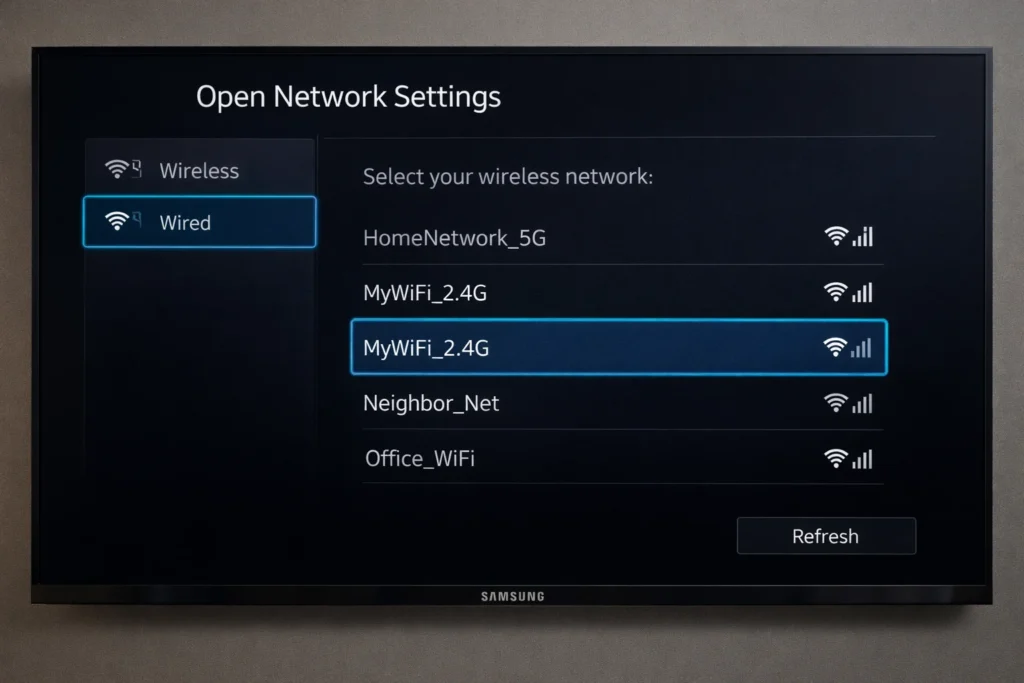
- On your Samsung TV, go to Settings > General > Network > Open Network Settings > Wireless.
- Select your network.
- Carefully type the password. Use the Show Password option to verify every character.
- Select Done and test the connection.
Fix 5: Change DNS Settings to Google DNS
Incorrect DNS settings are a hidden cause of Samsung TV internet connection problems. Switching to Google DNS often provides an instant fix.
- Go to Settings > General > Network > Network Status.
- Select IP Settings.
- Scroll down to DNS Setting and change it from Automatic to Manual.
- Enter 8.8.8.8 as the DNS server address.
- Select Done, then OK.
- Test the connection.
Fix 6: Update Samsung TV Firmware
Outdated software is a major reason your Samsung TV WiFi is not working. Samsung regularly patches connectivity bugs through firmware updates.
If you can temporarily connect via Ethernet or hotspot:
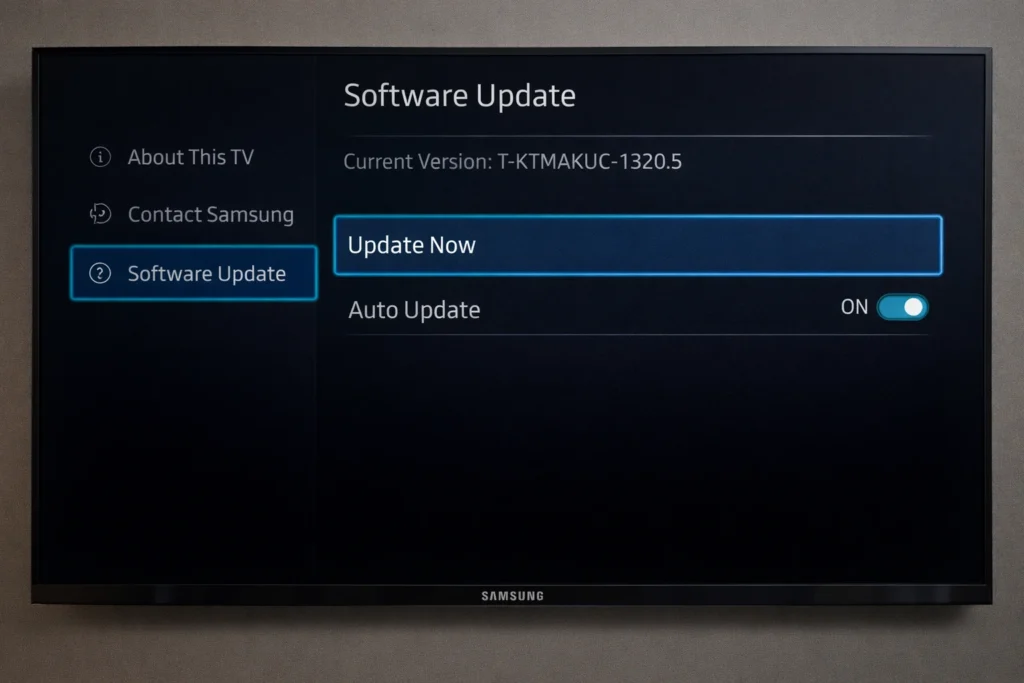
- Go to Settings > Support > Software Update.
- Select Update Now.
- Wait for the download and installation to complete.
- The TV will restart automatically.
If you have no internet connection at all:
- Visit samsung.com/support on a computer.
- Search for your exact TV model number.
- Download the latest firmware file to a USB flash drive.
- Insert the USB into your Samsung TV.
- Go to Settings > Support > Software Update > Update Now. The TV will detect the USB file.
Fix 7: Reset Samsung TV Network Settings
This clears all saved WiFi data and gives you a completely clean start — a reliable Samsung TV WiFi fix when other methods fail.
- Go to Settings > General > Network.
- Select Reset Network.
- Confirm when prompted.
- The TV will restart.
- Go to Network Settings and set up your WiFi connection from scratch.
Fix 8: Move Your Router Closer to the TV
Weak signal strength is one of the top reasons a Samsung TV keeps disconnecting from WiFi or fails to connect entirely.
- Place your router in the same room as the TV, ideally within 15 feet.
- Remove physical obstructions like thick walls, metal shelves, or large appliances.
- Keep the router away from microwaves, baby monitors, and cordless phones — these cause interference.
- If moving the router is impossible, invest in a WiFi range extender or mesh WiFi system.
Fix 9: Reduce the Number of Connected Devices
Too many devices can overload your router and cause your Samsung TV not connecting to WiFi error.
- Log in to your router’s admin page (usually at 192.168.1.1 or 192.168.0.1 in your browser).
- Check how many devices are currently connected.
- Disconnect any devices you are not actively using.
- Try connecting your Samsung TV again.
Fix 10: Switch from 5 GHz to 2.4 GHz WiFi Band
The 5 GHz band is faster but has shorter range. If your Samsung TV won’t connect to WiFi and it is far from the router, the 2.4 GHz band is a better choice.
- Log in to your router settings.
- Make sure the 2.4 GHz band is enabled and has a visible network name (SSID).
- On your Samsung TV, go to WiFi settings and connect to the 2.4 GHz network instead of the 5 GHz one.
Fix 11: Factory Reset Your Samsung TV
Use this as a last resort. A factory reset erases all your settings, apps, and preferences.
- Go to Settings > General > Reset.
- Enter your PIN (default is 0000).
- Confirm the reset.
- The TV will restart and return to its original out-of-the-box state.
- During the initial setup, connect to WiFi when prompted.
This is the most thorough Samsung TV WiFi fix available before considering hardware repair.
Fix 12: Use an Ethernet Cable as a Workaround
If your Samsung TV WiFi is still not working after trying everything above, a wired connection guarantees stable internet.
- Connect an Ethernet cable from your router directly to the LAN port on the back of your Samsung TV.
- Go to Settings > General > Network > Open Network Settings.
- Select Wired.
- The TV should connect instantly.
This method is actually faster and more reliable than WiFi for streaming 4K content.
Troubleshooting Tips {#troubleshooting-tips}
🔧 Quick Checklist Before You Start:
- ✅ Confirm your internet works on other devices (phone, laptop).
- ✅ Make sure you are selecting the correct WiFi network name.
- ✅ Check that your router firmware is up to date.
- ✅ Verify your internet plan is active — contact your ISP if unsure.
- ✅ Try both the 2.4 GHz and 5 GHz WiFi bands.
- ✅ Check if your router has a maximum device limit.
- ✅ Look for any error codes on the Samsung TV network status screen for specific clues.
- ✅ Try connecting to a mobile hotspot to confirm the TV’s WiFi hardware is functional.
Common Mistakes to Avoid {#common-mistakes}
Many people make these errors when trying to fix Samsung TV WiFi issues:
- Not waiting long enough during a power cycle. You need a full 60 seconds with the TV unplugged. A quick off-and-on will not clear the cache.
- Only restarting the TV but not the router. The router is the source of the problem just as often as the TV.
- Using special characters in the WiFi password. Some older Samsung TVs have trouble with symbols like #, &, or @. Try changing your WiFi password to only letters and numbers.
- Ignoring firmware updates. Samsung patches WiFi connection bugs regularly. Always keep your TV software current.
- Hiding the router in a closet or cabinet. This dramatically reduces signal strength and causes frequent Samsung TV WiFi problems.
- Connecting to the wrong WiFi band. If your router broadcasts both 2.4 GHz and 5 GHz under the same name, the TV might keep jumping between bands and failing. Separate them into two distinct network names.
Additional Tips to Prevent the Issue {#prevention-tips}
Once you fix your Samsung TV not connecting to WiFi problem, use these tips to make sure it does not come back:
- Turn on automatic software updates — Go to Settings > Support > Software Update > Auto Update and enable it.
- Restart your router once a month — This keeps memory clear and prevents slowdowns.
- Assign a static IP address to your Samsung TV — Log into your router settings and reserve a specific IP for the TV. This prevents IP conflicts.
- Upgrade your router if it is more than 5 years old — Modern routers handle multiple smart devices much better.
- Use a mesh WiFi system for large homes — This eliminates dead zones that cause Samsung Smart TV WiFi problems.
- Keep your TV’s WiFi module cool — Make sure there is proper ventilation around the TV. Overheating can affect internal components including the WiFi chip.
Frequently Asked Questions {#faqs}
Why does my Samsung TV keep disconnecting from WiFi?
If your Samsung TV keeps disconnecting from WiFi, the most common causes are weak signal strength, too many devices on the network, or outdated firmware. Move the router closer, disconnect unused devices, and update your TV software. Switching to the 2.4 GHz WiFi band also improves connection stability.
How do I reset WiFi on my Samsung TV?
To reset WiFi on your Samsung TV, go to Settings > General > Network > Reset Network. This erases all saved WiFi data. After the reset, go back to Network Settings, select your WiFi network, and enter the password again. This is one of the most reliable ways to fix Samsung TV WiFi problems.
Why is my Samsung TV not showing any WiFi networks?
If your Samsung TV shows no WiFi networks at all, the WiFi module may have a software glitch. Unplug the TV for 60 seconds and restart it. If the problem persists after a factory reset, the internal WiFi hardware may be defective and require professional Samsung service.
Can I connect my Samsung TV to the internet without WiFi?
Yes. You can plug an Ethernet cable directly from your router into the LAN port on your Samsung TV. Go to Settings > General > Network > Open Network Settings > Wired, and the TV will connect automatically. This wired method is more stable than WiFi, especially for 4K streaming.
Samsung TV not connecting to WiFi after update — what do I do?
If your Samsung TV stopped connecting to WiFi after a software update, go to Settings > General > Network > Reset Network and reconnect. If the problem continues, try a factory reset (Settings > General > Reset). Samsung sometimes releases follow-up patches to fix bugs introduced by updates.
Conclusion {#conclusion}
A Samsung TV not connecting to WiFi is a common but highly fixable issue. In most cases, a simple power cycle of both the TV and router solves the problem instantly. If that does not work, changing DNS settings, resetting network configurations, updating firmware, or switching WiFi bands will get your Samsung Smart TV back online.
Remember to avoid common mistakes like skipping the router restart or ignoring firmware updates. And if WiFi absolutely refuses to cooperate, a wired Ethernet connection is a fast, reliable backup.
Bookmark this guide so you have it ready the next time your Samsung TV WiFi is not working. With these 12 proven fixes, you will never be stuck without your streaming apps for long.
- Samsung Official Support — TV Network Troubleshooting: https://www.samsung.com/us/support/
- Google Public DNS Setup Guide: https://developers.google.com/speed/public-dns
- FCC Guide to WiFi Interference: https://www.fcc.gov/consumers/guides/interference-defining-source




[…] Samsung TV Not Connecting to WiFi? 12 Easy Fixes That Actually Work (2026) […]
[…] Samsung TV Not Connecting to WiFi? […]