
Introduction
Few things are more frustrating than sitting down to watch your favorite show only to discover your Firestick remote not working. You press every button, but nothing happens. The TV screen just stares back at you.
A Firestick remote not working is one of the most common complaints among Amazon Fire TV Stick owners. Whether your Fire Stick remote is not responding at all, won’t pair, or only works intermittently, this problem affects millions of users every year.
The good news? When your Firestick remote stopped working, it’s almost always fixable at home without any cost. This complete guide gives you 12 proven solutions to fix your Firestick remote and get back to streaming in minutes.
Quick Answer
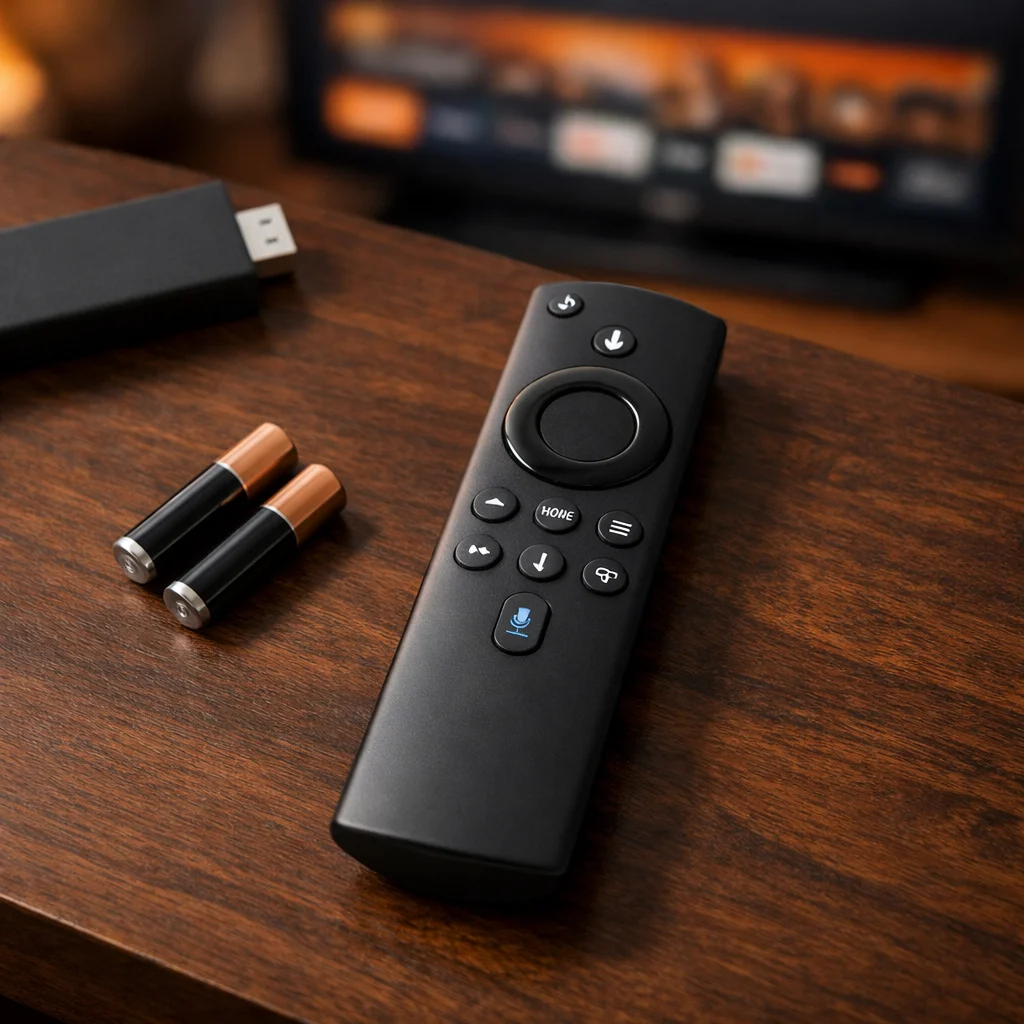
If your Firestick remote is not working, start by replacing the batteries with fresh, name-brand AAA batteries. Then unplug your Fire TV Stick from power for 30 seconds and plug it back in. Once the home screen loads, hold the Home button on your remote for 10 seconds to re-pair it. This three-step process resolves the Firestick remote not working issue for the majority of users.
Why Your Firestick Remote Is Not Working
Before jumping to fixes, it helps to understand why your Firestick remote stopped working. Identifying the root cause makes troubleshooting faster.
Here are the most common reasons your Amazon Firestick remote is not working:
- Dead or weak batteries — The number one cause of a Fire Stick remote not responding. Even seemingly new batteries can be defective.
- Bluetooth pairing lost — The Firestick remote uses Bluetooth, and the connection can drop after software updates or power outages.
- Software glitch on Fire TV — A frozen or buggy operating system may stop recognizing the remote entirely.
- Physical obstruction or distance — Standing too far away or having objects blocking the Bluetooth signal weakens connectivity.
- HDMI-CEC conflicts — Other HDMI-connected devices can interfere with Fire TV Stick controls.
- Hardware damage — Drops, liquid exposure, or corroded battery contacts can cause the Firestick remote not working problem permanently.
- Outdated firmware — Running old software leads to bugs that affect remote pairing and responsiveness.
- Bluetooth interference — Nearby wireless devices like speakers and game controllers can disrupt the signal, making your Fire TV remote not working properly.
How to Fix Firestick Remote Not Working (12 Step-by-Step Methods)
Fix 1: Replace the Batteries
Dead batteries cause the Firestick remote not working issue more than anything else. Start here.
- Slide open the back cover of your Firestick remote.
- Remove both AAA batteries.
- Insert two brand-new, name-brand AAA batteries. Match the positive (+) and negative (−) ends correctly.
- Replace the cover.
- Wait 10 seconds, then press any button.
Tip: Avoid rechargeable batteries. They deliver slightly lower voltage, which frequently causes the Fire Stick remote not responding problem.
Fix 2: Restart Your Fire TV Stick
A quick restart clears temporary software glitches causing your Firestick remote not working.
- Unplug the Fire TV Stick from the power source completely.
- Wait 30 full seconds — don’t rush this step.
- Plug it back in.
- Wait for the home screen to fully load.
- Test your remote.
This simple power cycle resolves many cases where the Amazon Firestick remote is not working after an update or overnight.
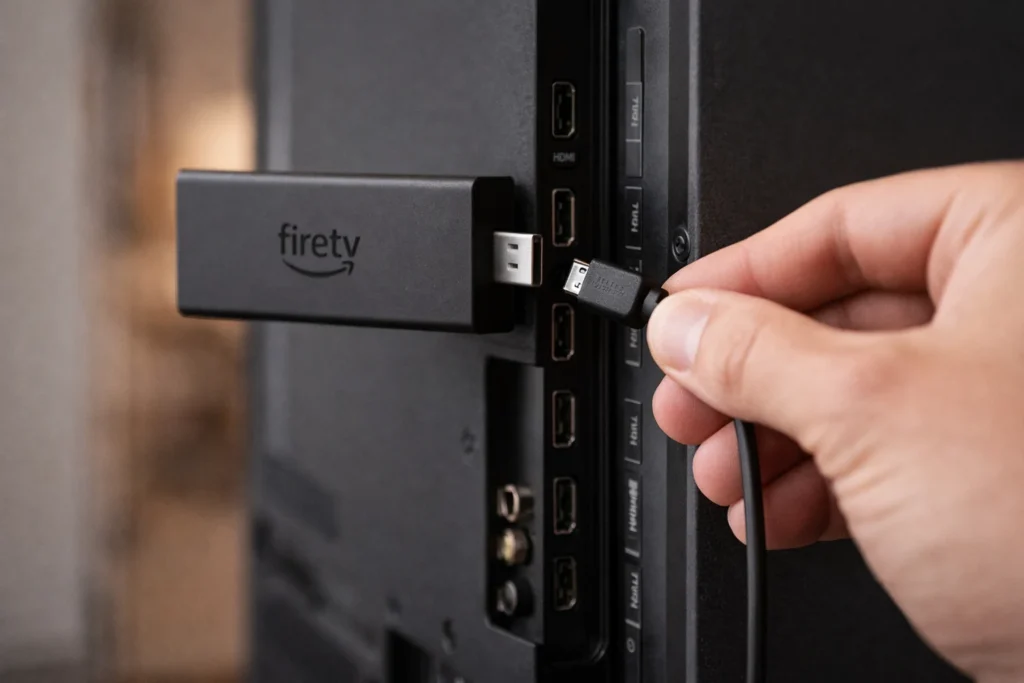
Fix 3: Re-Pair the Remote to Your Firestick
If your Firestick remote won’t pair or lost its Bluetooth connection, manual re-pairing is needed.
- Ensure your Fire TV Stick is powered on and showing the home screen.
- Hold down the Home button on your remote for at least 10 seconds.
- Watch for the LED light to start blinking.
- Wait up to 60 seconds for pairing to complete.
- Test navigation with the directional buttons.
Re-pairing fixes the Firestick remote not working problem in most Bluetooth-related cases.
Fix 4: Perform a Full Remote Reset
When basic re-pairing doesn’t work, a complete remote reset is your next step to fix the Firestick remote.
- Unplug the Fire TV Stick from power.
- Wait 60 seconds.
- Remove the batteries from the remote.
- Press and hold the Power button on the remote for 12 seconds to drain residual charge.
- Release and wait 5 seconds.
- Reinsert the batteries.
- Plug the Fire TV Stick back in.
- Once the home screen loads, hold the Home button for 10 seconds to re-pair.
This full reset Firestick remote process clears deep connection issues that simpler methods miss.
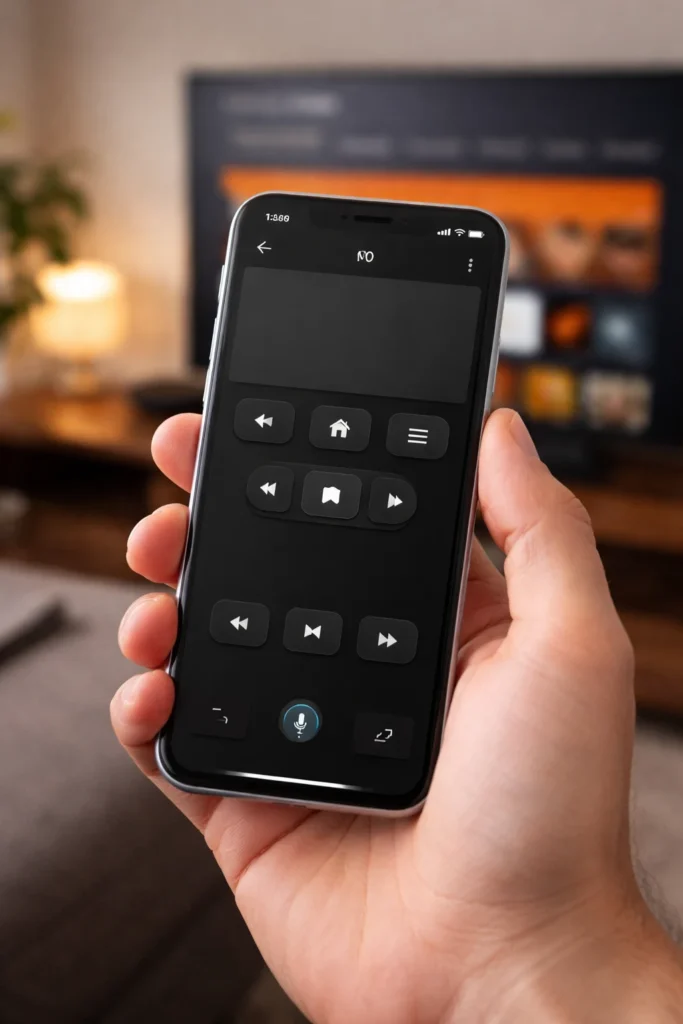
Fix 5: Use the Fire TV App as a Temporary Remote
If your Firestick remote is not working at all, use your smartphone while you troubleshoot.
- Download the Amazon Fire TV app from Google Play Store or Apple App Store.
- Connect your phone to the same Wi-Fi network as your Fire TV Stick.
- Open the app and select your Fire TV device.
- Enter the pairing code shown on your TV screen.
- Use your phone to navigate all Firestick menus.
This is essential when your Fire TV remote is not working and you need to access settings for deeper fixes.
Fix 6: Resolve HDMI-CEC Conflicts
HDMI-CEC allows devices to control each other through HDMI, but it sometimes causes your Firestick remote not working properly.
- Open Settings on your Fire TV (use the phone app if needed).
- Navigate to Display & Sounds.
- Select HDMI CEC Device Control.
- Toggle it off.
- Restart your Firestick and test the remote.
Many users find their Firestick remote stopped working after connecting a new soundbar or gaming console. Disabling CEC often resolves this.
Fix 7: Update Fire TV Stick Software
Outdated firmware contains bugs that can cause your Amazon Firestick remote not working correctly.
- Go to Settings > My Fire TV > About.
- Select Check for Updates.
- If an update is available, select Install Update.
- Wait for the installation and automatic restart.
- Test your remote after the update completes.
Fix 8: Clear Bluetooth Cache
Corrupted Bluetooth cache is a hidden cause of the Firestick remote not working issue.
- Go to Settings > Applications > Manage Installed Applications.
- Select Show System Apps if the option appears.
- Find and select Bluetooth.
- Choose Clear Cache.
- Restart your Fire TV Stick.
- Re-pair the remote by holding the Home button for 10 seconds.
Fix 9: Check for Firestick Remote Blinking Orange
If your Firestick remote is blinking orange, it means the remote is trying to pair but failing.
- Make sure the Firestick is plugged in and powered on.
- Move within 5 feet of the device.
- Hold the Home button for 10–15 seconds.
- If the orange blinking continues, perform a full remote reset (Fix 4).
- Try fresh batteries if the blinking stops but the remote still doesn’t work.
Fix 10: Reduce Wireless Interference
Bluetooth interference from other devices can make your Fire Stick remote not responding.
- Move other Bluetooth devices (speakers, headphones, game controllers) away from the Firestick.
- Keep the Firestick away from microwaves, baby monitors, and large metal objects.
- Use the HDMI extender cable included with your Firestick to position it away from the TV’s back panel.
- Reduce the number of active Wi-Fi devices near the Firestick.
Fix 11: Inspect for Physical Damage
Physical damage can permanently cause your Firestick remote not working.
- Look for visible cracks, dents, or signs of water exposure.
- Check battery contacts for corrosion (green or white residue).
- Clean corroded contacts gently with a dry cloth or a cotton swab dipped in rubbing alcohol.
- Make sure buttons aren’t stuck or jammed.
Fix 12: Replace the Remote
If you’ve tried every fix above and your Firestick remote is still not working, the remote itself may be defective.
- Purchase an official Amazon Fire TV replacement remote from Amazon.com.
- Verify you’re buying the correct generation compatible with your Firestick model.
- Third-party remotes work but may lack Alexa voice control.
- Budget option: continue using the Fire TV phone app permanently.
🔧 Troubleshooting Tips
Quick-Fix Checklist for Firestick Remote Not Working:
✅ Always start with fresh, name-brand AAA batteries
✅ Unplug the Firestick for at least 30 seconds before restarting
✅ Stand within 10 feet of the Firestick when re-pairing
✅ Download the Fire TV phone app as a backup remote now
✅ Remove nearby Bluetooth devices that may cause interference
✅ Keep Fire TV Stick firmware updated at all times
✅ Use the HDMI extender cable for better Bluetooth reception
✅ Try the full remote reset (Fix 4) before buying a replacement
Common Mistakes to Avoid
When trying to fix a Firestick remote, people often make these errors that waste time:
- Using old or bargain-bin batteries. Weak batteries are the most overlooked reason for a Firestick remote not working.
- Not waiting the full 30 seconds during restart. Impatience prevents the device from fully resetting.
- Holding the wrong button to pair. Always hold the Home button, not the Power button, for pairing.
- Standing too far from the Firestick. Bluetooth range is limited. Stay within 10 feet during pairing.
- Skipping the full remote reset. Changing batteries is not the same as performing the complete reset in Fix 4.
- Ignoring software updates. Many Firestick remote stopped working cases are caused by outdated firmware.
- Assuming the remote is broken too quickly. Run through all 12 fixes before spending money on a replacement.
Additional Tips to Prevent the Issue
Prevent your Firestick remote not working in the future with these habits:
- Keep spare AAA batteries at home. Battery failure happens without warning.
- Always use the HDMI extender cable. Better positioning means stronger Bluetooth reception and fewer remote issues.
- Enable automatic software updates. Go to Settings > My Fire TV > About > Auto Updates.
- Store the remote on a flat surface. Avoid drops, couch cushion crushing, and liquid exposure.
- Restart your Firestick once a week. Regular restarts prevent the software glitches that cause your Fire TV remote not working.
- Install the Amazon Fire TV app today — have it ready as a backup before you actually need it.
- Avoid pairing too many Bluetooth devices to the same Firestick simultaneously.
Frequently Asked Questions
Why is my Firestick remote not working even with new batteries?
New batteries alone don’t fix Bluetooth pairing issues. After inserting fresh batteries, hold the Home button for 10 seconds to re-pair the remote. If your Firestick remote is not working still, unplug the Firestick for 30 seconds, restart it, and try re-pairing again.
How do I reset my Firestick remote?
To reset your Firestick remote, remove the batteries and press the Power button for 12 seconds. Wait 5 seconds, reinsert the batteries, then hold the Home button for 10 seconds to re-pair. This fixes most cases of a Firestick remote not working.
Can I use my Firestick without the remote?
Yes. Download the free Amazon Fire TV app on your smartphone. Connect to the same Wi-Fi network as your Firestick, and you can fully control the device from your phone. This is the best workaround when your Amazon Firestick remote is not working.
Why does my Firestick remote keep disconnecting?
Frequent disconnections usually mean weak batteries, Bluetooth interference from nearby devices, or outdated Firestick software. Replace batteries first, move other wireless devices away, and install the latest Fire TV updates to stop your Firestick remote not working repeatedly.
What does it mean when my Firestick remote is blinking orange?
A Firestick remote blinking orange means the remote is in pairing mode but hasn’t connected yet. Hold the Home button for 10 seconds while standing close to the Firestick. If it keeps blinking, perform a full remote reset and try again with fresh batteries.
Conclusion
A Firestick remote not working is annoying, but it’s almost always fixable. Start with the basics — replace the batteries, restart the Fire TV Stick, and re-pair the remote. These three steps alone solve the problem for most users.
For stubborn cases where your Fire Stick remote is not responding, use the full remote reset method, clear the Bluetooth cache, check for HDMI-CEC conflicts, and update your software. If nothing works after all 12 fixes, a replacement remote from Amazon is affordable and easy to set up.
Bookmark this Firestick remote not working fix guide so you’re prepared next time the issue strikes. And don’t forget to install the Fire TV phone app as your always-ready backup.
- Amazon Fire TV Help & Customer Service — https://www.amazon.com/gp/help/customer/display.html?nodeId=G7WMMPDL362XQLJ2
- Google Play Store — Amazon Fire TV App — https://play.google.com/store/apps/details?id=com.amazon.storm.lightning.client.aosp
- Apple App Store — Amazon Fire TV App — https://apps.apple.com/us/app/amazon-fire-tv/id947984433




[…] Firestick Remote Not Working? 12 Easy Fixes That Actually Work (2026) […]