
Introduction
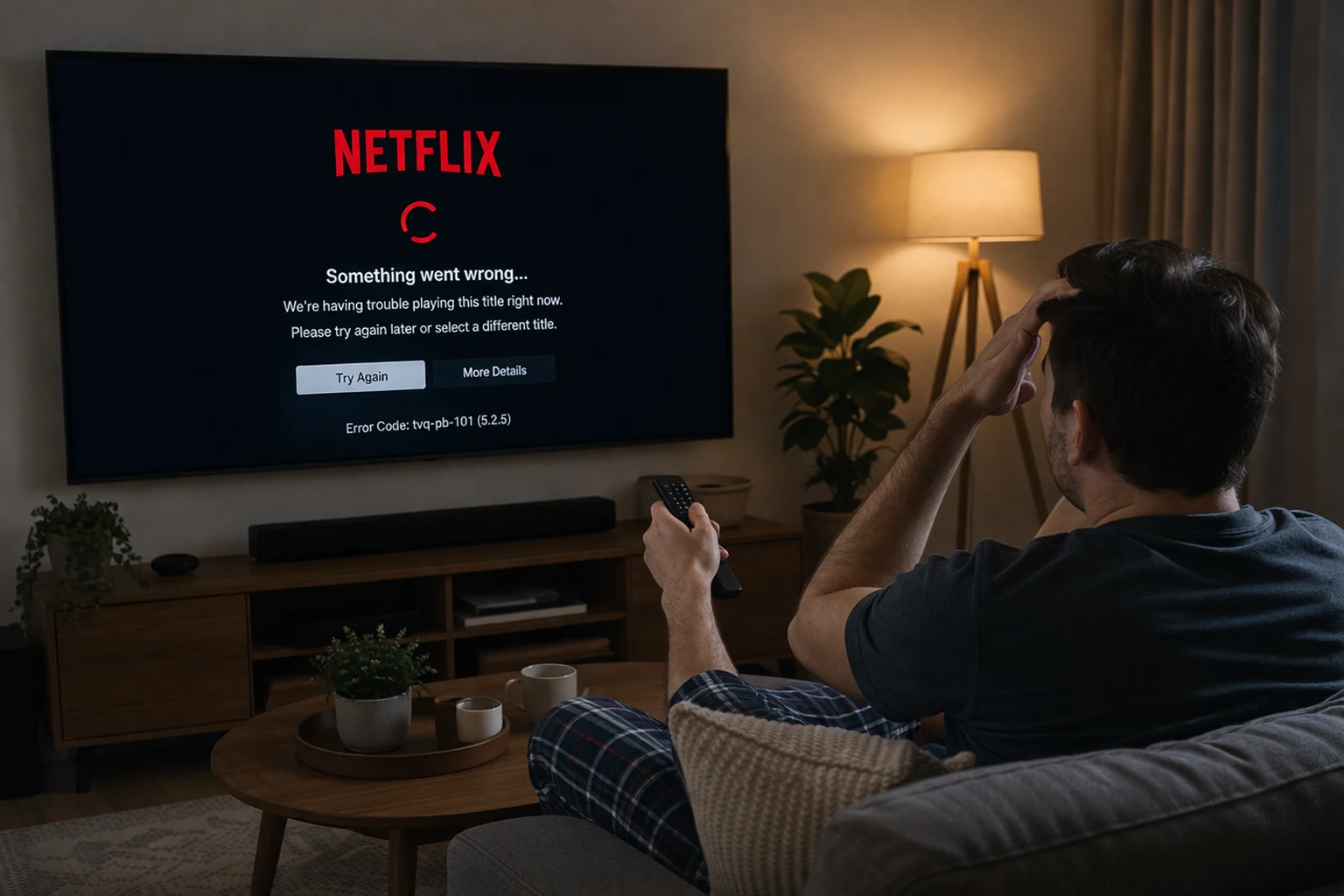
Netflix not working on smart TV is one of the most common streaming complaints from users worldwide. Whether the app freezes, crashes, shows a black screen, or refuses to load, this problem can ruin your evening plans in seconds.
If Netflix is not working on your smart TV, you are not alone. This issue affects nearly every brand — Samsung, LG, Sony, Hisense, TCL, Vizio, and Xiaomi smart TVs all experience it. It typically happens after a software update, during peak streaming hours, or without any obvious reason.
The good news is that when Netflix is not working on a smart TV, the fix is usually fast and simple. This guide gives you every proven solution, starting with the easiest fix first so you can get back to streaming as quickly as possible.
Quick Answer
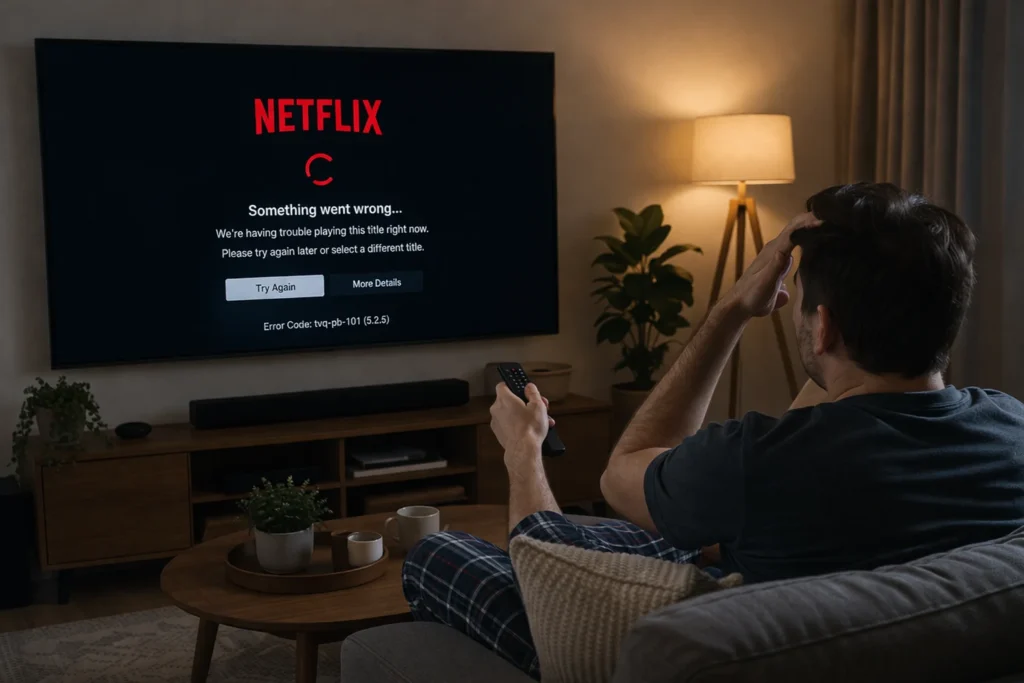
When Netflix is not working on your smart TV, unplug your TV from the wall outlet for 60 seconds, plug it back in, and reopen Netflix. This power cycle fix resolves the issue for most users. If Netflix is still not loading on your smart TV after this step, follow the detailed troubleshooting methods below.
Why Netflix Stops Working on Smart TVs
Before jumping into fixes, it helps to understand why Netflix stops working on a smart TV in the first place. Here are the most common reasons:
- Temporary software glitch — A minor bug in the Netflix app or your TV’s operating system can cause Netflix to stop working on your smart TV suddenly.
- Weak or unstable internet connection — Netflix requires steady speeds of at least 3 Mbps for SD and 5 Mbps for HD. A dropped connection is a top reason Netflix is not loading on smart TVs.
- Outdated Netflix app — An old version of the Netflix app may no longer communicate properly with Netflix servers.
- Outdated TV firmware — Your smart TV’s software needs regular updates to keep apps like Netflix running smoothly.
- Corrupted app cache or data — Stored temporary files can become corrupted over time, causing the Netflix app not working on smart TV problems.
- Netflix server outage — Sometimes the problem is on Netflix’s end, not yours.
- Account or subscription issues — An expired payment or too many active streams can block playback and make it look like Netflix is not working on your smart TV.
How to Fix Netflix Not Working on Smart TV
Follow these fixes in order. Each method addresses a specific reason Netflix is not working on your smart TV, starting with the simplest solutions first.
Fix 1: Power Cycle Your Smart TV (Restart Properly)
This is the number one fix when Netflix is not working on a smart TV. A proper power cycle clears temporary memory and resets all background processes.
- Turn off your smart TV using the remote.
- Unplug the TV from the wall outlet — not just the power strip.
- Wait 60 full seconds. Do not rush this step.
- Plug the TV back in.
- Turn it on and open Netflix.
Why it works: Smart TVs keep processes running even when the screen is off. Unplugging forces a complete memory reset, which fixes most cases of Netflix not working on smart TV.
Fix 2: Check Your Internet Connection
A weak Wi-Fi signal is one of the top reasons Netflix is not loading on a smart TV. Without stable internet, the Netflix app cannot connect to its servers.
- On your smart TV, go to Settings > Network > Network Status.
- Run the built-in connection test.
- If the test fails, restart your Wi-Fi router by unplugging it for 30 seconds and plugging it back in.
- Move your router closer to the TV or remove physical obstacles.
- Open another streaming app like YouTube to confirm your internet works.
Netflix speed requirements:
- SD quality: 3 Mbps
- HD quality: 5 Mbps
- 4K Ultra HD: 15 Mbps
Why it works: A dropped or slow connection prevents Netflix from streaming data. Fixing your internet often immediately resolves Netflix not working on smart TV.
Fix 3: Sign Out and Sign Back Into Netflix
A corrupted login session can cause Netflix app not working on smart TV errors.
- Open the Netflix app.
- Navigate to Get Help or your profile icon.
- Select Sign Out or Deactivate.
- Close the app completely.
- Reopen Netflix and sign back in with your email and password.
Why it works: Signing out forces a fresh connection to Netflix servers and clears any corrupted session data that may be causing Netflix to stop working on your smart TV.
Fix 4: Clear the Netflix App Cache and Data
Corrupted cache files are a leading cause of Netflix crashing on smart TV. Clearing them gives the app a fresh start.
On Samsung Smart TVs:
- Go to Settings > Apps.
- Find Netflix.
- Select Clear Cache, then Clear Data.
- Reopen Netflix and sign in.
On Sony Smart TVs (Android TV / Google TV):
- Go to Settings > Apps > See All Apps.
- Select Netflix.
- Tap Clear Cache, then Clear Data.
On LG Smart TVs:
LG webOS does not offer a cache-clearing option. Skip to Fix 6 and reinstall the app instead.
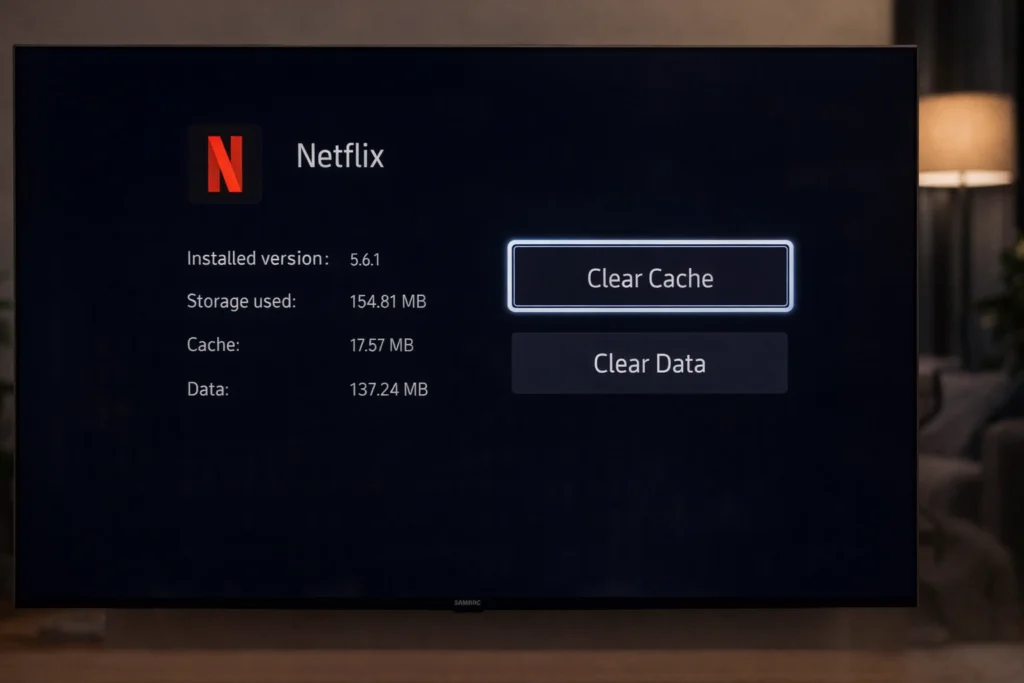
Why it works: Old temporary files interfere with how Netflix loads content. Clearing them is a proven fix for Netflix not working on smart TV.
Fix 5: Update the Netflix App
Running an outdated Netflix app is a common reason Netflix stopped working on smart TV after an update.
- Open your TV’s App Store (Samsung App Store, LG Content Store, Google Play Store).
- Search for Netflix.
- If an Update button is visible, tap it.
- Once updated, reopen Netflix.
Why it works: Netflix frequently releases updates to fix bugs. An outdated app version may simply stop functioning, making Netflix not work on your smart TV.
Fix 6: Uninstall and Reinstall Netflix
If clearing the cache did not help, a complete reinstall can fix Netflix not working on your smart TV.
- Go to Settings > Apps on your TV.
- Find Netflix and select Uninstall or Delete.
- Restart your smart TV.
- Open the app store, search for Netflix, and install it.
- Sign in with your account credentials.
Note: On some smart TVs (like certain Samsung models), Netflix is pre-installed and cannot be removed. Use Clear Data instead.
Fix 7: Update Your Smart TV Firmware
Outdated firmware is a hidden cause of Netflix problems on smart TV. Keeping your TV software current is essential.
Samsung: Settings > Support > Software Update > Update Now
LG: Settings > All Settings > General > About This TV > Check for Updates
Sony: Settings > Device Preferences > About > System Update
Why it works: Firmware updates fix compatibility issues between your TV’s operating system and apps like Netflix. Many cases of Netflix not working on smart TV are resolved by a simple firmware update.
Fix 8: Check if Netflix Servers Are Down
Before spending more time troubleshooting, verify the problem is not on Netflix’s side.
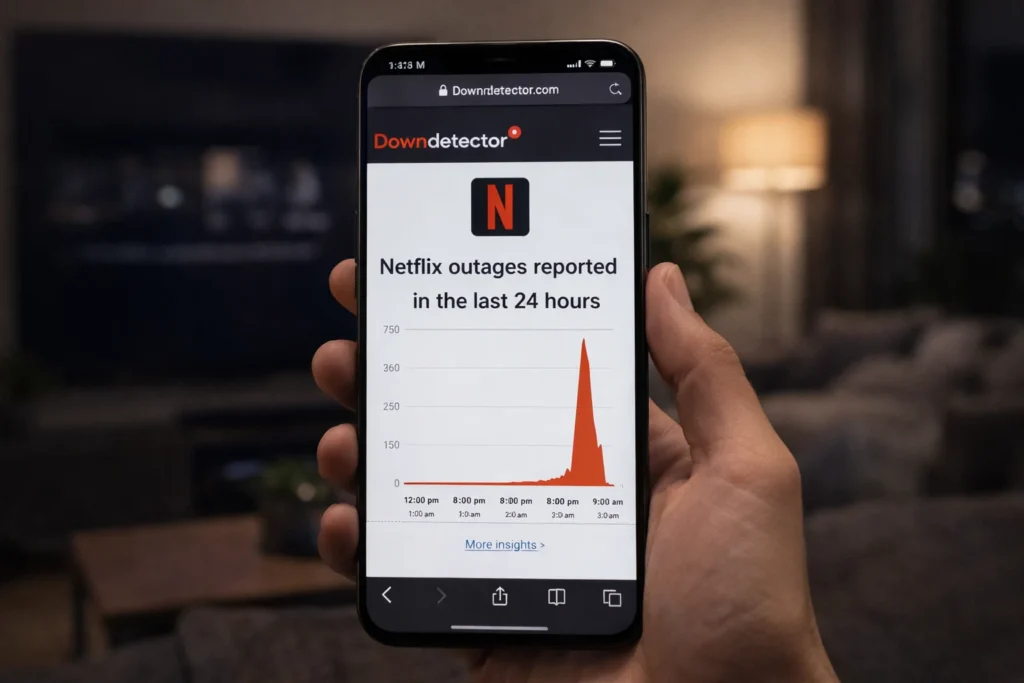
- On your phone or computer, visit downdetector.com/status/netflix.
- Check for reported outages.
- Also check Netflix’s official social media for service updates.
If servers are down, no troubleshooting will fix Netflix not working on your smart TV. Simply wait for Netflix to restore service.
Fix 9: Verify Your Netflix Subscription
An expired or paused account can make it seem like Netflix is not working on a smart TV when the real problem is billing.
- Visit netflix.com/account on a phone or computer.
- Sign in and check Membership & Billing.
- Confirm your subscription is active and your payment method is valid.
- Ensure you have not exceeded your plan’s screen limit.
Fix 10: Use an Ethernet Cable Instead of Wi-Fi
If Netflix keeps buffering or crashing, your Wi-Fi may not be strong enough. A wired connection offers more stability.
- Connect an Ethernet cable from your router to your TV’s LAN port.
- Go to Settings > Network and select Wired Connection.
- Open Netflix and test playback.
Why it works: Wired connections eliminate Wi-Fi interference, providing consistent speeds that prevent Netflix not loading on smart TV due to network issues.
Fix 11: Disable VPN or Proxy
If you are using a VPN on your router, Netflix may block the connection.
- Disable any VPN or proxy service running on your router.
- Restart both the router and your smart TV.
- Open Netflix and try again.
Fix 12: Factory Reset Your Smart TV (Last Resort)
If absolutely nothing fixes Netflix not working on your smart TV, a factory reset restores everything to original settings. Warning: This erases all your apps, settings, and preferences.
- Go to Settings > General > Reset (location varies by brand).
- Enter your PIN if prompted (default is usually 0000).
- Confirm the reset.
- Set up your TV again and install Netflix.
Why it works: A factory reset eliminates deep software conflicts causing Netflix not working on smart TV that other fixes cannot reach.
Troubleshooting Tips
🔧 Quick Checklist When Netflix Is Not Working on Smart TV:
- ✅ Unplug TV for 60 seconds (not just power off with remote)
- ✅ Restart your Wi-Fi router
- ✅ Update the Netflix app
- ✅ Update your TV firmware
- ✅ Clear Netflix app cache and data
- ✅ Test another streaming app to isolate the issue
- ✅ Check Netflix server status on Downdetector
- ✅ Try an Ethernet cable instead of Wi-Fi
- ✅ Verify your Netflix subscription is active
Common Mistakes to Avoid
- Only pressing the power button on the remote. This puts your TV in standby mode — it does not fix Netflix not working on smart TV. You must unplug the TV completely.
- Unplugging for only a few seconds. Wait a full 60 seconds to properly drain residual power and clear memory.
- Ignoring your internet connection. Many users blame the TV or app when their Wi-Fi is actually the problem.
- Skipping updates. Dismissing app and firmware update notifications is a leading cause of Netflix stopped working on smart TV.
- Factory resetting too soon. Always try simpler fixes first. A factory reset should be your absolute last resort.
- Not checking Netflix server status. If Netflix is down globally, no amount of troubleshooting will fix Netflix not working on your smart TV.
Additional Tips to Prevent Netflix Problems on Smart TV
Prevention saves you from future headaches. Follow these tips to keep Netflix running smoothly on your smart TV:
- Turn on automatic updates for your TV firmware and apps so everything stays current.
- Restart your smart TV and router once a week. Regular restarts prevent the cache buildup that causes Netflix app not working on smart TV.
- Use an Ethernet cable whenever possible for a stronger, more consistent connection.
- Avoid overloading your network. Too many devices streaming, downloading, and gaming simultaneously can cause Netflix not loading on smart TV.
- Sign out of Netflix on devices you no longer use to avoid account conflicts and screen-limit issues.
- Keep your TV plugged into a surge protector to prevent power fluctuations that can corrupt app data.
Frequently Asked Questions
Why does Netflix keep crashing on my Samsung smart TV?
Netflix crashing on a Samsung smart TV is usually caused by corrupted cache data or outdated software. Go to Settings > Apps > Netflix > Clear Cache and Clear Data. Then check for both app and firmware updates. This fix resolves Netflix not working on smart TV for most Samsung users.
How do I reset Netflix on my smart TV?
To reset Netflix on your smart TV, go to your TV’s app settings, select Netflix, and choose Clear Data. If your TV does not offer this option, uninstall Netflix, restart the TV, and reinstall the app from the app store. This effectively fixes Netflix not working on smart TV caused by app corruption.
Why is Netflix showing a black screen on my smart TV?
A Netflix black screen on smart TV is typically caused by an app freeze or an HDMI handshake error. Unplug your TV for 60 seconds, then plug it back in and try Netflix again. If the black screen persists, clear the Netflix app cache or reinstall the app.
Is Netflix still supported on older smart TVs?
Netflix has dropped support for some smart TVs manufactured before 2014. If your TV is no longer supported, Netflix will not work on your smart TV regardless of troubleshooting. You can still watch Netflix by using an external streaming device like a Roku, Amazon Fire TV Stick, or Chromecast.
What do I do if Netflix is not working on my smart TV after trying everything?
If Netflix is still not working on your smart TV after all fixes, contact Netflix customer support at help.netflix.com or your TV manufacturer’s support team. There may be a hardware issue or a model-specific bug that requires professional assistance.
Conclusion
Netflix not working on smart TV is a frustrating problem, but it is almost always fixable at home. In most cases, simply unplugging your TV for 60 seconds resolves the issue instantly. If that does not work, checking your internet connection, clearing the Netflix app cache, updating your software, or reinstalling the app will get Netflix running again.
Always start with the simplest fix and work your way up. A factory reset should only be your last resort. By keeping your smart TV and Netflix app updated and maintaining a reliable internet connection, you can prevent most Netflix problems on your smart TV before they ever happen.
If you found this guide helpful, bookmark it for the next time Netflix is not working on your smart TV — because now you know exactly how to fix it.
- Netflix Help Center – Troubleshooting Smart TV Issues
- Samsung Support – Smart TV App Troubleshooting
- Google Support – Android TV App Problems



