
Introduction
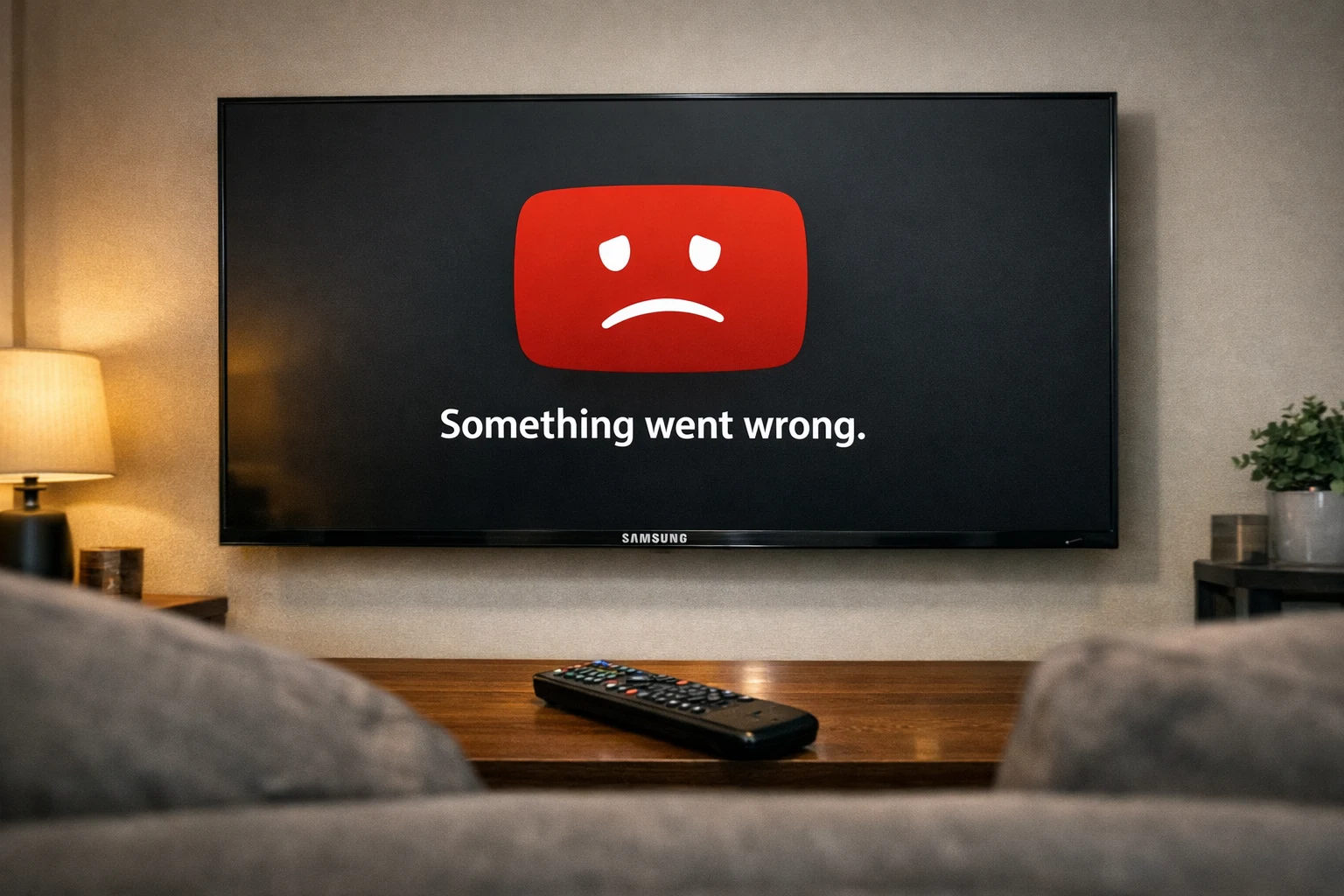
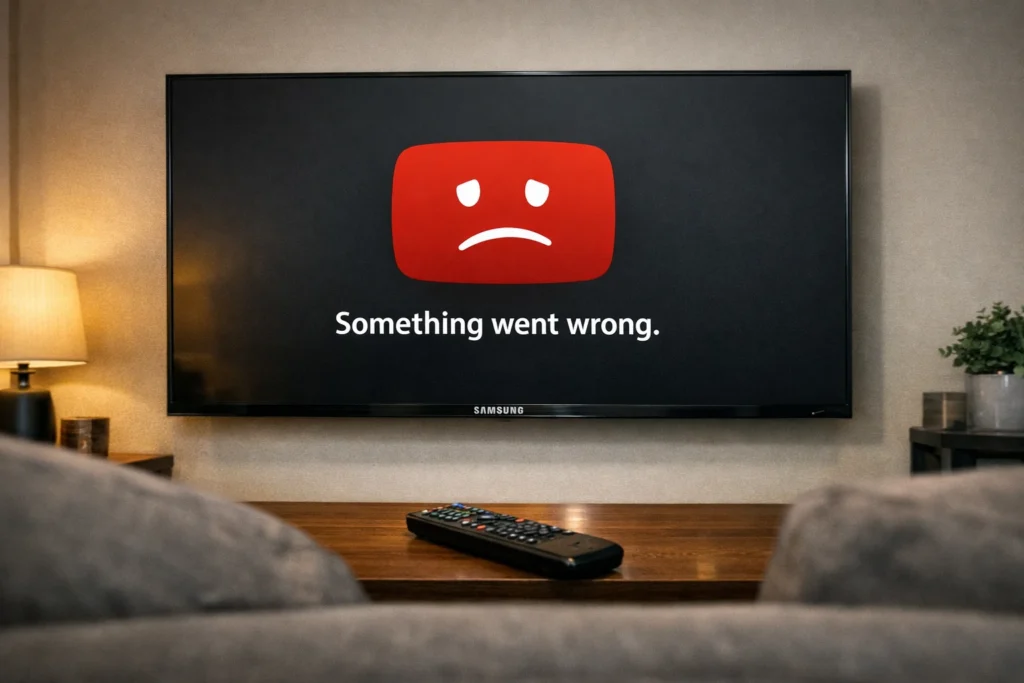
If you’ve found that YouTube not working on Samsung TV is ruining your streaming experience, you’re not alone. This is one of the most common complaints among Samsung Smart TV owners worldwide. The app may freeze, crash, show a black screen, buffer forever, or simply refuse to open.
The reasons behind YouTube not working on Samsung TV range from simple software glitches to outdated firmware and internet connectivity problems. Fortunately, you don’t need to be a tech expert to solve this.
This complete guide gives you 12 proven, beginner-friendly fixes for when YouTube stops working on your Samsung TV. Follow the steps in order, and you’ll likely have the app running again in minutes.
Quick Answer
When YouTube is not working on Samsung TV, the fastest fix is a power cycle. Turn your TV off, unplug it from the wall for 60 seconds, then plug it back in and restart. This resolves the issue for most users. If the problem continues, clear the YouTube app cache or update the app through the Samsung App Store.
Why YouTube Is Not Working on Samsung TV
Understanding why YouTube is not working on your Samsung TV helps you choose the right fix quickly. Here are the most common causes of this Samsung TV YouTube problem:
- Outdated YouTube app — An old app version may contain bugs that cause crashes and loading failures.
- Weak or unstable internet connection — YouTube needs steady bandwidth to stream. Poor Wi-Fi causes the YouTube app not loading on Samsung TV.
- Corrupted app cache — Temporary data stored by the YouTube app can become damaged over time.
- Outdated Samsung TV firmware — Missing system updates lead to app compatibility issues.
- YouTube server outage — Occasionally, the problem is on YouTube’s end, not yours.
- Smart Hub malfunction — The Samsung Smart Hub that manages your apps can glitch and cause YouTube to stop working on Samsung TV.
- DNS or network configuration errors — Incorrect settings can block your TV from reaching YouTube servers.
- Unsupported TV model — Very old Samsung TVs (2012 and earlier) have lost YouTube support entirely.
How to Fix YouTube Not Working on Samsung TV
Follow these 12 step-by-step methods to fix YouTube on Samsung TV. Start from Fix 1 and work your way down.
Fix 1: Power Cycle Your Samsung TV
A power cycle is the number one fix for YouTube not working on Samsung TV. It clears temporary memory glitches instantly.
- Turn off your Samsung TV with the remote.
- Unplug the TV from the power outlet.
- Wait 60 full seconds. Do not rush this step.
- Plug the TV back in.
- Turn it on and launch YouTube.
This single step resolves the Samsung TV YouTube problem for the majority of users.
Fix 2: Check Your Internet Connection
A weak connection is a leading cause of YouTube not loading on Samsung TV.
- Press the Home button on your Samsung remote.
- Go to Settings > General > Network > Network Status.
- Run the built-in network test.
If the test shows a weak or failed connection:
- Move your router closer to the TV.
- Switch to a wired Ethernet connection for better reliability.
- Disconnect other devices using your bandwidth.
YouTube recommends a minimum speed of 5 Mbps for HD streaming.
Fix 3: Restart Your Wi-Fi Router
Sometimes the router — not the TV — is causing YouTube not to work on Samsung TV.
- Unplug your router from power.
- Wait 30 seconds.
- Plug it back in. Wait for all indicator lights to stabilize.
- Reconnect your Samsung TV to Wi-Fi.
- Open YouTube and test.
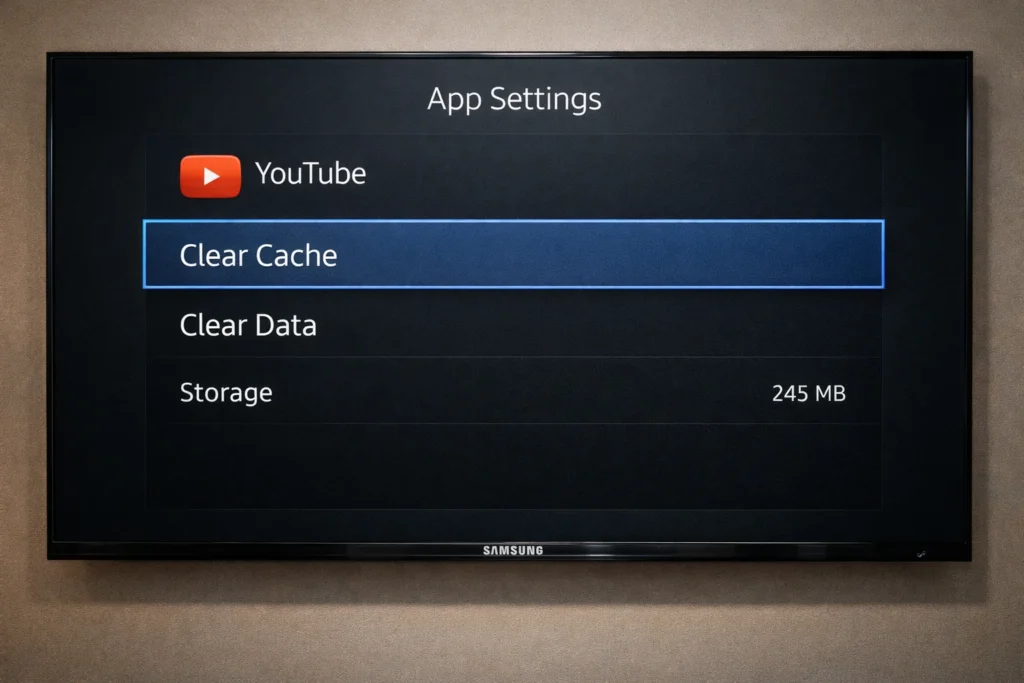
Fix 4: Clear the YouTube App Cache
A corrupted cache is one of the top reasons for YouTube crashing on Samsung TV.
- Press the Home button.
- Navigate to Settings > Apps.
- Select YouTube from the list.
- Choose Clear Cache.
- Restart your TV, then open YouTube.
Note: Clearing the cache does not remove your Google account or watch history.
Fix 5: Update the YouTube App
An outdated YouTube app frequently causes the YouTube app not working on Samsung TV error.
- Open the Samsung App Store from your Home screen.
- Search for YouTube.
- If you see an Update button, tap it.
- Wait for the update to finish.
- Launch YouTube.
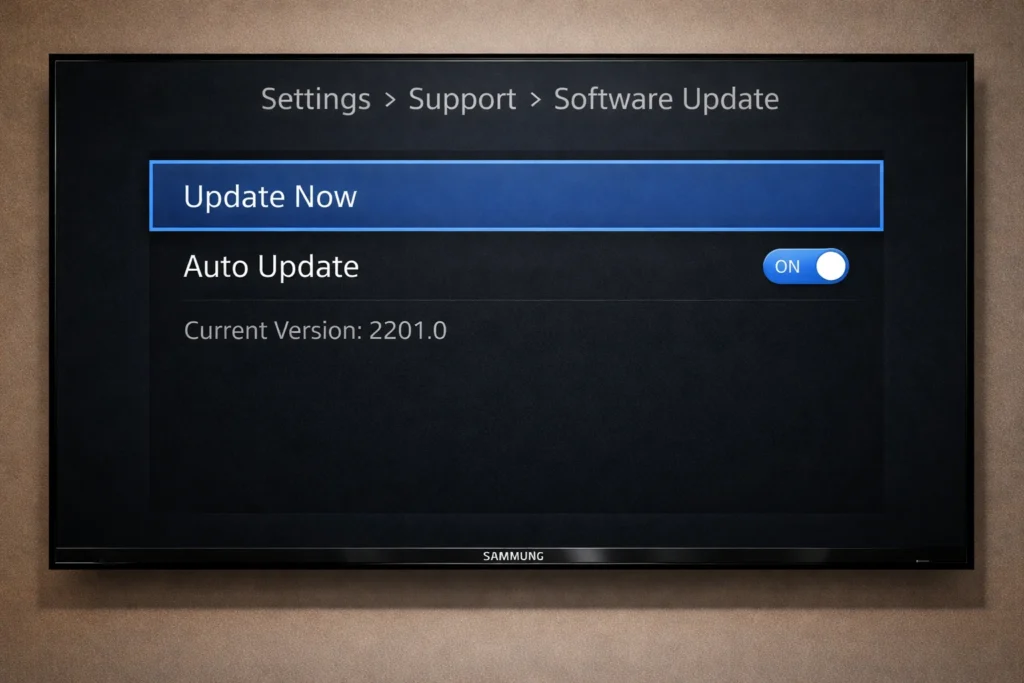
Fix 6: Update Your Samsung TV Software
Outdated firmware is a hidden cause behind YouTube not working on Samsung Smart TV.
- Go to Settings > Support > Software Update.
- Select Update Now.
- Let the update download and install.
- Your TV will restart automatically.
- Open YouTube.
Pro Tip: Enable Auto Update in the same menu to prevent future issues.
Fix 7: Uninstall and Reinstall YouTube
A fresh install can fix YouTube on Samsung TV when other methods fail.
- Press the Home button.
- Go to Apps.
- Highlight YouTube, then press and hold the Select button.
- Choose Delete or Uninstall.
- Restart your TV.
- Open the Samsung App Store, search for YouTube, and reinstall it.
Note: On some Samsung models, YouTube is a pre-installed system app and cannot be uninstalled. Skip to Fix 8 if this applies to you.
Fix 8: Reset Samsung Smart Hub
Resetting the Smart Hub is a powerful solution when YouTube has stopped working on Samsung TV and simpler fixes haven’t helped.
- Go to Settings > Support > Device Care (or Self Diagnosis on older models).
- Select Reset Smart Hub.
- Enter your PIN. (Default is 0000.)
- Wait for the reset to complete.
- Reinstall YouTube from the App Store.
- Sign back into your Google account.
Fix 9: Change Your DNS Settings
Switching to Google’s public DNS can resolve connection-related causes of YouTube not working on Samsung TV.
- Go to Settings > General > Network > Network Status > IP Settings.
- Set DNS Setting to Enter Manually.
- Type 8.8.8.8.
- Select Done and test YouTube.
Fix 10: Check YouTube Server Status
If YouTube is not working on Samsung TV or any other device, the servers might be down.
- Visit DownDetector.com on your phone or computer.
- Check for reported YouTube outages.
- If servers are down, wait for YouTube to fix the issue on their end. This usually takes minutes to a few hours.
Fix 11: Disable VPN or Network-Level Ad Blockers
VPN services and ad blockers running on your network can interfere with YouTube and cause the Samsung Smart TV YouTube not working problem.
- Temporarily disable any VPN on your router.
- Whitelist YouTube in your ad blocker.
- Test YouTube again on your Samsung TV.
Fix 12: Factory Reset Your Samsung TV (Last Resort)
Only use this if nothing else has worked. A factory reset erases all settings, apps, and personal preferences.
- Go to Settings > General > Reset.
- Enter your PIN (default: 0000).
- Confirm the reset.
- Set up your TV from scratch.
- Install YouTube and test.
This is the final fix for persistent YouTube not working on Samsung TV issues.
Troubleshooting Tips
🔧 Quick Checklist Before You Start:
- ✅ Is your internet speed at least 5 Mbps?
- ✅ Is your Samsung TV model still supported by YouTube? (Models from 2012 or earlier are not.)
- ✅ Does another app (like Netflix) work? This tells you if the problem is TV-wide or YouTube-specific.
- ✅ Is the date and time on your TV correct? Wrong time settings can cause app errors.
- ✅ Are you signed into a valid Google account?
- ✅ Have you tried both Wi-Fi and Ethernet connections?
Common Mistakes to Avoid
Avoid these errors when trying to fix YouTube on Samsung TV:
- Not unplugging long enough. A power cycle needs a full 60 seconds. Fifteen seconds won’t clear the memory.
- Ignoring updates. Both the YouTube app and Samsung TV firmware must be current.
- Factory resetting too soon. Always try simpler fixes first. A reset wipes everything.
- Blaming the TV when the router is the problem. Test your internet speed before assuming the TV is at fault.
- Using an unsupported TV model. YouTube officially dropped support for Samsung TVs made in 2012 and earlier. No fix will work on these models — you’ll need an external streaming device instead.
Additional Tips to Prevent the Issue
Keep YouTube working on your Samsung TV long-term with these habits:
- Enable automatic updates for your TV software and all apps.
- Restart your TV once a week to clear temporary files and keep performance smooth.
- Update your router firmware regularly for a stable connection.
- Clear the YouTube app cache once a month to prevent corrupted data buildup.
- Use a wired Ethernet connection instead of Wi-Fi whenever possible.
- Don’t overload your network with too many streaming devices at the same time.
- Check Samsung support pages periodically for known issues affecting your TV model.
Frequently Asked Questions
Why does YouTube keep crashing on my Samsung TV?
YouTube crashing on Samsung TV is usually caused by a corrupted app cache, outdated software, or low memory. Clear the YouTube cache, update the app and TV firmware, and power cycle your TV. These three steps fix crashing in most cases.
How do I clear the YouTube cache on my Samsung TV?
Go to Settings > Apps > YouTube > Clear Cache. This removes temporary data without deleting your account or history. Restart the TV afterward.
Why is YouTube showing a black screen on my Samsung TV?
A YouTube black screen on Samsung TV usually means a connection issue or app glitch. Power cycle your TV, check your internet, and clear the YouTube cache. If the problem persists, reset the Smart Hub.
Is YouTube still available on older Samsung Smart TVs?
YouTube ended support for Samsung Smart TVs from 2012 and earlier. If your TV is that old, use a streaming device like Chromecast, Roku, or Amazon Fire TV Stick to access YouTube.
How do I update YouTube on my Samsung TV?
Open the Samsung App Store, search for YouTube, and tap Update if available. If there’s no update button, you already have the latest version and the YouTube app not working on Samsung TV issue is caused by something else.
Conclusion
YouTube not working on Samsung TV is frustrating, but it’s almost always a problem you can solve at home in minutes. A simple power cycle fixes it for most people. For stubborn cases, clearing the cache, updating your software, or resetting the Smart Hub will get YouTube running again.
Always start with Fix 1 and work your way through the list. Most users never need to go past Fix 6. If absolutely nothing works, check whether your Samsung TV model is still supported by YouTube — and consider picking up an affordable streaming stick as an alternative.
Save this guide for the next time YouTube stops working on your Samsung TV. You’ll be back to watching videos in no time.
- Google YouTube Help Center — https://support.google.com/youtube/
- Samsung Official Support — https://www.samsung.com/us/support/
- DownDetector (by Ookla) — https://downdetector.com/status/youtube/



