
Introduction
If your Android phone suddenly shows the error “System UI not responding,” you’re not alone. This is one of the most common Android errors that affects millions of users worldwide — from Samsung and Xiaomi to Pixel and OnePlus devices.
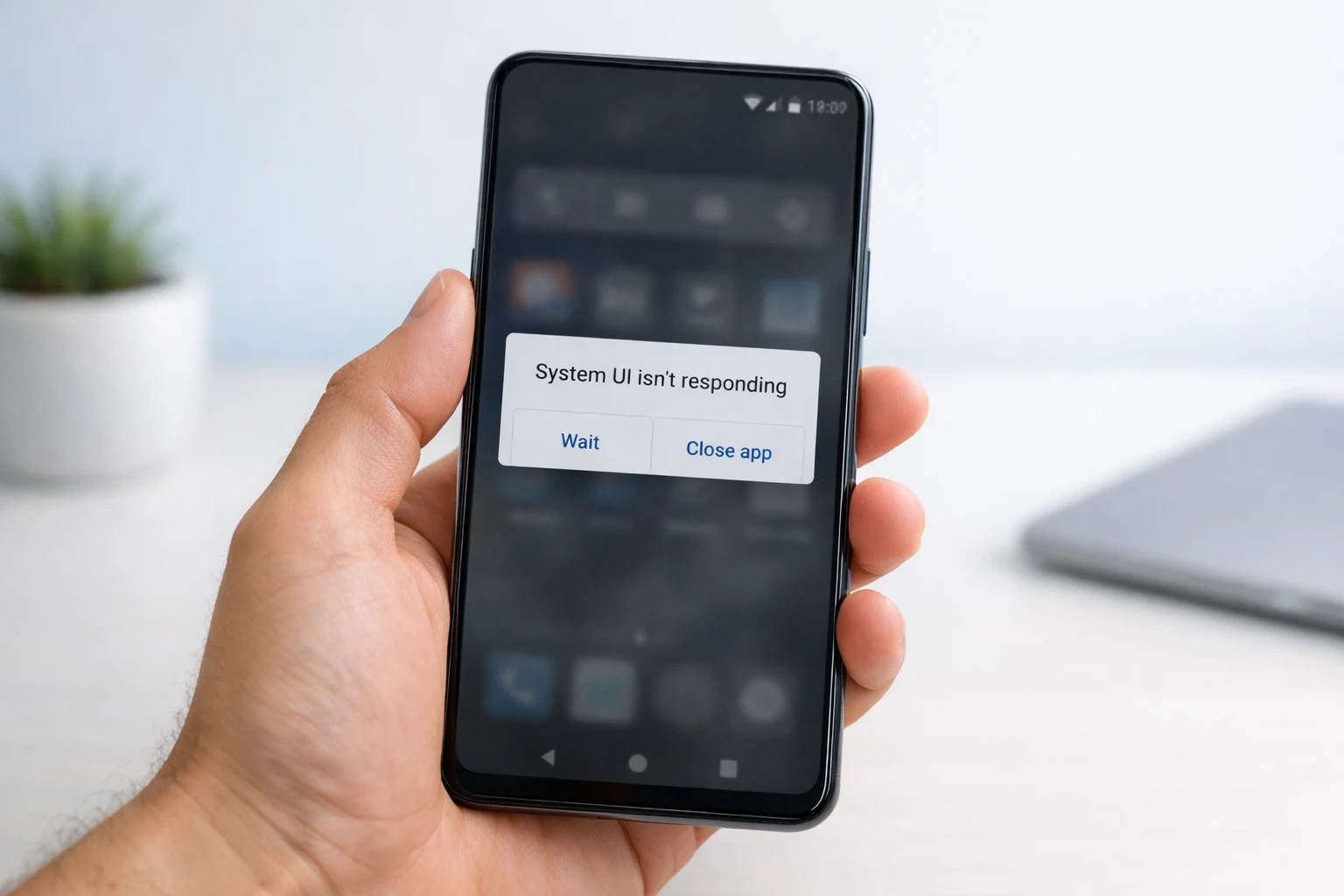
When the System UI is not responding, the part of your phone that controls the home screen, navigation buttons, notification shade, and recent apps has crashed or frozen. You might see a pop-up that says “System UI isn’t responding” with the options to “Wait” or “Close.” Sometimes the screen goes completely blank.
The System UI not responding error can happen randomly or repeatedly. Either way, it’s fixable. This guide gives you 12 proven, step-by-step fixes to solve the System UI not responding problem — even if you have zero technical experience.
Quick Answer
How do you fix System UI not responding? Press and hold the power button for 10–15 seconds to force restart your phone. If the System UI not responding error continues, go to Settings > Apps > System UI > Storage > Clear Cache. These two quick steps resolve the System UI not responding issue for most Android users. If not, follow the 12 detailed fixes below.
Why the System UI Not Responding Error Happens
Before fixing the System UI not responding problem, it helps to know what causes it. Here are the most common reasons your System UI keeps stopping or crashing:
- Too many apps running at once — Your phone’s RAM gets overloaded, causing the System UI to crash.
- Corrupted cache files — Damaged temporary data stored by the System UI triggers the System UI not responding error.
- Outdated Android software — Running an old version of Android leads to System UI has stopped errors.
- Buggy third-party apps — A recently installed app may conflict with the System UI.
- Low storage space — When your phone runs out of storage, the System UI isn’t responding error becomes frequent.
- Faulty software updates — Sometimes a new update introduces bugs that cause the System UI not responding problem.
- Too many widgets — Excessive home screen widgets drain resources and trigger System UI crashes.
- Phone overheating — A hot phone throttles performance and the System UI freezes.
How to Fix System UI Not Responding (12 Step-by-Step Methods)
Fix 1: Force Restart Your Phone
A force restart is the fastest way to fix the System UI not responding error on any Android phone.
- Press and hold the Power button for 10–15 seconds.
- Your screen will go black, and the phone will restart automatically.
- If your phone has a removable battery, remove it, wait 30 seconds, reinsert it, and turn the phone on.
This clears temporary glitches causing the System UI not responding problem without deleting any data.
Fix 2: Clear System UI Cache
Corrupted cache is the number one reason the System UI keeps stopping. Clearing it often fixes the System UI not responding error instantly.
- Open Settings.
- Tap Apps (or Apps & Notifications).
- Tap the three dots in the top corner and select Show system apps.
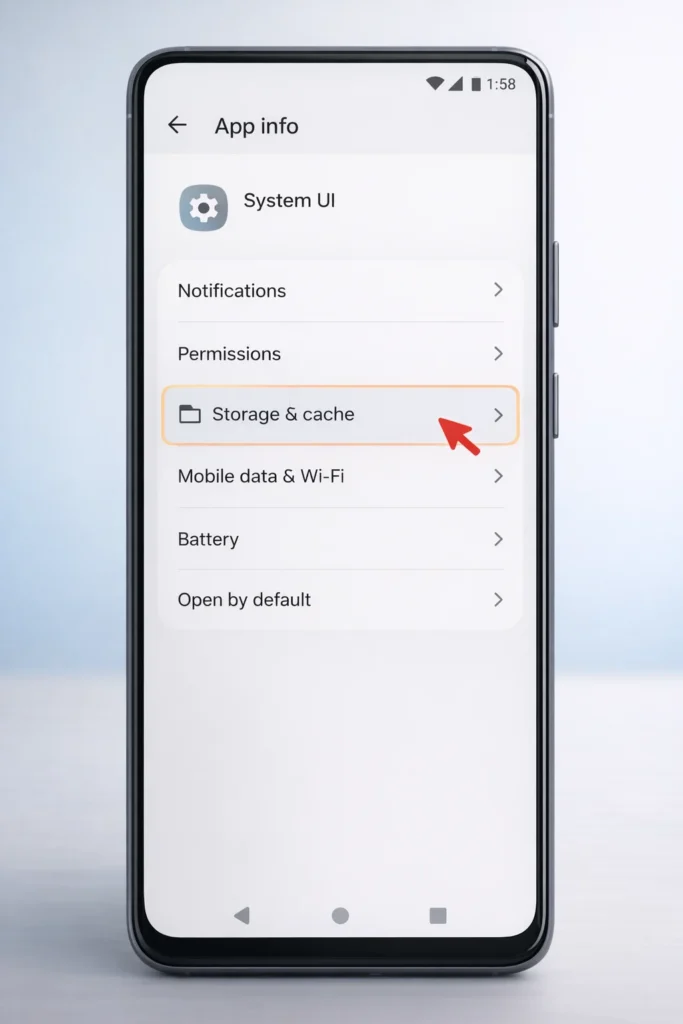
- Scroll down and tap System UI.
- Tap Storage.
- Tap Clear Cache.
- Restart your phone.
⚠️ Important: Tap “Clear Cache” only — NOT “Clear Data.” Clearing data resets your notification and quick settings layout.
If the System UI not responding error disappears after this step, corrupted cache was your problem.
Fix 3: Clear Google App Cache
The Google app is tightly integrated with Android’s System UI. A corrupted Google app cache frequently triggers the System UI isn’t responding error.
- Go to Settings > Apps.
- Find and tap the Google app.
- Tap Storage.
- Tap Clear Cache.
- If the System UI not responding issue continues, also tap Clear Data.
- Restart your phone.
Many users report that this single step fixed their System UI not responding problem completely.
Fix 4: Uninstall Recent Apps
Did the System UI not responding error start right after you installed a new app? That app is likely the cause.
- Go to Settings > Apps.
- Sort by Recently Installed.
- Tap the app you installed most recently.
- Tap Uninstall.
- Restart your phone.
- Check if the System UI not responding error is gone.
Repeat this process for each recently added app until the System UI crash stops.
Fix 5: Update Your Android Software
Outdated software is a common trigger for the System UI not responding error. Updates contain bug fixes that resolve known System UI has stopped issues.
- Open Settings.
- Scroll down and tap Software Update (or System > System Update).
- Tap Check for Updates.
- If an update is available, tap Download and Install.
- Let your phone restart after the update.
After updating, check if the System UI not responding problem is resolved.
Fix 6: Boot Into Safe Mode
Safe Mode disables all third-party apps. If the System UI not responding error disappears in Safe Mode, a downloaded app is causing the issue.
- Press and hold the Power button.
- When the power menu appears, press and hold the “Power Off” option.
- Tap OK when prompted to reboot into Safe Mode.
- Your phone restarts with “Safe Mode” in the bottom corner.
- Use your phone normally. If there’s no System UI not responding error, a third-party app is the culprit.
- Uninstall recently added apps one by one until the System UI crash stops.
- Restart normally to exit Safe Mode.
Fix 7: Free Up Storage Space
Low storage directly causes the System UI not responding error because your phone can’t run basic system processes.
- Go to Settings > Storage.
- Check available space. Keep at least 2–3 GB free.
- Delete unnecessary:
- Photos and videos
- Downloaded files
- Old messages with attachments
- Uninstall unused apps.
- Move files to cloud storage or an SD card.
Once you free up space, the System UI not responding problem often resolves itself.
Fix 8: Reset App Preferences
Resetting app preferences restores default settings for all apps without deleting personal data. This can fix hidden conflicts causing the System UI not responding error.
- Go to Settings > Apps.
- Tap the three dots in the top-right corner.
- Select Reset App Preferences.
- Tap Reset to confirm.
- Restart your phone.
This fix resolves System UI not responding issues caused by disabled system apps or incorrect default settings.
Fix 9: Remove Home Screen Widgets
Too many widgets overload the System UI and cause frequent System UI not responding errors and freezes.
- Long-press on a widget on your home screen.
- Drag it to the Remove or trash icon.
- Remove all widgets you don’t actively use.
- Restart your phone.
If the System UI keeps stopping after adding a specific widget, that widget is incompatible — avoid reinstalling it.
Fix 10: Cool Down Your Overheating Phone
When your phone overheats, the System UI not responding error is one of the first symptoms. The system throttles performance to reduce heat.
- Remove your phone case temporarily.
- Close all running apps.
- Stop charging if the phone feels hot.
- Avoid direct sunlight.
- Wait 5–10 minutes before using your phone again.
If the System UI not responding error only happens when your phone is hot, overheating is your root cause.
Fix 11: Wipe Cache Partition
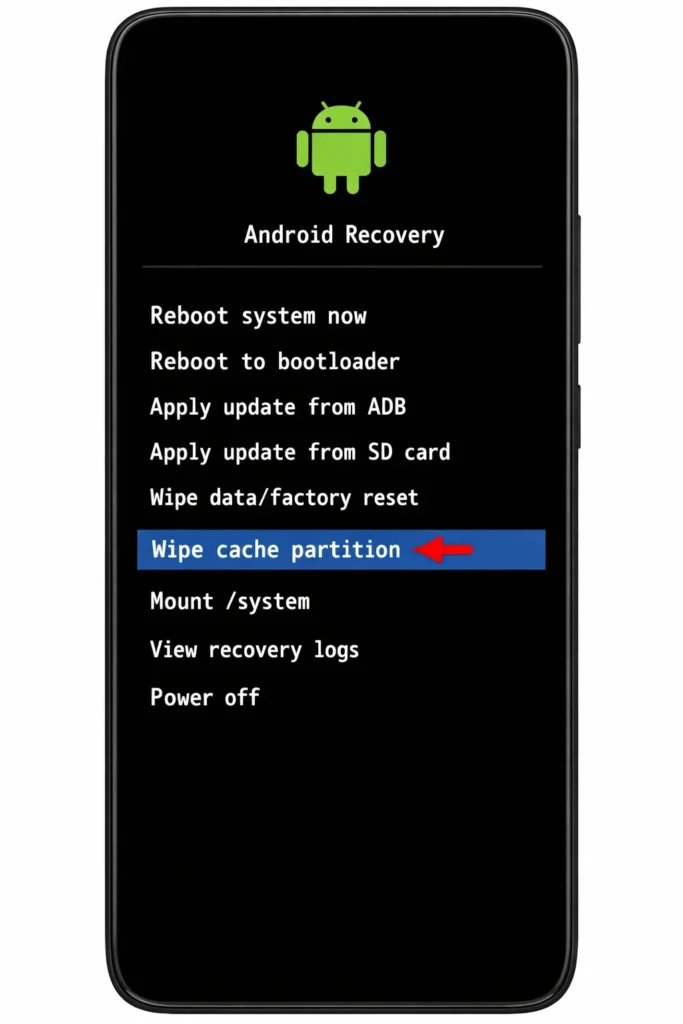
Wiping the cache partition clears all system-level cached data. This is more thorough than clearing individual app caches and fixes persistent System UI not responding errors.
- Power off your phone completely.
- Press and hold Power + Volume Up simultaneously (button combo varies by brand).
- Use volume buttons to navigate to Wipe Cache Partition.
- Press the Power button to select it.
- Confirm and wait for the process to finish.
- Select Reboot System Now.
This does NOT delete personal data but effectively fixes System UI not responding issues caused by deep system cache corruption.
Fix 12: Factory Reset (Last Resort)
If none of the above methods fix the System UI not responding error, a factory reset will. This restores your phone to its original state.
⚠️ Warning: A factory reset deletes ALL your data. Back up photos, contacts, and files before proceeding.
- Go to Settings > General Management > Reset.
- Tap Factory Data Reset.
- Tap Reset Device.
- Enter your PIN or password.
- Tap Delete All.
- Your phone restarts and begins fresh setup.
A factory reset fixes even the most stubborn System UI not responding errors because it eliminates all software-related causes.
Common Mistakes to Avoid
When trying to fix the System UI not responding error, avoid these mistakes:
🚫 Tapping “Wait” repeatedly — This delays the fix. Choose “Close” and then troubleshoot properly.
🚫 Clearing “Data” instead of “Cache” — Clearing System UI data resets your settings. Always clear cache first.
🚫 Installing random “System UI fix” apps — These often make the System UI not responding problem worse or contain malware.
🚫 Skipping software updates — Updates fix known bugs that cause System UI crashes.
🚫 Factory resetting without backup — You’ll lose everything permanently.
🚫 Ignoring recurring errors — If the System UI not responding error happens daily, there’s an underlying issue that needs attention.
Troubleshooting Tips
💡 Tip 1: Always start with Fix 1 (force restart). It resolves the System UI not responding error in most cases.
💡 Tip 2: If the System UI not responding error only happens with one app, the problem is that app — not your System UI.
💡 Tip 3: Keep at least 15–20% of your total storage free to prevent System UI freezes.
💡 Tip 4: Restart your phone at least once a week to prevent the System UI not responding error.
💡 Tip 5: If your phone is very old (5+ years), hardware limitations may be causing repeated System UI crashes. Consider upgrading.
Additional Tips to Prevent System UI Not Responding
Once you’ve fixed the System UI not responding error, follow these habits to keep it from coming back:
- Keep Android updated. Install every software and security update promptly.
- Limit widgets. Only use widgets you check daily.
- Clear cache monthly. Go to Settings > Storage and clear cached data regularly.
- Don’t overload your phone with apps. Every app consumes memory, even in the background.
- Use trusted launchers only. A poorly built third-party launcher causes frequent System UI not responding errors.
- Restart weekly. A simple restart refreshes system processes and prevents System UI crashes.
- Monitor storage. Check your storage space every two weeks.
- Avoid sideloading apps. Only install apps from the Google Play Store to minimize System UI not responding risks.
Frequently Asked Questions
What does “System UI not responding” mean?
The System UI not responding error means your phone’s core interface — the home screen, notification bar, navigation buttons, and recent apps — has crashed or frozen. It’s a software issue, not a hardware problem.
How do I fix System UI not responding on Samsung?
To fix System UI not responding on Samsung, go to Settings > Apps > tap three dots > Show system apps > System UI > Storage > Clear Cache. If that doesn’t work, wipe the cache partition by booting into recovery mode (Power + Volume Up). These steps fix System UI not responding on most Samsung Galaxy phones.
Why does my System UI keep stopping?
Your System UI keeps stopping because of corrupted cache files, buggy apps, low storage space, or outdated Android software. Clearing the System UI cache and Google app cache fixes this problem in most cases.
Can a third-party app cause System UI not responding?
Yes. Poorly coded or incompatible third-party apps are one of the top causes of the System UI not responding error. Boot into Safe Mode to confirm. If the error disappears in Safe Mode, uninstall recently added apps to find the culprit.
Will factory reset fix System UI not responding permanently?
Yes. A factory reset almost always permanently fixes the System UI not responding error because it removes all software conflicts, corrupted files, and buggy apps. However, back up all your data first because a factory reset erases everything on your phone.
Conclusion
The System UI not responding error is frustrating, but it’s almost always fixable. Start with a force restart and clearing the System UI cache — these two steps solve the problem for the majority of users. If the System UI not responding error persists, work through Safe Mode, freeing up storage, wiping the cache partition, and updating your software.
Only use a factory reset as your absolute last resort to fix System UI not responding, and always back up your data first.
By keeping your phone updated, managing storage wisely, and avoiding unreliable apps, you can prevent the System UI not responding error from ever coming back.
- Google Android Help Center — https://support.google.com/android/
- Samsung Support – Troubleshooting— https://www.samsung.com/us/support/
- Google Pixel Support — https://support.google.com/pixelphone/



