
Introduction
Is your Android phone not connecting to WiFi? You’re not alone. This is one of the most common problems Android users face every day. You tap the network, enter the password, and your phone won’t connect to WiFi — or it connects for a moment and drops immediately.
The WiFi not working on Android issue typically appears after a system update, a power outage, a router change, or sometimes with no warning at all. Whether you use a Samsung Galaxy, Google Pixel, Xiaomi, Motorola, or OnePlus, this problem doesn’t discriminate.
The good news? When your Android phone is not connecting to WiFi, you can almost always fix it yourself without visiting a technician. This step-by-step guide covers every proven solution, starting with the easiest and fastest fixes.
Quick Answer
If your Android phone not connecting to WiFi is driving you crazy, try this first: turn Airplane Mode on and off, restart both your phone and your router, then forget the WiFi network and reconnect with the correct password. These three quick steps fix WiFi on Android phone issues roughly 80% of the time.
Why This Problem Happens {#why-this-problem-happens}
Before jumping into fixes, understanding why your Android phone is not connecting to WiFi helps you pick the right solution faster. Here are the most common reasons for this WiFi connection problem on Android:
- Software glitches — Minor bugs in Android can disrupt the WiFi chip’s communication with your router.
- Incorrect or changed password — Someone may have changed the router password without informing you.
- Router malfunction — Your router may have frozen, overheated, or hit its maximum device limit.
- Outdated Android software — Older versions sometimes carry known WiFi bugs that manufacturers have already patched.
- IP address conflicts — Two devices assigned the same network address can block each other.
- MAC filtering — Some routers only allow pre-approved devices to connect.
- VPN or battery saver interference — These features can restrict WiFi activity in the background.
📌 Troubleshooting Tip: Before trying any fix, check if other devices can connect to the same WiFi. If nothing connects, the problem is your router or internet service — not your phone. If only your Android won’t connect to WiFi, follow the fixes below.
How to Fix Android Phone Not Connecting to WiFi (Step-by-Step) {#how-to-fix}
Fix 1: Toggle Airplane Mode On and Off
This is the fastest way to fix an Android phone not connecting to WiFi. Airplane Mode resets all wireless radios, forcing the WiFi chip to make a fresh start.
Steps:
- Swipe down from the top of your screen to open Quick Settings.
- Tap the Airplane Mode icon to turn it on.
- Wait 10 seconds.
- Tap Airplane Mode again to turn it off.
- Try connecting to WiFi.
Why it works: It clears temporary wireless errors instantly without a full restart.
Fix 2: Restart Your Android Phone
When WiFi is not working on Android, a simple restart clears cached processes and refreshes the entire network system.
Steps:
- Press and hold the Power button for 3 seconds.
- Tap Restart.
- Wait for the phone to boot up completely.
- Try connecting to WiFi again.
Device note: On Samsung Galaxy phones, press Power + Volume Down. On some Xiaomi phones, hold the power button for 5 seconds.
Why it works: Background processes sometimes block WiFi. Restarting clears them all.
Fix 3: Restart Your Router
If your phone is not connecting to WiFi, the router is often the real culprit. Routers are small computers that can freeze or develop memory issues.
Steps:
- Unplug your router from the power outlet.
- Wait 30 full seconds (this clears the router’s memory completely).
- Plug it back in.
- Wait 1–2 minutes for the router to fully restart.
- Try connecting your Android phone to WiFi again.
Why it works: Power cycling clears accumulated errors and resets all active connections.
Fix 4: Forget the Network and Reconnect
Corrupted saved credentials are a top reason your Android WiFi is not connecting. Forgetting the network forces a completely fresh connection.
Steps:
- Open Settings > WiFi (or Connections > WiFi on Samsung).
- Tap the network you’re struggling with.
- Tap Forget or Forget Network.
- Tap the network name again from the available list.
- Enter the password carefully and tap Connect.
Why it works: It removes old, corrupted connection data and creates a new handshake with the router.
Fix 5: Double-Check the WiFi Password
A wrong password is one of the simplest reasons a phone won’t connect to WiFi. Passwords are case-sensitive — one wrong character causes failure.
Tips:
- Check uppercase vs. lowercase letters carefully.
- Watch for confusing characters: 0 (zero) vs. O (letter), 1 (one) vs. l (lowercase L).
- Confirm the password with someone else in your household.
- Check the sticker on the bottom of your router for the default password.
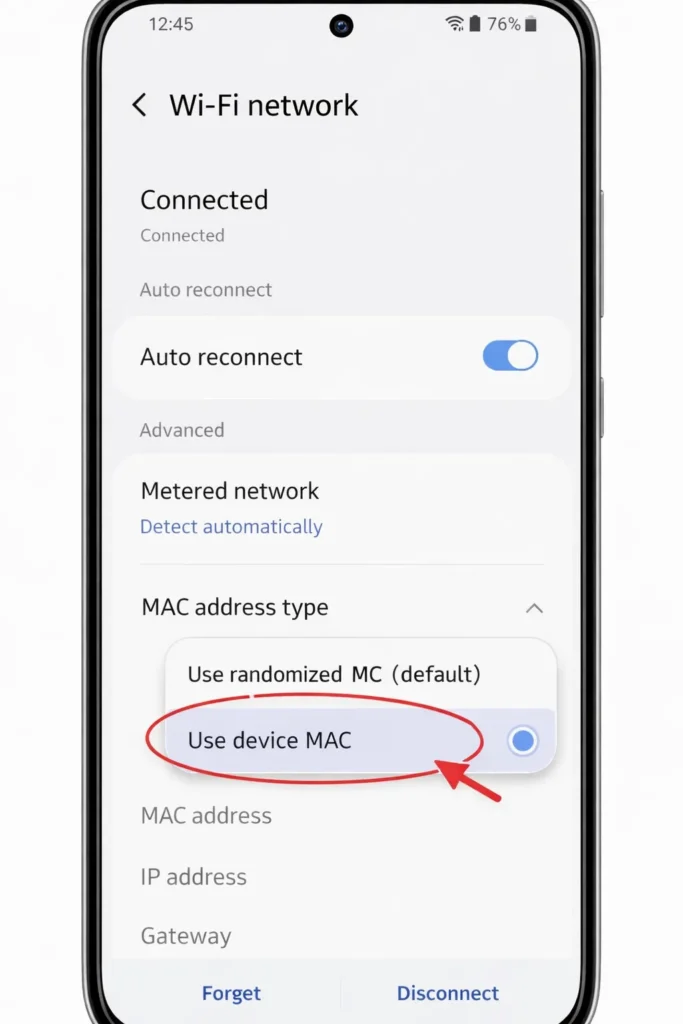
Fix 6: Disable MAC Randomization
Android 10 and newer versions randomize your phone’s MAC address for privacy. Some routers can’t handle this and reject the connection, causing the Android phone not connecting to WiFi issue.
Steps:
- Go to Settings > WiFi.
- Tap the gear icon next to your network name.
- Tap Privacy or MAC address type.
- Change from Randomized MAC to Phone MAC (or Use device MAC).
- Reconnect to the network.
Why it works: Older routers with MAC filtering reject randomized addresses.
Fix 7: Switch to the 2.4GHz WiFi Band
If your Android won’t connect to WiFi or keeps dropping the signal, the 5GHz band might be the problem. It’s faster but has shorter range.
Steps:
- Check your available WiFi networks.
- If you see two versions of your network (e.g., “HomeWiFi” and “HomeWiFi_5G”), connect to the one without “5G.”
- If only one network appears, log into your router settings to separate the bands.
Why it works: The 2.4GHz signal travels farther and penetrates walls more effectively.
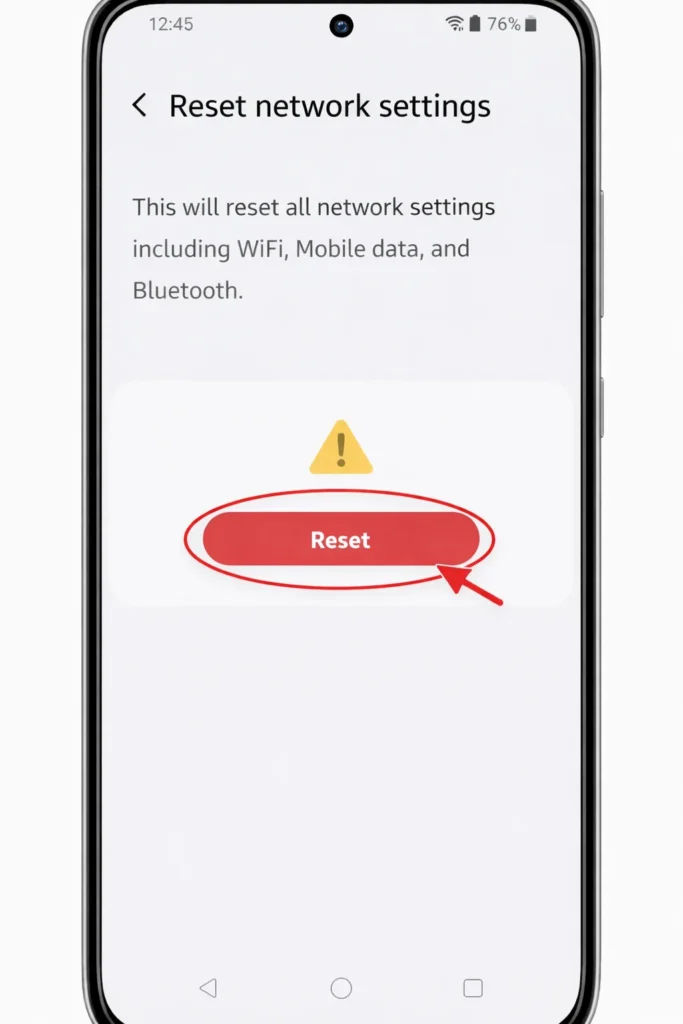
Fix 8: Reset Network Settings
This is a powerful fix when your Android phone is not connecting to WiFi and nothing else has worked. It resets WiFi, Bluetooth, and mobile data settings without deleting your personal files.
Steps:
- Open Settings > General Management (Samsung) or System (stock Android).
- Tap Reset > Reset Network Settings.
- Confirm and enter your PIN if asked.
- Your phone will restart.
- Reconnect to WiFi with your password.
Why it works: It clears every corrupted network configuration, VPN setting, and Bluetooth pairing that might interfere with WiFi.
Fix 9: Check for Software Updates
Running outdated software is a common reason for WiFi connection problems on Android. Updates frequently include specific WiFi bug fixes.
Steps:
- Go to Settings > Software Update (or System > System Update).
- Tap Check for Updates.
- Download and install any available update.
- Restart your phone and test WiFi.
Fix 10: Turn Off VPN or Battery Saver Mode
VPN apps and Battery Saver mode can secretly cause the WiFi not working on Android problem by restricting background network activity.
Steps:
- Open your VPN app and disconnect it.
- Go to Settings > Battery > turn off Battery Saver or Power Saving Mode.
- Try connecting to WiFi again.
Fix 11: Boot Into Safe Mode
If your phone is not connecting to WiFi and you suspect a downloaded app is causing the issue, Safe Mode disables all third-party apps for testing.
Steps:
- Press and hold the Power button.
- When the power menu appears, press and hold “Power Off.”
- Tap OK to reboot in Safe Mode.
- Try connecting to WiFi.
- If it works, restart normally and uninstall recently downloaded apps one by one.
Fix 12: Factory Reset (Last Resort)
When absolutely nothing fixes your Android phone not connecting to WiFi, a factory reset restores your phone to its original state. ⚠️ This deletes all data. Back up everything first.
Steps:
- Go to Settings > General Management > Reset > Factory Data Reset.
- Tap Reset and confirm.
- Set up your phone fresh and connect to WiFi.
Why it works: It eliminates every possible software conflict, corrupted file, and misconfigured setting.
Common Mistakes to Avoid {#common-mistakes}
🚫 Only restarting the phone — The router is the problem just as often. Always restart both.
🚫 Entering the wrong password repeatedly — Some routers temporarily block your device after multiple failed attempts. Wait a few minutes.
🚫 Ignoring software updates — That pending notification might contain the exact WiFi fix for your Android phone.
🚫 Jumping straight to factory reset — Always try simpler fixes first. Factory reset should be your absolute last option.
🚫 Testing from far away — Move close to the router first. If your phone connects to WiFi nearby but not across the house, range is your problem, not a software bug.
Additional Tips to Prevent the Issue {#prevention-tips}
- Restart your router weekly. This prevents memory buildup and keeps WiFi connections stable.
- Keep your Android phone updated. Enable automatic updates for the latest bug fixes.
- Avoid suspicious apps that request unnecessary network permissions.
- Use a strong, simple WiFi password and write it down somewhere safe.
- Position your router centrally in your home for the best signal coverage.
- Limit connected devices. Too many gadgets on one router causes slowdowns and connection drops.
Frequently Asked Questions {#faq}
Why does my Android phone keep disconnecting from WiFi?
WiFi keeps disconnecting on Android usually because of a weak signal, router instability, or Battery Saver mode limiting your connection. Move closer to the router, restart it, and disable power-saving features.
How do I fix WiFi authentication error on my Android phone?
A WiFi authentication error means the password is wrong or saved credentials are corrupted. Forget the network in WiFi settings, then reconnect and carefully re-enter the correct password. This resolves most Android WiFi not connecting authentication issues.
Why won’t my phone connect to WiFi even with the correct password?
Your phone not connecting to WiFi despite a correct password can be caused by MAC filtering, IP conflicts, or a full router device limit. Restart the router, disable MAC randomization, or reset your network settings.
Does resetting network settings delete my data?
No. It only erases saved WiFi passwords, Bluetooth pairings, and mobile data configurations. Your photos, apps, messages, and personal files remain completely safe.
When should I contact my internet provider about WiFi problems?
Only if no device in your home can connect to WiFi. If other phones, tablets, or laptops connect fine but your Android phone is not connecting to WiFi, the issue is your phone — and the fixes in this guide should resolve it.
Conclusion
An Android phone not connecting to WiFi is frustrating, but it’s almost always fixable at home. Start simple — toggle Airplane Mode, restart your phone and router, and forget then reconnect to the network. If the WiFi connection problem on Android persists, work through MAC randomization settings, network resets, and software updates.
Most users solve the issue within the first four fixes. Only consider a factory reset as your absolute last step, and always back up your data first.
Bookmark this guide so you’re ready the next time WiFi stops working on your Android phone.
- Google – Android WiFi Troubleshooting
- Samsung – Galaxy WiFi Connection Support
- Linksys/Cisco – Router Troubleshooting Guide



