
Introduction
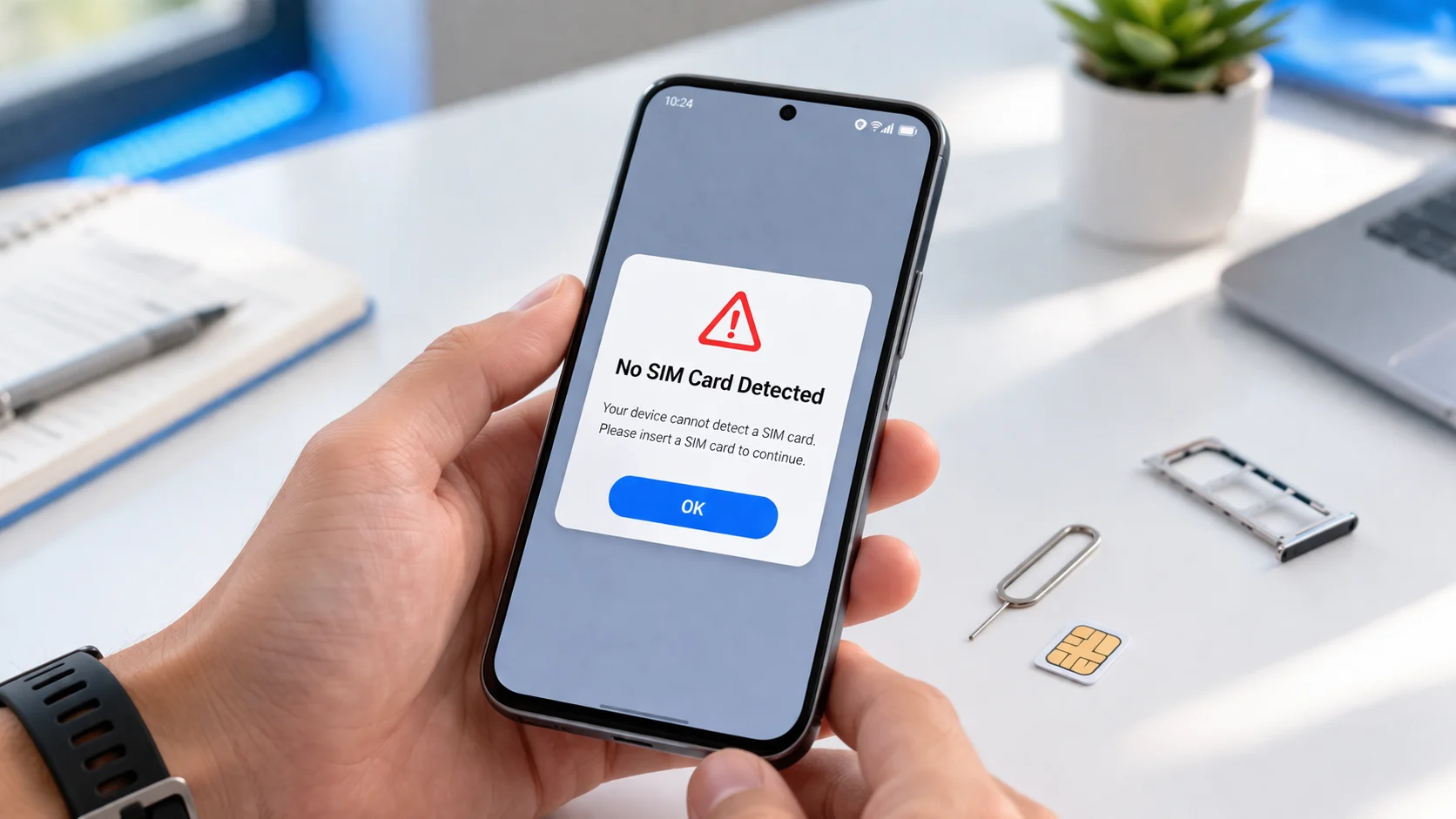
If your phone suddenly shows a “SIM card not detected” error, you’re not alone. This is one of the most common mobile issues reported by users worldwide — and it almost always strikes at the worst possible time.
The SIM card not detected problem means your phone can’t read the small chip that connects you to your carrier. Without it, you lose calls, texts, and mobile data instantly. This error can appear on any device — Samsung Galaxy, iPhone, Xiaomi, OnePlus, Motorola, Google Pixel, and others.
The SIM not detected issue can pop up after a software update, after dropping your phone, when switching to a new SIM, or seemingly out of nowhere. But here’s the good news: most of the time, you can fix SIM card not detected errors yourself at home. This guide gives you 12 proven solutions, starting from the easiest.
Quick Answer
When your phone says SIM card not detected, power off your device, remove the SIM card, gently clean the gold contacts with a soft dry cloth, reinsert it firmly into the tray, and restart your phone. This quick fix resolves the SIM card not detected error for about 60% of users. If it doesn’t work for you, follow every method below in order.
Why Does Your Phone Say SIM Card Not Detected?
Before jumping into fixes, understanding why your SIM card is not detected helps you choose the right solution faster. Here are the most common reasons:
- Loose SIM card — The card shifted slightly inside the tray, breaking contact with the reader.
- Dirty or scratched SIM contacts — Dust, fingerprints, or scratches on the gold chip prevent a proper connection, causing the SIM not detected error.
- Software glitch — A buggy update or corrupted network settings can make your phone stop recognizing the SIM.
- Wrong SIM card size — Using a hand-trimmed SIM or a loose adapter often triggers the SIM card not recognized message.
- Expired or deactivated SIM — SIM cards wear out, and carriers can deactivate unused ones.
- Hardware damage — A damaged SIM slot or internal reader, often caused by drops or water, leads to permanent SIM card not detected problems until repaired.
- Carrier lock — If your phone is locked to one carrier and you insert a different carrier’s SIM, the device may show a SIM card error.
- Airplane mode enabled — A simple oversight that cuts all cellular connections and can mimic a no SIM card detected error.
How to Fix SIM Card Not Detected — 12 Step-by-Step Methods
Fix 1: Restart Your Phone
The fastest way to fix SIM card not detected on any phone. A restart clears temporary software errors blocking the SIM reader.
- Press and hold the Power button for 3–5 seconds.
- Tap Restart or Reboot.
- Wait for your phone to fully boot up.
- Check if the SIM not detected error is gone.
Why it works: Restarting reloads every system process, including the one responsible for reading your SIM card.
Fix 2: Toggle Airplane Mode On and Off
This trick resets your cellular connection without a full restart and fixes many SIM card not detected cases instantly.
- Swipe down from the top of your screen to open Quick Settings.
- Tap the Airplane Mode icon to turn it ON.
- Wait 15–20 seconds.
- Tap the Airplane Mode icon again to turn it OFF.
- Wait for your phone to reconnect. The no SIM card detected message should disappear.
Why it works: Airplane mode forces your phone to disconnect and then re-establish its connection with your carrier from scratch.
Fix 3: Remove, Clean, and Reinsert the SIM Card
Dirty contacts are one of the top reasons a SIM card is not detected. This physical fix works when software solutions don’t.
- Power off your phone completely.
- Use a SIM ejector tool (or a straightened paperclip) to open the SIM tray.
- Carefully remove the SIM card.
- Use a soft, dry, lint-free cloth to gently wipe the gold contacts on the SIM card.
- Blow gently into the SIM slot to remove any dust particles.
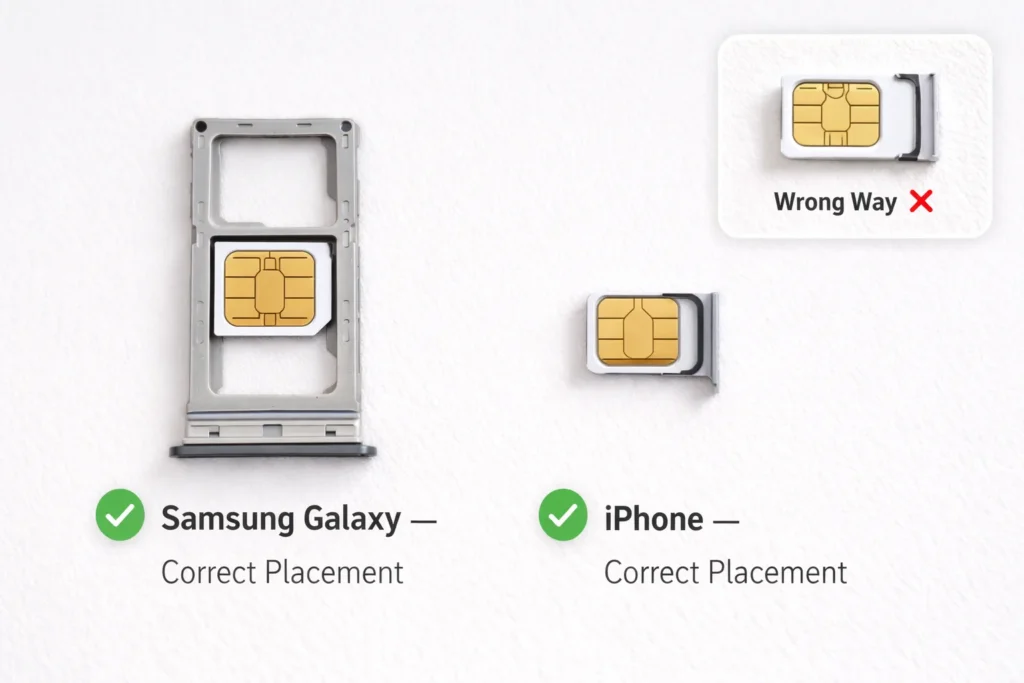
- Place the SIM card back into the tray — make sure it sits flat and snug with no wobble.
- Slide the tray back in completely until it clicks.
- Power on your phone and check for the SIM card not detected error.
Why it works: Even a tiny speck of dust or a slightly misaligned card can break the electrical connection between the SIM and the phone’s internal reader.
Fix 4: Test the SIM Card in Another Phone
This step tells you whether the SIM card not detected problem is with your SIM or your phone.
- Remove the SIM card from your phone.
- Insert it into a different phone that you know works.
- If the SIM works in the other phone → the problem is your phone’s hardware or software.
- If the SIM still isn’t detected in the other phone → the problem is the SIM card itself. Contact your carrier for a free replacement.
Fix 5: Try a Different SIM Card in Your Phone
This is the reverse of Fix 4 and equally important for diagnosing SIM not detected issues.
- Borrow a working SIM card from a friend or family member.
- Insert it into your phone.
- If the borrowed SIM works → your original SIM card is faulty or expired.
- If the borrowed SIM also shows SIM card not detected → your phone’s SIM reader likely has a hardware problem.
Fix 6: Update Your Phone’s Software
Outdated software is a hidden cause of SIM card not detected errors. Manufacturers regularly release patches that fix exactly these bugs.
On Android (Samsung, Xiaomi, OnePlus, Google Pixel, etc.):
- Go to Settings → Software Update (or System → System Update).
- Tap Check for updates.
- If an update is available, download and install it.
- Restart your phone and check if the SIM card not recognized issue is resolved.
On iPhone:
- Go to Settings → General → Software Update.
- If an update is available, tap Download and Install.
- After the update, verify that the SIM not detected error is gone.
Why it works: Software updates contain bug fixes for network and SIM-related issues reported by other users.
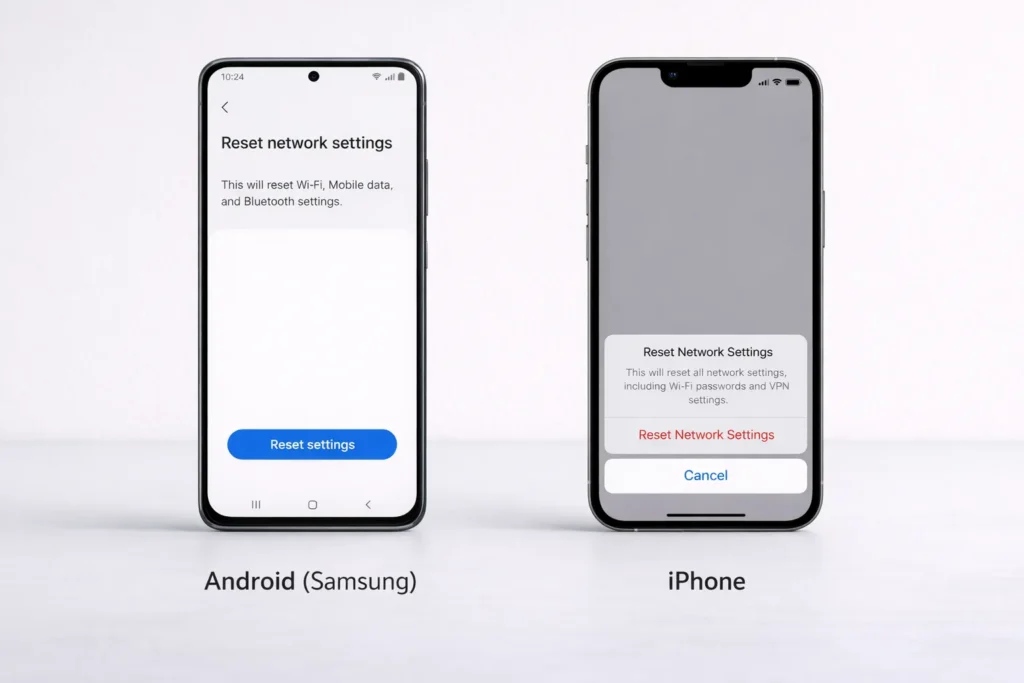
Fix 7: Reset Network Settings
If corrupted network configurations are causing the SIM card not detected problem, this fix wipes them clean.
On Android:
- Go to Settings → General Management → Reset.
- Tap Reset Network Settings.
- Confirm the action and enter your PIN if prompted.
- Your phone will restart. Check if the SIM card not detected error is fixed.
On iPhone:
- Go to Settings → General → Transfer or Reset iPhone → Reset.
- Tap Reset Network Settings.
- Enter your passcode and confirm.
⚠️ Note: This erases saved Wi-Fi passwords and Bluetooth pairings but will NOT delete your photos, apps, or personal files.
Why it works: It rebuilds all network configurations from scratch, eliminating corrupted settings that caused the SIM not detected error.
Fix 8: Manually Select Your Network Carrier
Sometimes your phone fails to automatically connect to the right carrier, triggering a SIM card not detected or no service error.
- Go to Settings → Connections (or Network & Internet) → Mobile Networks.
- Tap Network Operators.
- Turn off Select Automatically.
- Wait for a list of available networks to load.
- Select your carrier from the list manually.
- Your phone should now recognize the SIM and connect to the network.
Fix 9: Verify Your SIM Card Is Activated
A new, unused, or dormant SIM card won’t be detected properly until activated.
- Call your carrier’s customer service from a different phone and ask them to verify your SIM status.
- Log into your carrier’s website or app to check activation status.
- If you recently switched plans, your old SIM may have been deactivated, causing the SIM card not detected message.
- Ask your carrier for a SIM replacement if yours is more than 4–5 years old — it may simply be worn out.
Fix 10: Inspect the SIM Slot for Physical Damage
Hardware damage inside the SIM slot is a common cause of persistent SIM card not detected errors that no software fix can resolve.
- Use a flashlight to look inside the SIM slot.
- Check for bent or broken pins — these tiny metal contacts read the SIM card.
- Look for signs of water damage, rust, or corrosion.
- Check if the SIM tray itself is warped, cracked, or bent.
If you see any physical damage, stop troubleshooting and take your phone to a certified repair center.
Fix 11: Disable SIM PIN Lock
If a SIM PIN was entered incorrectly multiple times, your SIM card gets locked — which your phone may interpret as SIM card not detected.
- If prompted for a SIM PIN, enter it (default is often 0000 or 1234).
- To disable the SIM lock entirely: go to Settings → Security (or Biometrics and Security) → Other Security Settings → Set up SIM card lock.
- Toggle off Lock SIM card.
- If your SIM is completely locked (PUK required), contact your carrier to get the PUK code and unlock it.
Fix 12: Factory Reset Your Phone (Last Resort)
If you’ve tried every fix above and your phone still says SIM card not detected, a factory reset can resolve deep software corruption.
⚠️ WARNING: This erases ALL data on your phone. Back up everything — photos, contacts, messages, and apps — before proceeding.
On Android:
- Go to Settings → General Management → Reset → Factory Data Reset.
- Tap Reset and confirm.
- After the phone restarts, set it up fresh and insert the SIM card.
On iPhone:
- Go to Settings → General → Transfer or Reset iPhone → Erase All Content and Settings.
- Confirm and wait for the process to complete.
Why it works: A factory reset removes every software conflict, corrupted file, and buggy setting — returning your phone to its original state and often resolving stubborn SIM card not detected errors permanently.
Common Mistakes That Cause SIM Card Not Detected Errors
Avoid these pitfalls that can make the SIM not detected problem worse:
- ❌ Cleaning the SIM with a wet cloth — Moisture causes corrosion on the gold contacts. Always use a dry cloth.
- ❌ Forcing the SIM tray shut — If it feels stuck, don’t push harder. You could bend internal pins and cause permanent damage.
- ❌ Trimming a SIM card yourself with scissors — DIY cutting almost always damages the chip. Ask your carrier for the correct nano or micro SIM size.
- ❌ Ignoring software updates for months — Skipping updates means missing critical bug fixes, including ones that resolve SIM card not detected issues.
- ❌ Inserting the SIM card upside down or backwards — The gold contacts must face the correct direction. Always check the diagram on the SIM tray.
- ❌ Removing the SIM card while the phone is on — Always power off first to prevent data corruption and reader errors.
Troubleshooting Tips
🔧 Quick Troubleshooting Checklist for SIM Card Not Detected:
✅ Always restart your phone first — it solves the SIM not detected error more often than you’d expect.
✅ Power off your device before removing or inserting a SIM card.
✅ Test the SIM in another phone to isolate whether the fault is with the SIM or the device.
✅ Confirm your phone isn’t carrier-locked if you’re using a SIM from a different provider.
✅ If your phone has dual SIM slots, try inserting the SIM card in the other slot.
✅ Consider using eSIM as a temporary workaround if your physical SIM slot isn’t working and your phone supports it.
✅ Check your carrier’s service status page — network outages can sometimes mimic the SIM card not detected error.
How to Prevent SIM Card Not Detected Issues in the Future
Once you’ve fixed the SIM card not detected error, follow these tips to prevent it from happening again:
- Handle the SIM card carefully. Avoid touching the gold contacts with your fingers — oils and dirt cause connection problems.
- Replace aging SIM cards. If your SIM is older than 4–5 years, request a free replacement from your carrier before it fails.
- Keep your phone software updated. Enable automatic updates to ensure you always have the latest bug fixes.
- Use a protective phone case. Drops and impacts can shift internal components, including the SIM card reader, leading to SIM not detected errors.
- Avoid extreme temperatures and moisture. Heat, cold, and water damage the SIM slot and card over time.
- Always use the correct SIM card size. Nano, Micro, and Standard SIMs are not interchangeable without a proper adapter. Using the wrong size is a leading cause of SIM card not recognized errors.
- Don’t frequently swap SIM cards. Repeated removal and insertion wears out both the SIM and the slot.
Frequently Asked Questions
Why does my phone say “SIM card not detected” when there is a SIM inside?
The most common reasons your phone shows SIM card not detected with a SIM inserted are a loose connection, dirty gold contacts, a software glitch, or a worn-out SIM card. Remove the SIM, clean it gently, reinsert it, and restart your phone. This fixes the issue in most cases.
Can a software update cause the SIM card not detected error?
Yes. Buggy software updates can interfere with how your phone communicates with the SIM card. If the SIM not detected error started after an update, check for a newer patch, or reset your network settings to resolve the issue.
How do I know if my SIM card is damaged or dead?
Insert your SIM card into a different phone. If it still shows SIM card not detected on the second device, your SIM is likely damaged or deactivated. Visible scratches on the gold chip, a cracked card, or warping are physical signs of damage. Visit your carrier for a free replacement.
Will a factory reset fix SIM card not detected on my phone?
A factory reset can fix SIM card not detected if the cause is a deep software issue or system corruption. However, it should always be your last resort because it erases all data. Try every other fix in this guide first, and always back up your files before resetting.
My phone shows “No SIM card detected” — does that mean it’s carrier-locked?
Not necessarily. The SIM card not detected message is about your phone failing to read the SIM — it’s a detection issue, not a carrier lock issue. However, if you inserted a SIM from a different carrier and your phone is locked, you may see a similar error. Contact your carrier to check your phone’s lock status.
Conclusion
The SIM card not detected error is frustrating, but it’s almost always fixable. In most cases, simply restarting your phone, cleaning the SIM card, or resetting network settings resolves the problem within minutes.
Always start with the simplest fixes first. Work through this guide step by step — from Fix 1 to Fix 12 — and you’ll identify the cause along the way. If your SIM card is not detected even after trying every solution here, the issue is likely hardware-related, and a visit to an authorized service center is the right next step.
Don’t let a SIM card not detected error keep you disconnected. Follow the steps above, and you’ll be back online fast.
- Apple Support — If your iPhone has no service or is searching
- Samsung Support — SIM card is not recognized on Galaxy phone
- Google Pixel Support — Fix SIM card issues on Pixel phones



