
Introduction
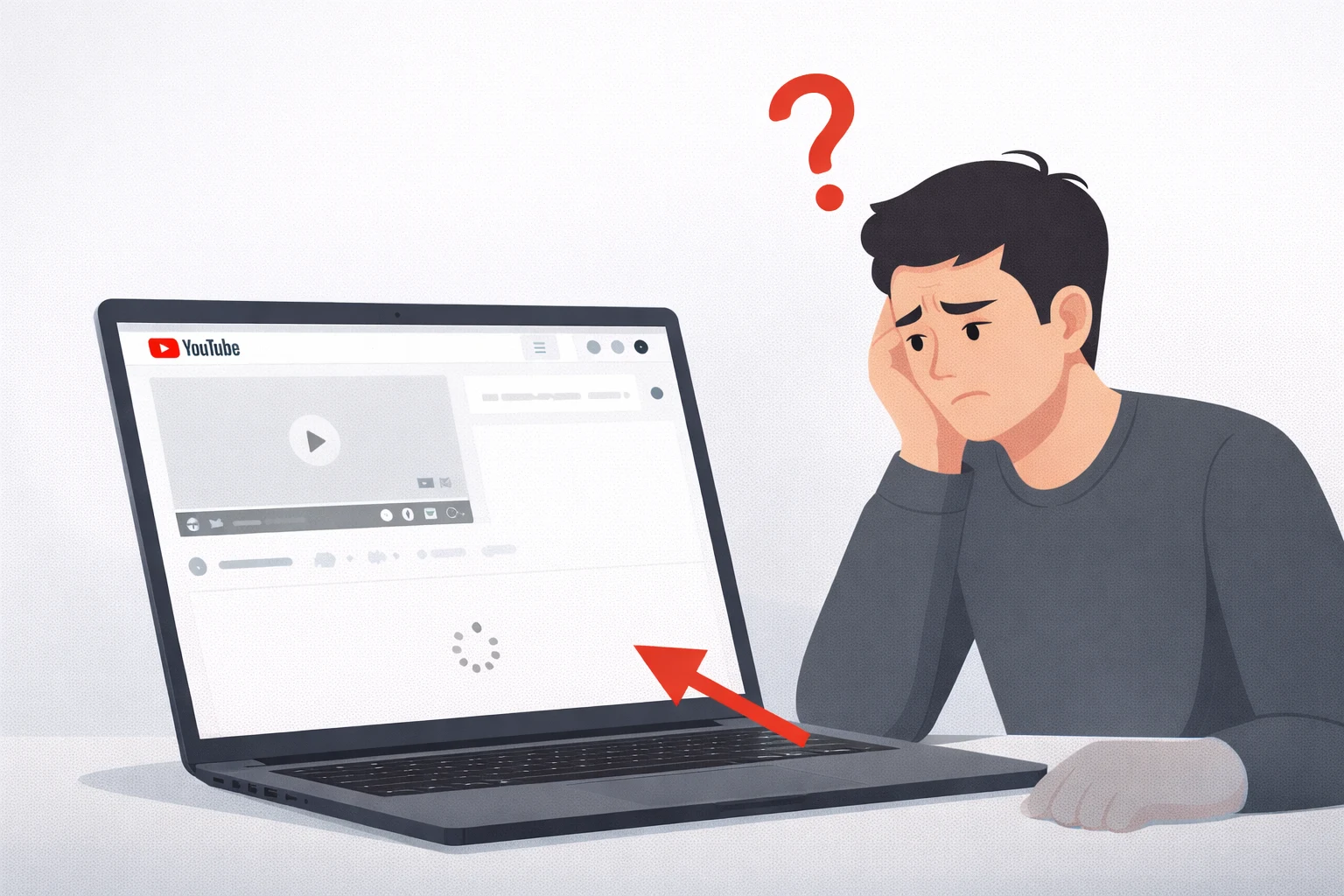
Have you ever scrolled below a YouTube video only to find that the YouTube comments are not loading? You stare at a blank space, a spinning circle, or nothing at all where the comment section should be. It is one of the most common YouTube problems users face in 2025.
YouTube comments not showing affects every device — whether you are on a Samsung phone, an iPhone, a Xiaomi device, a Windows laptop, or a Mac. The issue can happen on the YouTube app and in web browsers like Chrome, Firefox, Safari, and Edge.
Don’t worry. If your YouTube comments won’t load, this guide gives you 10 proven fixes. Every method is explained in plain English with step-by-step instructions. Let’s get your YouTube comment section loading again.
Quick Answer — Fix YouTube Comments Not Loading
If YouTube comments are not loading, try these steps in order:
- Refresh the page or restart the YouTube app.
- Clear your browser cache or app cache.
- Disable browser extensions (especially ad blockers).
- Check your internet connection.
- Update the YouTube app.
These five steps fix YouTube comments not showing for about 90% of users.
Why YouTube Comments Are Not Loading {#why-youtube-comments-are-not-loading}
Before jumping into fixes, it helps to understand why YouTube comments are not working. Here are the most common reasons:
- Corrupted cache data — Old temporary files stored by your browser or app block the comment section from displaying.
- Slow or unstable internet — YouTube loads comments separately from the video. A weak connection can play the video but fail to load comments.
- Browser extensions or ad blockers — Extensions frequently interfere with YouTube scripts, causing YouTube comments not to appear.
- Outdated YouTube app — An old app version may not communicate properly with YouTube servers.
- VPN or proxy interference — Some VPN servers cause partial loading failures on YouTube.
- Restricted Mode enabled — YouTube’s Restricted Mode hides comments on many videos.
- YouTube server outage — Sometimes YouTube comments not loading is caused by a problem on Google’s end.
How to Fix YouTube Comments Not Loading {#how-to-fix-youtube-comments-not-loading}
Follow these methods in order. Start with Method 1 and work your way down until your YouTube comments start loading again.
Method 1: Refresh the Page or Restart the YouTube App
The simplest fix for YouTube comments not loading is a quick refresh.
On desktop (Chrome, Firefox, Edge):
- Press F5 or click the refresh button next to the address bar.
- Wait for the full page to reload.
- Scroll down to check if comments are now showing.
On phone (YouTube app):
- Swipe away from the video and reopen it.
- Or force-close the app and relaunch it.
Why this works: Refreshing forces your device to request fresh data from YouTube servers, which fixes temporary glitches that prevent YouTube comments from appearing.
Method 2: Check Your Internet Connection
A weak connection is a hidden cause of YouTube comments not showing.
- Open a new tab and visit fast.com.
- Run a speed test.
- If speed is below 3 Mbps, your connection may be too weak to load comments.
- Switch from Wi-Fi to mobile data (or vice versa).
- Restart your router — unplug it for 30 seconds, then plug it back in.
Why this works: YouTube loads comments through a separate data request from the video stream. An unstable connection can cause the YouTube comment section not to load even when the video plays fine.
Method 3: Clear Browser Cache and Cookies
Corrupted cache is one of the top reasons YouTube comments won’t load on desktop browsers.
On Google Chrome (Windows/Mac):
- Click the three-dot menu → Settings → Privacy and Security → Delete Browsing Data.
- Check Cached images and files and Cookies and other site data.
- Set time range to All time.
- Click Delete data.
- Restart Chrome and open YouTube.
On Safari (iPhone/Mac):
- Go to Settings → Safari → Clear History and Website Data.
- Confirm and reopen YouTube.
Why this works: Corrupted cached files conflict with YouTube’s current page structure, which stops YouTube comments from loading properly.
Method 4: Clear YouTube App Cache (Android)
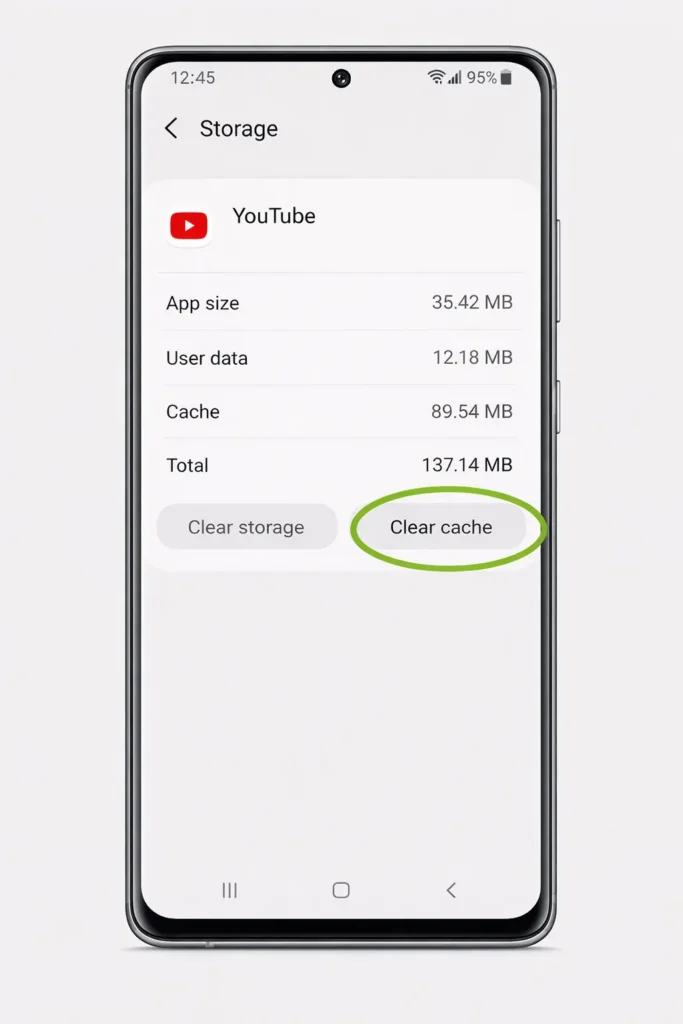
If YouTube comments are not loading on your Android phone, clearing the app cache often fixes it instantly.
On Samsung, Xiaomi, OnePlus, Pixel:
- Open Settings → Apps → YouTube.
- Tap Storage.
- Tap Clear Cache (NOT “Clear Data”).
- Reopen YouTube and check comments.
On iPhone:
iOS does not allow individual app cache clearing. Delete and reinstall the YouTube app instead (see Method 10).
Why this works: The app cache accumulates corrupted temporary files over time, which can prevent the YouTube comment section from loading.
Method 5: Update the YouTube App
An outdated app is a frequent cause of YouTube comments not working.
On Android:
- Open Google Play Store → search YouTube → tap Update (if available).
On iPhone:
- Open App Store → tap your profile icon → find YouTube → tap Update.
Why this works: YouTube frequently patches bugs and updates server communication protocols. Running an old version can cause YouTube comments not to show.
Method 6: Disable Browser Extensions
Browser extensions — especially ad blockers — are one of the biggest reasons YouTube comments are not loading on desktop.
On Chrome:
- Type chrome://extensions in the address bar.
- Toggle off all extensions (especially uBlock Origin, AdBlock Plus, Privacy Badger).
- Reload YouTube.
- If YouTube comments start showing, re-enable extensions one by one to find the culprit.
Why this works: Ad blockers and privacy extensions block JavaScript that YouTube uses to render the comment section. Disabling them allows YouTube comments to load normally.
Method 7: Turn Off VPN or Proxy
VPNs can cause YouTube comments not to appear due to server routing issues.
- Disconnect your VPN temporarily.
- Reload YouTube.
- Check if comments now show.
- If they do, switch to a different VPN server location.
Why this works: YouTube may throttle or partially block requests from certain VPN servers, causing comments not to load.
Method 8: Disable Restricted Mode
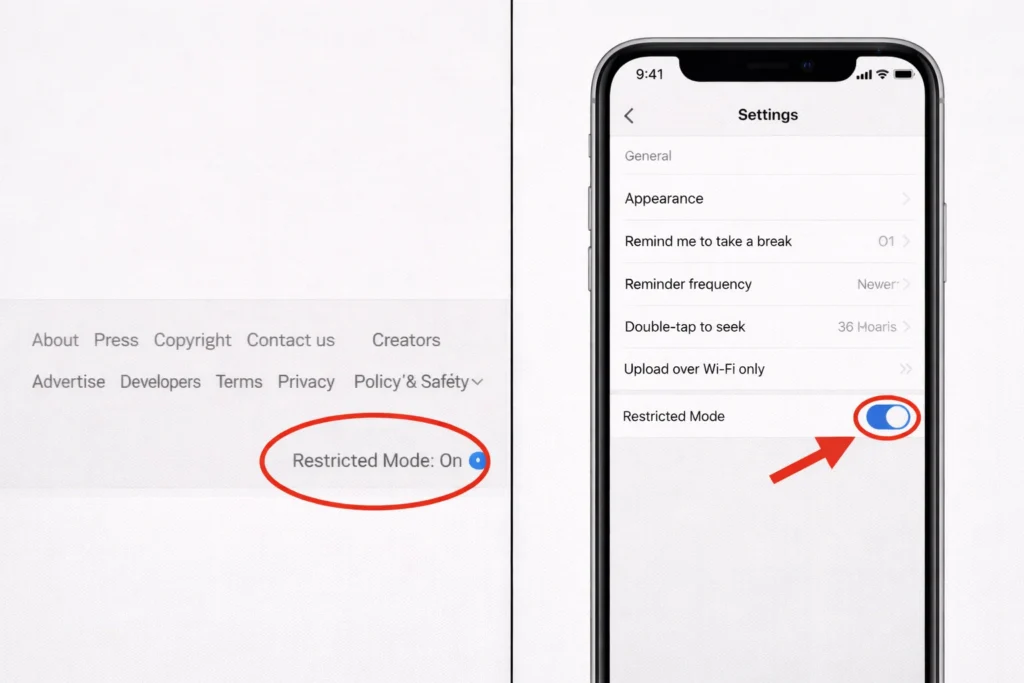
Restricted Mode silently hides comments on many videos, making it look like YouTube comments are not loading.
On desktop:
- Scroll to the very bottom of any YouTube page.
- Find Restricted Mode.
- Toggle it OFF.
On YouTube app:
- Tap your profile icon → Settings → General.
- Toggle Restricted Mode OFF.
Why this works: Restricted Mode filters content for younger audiences and hides the comment section entirely on many videos.
Method 9: Check YouTube Server Status
Sometimes YouTube comments not loading is not your fault at all.
- Visit downdetector.com/status/youtube.
- Check for reported outages.
- Search “YouTube down” on Twitter/X for real-time reports.
If servers are down, no fix on your end will help. Wait for Google to resolve it.
Method 10: Reinstall the YouTube App
If YouTube comments are still not loading after trying everything above, reinstall the app.
On Android:
- Long-press the YouTube icon → Uninstall.
- Open Google Play Store → reinstall YouTube.
- Sign in and test comments.
On iPhone:
- Long-press the YouTube icon → Remove App → Delete App.
- Open App Store → reinstall YouTube.
- Log in and check the comment section.
Why this works: A fresh install replaces all app files and removes deeply corrupted data that cache clearing may have missed.
Troubleshooting Tips {#troubleshooting-tips}
🔧 Quick Checklist When YouTube Comments Are Not Loading
- ✅ Always start with a simple page refresh.
- ✅ Test on a different device to confirm whether the issue is device-specific.
- ✅ Try YouTube in an Incognito/Private window — this disables extensions and ignores cache instantly.
- ✅ Open the video directly on youtube.com — embedded video players on other websites do not always load comments.
- ✅ Log out of your Google account and view comments as a guest to rule out account issues.
- ✅ Make sure the video creator hasn’t disabled comments — YouTube will display a notice if comments are turned off.
Common Mistakes to Avoid {#common-mistakes-to-avoid}
- Skipping basic fixes. A simple refresh fixes YouTube comments not loading more often than people realize.
- Clearing “All Data” instead of “Cache” on Android. Clearing all data logs you out and resets app preferences.
- Ignoring Restricted Mode. This is one of the most overlooked reasons for YouTube comments not showing.
- Forgetting about browser extensions. Many users installed an ad blocker months ago and forgot about it.
- Assuming the creator disabled comments. Try the fixes first — if the creator turned off comments, YouTube explicitly tells you so.
Additional Tips to Prevent YouTube Comments From Not Loading {#additional-tips}
To avoid running into the YouTube comments not loading problem again, follow these habits:
- Enable auto-updates for the YouTube app on your phone.
- Clear browser cache once a month to prevent corrupted file buildup.
- Whitelist YouTube in your ad blocker so extensions don’t block comment scripts.
- Use a stable internet connection — avoid public Wi-Fi when possible.
- Restart your device weekly to clear temporary memory and prevent minor glitches.
Frequently Asked Questions {#faqs}
Why are YouTube comments not loading on Chrome?
YouTube comments not loading on Chrome is usually caused by corrupted cache, browser extensions, or an outdated browser. Clear your cache, disable extensions (especially ad blockers), and make sure Chrome is updated to the latest version.
How do I fix YouTube comments not showing on my phone?
To fix YouTube comments not showing on your phone, clear the YouTube app cache (Android), update the app, check your internet connection, and make sure Restricted Mode is off. If none of that works, uninstall and reinstall the YouTube app.
Can a VPN stop YouTube comments from loading?
Yes. VPNs can cause YouTube comments not to load because some VPN servers are throttled by YouTube. Disconnect your VPN temporarily or switch to a different server location to fix it.
Why can I see the video but not the comments on YouTube?
YouTube loads videos and comments through separate data requests. If your internet is slow or your cache is corrupted, the video may play while the YouTube comment section fails to load. Clear your cache and check your connection.
Are YouTube comments sometimes turned off by the uploader?
Yes. Video creators can disable comments on their videos. When this happens, YouTube shows a message that says “Comments are turned off.” If you see a blank space with no message, the YouTube comments are not loading due to a technical issue on your end.
Conclusion
YouTube comments not loading is a frustrating but very fixable problem. In most cases, refreshing the page, clearing your cache, disabling browser extensions, or updating the YouTube app is all it takes. For stubborn cases, turning off your VPN, checking Restricted Mode, or reinstalling the app will get the YouTube comment section loading again.
Start with the simplest method and work your way down. If nothing works, check whether YouTube servers are down — sometimes the problem is on Google’s end.
Bookmark this guide so you have it ready the next time YouTube comments won’t load.
- Google YouTube Help Center — Official troubleshooting from Google
- Apple Support — Delete Apps on iPhone — iOS app reinstall instructions
- Microsoft Edge Support — Clear Browsing Data — Browser cache clearing guide



