
Introduction
If you have ever seen the Chrome download failed message pop up at the bottom of your screen, you know how frustrating it can be. Whether you are trying to save a document, grab a music file, or install software, a Chrome download failed error can bring everything to a halt.
The Chrome download failed problem is one of the most reported browser issues worldwide. It affects users on Windows, Mac, Android, and Chromebook alike. The error may appear as “Chrome download failed – network error,” “Chrome download failed – virus detected,” or simply “download failed in Chrome” with no explanation at all.
The good news? Every Chrome download failed issue has a solution. This guide gives you 10 proven fixes in plain English — no tech degree required. Let us get your downloads working again.
Quick Answer: How to Fix Chrome Download Failed
If your Chrome download keeps failing, try these three things immediately:
- Check your internet connection — disconnect and reconnect to Wi-Fi.
- Clear your Chrome cache — go to Settings > Privacy and Security > Clear Browsing Data.
- Disable your antivirus temporarily — security software often causes the Chrome download failed error by blocking safe files.
These three steps resolve roughly 80% of Chrome download failed cases. If they do not work, the full guide below covers every possible fix.
Why Chrome Download Failed Error Happens
Before jumping into fixes, understanding why Chrome download failed errors occur helps you pick the right solution faster.
Here are the top causes behind the Chrome download failed problem:
- Unstable internet connection — Even a one-second Wi-Fi drop causes Chrome download failed – network error.
- Corrupted browser cache — Old temporary files interfere with new downloads in Chrome.
- Antivirus or firewall blocking — Security tools trigger Chrome download failed – virus detected even for safe files.
- Incorrect download folder — If the default folder is deleted, full, or inaccessible, download failed in Chrome appears.
- Outdated Chrome version — Old versions contain bugs that cause Chrome download errors.
- Conflicting browser extensions — Ad blockers, VPN extensions, and download managers make Chrome downloads keep failing.
- Insufficient storage space — A full hard drive or phone storage guarantees the Chrome download failed message.
- Server-side issues — Sometimes the website hosting the file causes the download failed in Chrome error.
How to Fix Chrome Download Failed Error (Step-by-Step)
Below are 10 methods to fix Chrome download failed issues. They are arranged from easiest to most advanced — start at the top.
Fix 1: Check Your Internet Connection
Why this fixes Chrome download failed: Chrome cancels every download the moment it detects a network interruption. An unstable connection is the number one reason Chrome download keeps failing.
Steps:
- Open a new tab and load any website (try google.com).
- If the page does not load, your internet is causing the Chrome download failed error.
- Turn off Wi-Fi on your device, wait 10 seconds, and reconnect.
- Restart your router by unplugging it for 30 seconds.
- Retry the download in Chrome.
Device tip: On Samsung or Xiaomi phones, pull down the notification shade and toggle Wi-Fi off and on. On Windows, click the Wi-Fi icon in the taskbar, disconnect, and reconnect.
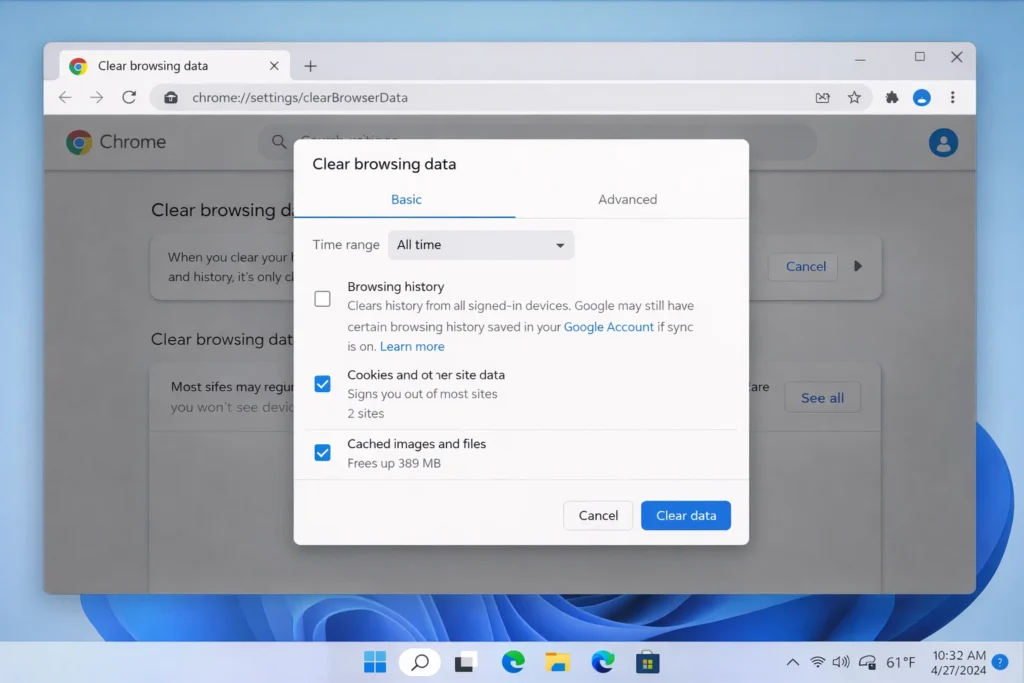
Fix 2: Clear Chrome Cache and Cookies
Why this fixes Chrome download failed: Corrupted cache is a leading cause of download failed in Chrome errors. Clearing it gives Chrome a clean slate.
Steps:
- Open Chrome and press Ctrl + Shift + Delete (Windows) or Cmd + Shift + Delete (Mac).
- Set the time range to “All time.”
- Check “Cookies and other site data” and “Cached images and files.”
- Click “Delete data.”
- Restart Chrome and retry the download.
On Android (Samsung, Xiaomi, Pixel):
- Open Chrome > tap three dots > Settings > Privacy and Security > Clear Browsing Data.
- Select All time, check both boxes, and tap Clear Data.
This is one of the most effective ways to fix Chrome download failed on any device.
Fix 3: Change the Download Location
Why this fixes Chrome download failed: If your current download folder is corrupted, full, or on a disconnected drive, Chrome has nowhere to save the file — resulting in the Chrome download failed message.
Steps:
- Go to chrome://settings/downloads in the address bar.
- Under “Location,” click “Change.”
- Create and select a new folder (e.g., “Downloads2” on your Desktop).
- Try downloading again.
Fix 4: Disable Antivirus or Firewall Temporarily
Why this fixes Chrome download failed: Programs like Windows Defender, Norton, McAfee, and Avast scan every download. They sometimes trigger Chrome download failed – virus detected for completely safe files.
Steps:
- Open your antivirus software.
- Find “Real-time protection” or “Shields” and turn it off temporarily.
- Retry the download in Chrome.
- Turn your antivirus back on immediately after downloading.
On Windows 10/11:
- Go to Settings > Privacy & Security > Windows Security > Virus & Threat Protection.
- Click “Manage settings” and toggle off “Real-time protection.”
⚠️ Warning: Only disable antivirus for downloads from trusted sources. If your antivirus flags a file from an unknown site, the Chrome download failed – virus detected warning may be protecting you from actual malware.
Fix 5: Try Incognito Mode
Why this fixes Chrome download failed: Incognito mode disables all extensions and ignores cached data. If the Chrome download failed error disappears in Incognito, a corrupted extension or cache is your culprit.
Steps:
- Press Ctrl + Shift + N (Windows) or Cmd + Shift + N (Mac).
- Navigate to the download link.
- Try downloading.
If the download succeeds, move to Fix 6 to find the problematic extension causing Chrome downloads to keep failing.
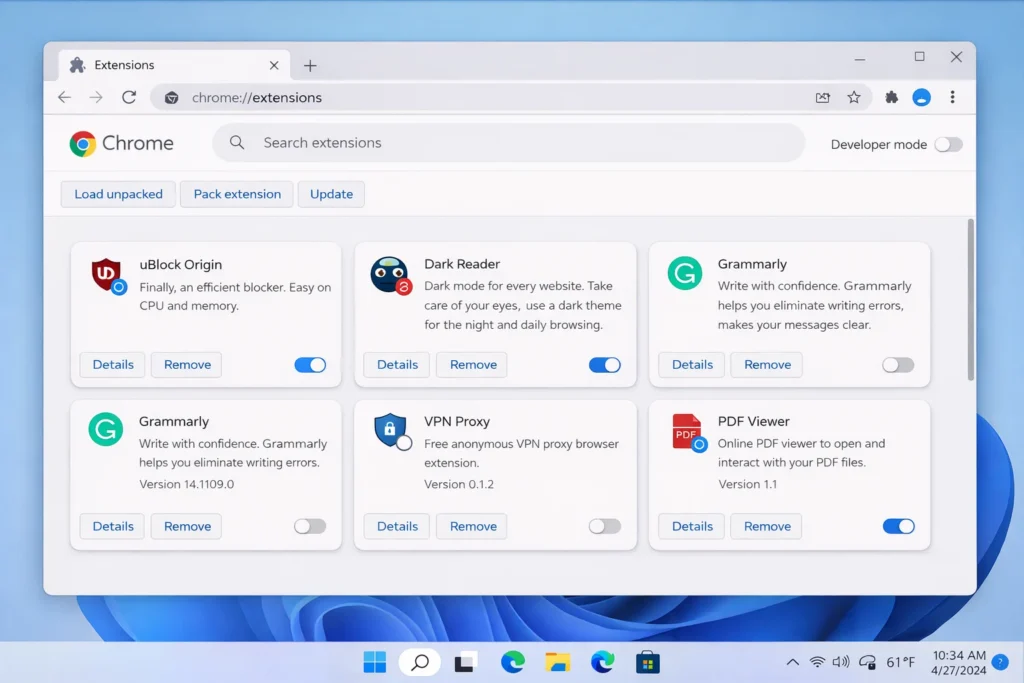
Fix 6: Disable Chrome Extensions
Why this fixes Chrome download failed: Extensions like ad blockers (uBlock Origin, AdBlock), VPN tools, and third-party download managers frequently cause Chrome download errors.
Steps:
- Type chrome://extensions in the address bar.
- Toggle off all extensions.
- Retry the download.
- If the Chrome download failed error is gone, turn extensions back on one at a time to find the culprit.
- Remove the faulty extension.
Fix 7: Update Google Chrome
Why this fixes Chrome download failed: Google patches download-related bugs in every update. Running an outdated version is a common reason Chrome download keeps failing.
Steps:
- Click the three dots (top right) in Chrome.
- Go to Help > About Google Chrome.
- Chrome will check for and install updates automatically.
- Click “Relaunch.”
- Try the download again.
Fix 8: Reset Chrome Settings
Why this fixes Chrome download failed: A reset restores all Chrome settings to factory defaults without deleting bookmarks or passwords. It removes hidden misconfigurations causing the Chrome download failed error.
Steps:
- Go to chrome://settings/reset.
- Click “Restore settings to their original defaults.”
- Confirm by clicking “Reset settings.”
- Restart Chrome and retry.
Fix 9: Check Available Storage Space
Why this fixes Chrome download failed: No free storage means Chrome cannot save the file. This triggers the download failed in Chrome message instantly.
On Windows:
- Open File Explorer > This PC.
- Check free space on your C: drive.
- Delete unnecessary files if space is below 2 GB.
On Chrome download failed Android fix:
- Go to Settings > Storage.
- Clear cached data and remove unused apps.
On iPhone (Chrome iOS):
- Go to Settings > General > iPhone Storage.
- Offload unused apps to free space.
Keep at least 2–5 GB free to prevent Chrome download failed issues.
Fix 10: Reinstall Google Chrome
Why this fixes Chrome download failed: If nothing else works, your Chrome installation may be corrupted. A clean reinstall replaces all damaged program files and eliminates persistent Chrome download errors.
Steps:
- Uninstall Chrome:
- Windows: Settings > Apps > Google Chrome > Uninstall.
- Mac: Drag Chrome from Applications to Trash.
- Download Chrome from the official site: google.com/chrome.
- Install and sign in to restore your data.
- Test your download.
This is the nuclear option that fixes even the most stubborn Chrome download failed problems.
Troubleshooting Tips for Chrome Download Errors
🔧 Quick Checklist Before You Panic:
- ✅ Does the Chrome download failed error happen with ALL files or just one? If one file, the server may be the issue.
- ✅ Does the download work in another browser (Edge, Firefox)? If yes, Chrome is the problem.
- ✅ Is your error “Chrome download failed – network error” specifically? Focus on Fixes 1, 3, and 4.
- ✅ Is the error “Chrome download failed – virus detected”? Focus on Fix 4.
- ✅ Are you on a public Wi-Fi network? Public networks often block downloads. Try mobile data instead.
- ✅ Run a speed test at fast.com to verify your connection is stable.
Common Mistakes When Fixing Chrome Download Failed
Avoid these errors that users commonly make:
- Clicking the download button 10 times — This creates multiple corrupted partial files. Wait for one attempt to fully fail before retrying.
- Ignoring the specific error text — “Chrome download failed – network error” and “Chrome download failed – virus detected” have completely different solutions. Always read the full message.
- Leaving antivirus disabled permanently — Only disable it for one trusted download, then turn it back on immediately.
- Skipping Chrome updates for months — Most Chrome download failed bugs are patched in updates. Stay current.
- Downloading from shady websites — If you repeatedly see Chrome download failed – virus detected, the file may genuinely be dangerous.
Tips to Prevent Chrome Download Failed in the Future
Stop the Chrome download failed error from coming back:
- Keep Chrome updated — Enable automatic updates to prevent Chrome download errors caused by outdated software.
- Clear cache monthly — A monthly cache cleanup prevents the buildup that causes download failed in Chrome.
- Use wired internet for large files — Ethernet is more stable than Wi-Fi and prevents Chrome download failed – network error.
- Maintain 5–10 GB free storage — Running out of space is a guaranteed way to trigger Chrome download failed.
- Limit extensions to essentials — Fewer extensions mean fewer conflicts and fewer Chrome download errors.
- Whitelist trusted download sites in your antivirus to avoid false Chrome download failed – virus detected flags.
- Bookmark chrome://downloads — Quickly monitor and resume failed downloads in Chrome.
Frequently Asked Questions
Why does my Chrome download keep failing?
The most common reasons your Chrome download keeps failing include unstable internet, corrupted cache, antivirus interference, or low storage space. Clear your Chrome cache first, then check your connection. If the Chrome download failed error persists, work through all 10 fixes above.
How do I fix “Chrome download failed – network error”?
The Chrome download failed – network error is caused by internet interruptions, VPN conflicts, or firewall blocks. Restart your router, disable VPN or proxy, turn off your firewall temporarily, and change your download folder location. These steps fix most Chrome download failed network error cases.
Why does Chrome download fail but other browsers work?
When download failed in Chrome but not in Edge or Firefox, the problem is Chrome-specific. It is usually a bad extension, corrupted cache, or outdated version. Clear cache, disable extensions, and update Chrome to fix Chrome download failed in this scenario.
Can I resume a Chrome failed download?
Sometimes. Go to chrome://downloads, find the file, and click “Resume” if available. Not all Chrome failed downloads can be resumed — if the option is missing, restart the download. For large files, install a download manager extension to auto-resume failed downloads in Chrome.
How do I fix Chrome download failed on Android?
To fix Chrome download failed on Android (Samsung, Xiaomi, Pixel), clear Chrome’s cache through Settings > Apps > Chrome > Storage > Clear Cache. Also check your phone’s storage, disable battery optimization for Chrome, and make sure you have a strong Wi-Fi or mobile data signal. These steps resolve most Chrome download failed Android issues.
Conclusion
The Chrome download failed error is one of the most common browser problems, but it is also one of the easiest to fix. In most cases, clearing your cache, checking your internet, or disabling a problematic extension resolves the issue in minutes.
This guide gave you 10 step-by-step methods to fix Chrome download failed errors on every device — Windows, Mac, Android, and Chromebook. Start with Fix 1 and work your way down. Most users never need to go past Fix 5.
If the Chrome download failed error continues after trying every solution, the problem is likely on the website’s end. Try a different download source or contact that site’s support team.
Bookmark this page so the next time you see “download failed in Chrome,” you will have the fix ready in seconds.
- Google Chrome Help Center — support.google.com/chrome
- Microsoft Support – Windows Defender — support.microsoft.com
- Apple Support – iPhone Storage — support.apple.com




[…] Chrome Download Failed Error Fix […]