

Introduction
Searching for a reliable Chrome Keeps Freezing Fix? When Google Chrome suddenly stops responding, freezes while loading websites, or becomes slow and unresponsive, it can be frustrating. Whether you’re browsing social media, watching videos, shopping online, or working, a frozen browser can interrupt everything.
The good news is that most Chrome freezing problems are easy to fix. In many cases, the issue is caused by outdated software, too many open tabs, corrupted cache files, or problematic extensions.
This complete Chrome Keeps Freezing Fix guide will walk you through simple step-by-step solutions that beginners can follow. Start with the easiest fixes first and move to the advanced solutions only if needed.
Quick Answer: Chrome Keeps Freezing Fix
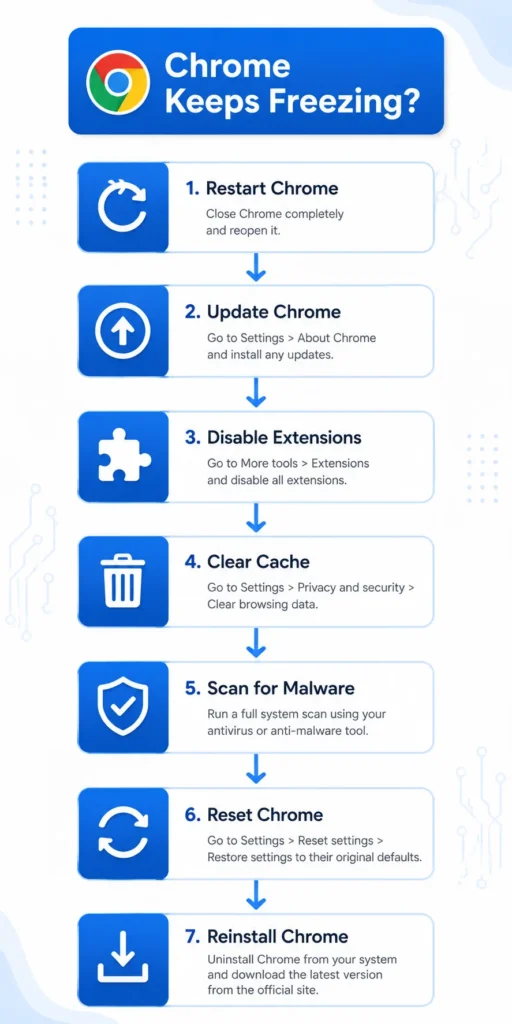
If Chrome keeps freezing, try these solutions:
- Restart Chrome.
- Restart your computer or phone.
- Close unnecessary tabs.
- Update Google Chrome.
- Disable browser extensions.
- Clear cache and cookies.
- Turn off hardware acceleration.
- Scan for malware.
- Reset Chrome settings.
- Reinstall Chrome.
These methods solve most Google Chrome freezing issues on Windows, Mac, Android, and iPhone devices.

Why Chrome Keeps Freezing
Before applying any Chrome Keeps Freezing Fix, it helps to understand why the problem occurs.
Common causes include:
- Too many browser tabs open
- Insufficient RAM or memory
- Outdated Chrome version
- Corrupted cache and cookies
- Faulty browser extensions
- Malware infections
- Outdated Windows or mobile software
- Hardware acceleration issues
- Background applications using excessive resources
When these problems occur, Chrome may freeze randomly, become slow, crash frequently, or stop responding completely.
Chrome Keeps Freezing Fix Methods
1. Restart Google Chrome
The first Chrome Keeps Freezing Fix you should try is restarting the browser.
Steps
- Close all Chrome windows.
- Wait 10 seconds.
- Open Chrome again.
- Test whether the issue continues.
Why This Works
Restarting Chrome clears temporary browser processes and memory usage that may be causing the freeze.
Screenshot Suggestion: Closing Chrome and reopening it.
2. Restart Your Device
If Chrome still freezes, restart your computer or smartphone.
Windows
- Click Start.
- Select Power.
- Click Restart.
Android Devices (Samsung, Xiaomi, Vivo, Oppo)
- Press and hold the Power button.
- Tap Restart.
iPhone
- Turn off the device.
- Wait a few seconds.
- Turn it back on.
Why This Works
A restart clears temporary system errors and frees up memory.
3. Close Unnecessary Tabs
One of the most common reasons people need a Chrome Keeps Freezing Fix is having too many tabs open.
Steps
- Review your open tabs.
- Close tabs you no longer need.
- Keep only essential tabs active.
Why This Works
Each Chrome tab consumes memory. When dozens of tabs are open, Chrome can become slow and unresponsive.
Warning Signs
- Slow page loading
- Browser lag
- Laptop fan running constantly
- High memory usage
4. Update Google Chrome
Using an outdated browser often leads to stability problems.
Steps
- Open Chrome.
- Click the three-dot menu.
- Select Help.
- Click About Google Chrome.
- Install available updates.
- Restart Chrome.
Why This Works
Chrome updates contain bug fixes and performance improvements that often resolve freezing issues.
Screenshot Suggestion: Chrome update screen.
5. Disable Browser Extensions
Extensions are a major cause of Chrome freezing issues.
Steps
- Open Chrome.
- Type:
chrome://extensions
- Press Enter.
- Disable all extensions.
- Restart Chrome.
- Enable extensions one by one.
Why This Works
This process helps identify which extension is causing Chrome to freeze.
Extensions That Commonly Cause Problems
- Ad blockers
- VPN extensions
- Shopping tools
- Download managers
- Toolbar add-ons
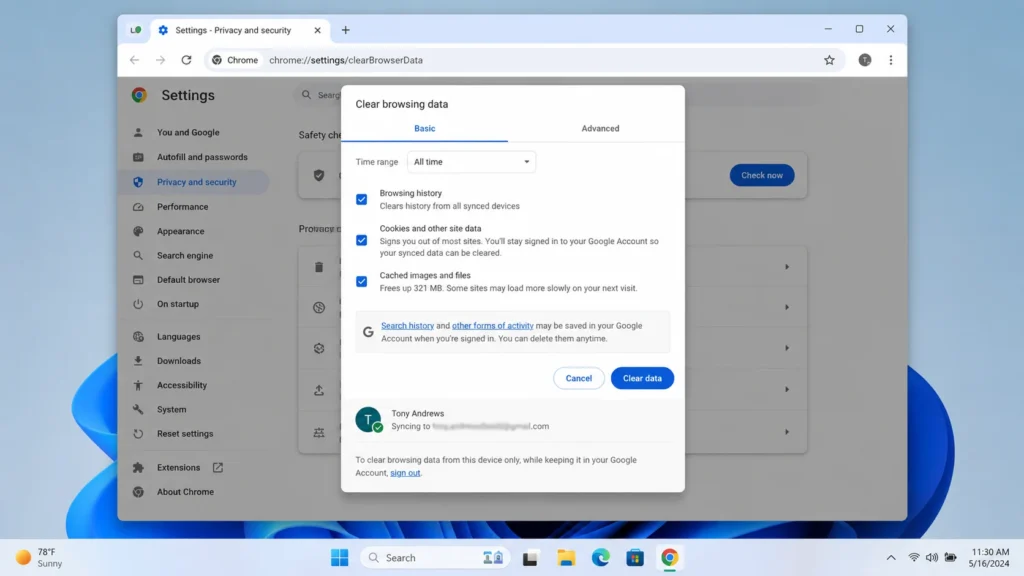
6. Clear Cache and Cookies
Corrupted browser data can make Chrome unstable.
Steps
- Press Ctrl + Shift + Delete.
- Select All Time.
- Check:
- Cookies and site data
- Cached images and files
- Click Clear Data.
Why This Works
Removing old cached files eliminates corrupted data that may cause browser freezing.
Screenshot Suggestion: Clear Browsing Data window.
7. Disable Hardware Acceleration
Another effective Chrome Keeps Freezing Fix is disabling hardware acceleration.
Steps
- Open Chrome Settings.
- Select System.
- Turn off:
Use hardware acceleration when available - Restart Chrome.
Why This Works
Hardware acceleration relies on your graphics hardware. Compatibility issues can cause Chrome freezes and crashes.
Devices Commonly Affected
- Older laptops
- Budget PCs
- Systems with outdated graphics drivers
8. Scan Your Device for Malware
Malware often causes browser performance issues.
Windows Security Scan
- Open Windows Security.
- Click Virus & Threat Protection.
- Run a Full Scan.
Chrome Safety Check
- Open Chrome Settings.
- Select Privacy and Security.
- Click Safety Check.
- Run the scan.
Why This Works
Malware consumes system resources and can interfere with Chrome’s operation.
9. Reset Chrome Settings
Resetting Chrome can solve deeper configuration problems.
Steps
- Open Chrome Settings.
- Click Reset Settings.
- Select:
Restore settings to their original defaults. - Confirm the reset.
Why This Works
Resetting removes problematic settings without deleting bookmarks and saved passwords.
What Gets Reset
- Startup settings
- Search engine settings
- Extensions
- Temporary configurations
10. Reinstall Chrome
If every other Chrome Keeps Freezing Fix fails, reinstall Chrome.
Steps
- Uninstall Google Chrome.
- Restart your device.
- Download the latest version.
- Install Chrome again.
- Sign in to restore bookmarks and passwords.
Why This Works
Reinstalling replaces corrupted browser files that may be causing freezing problems.
Screenshot Suggestion: Chrome installation process.
Additional Tips to Prevent Chrome Freezing
After applying a Chrome Keeps Freezing Fix, follow these tips to prevent the issue from returning.
Keep Chrome Updated
Install updates whenever they become available.
Limit Browser Extensions
Only keep extensions you genuinely use.
Restart Your Device Weekly
Regular restarts help maintain system performance.
Maintain Free Storage Space
Keep at least 10–20% of your storage free.
Run Regular Malware Scans
Security scans can prevent future browser issues.
Avoid Keeping Too Many Tabs Open
Bookmark pages instead of leaving dozens of tabs open.
Troubleshooting Tips
Troubleshooting Box
If Chrome continues freezing:
✓ Test Chrome in Incognito Mode
✓ Create a new Chrome profile
✓ Check available storage space
✓ Update graphics drivers
✓ Disable unnecessary startup applications
✓ Install Windows updates
✓ Monitor memory usage through Task Manager
✓ Compare performance using another browser
Common Mistakes to Avoid
Many users accidentally make Chrome freezing problems worse.
Avoid these mistakes:
- Ignoring browser updates
- Installing too many extensions
- Running multiple antivirus programs
- Never clearing cache and cookies
- Keeping hundreds of tabs open
- Downloading software from unknown sources
- Ignoring malware warnings
- Using outdated device drivers
Frequently Asked Questions
Why does Chrome keep freezing on Windows 11?
Chrome freezing on Windows 11 is usually caused by low memory, outdated drivers, corrupted cache files, malware, or problematic extensions.
Can too many tabs cause Chrome to freeze?
Yes. Every open tab uses RAM. When memory becomes limited, Chrome can freeze or become unresponsive.
Why does Chrome freeze but other browsers work normally?
The issue may be specific to Chrome settings, extensions, cached data, or corrupted browser files.
Does clearing cache fix Chrome freezing?
Yes. Corrupted cache files are a common reason Chrome becomes slow, unstable, or unresponsive.
Is reinstalling Chrome a permanent Chrome Keeps Freezing Fix?
In many cases, yes. Reinstalling Chrome removes damaged program files and provides a clean installation.
Conclusion
If you’re looking for the best Chrome Keeps Freezing Fix, start with the simple solutions first. Restart Chrome, close unnecessary tabs, update the browser, and clear cached data. These methods resolve most Chrome freezing issues quickly.
If Chrome still freezes, disable extensions, scan for malware, reset browser settings, or reinstall Chrome. Following the steps in this guide will help restore Chrome’s performance and prevent future freezing problems.