Physical Address
304 North Cardinal St.
Dorchester Center, MA 02124
Physical Address
304 North Cardinal St.
Dorchester Center, MA 02124

If your Android phone keeps restarting over and over again, you’re not alone. This is one of the most common problems Android users face, and it can happen at the worst possible time — during a call, while typing a message, or even when your phone is just sitting idle on a table.
An Android phone keeps restarting for many reasons. Sometimes a software update goes wrong. Sometimes a bad app causes a conflict. Other times, a worn-out battery or overheating triggers the phone to randomly restart without any warning. Whether your phone keeps restarting every few minutes or once every hour, it disrupts everything.
The good news is that most Android restart loop problems are fixable at home. This step-by-step guide covers 10 proven solutions to fix an Android phone that keeps restarting — starting with the easiest methods first. No tech skills required.
When your Android phone keeps restarting, start by force restarting the device, then boot into Safe Mode to check if a third-party app is causing the issue. If your phone keeps restarting even in Safe Mode, clear the cache partition through Recovery Mode. If nothing else works, perform a factory reset after backing up your data. These steps resolve the Android phone restarting problem for over 90% of users.
Before jumping into fixes, it helps to understand why your Android phone keeps restarting in the first place. Knowing the cause lets you choose the right solution faster.
Here are the most common reasons your phone keeps restarting on its own:
In most cases, when an Android phone keeps restarting, the root cause is software-related — and completely fixable at home.
Why this works: A force restart clears temporary memory and kills frozen processes. If your Android phone keeps restarting due to a minor software glitch, this simple step often resolves it instantly.
Steps:
Samsung Galaxy users: On some models, hold Power + Volume Up instead. On older Samsung devices with removable batteries, pull out the battery, wait 30 seconds, and reinsert it.
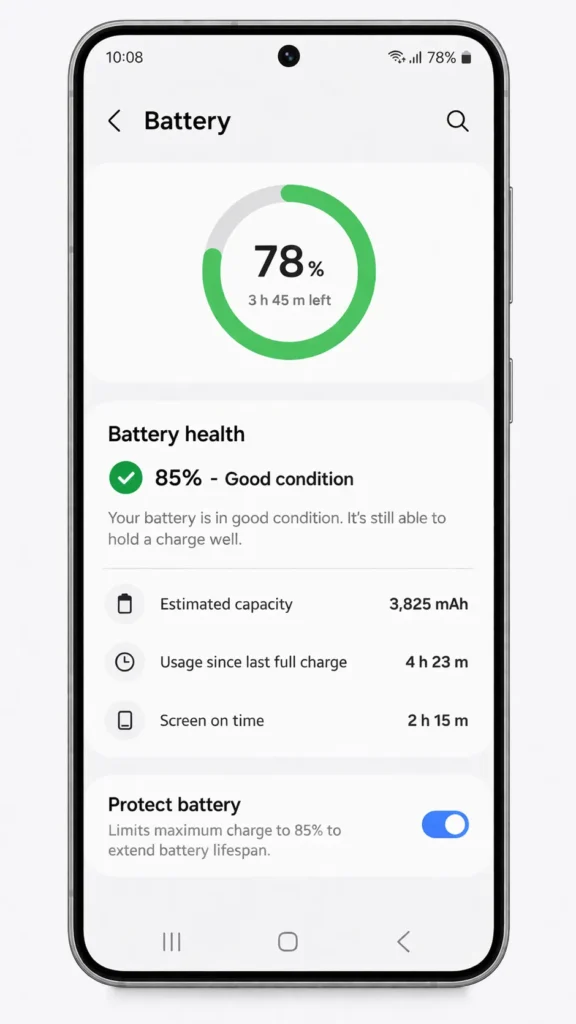
Why this works: A weak or degraded battery is a top reason an Android phone keeps restarting on its own. If your battery cannot maintain a stable charge, your phone will reboot whenever it drops below a certain threshold.
Steps:
Signs your battery is failing:
If these signs match, your battery needs professional replacement.
Why this works: Android devices are programmed to restart automatically when internal temperatures exceed safe levels. If your phone randomly restarts during gaming, video calls, or navigation, overheating is likely the cause.
Steps:
Tip: Budget devices like Xiaomi Redmi, Samsung Galaxy A series, and Motorola G series are more prone to overheating under heavy use because of less powerful cooling systems.
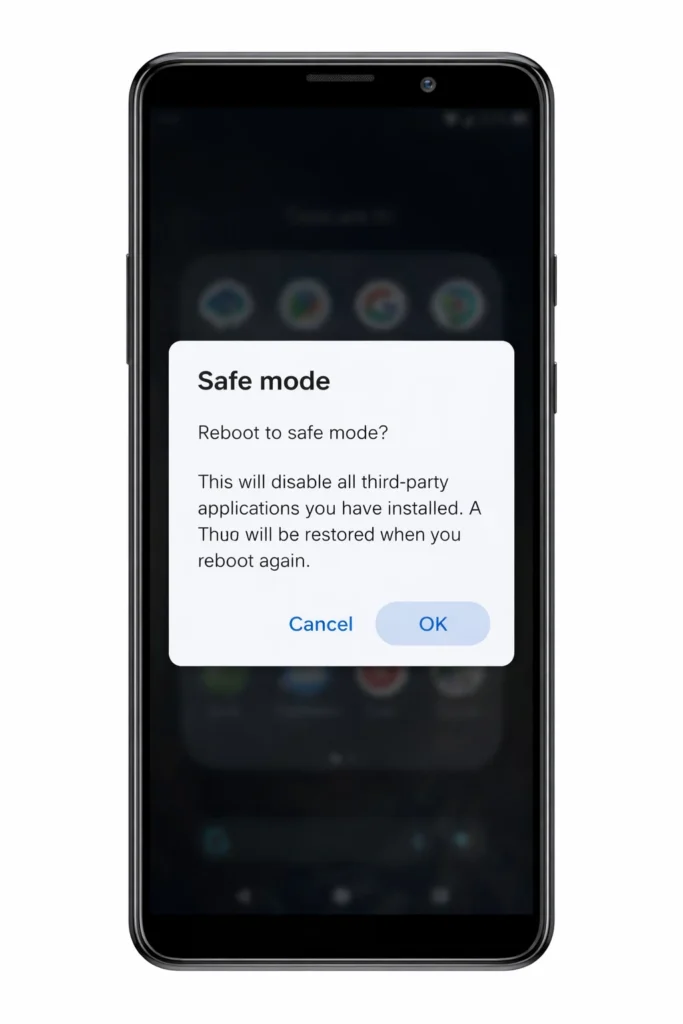
Why this works: Safe Mode loads only the built-in system apps and disables all downloaded apps. If your Android phone keeps restarting because of a problematic third-party app, the restarts will stop in Safe Mode.
Steps:
Results:
Why this works: Manufacturers regularly release updates that fix known bugs causing phones to randomly restart. If your Android keeps restarting after a previous update, a newer patch may specifically address the issue.
Steps:
⚠️ Never turn off your phone during a software update. This can corrupt the operating system and make the restart loop worse.
Why this works: If Safe Mode confirmed a third-party app is why your Android phone keeps restarting, removing the guilty app permanently solves the problem. Focus on apps you installed right before the restarting issue started.
Steps:
Common culprit apps:
Why this works: The system cache stores temporary files that help Android run smoothly. When these files become corrupted, your Android phone keeps restarting or gets stuck in a restart loop. Clearing the cache partition removes these damaged files without deleting your personal data.
Steps:
Samsung Galaxy: On older Samsung models, the combination may be Power + Volume Up + Home/Bixby button. On newer Galaxy S and Galaxy A phones, use Power + Volume Up.
Why this works: A defective SIM card or corrupted SD card can cause hardware communication errors that make your phone keep restarting. Removing them helps isolate the problem.
Steps:
Why this works: A physically stuck or damaged power button continuously sends restart signals to the system. This is a commonly overlooked reason an Android phone keeps restarting, especially on older devices or phones that have been dropped.
What to check:
What to do:
Why this works: A factory reset completely erases your phone and restores it to its original factory state. This eliminates every possible software problem that could cause your Android phone to keep restarting — corrupted files, bad app data, system errors, everything.
⚠️ WARNING: A factory reset deletes ALL data — photos, apps, contacts, messages. Back up everything first.
How to back up:
Steps to factory reset:
If you cannot access Settings because the phone keeps restarting:
| When Your Phone… | Try This Fix First |
|---|---|
| Keeps restarting when using one specific app | Uninstall that app (Fix 6) |
| Keeps restarting while charging | Switch charger and cable (Fix 2) |
| Randomly restarts after a software update | Clear cache partition (Fix 7) |
| Keeps restarting every few minutes nonstop | Safe Mode (Fix 4) → Factory Reset (Fix 10) |
| Gets very hot before it restarts | Cool down + close apps (Fix 3) |
| Restarts only when SIM card is inserted | Replace SIM card (Fix 8) |
| Is more than 3 years old with a swollen back | Battery replacement needed — visit a repair shop |
| Is stuck in a restart loop and won’t reach home screen | Recovery Mode → Factory Reset (Fix 10) |
❌ Installing “phone cleaner” or “booster” apps — These apps are notorious for causing the exact restarting problems they claim to fix.
❌ Ignoring software updates — Delayed updates leave known restart-causing bugs unpatched on your Android phone.
❌ Using cheap, uncertified chargers — Inconsistent power delivery damages batteries and causes phones to randomly restart.
❌ Filling storage to 100% — Android needs breathing room. A full phone is an unstable phone that keeps restarting.
❌ Jumping straight to factory reset — Always try simpler fixes first. Many users erase everything unnecessarily when a cache wipe or app removal would have fixed the Android phone restarting issue.
❌ Assuming it’s unfixable — Most Android restart loop problems are software-based and completely solvable with this guide.
Once you’ve fixed your Android phone that keeps restarting, follow these habits to prevent the problem from coming back:
Your Android phone keeps restarting by itself most commonly due to software glitches, a degraded battery, overheating, corrupted system cache, or a problematic third-party app. To pinpoint the cause, boot into Safe Mode first. If the phone stops restarting in Safe Mode, a downloaded app is the culprit. If the phone keeps restarting even in Safe Mode, try clearing the cache partition or performing a factory reset.
If your Samsung phone keeps restarting, force restart it by holding Power + Volume Down for 15 seconds. Next, boot into Safe Mode and check for rogue apps. If the Samsung phone keeps restarting in Safe Mode, clear the cache partition via Recovery Mode (Power + Volume Up). Also check for updates under Settings > Software Update. Samsung’s built-in Samsung Members app also has a diagnostic tool that can detect hardware issues causing the restart loop.
Absolutely. A failing battery is one of the top hardware reasons an Android phone keeps restarting. Symptoms include sudden battery percentage drops, the phone dying at 20–30%, a swollen back cover, and restarts that only happen when unplugged. If your phone is older than 2–3 years, the battery may have degraded enough to cause these random restarts. Visit an authorized service center for a battery replacement.
Yes, in most cases a factory reset will fix an Android phone that keeps restarting due to software issues. It erases all data and returns the phone to its original state, eliminating corrupted files and app conflicts. However, if faulty hardware like a bad battery or stuck power button is causing the phone to keep restarting, a factory reset alone will not solve the problem. Always try simpler fixes before resorting to a factory reset.
If you have tried all software solutions in this guide — force restart, Safe Mode, cache wipe, software update, and factory reset — and your Android phone keeps restarting, the problem is almost certainly hardware-related. Take your phone to an authorized service center for professional diagnosis. Common hardware repairs for phones that keep restarting include battery replacement, power button repair, and motherboard inspection.
An Android phone that keeps restarting is a frustrating problem, but it is almost always fixable. By working through the 10 solutions in this guide — from a simple force restart to a full factory reset — you can identify and resolve the exact cause of your phone’s restarting issue.
Start with the easy fixes first. A force restart, proper charging, and Safe Mode test solve the problem for the majority of users. If those don’t work, clearing the cache partition and removing suspicious apps are your next best steps. Save the factory reset for when nothing else works.
Remember: Always back up your data before a factory reset, keep your phone updated, and avoid unreliable third-party apps. These simple habits will dramatically reduce the chances of your Android phone restarting on its own ever again.
If all else fails and your phone keeps restarting after every fix, don’t delay — visit a certified repair center. A hardware issue caught early is cheaper to fix than one left ignored.



