Physical Address
304 North Cardinal St.
Dorchester Center, MA 02124
Physical Address
304 North Cardinal St.
Dorchester Center, MA 02124


Is your Android phone running slow? You are not alone. Millions of people face this exact problem every single day. Apps take too long to open. The screen freezes. Scrolling feels choppy. Simple tasks that used to take seconds now feel like they take forever.
A slow Android phone can ruin your entire day — especially when you rely on your device for work, communication, or entertainment. Whether your phone started slowing down recently or has been lagging for a while, there is almost always a fixable reason behind it.
The great news is that you do not need to be a tech expert to fix an Android phone running slow. You do not need to spend money on a repair shop or buy a brand new device. In most cases, a handful of simple steps will get your phone running fast again. This guide gives you everything you need, explained in plain and simple English.
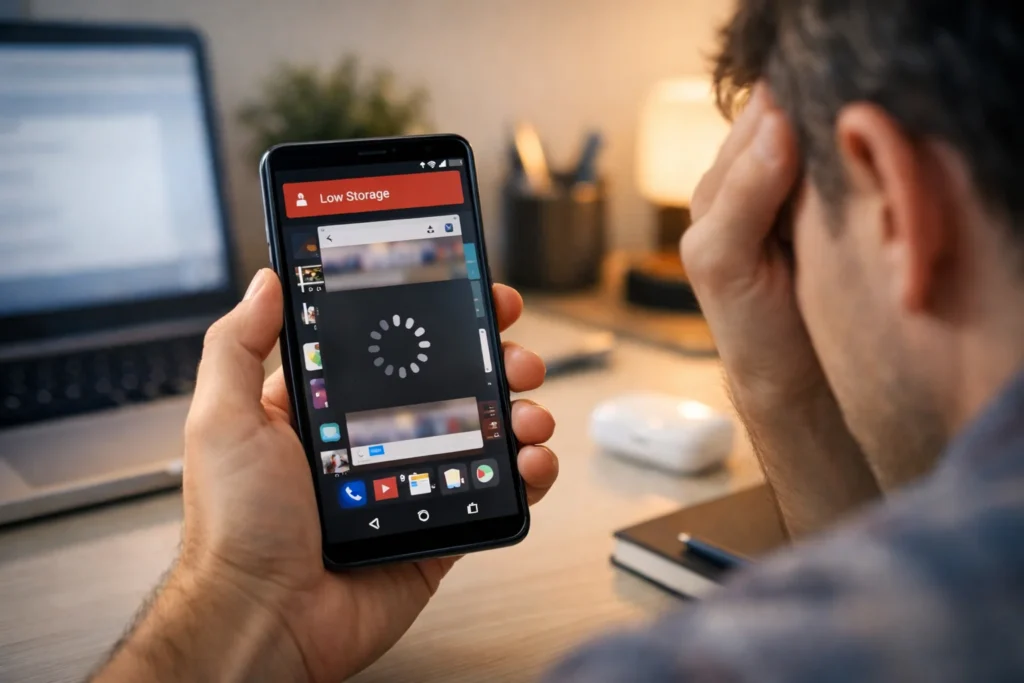
If your Android phone is running slow, try these five quick fixes right now:
These five steps fix the slow Android phone problem for most users. If your phone is still lagging after these steps, continue reading for 10 complete and detailed solutions.
Before jumping into fixes, it helps to understand why your Android phone is running slow in the first place. Once you know the cause, applying the right fix becomes much easier.
Here are the most common reasons for a slow Android phone:
Now that you know the causes, let us fix the problem step by step.
This is the very first thing you should do when your Android phone is running slow. It sounds too simple, but it works. Restarting clears your phone’s temporary memory (RAM) and shuts down all background processes.
Steps:
Pro Tip: Restart your Android phone at least once a week. Many people leave their phones running for weeks without a restart, which is a major cause of a slow Android phone.
Every app on your phone stores temporary files called cache. These files are meant to help apps load faster, but over time they pile up and actually make your Android phone run slow.
Steps to clear cache for a single app:
Steps to clear all cache at once:
Clearing the cache is one of the fastest ways to fix a slow Android phone without losing any of your personal data.
A full phone is almost always a slow phone. When your internal storage is 90% or more full, your Android phone will run very slow. The system needs breathing room to function properly.
Steps:
Quick ways to free up space and speed up your Android phone:
Goal: Always keep at least 10–15% of your total storage free. For a 64GB phone, that means keeping 6–10GB available at all times. This single habit will prevent your Android phone from running slow in the future.
Every app you install takes up storage space. Many apps also run in the background even when you are not using them, which makes your Android phone lag constantly.
Steps:
Bonus tip: If you cannot fully uninstall a pre-installed app (bloatware), you can at least disable it:
Disabling bloatware stops it from running in the background and can noticeably speed up your Android phone.
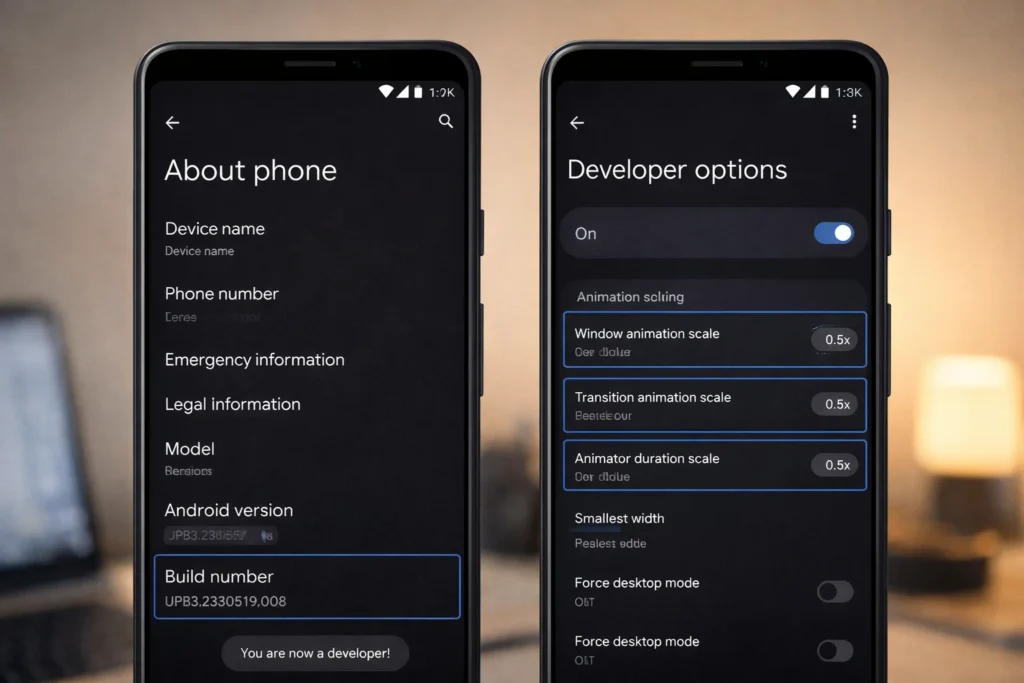
Android uses visual animations when you open, close, or switch between apps. These animations look nice, but they slow down how fast your phone feels to use. Turning them off or reducing them is a great way to fix a slow Android phone instantly.
Steps:
After doing this, your slow Android phone will feel noticeably more responsive right away. This trick works on almost every Android device.
Background apps are one of the biggest hidden causes of an Android phone running slow. These are apps that keep running even after you close them.
Steps to close background apps manually:
Steps to limit background activity permanently:
Stopping background apps frees up RAM and helps speed up your slow Android phone right away.
Running an outdated version of Android is a very common reason for an Android phone running slow. Software updates include performance improvements, bug fixes, and security patches that help your phone run better.
Steps:
Also update your apps:
Keeping your software updated is one of the simplest long-term solutions for a slow Android phone fix.
Malicious apps secretly running in the background are a serious but often overlooked cause of an Android phone running slow. These harmful apps use your phone’s CPU and battery without you even knowing.
Steps:
How to stay safe going forward:
Removing malware can dramatically speed up an Android phone that has been running slow for no obvious reason.

Sometimes apps have wrong settings that cause conflicts and make your Android phone run slow. Resetting app preferences fixes these conflicts without deleting any personal data.
Steps:
This resets all app default settings, permissions, and background data restrictions. It is a safe step that many people overlook when trying to fix a slow Android phone.
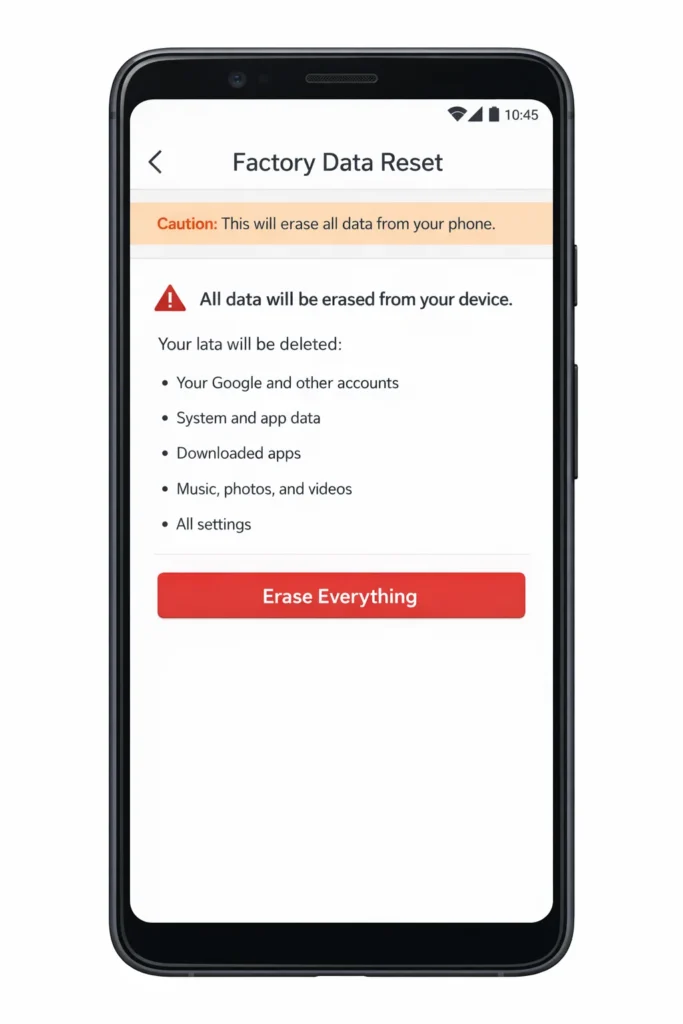
If your Android phone is still running slow after trying all the above fixes, a factory reset is your final option. This wipes everything and restores your phone to its original out-of-the-box settings.
⚠️ Warning: A factory reset deletes all data on your phone. Back everything up before you proceed.
How to back up your phone first:
Steps to factory reset:
After the reset, your phone will perform like it did when it was brand new. Only reinstall the apps you actually need to keep it running fast.
Once you have fixed your slow Android phone, keep it running fast with these ongoing habits:
Following these habits consistently will ensure your Android phone never runs slow again.
| Symptom | Likely Cause | Quick Fix |
|---|---|---|
| Android phone running slow after update | Update bug or corrupted files | Clear cache partition or reinstall update |
| Phone slow only when using one app | That app has corrupted cache | Clear that app’s cache and data |
| Phone hot and running slow | Overheating or too many apps open | Close all apps and let it cool for 10 minutes |
| Android phone slow and freezing | Low RAM or full storage | Free up space and restart |
| Slow internet making phone feel laggy | Network issue, not phone issue | Restart Wi-Fi router or switch to mobile data |
| Phone slow after charging overnight | Aging or swollen battery | Get battery checked or replaced |
| Phone slow after installing a new app | New app causing conflict | Uninstall the new app and test |
These are mistakes that people make when trying to fix an Android phone running slow — and they often make things worse:
❌ Using too many task-killer apps
Task killers promise to speed up your Android phone, but they actually cause more harm. Android manages its own memory. Task killers force apps to restart constantly, which uses more resources.
❌ Ignoring software updates
Skipping Android updates means missing out on important performance and security fixes. Always keep your software updated.
❌ Letting storage fill up completely
Never let your storage reach 100%. A completely full Android phone will run extremely slow or even stop working properly. Keep 15% free at all times.
❌ Installing too many antivirus apps
Having multiple security apps running at the same time can actually slow your Android phone down more. Stick to one trusted antivirus app.
❌ Skipping the restart
Many people try complicated fixes without first restarting their phone. A simple restart solves the slow Android phone problem more often than you would expect.
❌ Not backing up before factory reset
If you skip the backup step before a factory reset, you will permanently lose your photos, contacts, and files. Always back up first.
If your Android phone suddenly started running slow, it is usually caused by one of these things: a recent app install that is consuming resources, low storage space, a pending software update, or malware. Start by restarting your phone and clearing your app cache. If a specific app triggered the problem, uninstalling it should help right away.
You can speed up a slow Android phone completely for free by restarting it, clearing app cache, freeing up storage space, uninstalling unused apps, disabling animations, and stopping background apps. All of these methods are free, safe, and take less than 10 minutes to complete.
Yes, a factory reset will almost always fix a slow Android phone because it wipes all data and returns the device to its original settings. However, this should be your very last option. Always try the other fixes first, and always back up your data before performing a factory reset.
You should always keep a minimum of 10–15% of your total storage free. For example, on a 64GB phone, keep at least 6–10GB available. Running below this threshold is one of the most common reasons an Android phone starts running slow.
Absolutely. Too many apps — especially apps that run in the background — use your phone’s RAM and processing power constantly. This is one of the leading causes of an Android phone running slow. Uninstalling apps you do not use regularly is one of the best habits for keeping your phone fast and responsive.
An Android phone running slow is a frustrating problem, but it is almost always fixable without spending a single penny. Whether the cause is full storage, too many background apps, outdated software, or corrupted cache — this guide has given you 10 clear, step-by-step solutions to fix your slow Android phone today.
Start with the easy fixes first: restart your phone, clear your cache, and free up some storage. For most people, these three steps alone will speed up their Android phone dramatically. If the problem continues, work your way through the remaining fixes until your phone is running fast again.
Remember, preventing the problem is just as important as fixing it. Restart your phone weekly, keep your storage clean, update your software regularly, and avoid installing apps you do not need. These simple habits will keep your Android phone running fast for years to come.
Your phone should work for you — not slow you down. Take five minutes today, follow these steps, and enjoy a faster and smoother Android experience.




[…] Android Phone Running Slow? 10 Easy Fixes to Speed It Up Today […]
[…] Android Phone Running Slow? 10 Easy Fixes to Speed It Up Today […]