Physical Address
304 North Cardinal St.
Dorchester Center, MA 02124
Physical Address
304 North Cardinal St.
Dorchester Center, MA 02124

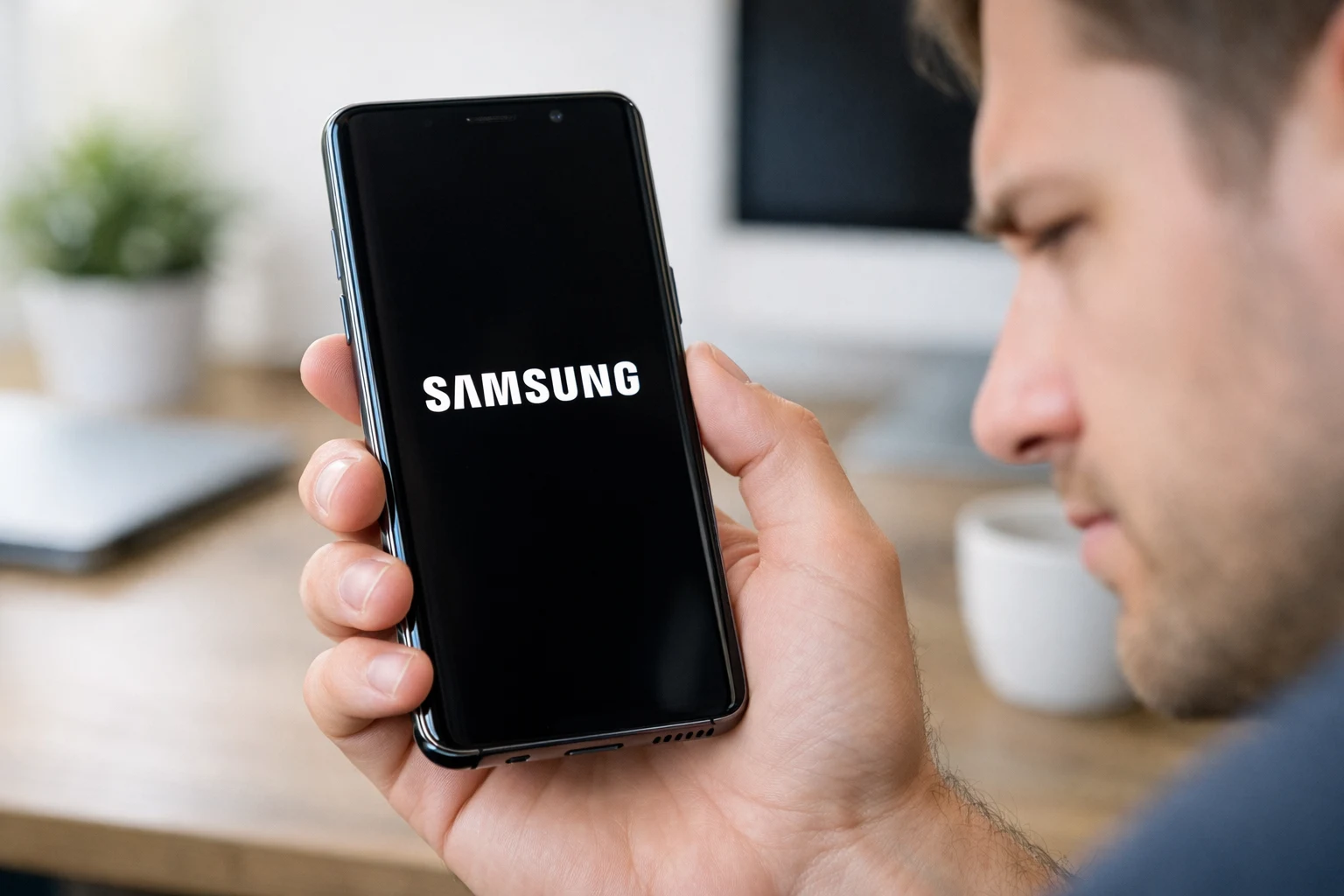
An Android phone stuck on boot screen is one of the most common and frustrating problems Android users face. You press the power button expecting your home screen, but instead, your phone freezes on the manufacturer logo and refuses to go further.
When your Android phone is stuck on the boot screen, it can feel like your device is completely dead. But don’t panic. This problem affects Samsung Galaxy, Xiaomi, OnePlus, Google Pixel, Motorola, and nearly every other Android brand. It usually happens after a software update, a new app installation, or when storage runs critically low.
Whether your phone is stuck on the logo screen or caught in an endless restart loop, this guide gives you 10 step-by-step solutions to fix the Android boot screen issue — starting with the easiest methods first. No technical experience required.
If your Android phone is stuck on the boot screen, start by holding the Power button for 20–30 seconds to force a restart. If the phone still won’t boot past the logo, enter Recovery Mode and wipe the cache partition. These two steps fix the Android boot screen freeze in about 80% of cases. If they don’t work, follow the remaining methods below.
Before you fix an Android phone stuck on boot screen, it helps to understand what causes it. Knowing the root cause lets you pick the most effective solution.
Here are the most common reasons your Android won’t boot past the logo:
📌 Key takeaway: The vast majority of Android boot screen problems are software-related, meaning you can fix them yourself at home.
Below are 10 proven methods to fix an Android phone stuck on boot screen. Work through them in order. Start simple and only move to advanced steps if needed.
Why this works: A force restart clears temporary glitches in system memory. It’s the fastest way to fix a phone stuck on the boot screen caused by a minor software hiccup.
Steps:
Device-specific instructions:
If your phone boots normally, the Android boot screen freeze was a one-time glitch. If it’s still stuck on the boot screen, continue to Method 2.
Why this works: A critically low battery gives your phone enough power to show the logo but not enough to complete the boot. This makes it look like your Android phone is stuck on the boot screen when it’s actually just out of battery.
Steps:
💡 Tip: If the charging indicator doesn’t appear, try a different cable and adapter. A faulty cable is a surprisingly common culprit.
Why this works: Safe Mode starts your phone with only the built-in system apps. All third-party apps are disabled. If your phone boots successfully in Safe Mode, a downloaded app is causing the Android boot loop.
Steps:
If your phone is completely frozen and you can’t reach the power menu:
Once in Safe Mode:
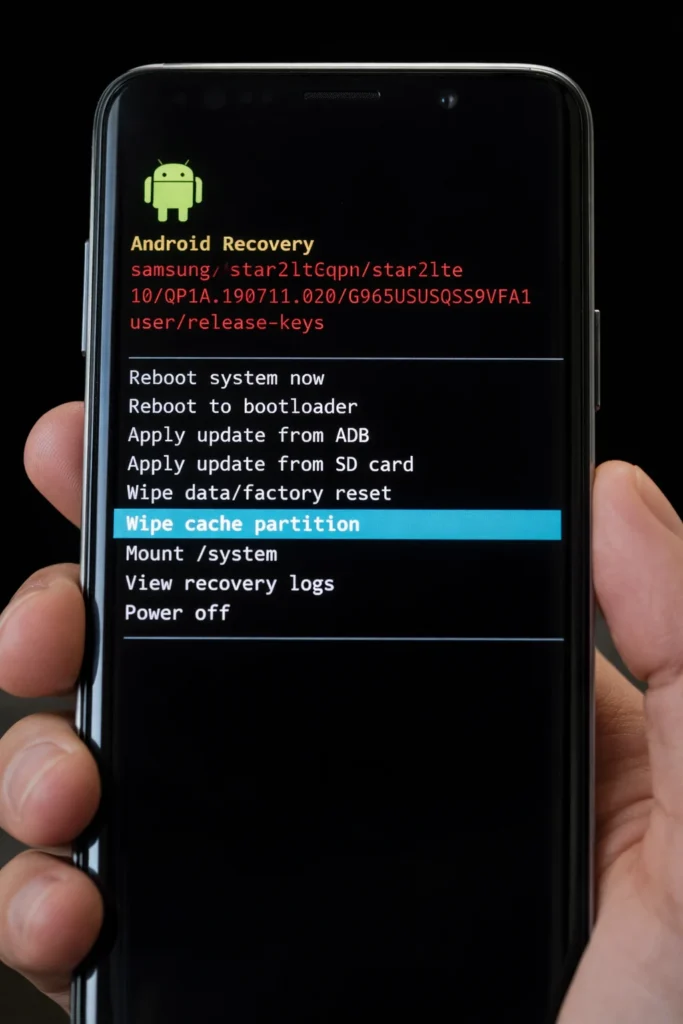
Why this works: Android stores temporary system files (cache) to speed up processes. When these files become corrupted, your Android phone gets stuck on the boot screen. Wiping the cache partition clears these files without deleting your personal data.
Steps:
⚠️ Important: This does NOT erase your photos, messages, or apps. It only removes temporary system files. This is one of the safest ways to fix an Android phone stuck on boot screen.
Why this works: A corrupted SD card or faulty SIM card can interfere with Android’s startup process, making your phone stuck on the logo screen.
Steps:
If the phone boots successfully, the SD card is likely corrupted. Back up its data on a computer and format it before reinserting it.
Why this works: Physical damage to internal components can mimic a software boot screen freeze on Android. If your phone was recently dropped, exposed to water, or is showing signs of a swollen battery, hardware could be the real problem.
What to look for:
If you notice physical damage, skip the remaining software methods and go directly to Method 10.
Why this works: ADB lets you communicate with your Android phone stuck on the boot screen directly from a computer. You can force a reboot or enter Recovery Mode through commands.
Steps:
⚠️ Note: This method only works if USB Debugging was already enabled on your phone before the boot issue occurred.
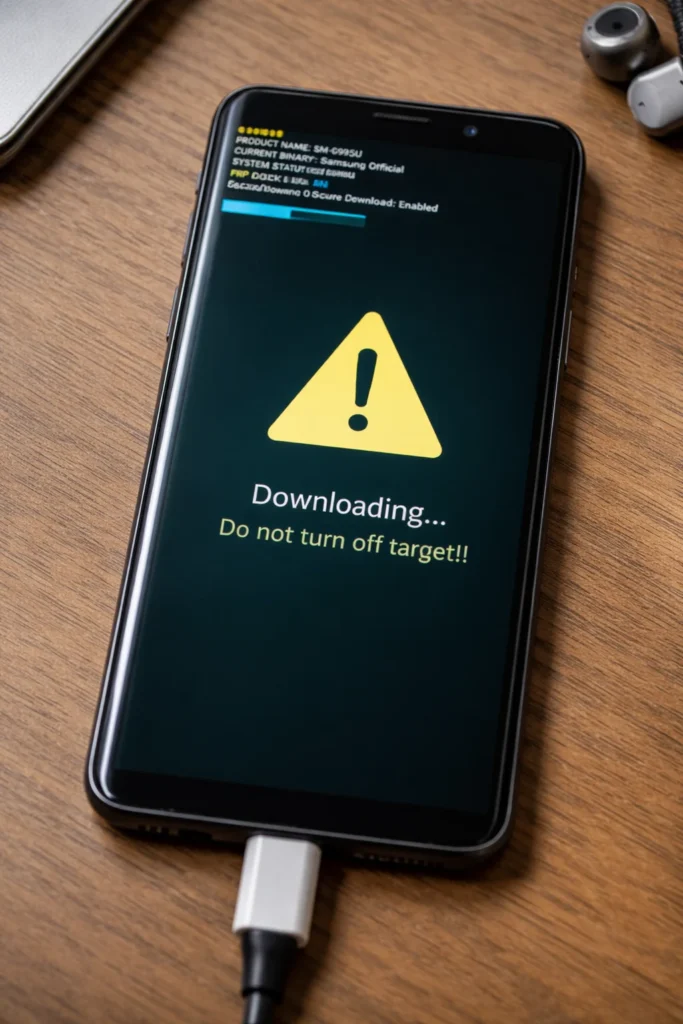
Why this works: Flashing reinstalls the entire Android operating system from scratch. If your Android is stuck on the boot screen due to deep system corruption, this replaces all damaged files with a clean copy.
Steps (general process):
⚠️ Warning: Flashing the wrong firmware can permanently brick your device. Double-check your exact model number under Settings > About Phone (check on the box if you can’t access settings).
Why this works: A factory reset erases everything and restores your phone to its original out-of-the-box state. This eliminates all software corruption causing the Android boot screen freeze. Use this as your last resort before professional repair.
Steps:
⚠️ Warning: This WILL permanently delete all your data — photos, apps, contacts, messages, everything. Only use this method if nothing else has fixed your Android phone stuck on the boot screen.
If your Android phone is still stuck on the boot screen after trying all nine methods above, the problem is almost certainly hardware-related.
Your options:
- Always start with Method 1 (force restart) before trying anything else.
- If you can enter Recovery Mode, your phone’s hardware is likely fine — the boot screen issue is software-related.
- Write down your phone’s exact model number before searching for firmware or contacting support.
- If your phone keeps restarting in a loop (Android boot loop), the cache wipe or factory reset usually fixes it.
- Make sure your phone has at least 30% battery before attempting Recovery Mode operations.
- Try connecting your phone to a computer — if it’s recognized, you can use ADB (Method 7).
Now that you know how to fix an Android phone stuck on boot screen, here’s how to prevent it from happening again:
Your Android phone is stuck on the boot screen most likely because of a failed software update, a corrupt app, full storage, or damaged cache files. In rare cases, hardware failure is the cause. Follow the 10 methods in this guide to diagnose and fix the issue.
Use Methods 1 through 7 in this guide. A force restart, Safe Mode, and cache partition wipe all fix the Android boot screen problem without erasing your personal files. Only Method 9 (factory reset) deletes your data.
Wait 5 minutes. Some phones take longer to boot after a major update. If the logo hasn’t changed or the screen hasn’t progressed after 5 minutes, your Android phone is genuinely stuck on the boot screen and you should try a force restart.
Yes. Malware can corrupt critical system files needed for startup, leaving your Android stuck on the boot screen. Boot into Safe Mode to uninstall suspicious apps. If that doesn’t work, a factory reset will remove the malware completely.
If your Samsung Galaxy is stuck on the boot screen showing only the Samsung logo, hold Volume Up + Power to enter Recovery Mode. Select “Wipe Cache Partition” first. If that doesn’t resolve it, select “Wipe Data/Factory Reset.” This fixes the Samsung logo boot screen freeze in most cases.
An Android phone stuck on boot screen is a stressful experience, but it’s almost always fixable. The 10 methods in this guide cover every possible scenario — from a simple force restart to flashing stock firmware.
Start with Method 1 and work your way down. In most cases, a force restart or cache partition wipe will fix the Android boot screen problem in minutes. Only resort to a factory reset if nothing else works, and always seek professional help if you suspect hardware damage.
Remember: the key to fixing a phone stuck on the boot screen is patience and working through solutions in the right order. Bookmark this guide so you’re prepared if the problem ever returns.



