Physical Address
304 North Cardinal St.
Dorchester Center, MA 02124
Physical Address
304 North Cardinal St.
Dorchester Center, MA 02124

Chrome not opening is one of the most frustrating problems Windows users face daily. You double-click the Google Chrome icon, wait a few seconds, and nothing happens. No browser window. No error message. Just silence. If your Chrome is not opening on Windows, you are dealing with a very common issue — and it is completely fixable.
This Chrome not opening problem can strike on any Windows version, including Windows 10 and Windows 11. It frequently happens after a system update, a forced shutdown, or when your PC is running low on memory. Sometimes Google Chrome not opening looks like nothing is happening, but Chrome is actually running invisibly in the background.
Do not worry. You do not need to be a tech expert. This guide walks you through 10 proven methods to fix Chrome not opening on your Windows computer, starting with the easiest solutions first.
If Chrome won’t open on Windows, try this first: Press Ctrl + Shift + Esc to open Task Manager. Find every process labeled “Google Chrome,” click End Task on each one, and then relaunch Chrome. This fixes Chrome not opening for most users almost instantly.
Still stuck? Follow the complete step-by-step guide below.
Before jumping into fixes, understanding why Chrome is not opening helps you choose the right solution faster. Here are the most common causes:
Why this fixes Chrome not opening: The most common reason Chrome won’t open is that old Chrome processes are stuck running in the background. Ending them lets you start fresh.
This single fix resolves Chrome not opening for roughly 60% of users.
Why this fixes Chrome not opening: A full restart clears system memory and terminates all stuck processes. This can resolve Chrome not responding issues caused by memory overload.
Important: On Windows 10 and 11, “Shut Down” uses Fast Startup, which does not fully reset your system. Always choose Restart when troubleshooting Chrome not opening.
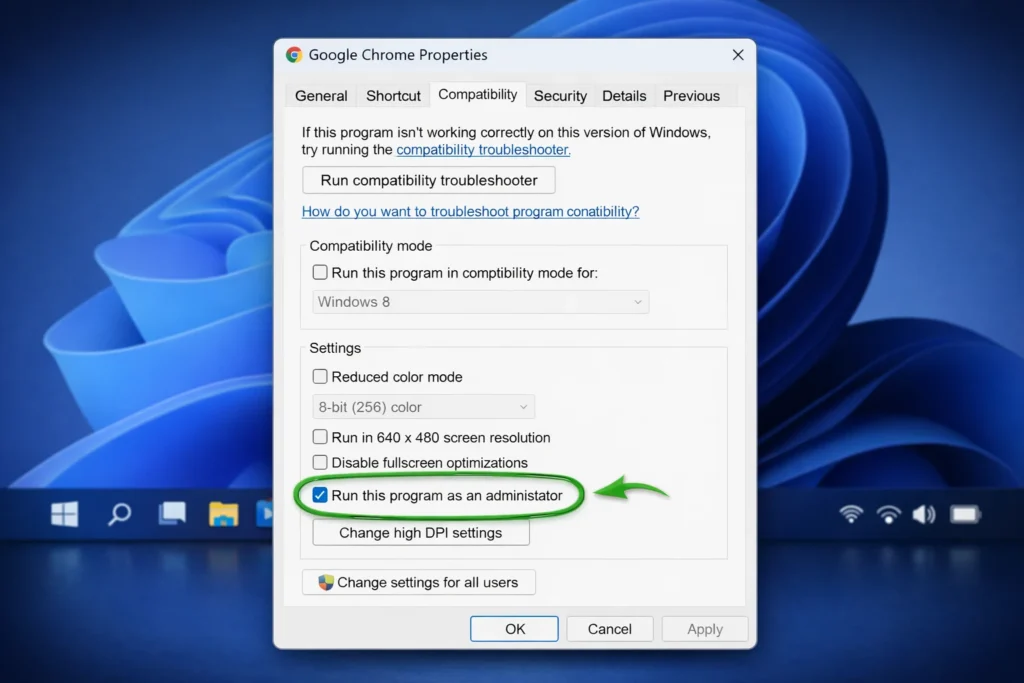
Why this fixes Chrome not opening: Sometimes Chrome won’t launch because it lacks permission to access necessary system files. Running as administrator grants full access.
To make this permanent:
Why this fixes Chrome not opening: Antivirus programs like Norton, McAfee, Avast, and even Windows Defender can mistakenly block Chrome. This is a surprisingly common cause of Google Chrome not opening.
If Chrome opens: Add Chrome as an exception in your antivirus settings, then re-enable protection immediately.
Why this fixes Chrome not opening: A damaged user profile is the second most common cause of Chrome not opening on Windows. Removing it forces Chrome to build a clean profile.
⚠️ Note: This removes locally stored bookmarks and settings. If you are signed into a Google account, everything will sync back after login.
This method fixes Chrome not opening caused by profile corruption almost every time.
Why this fixes Chrome not opening: A broken or malicious extension can crash Chrome on startup. Launching without extensions helps you confirm whether an extension is causing Chrome not to open.
Why this fixes Chrome not opening: Outdated Windows components can conflict with newer Chrome versions. If your Chrome won’t open after a Chrome update, a pending Windows update may be the culprit.
Why this fixes Chrome not opening: Corrupted settings and configurations can prevent Chrome from opening properly. Resetting returns Chrome to its original state.
If Chrome won’t open at all, use Method 6 first to get into Chrome, then perform the reset.
This will NOT delete your bookmarks, saved passwords, or browsing history.
Why this fixes Chrome not opening: When Chrome’s core files are damaged beyond repair, a clean reinstall replaces everything with fresh files. This is the most reliable fix for persistent Chrome not opening issues.
⚠️ Only download Chrome from the official Google website. Third-party download sites often bundle malware that can cause Chrome not opening problems all over again.
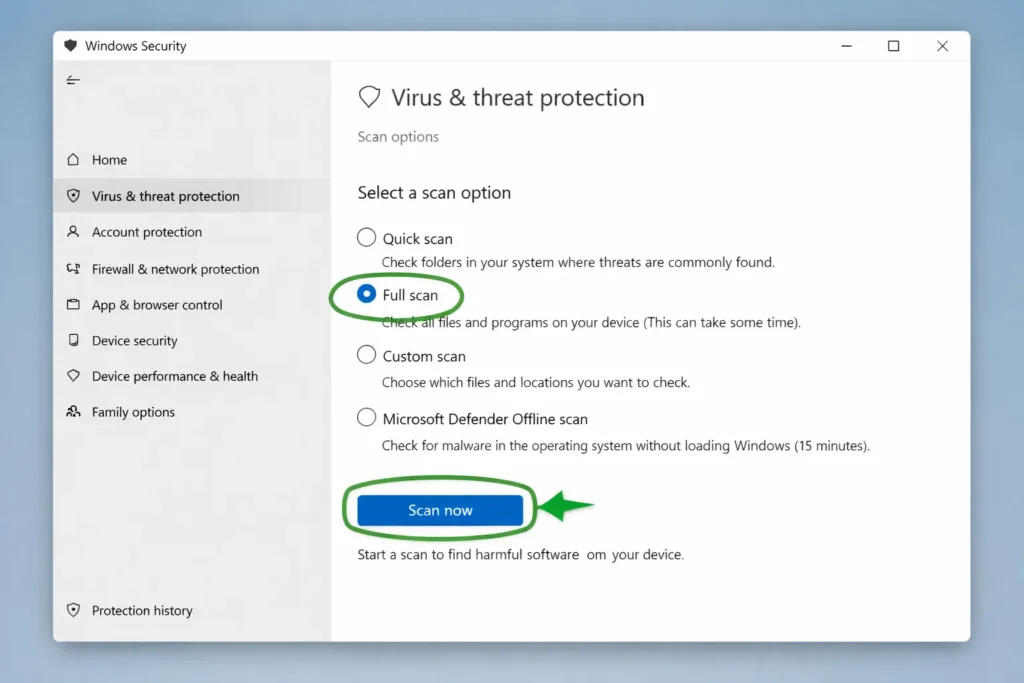
Why this fixes Chrome not opening: Malware is a hidden cause of Chrome not working on Windows. Some viruses specifically target Chrome files or settings to prevent the browser from launching.
For a deeper scan, download the free version of Malwarebytes as a second-opinion scanner.
Use these quick checks if Chrome is still not opening:
- ✅ Test other browsers. If Edge and Firefox also won’t open, the problem is with Windows, not Chrome.
- ✅ Check RAM usage. Open Task Manager → if Memory exceeds 90%, close other programs before launching Chrome.
- ✅ Verify disk space. Chrome needs at least 1 GB of free space on your C: drive to function.
- ✅ Try another Windows user account. If Chrome opens there, your user profile is the issue.
- ✅ Run System File Checker. Open Command Prompt as admin, type sfc /scannow, and press Enter. This repairs corrupted Windows files that may cause Chrome not opening.
Avoid these errors that make the Chrome not opening problem worse:
Once you fix Chrome not opening, take these steps to prevent it from happening again:
The most common reason Chrome is not opening when you click it is that previous Chrome processes are stuck running in the background. Open Task Manager (Ctrl + Shift + Esc), end all Chrome processes, and relaunch. If that does not work, your Chrome user profile may be corrupted.
All 10 methods in this guide work for both Windows 10 and Windows 11. Start by ending Chrome background processes and restarting your PC. If Chrome still won’t open, delete the user profile folder or perform a clean reinstall from google.com/chrome.
Yes, reinstalling Chrome is completely safe and is one of the most effective ways to fix Chrome not opening. If you are signed into your Google account, all bookmarks, passwords, and history will sync back automatically after reinstallation.
Yes. Windows Defender and third-party antivirus programs can block Chrome after updates change its file signatures. This is a known cause of Google Chrome not opening. Temporarily disable your antivirus to test this, and add Chrome as an exception if needed.
If none of these solutions fix Chrome not opening, try creating a new Windows user account and installing Chrome there. You can also run sfc /scannow in Command Prompt as administrator to repair Windows system files. As a last resort, consider resetting your Windows installation or seeking professional technical support.
Chrome not opening on Windows is frustrating, but it is almost always fixable with the methods in this guide. For most users, simply ending background processes in Task Manager or deleting a corrupted user profile solves the problem in minutes.
If those quick fixes do not work, a complete uninstall and reinstall of Google Chrome is your most reliable solution for stubborn Chrome not opening issues.
Remember the key takeaways:
Bookmark this page so you have it ready the next time Chrome won’t open. Browser problems can return, and having these steps handy will save you time and stress.



