Physical Address
304 North Cardinal St.
Dorchester Center, MA 02124
Physical Address
304 North Cardinal St.
Dorchester Center, MA 02124

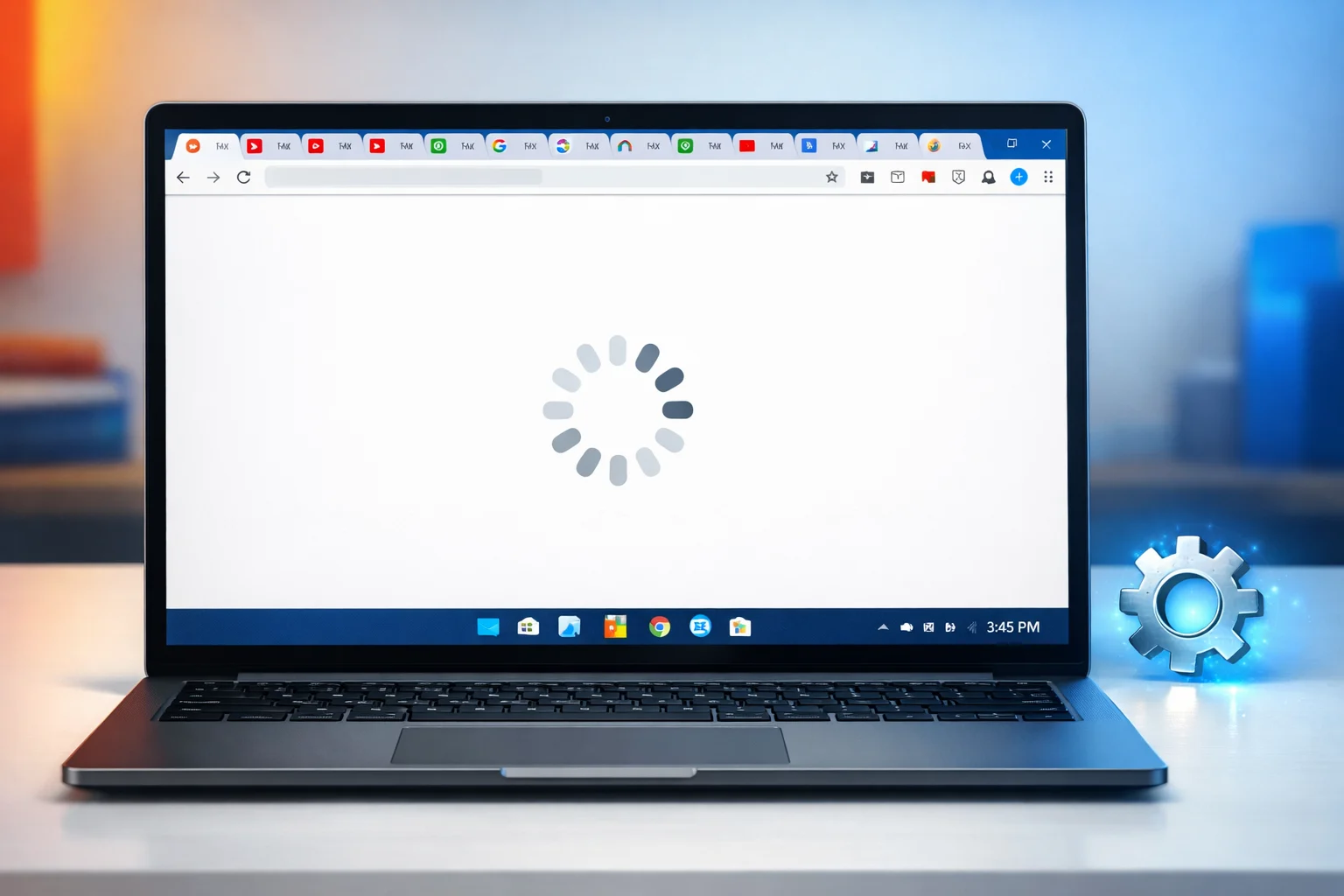
If Chrome is slow on Windows 11, you’re dealing with one of the most common browser complaints in 2025. Google Chrome is the world’s most popular browser, but it’s also one of the heaviest. Paired with Windows 11’s background processes, it can become frustratingly sluggish.
Chrome running slow on Windows 11 typically shows up as delayed page loading, tabs freezing, or the browser becoming completely unresponsive. This happens especially after a Windows 11 update, when too many tabs are open, or when Chrome hasn’t been maintained in a while.
Don’t worry — you don’t need to be a tech expert to fix Chrome slow on Windows 11. This beginner-friendly guide gives you 10 proven methods, explained step by step. Most users solve the problem within the first few fixes.
To fix Chrome slow on Windows 11: close unused tabs, press Ctrl + Shift + Delete to clear your browsing data, disable unnecessary extensions, and restart Chrome. If Chrome is still lagging on Windows 11, turn off hardware acceleration and update Chrome to the latest version. These steps solve the problem for 90% of users.
Before jumping into fixes, it helps to understand why Chrome is slow on Windows 11. Here are the most common reasons:
Now that you know the causes, let’s fix Chrome slow on Windows 11 step by step.
The fastest way to speed up Chrome on Windows 11 is simply closing tabs you don’t need.
Why this works: Chrome creates a separate memory process for each tab. Closing unused tabs instantly frees RAM, which is the number one reason for Chrome running slow on Windows 11.
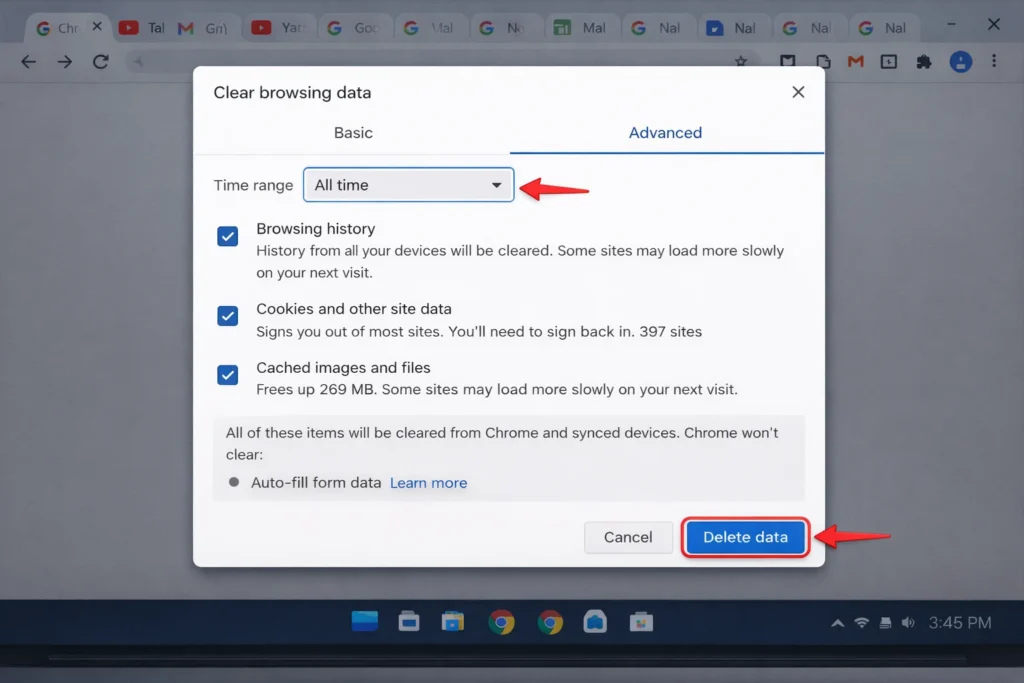
Old cached files are a top cause of Google Chrome slow on Windows 11 issues.
Why this works: Over weeks and months, Chrome stores hundreds of megabytes of temporary data. Corrupted or bloated cache forces Chrome to work harder when loading pages. Clearing it gives Chrome a clean slate and noticeably improves Chrome performance on Windows 11.
Extensions are one of the biggest hidden reasons for Chrome slow on Windows 11.
Why this works: Every extension runs background scripts that consume CPU and memory. Users with 10+ extensions often find that Chrome is freezing on Windows 11 simply because extensions are overloading the browser. Removing even three or four unnecessary extensions can dramatically make Chrome faster on Windows 11.
This is a critical fix if Chrome is lagging on Windows 11, especially on laptops.
Why this works: Hardware acceleration sends rendering tasks to your GPU. On Windows 11 machines with outdated GPU drivers or weak integrated graphics (common in budget HP, Lenovo, and Acer laptops), this feature backfires badly. Disabling it is one of the most effective ways to fix Chrome slow on Windows 11.
Running an outdated version is a frequent cause of Google Chrome slow on Windows 11.
Why this works: Google releases performance patches and Windows 11 compatibility fixes regularly. Keeping Chrome updated ensures you’re running the fastest, most optimized version for your system.
Chrome predicts which pages you’ll visit next and loads them in advance. On slower PCs running Windows 11, this drains resources.
Why this works: Preloading uses your bandwidth and RAM in the background. Disabling it conserves resources for the page you’re actually viewing, helping speed up Chrome on Windows 11 on low-spec machines.
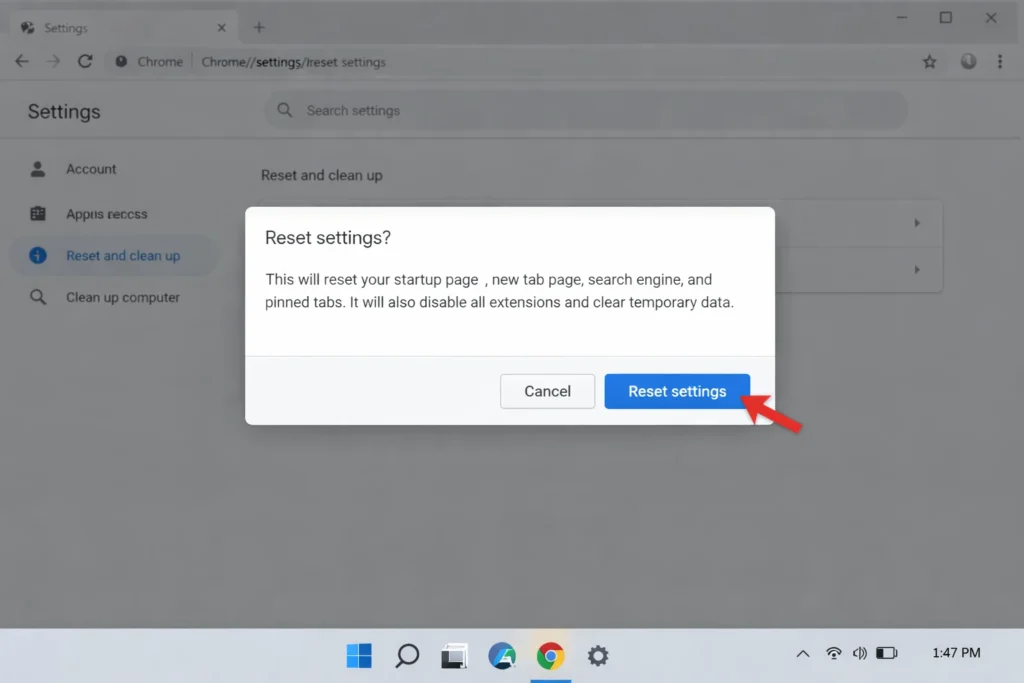
If Chrome is still slow on Windows 11 after trying the methods above, a full settings reset can fix hidden configuration issues.
Why this works: This disables all extensions, clears temporary data, and removes corrupted settings — all without deleting your bookmarks or saved passwords. It’s like giving Chrome a factory reset, which resolves persistent Chrome performance on Windows 11 problems.
Sometimes the root cause of Chrome slow on Windows 11 isn’t Chrome at all — it’s Windows.
Why this works: Microsoft regularly releases compatibility patches for popular apps including Chrome. A missing Windows 11 update can cause system-wide slowdowns that affect browser performance directly.
A corrupted Chrome user profile can make Google Chrome slow on Windows 11 without any obvious cause.
Why this works: Your Chrome profile stores all your settings, history, extensions, and preferences. If any of these files become damaged, performance degrades. A fresh profile eliminates corruption entirely.
This is the last resort to fix Chrome slow on Windows 11 when nothing else works.
Why this works: A clean reinstall replaces every Chrome file on your system, fixing deep corruption, broken updates, and configuration errors. This resolves Chrome running slow on Windows 11 in virtually every case.
Follow these habits to keep Chrome running smoothly on Windows 11 long-term:
🔧 Quick Troubleshooting Checklist
- Chrome slow only on certain websites? The website itself may be the issue, not Chrome.
- Chrome slow but Edge or Firefox is fast? The problem is Chrome-specific. Focus on Methods 2–10 above.
- All browsers slow on Windows 11? Your internet connection is likely the problem. Test your speed at speedtest.net.
- Chrome freezing completely? Open Windows Task Manager (Ctrl + Shift + Esc), end all Chrome processes, and reopen the browser.
- Chrome slow after a Windows 11 update? Install the latest Chrome update (Method 5) — Google often releases compatibility patches shortly after major Windows updates.
- Chrome slow on a brand-new Windows 11 laptop? Check if you have a device with only 4GB RAM. Budget laptops from HP, Acer, or Lenovo often ship with minimal RAM, which causes Chrome lagging on Windows 11 by default.
❌ Installing “speed booster” or “optimizer” extensions. These almost always make Chrome slower, not faster. They add overhead instead of removing it.
❌ Keeping 30+ tabs open. This is the single most common reason for Chrome slow on Windows 11. Close what you don’t need.
❌ Ignoring Chrome updates for weeks. Outdated Chrome misses critical performance and security patches.
❌ Clearing only cookies but not cached files. You need to clear both for the best speed improvement.
❌ Blaming Chrome when your internet is slow. Always run a speed test before assuming Chrome is the problem.
❌ Using multiple antivirus programs. Running two antivirus tools on Windows 11 creates conflicts that slow down everything, including Chrome.
Chrome is slow on Windows 11 primarily because of high memory usage, too many open tabs, bloated cache, heavy extensions, or hardware acceleration conflicts. Windows 11’s own background processes also compete for system resources, making the problem worse on PCs with limited RAM.
To make Chrome faster on Windows 11, clear your cache (Ctrl + Shift + Delete), disable unused extensions, turn off hardware acceleration, close unnecessary tabs, and update Chrome to the latest version. These five steps resolve the issue for most users.
Yes, Microsoft Edge generally uses less memory and is optimized specifically for Windows 11. If you’ve tried every method to fix Chrome slow on Windows 11 and nothing works, Edge is a strong alternative that even supports Chrome extensions.
Chrome is known for high RAM consumption. Each tab, extension, and background service creates a separate process. On Windows 11 computers with 4GB–8GB of RAM, this can cause significant slowdowns. Managing your tabs and extensions is the best way to control Chrome’s memory usage.
Not necessarily. Most Chrome performance on Windows 11 issues are fixable with the methods in this guide. However, if you’re on a very low-spec machine (4GB RAM, older processor), lightweight browsers like Edge or Brave may offer a better experience.
Chrome slow on Windows 11 is a frustrating but very fixable problem. In most cases, clearing your cache, removing unnecessary extensions, turning off hardware acceleration, and keeping Chrome updated will restore smooth, fast browsing.
Start with the simple fixes — close tabs and clear your data first. If Chrome is still running slow on Windows 11, work through the advanced methods like resetting settings or reinstalling the browser. A little routine maintenance prevents this issue from coming back.
Bookmark this guide so you can return to it anytime Chrome gets slow on Windows 11 again.



