Physical Address
304 North Cardinal St.
Dorchester Center, MA 02124
Physical Address
304 North Cardinal St.
Dorchester Center, MA 02124

Is your Google Play Store not opening when you tap the icon? You’re not alone. Millions of Android users run into this frustrating problem every day. The app might crash instantly, get stuck on a blank screen, or simply refuse to load.
The Google Play Store not opening issue can happen on any Android device — Samsung, Pixel, Xiaomi, OnePlus, Motorola, or others. Sometimes the Play Store keeps stopping without any warning. Other times, you see a Play Store error message and nothing else.
The good news? This problem is almost always fixable, and you don’t need to be a tech expert. This guide gives you 12 proven fixes for the Google Play Store not opening issue, written in plain English with step-by-step instructions.
If your Google Play Store is not opening, start with this: Go to Settings > Apps > Google Play Store > Storage > Clear Cache. Then restart your phone. This quick fix resolves the Play Store not working problem for most users. If it doesn’t help, follow the complete solutions below.
Before jumping into fixes, it helps to understand why the Google Play Store is not opening on your phone. Here are the most common causes behind Google Play Store problems:
Follow these methods in order, starting with the easiest. Each fix addresses a different reason why your Google Play Store is not opening.
A simple restart clears temporary software glitches that may be causing the Play Store not working issue.
This basic step fixes the Google Play Store not opening problem more often than you’d expect.
A weak or disconnected internet connection is a top reason the Play Store is not loading.
If your internet is working fine but the Google Play Store won’t open, move to the next fix.
This is the #1 most effective fix for the Google Play Store not opening. Cached data becomes corrupted over time and stops the app from functioning.
Clearing the Play Store cache won’t delete your apps or any personal data.
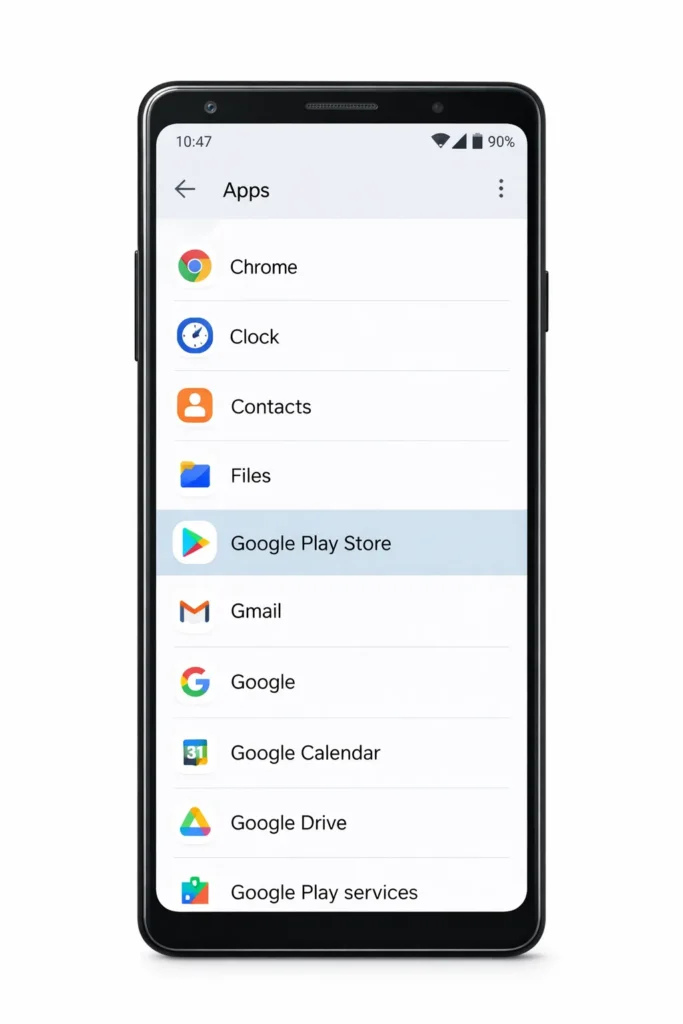
If clearing the cache didn’t fix the Play Store not opening issue, try clearing all stored data. This resets the app completely.
Note: This only resets the Play Store app. Your installed apps, purchases, and subscriptions stay safe.
Google Play Services powers many Google apps behind the scenes. A corrupted Play Services cache can cause the Google Play Store not opening error.
This fix resolves Play Store keeps stopping and Play Store crash issues caused by Play Services.
A faulty Play Store update is a common reason the Google Play Store won’t open. Rolling back to the factory version often fixes it.
This is one of the most reliable ways to fix Play Store errors caused by bad updates.
Wrong date and time settings prevent your phone from connecting to Google servers, causing the Google Play Store not opening issue.
This quick adjustment fixes many Play Store error messages related to server connection failures.
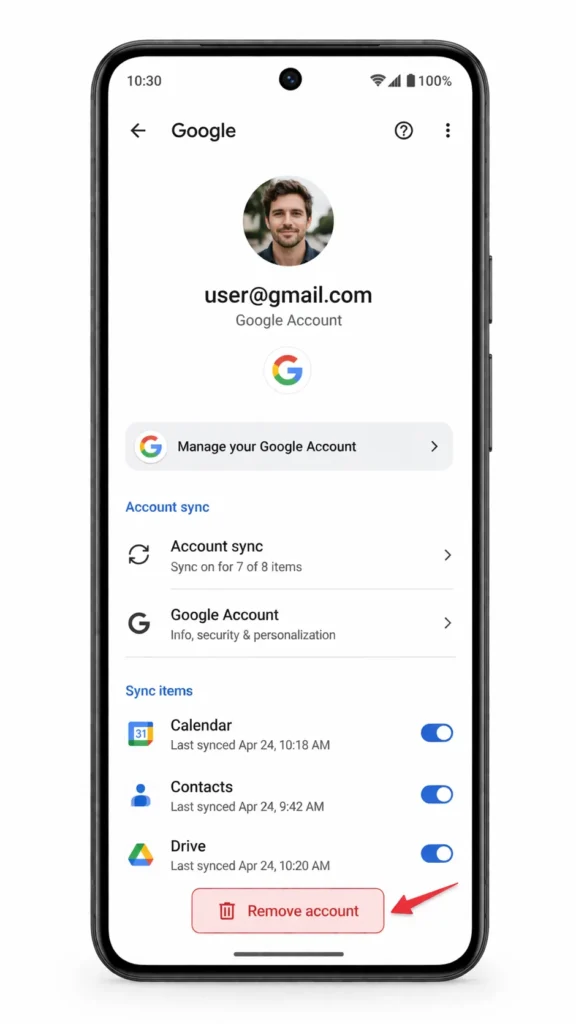
Account sync problems can prevent the Play Store from opening. Removing and re-adding your Google account refreshes the connection.
⚠️ Important: Make sure you remember your Google password before removing the account.
Low storage is a hidden cause of the Google Play Store not opening on Android. When there’s no room, apps can’t load properly.
Keeping enough free storage also prevents future Play Store not working problems.
VPNs and proxy servers can block Google services, causing the Play Store not loading issue.
If the Google Play Store not opening problem disappears after turning off the VPN, the VPN was the cause.
Running an outdated version of Android can cause Google Play Store problems, including crashes and loading failures.
Keeping Android updated is one of the best ways to fix Play Store issues permanently.
If none of the above methods fix the Google Play Store not opening issue, a factory reset is your final option. This restores your phone to its original settings.
⚠️ Warning: A factory reset erases everything on your phone. Use this only as a last resort to fix the Play Store not opening problem.
🔧 Troubleshooting Tips
- Start with Fix 1 and work your way down. Don’t skip to the factory reset.
- If the Google Play Store not opening issue started after installing a new app, uninstall that app first.
- Keep your phone charged to at least 20% while troubleshooting.
- Try each fix one at a time so you know which one solved the problem.
- If the Play Store keeps stopping repeatedly, Fixes 3, 5, and 6 are your best bets.
When trying to fix the Google Play Store not opening, avoid these common errors:
Once you fix the Google Play Store not opening problem, follow these tips to stop it from happening again:
The Google Play Store not opening is usually caused by corrupted cache files, weak internet, incorrect date and time settings, low storage, or Google account sync issues. Clearing the Play Store cache fixes the problem in most cases.
Start by clearing the cache: go to Settings > Apps > Google Play Store > Storage > Clear Cache. Then restart your phone. If the Play Store is not opening still, clear the app data, uninstall updates, or remove and re-add your Google account.
No. Clearing Google Play Store data only resets the Play Store app itself. All your installed apps, app purchases, and subscriptions remain untouched. You’ll simply need to sign back in.
If the Play Store keeps stopping, clear the cache and data for both Google Play Store and Google Play Services. Then uninstall Play Store updates and restart your phone. The app will reinstall a fresh, stable update automatically.
You cannot fully uninstall the Google Play Store because it’s a built-in system app. However, you can uninstall its updates from Settings > Apps > Google Play Store > Uninstall Updates. This effectively resets the app and fixes most Play Store not opening issues.
The Google Play Store not opening is a common Android problem with simple solutions. In most cases, clearing the Play Store cache and restarting your phone is all it takes. For stubborn cases, clearing app data, uninstalling updates, fixing date and time settings, or removing your Google account will do the job.
Always start with the easiest fix and work your way through the list. Save the factory reset as your absolute last resort. With these 12 proven methods, you can fix Play Store problems on any Android phone quickly and confidently.
Bookmark this guide so you can return to it whenever the Google Play Store is not opening on your device.



