Physical Address
304 North Cardinal St.
Dorchester Center, MA 02124
Physical Address
304 North Cardinal St.
Dorchester Center, MA 02124

If your Instagram notifications are not working, you are not alone. This is one of the most searched tech problems every single month. Millions of users suddenly stop receiving alerts for DMs, likes, comments, and story mentions — with no warning and no obvious reason.
The Instagram notifications not working issue affects every device. It happens on iPhones, Samsung Galaxy phones, Xiaomi devices, Google Pixels, and even the Instagram desktop app on Windows. Most people notice it after an app update, a phone software update, or after restarting their device.
The good news? In most cases, you can fix Instagram notifications in just a few minutes. You do not need any technical skills. This complete guide walks you through every proven solution, starting with the easiest fixes and moving to advanced methods. By the end, your Instagram push notifications will be working again.
If Instagram notifications are not working on your phone, do this first: Open Instagram → Profile → Settings and privacy → Notifications → make sure everything is toggled ON. Then go to your phone’s Settings → Apps → Instagram → Notifications → toggle Allow Notifications ON. These two steps fix Instagram notifications for the majority of users. If this does not solve it, follow the complete guide below.
Before jumping into solutions, it helps to understand why Instagram notifications stopped working in the first place. Knowing the cause helps you pick the right fix faster.
Here are the most common reasons Instagram is not sending notifications:
Below are 12 proven methods to fix Instagram notifications. Work through them in order. Start at Fix 1 and stop when your notifications start working again.
Why this works: Instagram has its own notification controls completely separate from your phone settings. This is the first place to check when Instagram notifications are not working. Even if your phone allows notifications, Instagram’s internal toggles can block them.
Steps:
💡 Important: After every Instagram app update, come back here and verify these settings. Updates sometimes reset them silently.
Why this works: Your phone has a master notification switch for every app. If this is turned off for Instagram, the app physically cannot send you any alerts. This is one of the most common causes of Instagram notifications not working on iPhone and Android.
On iPhone:
On Android (Samsung, Pixel, Xiaomi, OnePlus):
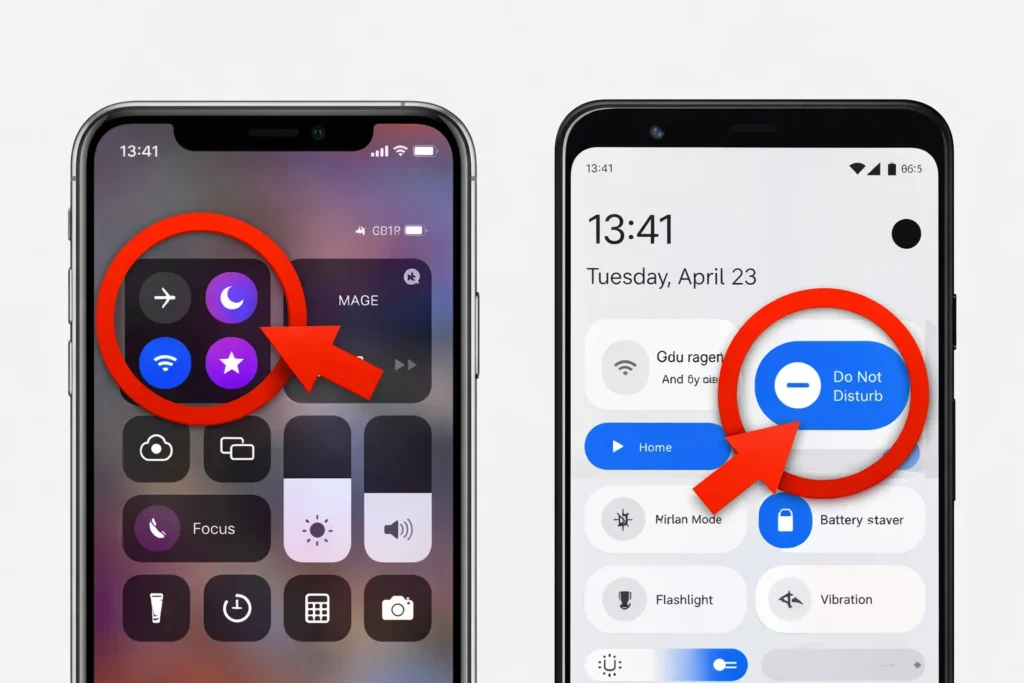
Why this works: Do Not Disturb (DND) and Focus Mode silently suppress notifications from all apps. Many users turn these on accidentally or set a schedule they forget about. This is a very common reason Instagram push notifications are not working, especially at night or during work hours.
On iPhone:
On Android:
💡 Quick check: Swipe down from the top of your screen. If you see a crescent moon icon (iPhone) or a minus-sign circle (Android), DND is active. Tap it to turn it off.
Why this works: A restart clears temporary glitches in your phone’s memory and refreshes all background processes. It is the simplest troubleshooting step and solves Instagram notification problems more often than people expect.
Why this works: Bugs in older versions of Instagram can break notification delivery. Instagram releases frequent updates that include fixes for exactly these issues. If your Instagram notifications stopped working recently, an available update may contain the patch.
💡 Pro tip: Turn on auto-updates so you always run the latest version.
Why this works: Over time, cached data can become corrupted and interfere with how the app functions. Clearing the cache forces Instagram to rebuild fresh temporary files. This fix is especially effective when Instagram notifications are not working on Android.
On Android:
On iPhone:
iPhones do not have a direct cache-clearing option. Instead, offload the app:
Why this works: Your login session with Instagram’s servers can sometimes fall out of sync. When this happens, the server stops sending push notifications to your device. Logging out and back in establishes a fresh connection and often resolves Instagram not sending notifications.
Why this works: A clean reinstall removes all app data — including corrupted files, broken settings, and glitched cache — and replaces everything with a fresh copy. If simpler fixes have not solved the Instagram notifications not working problem, this is the next logical step.
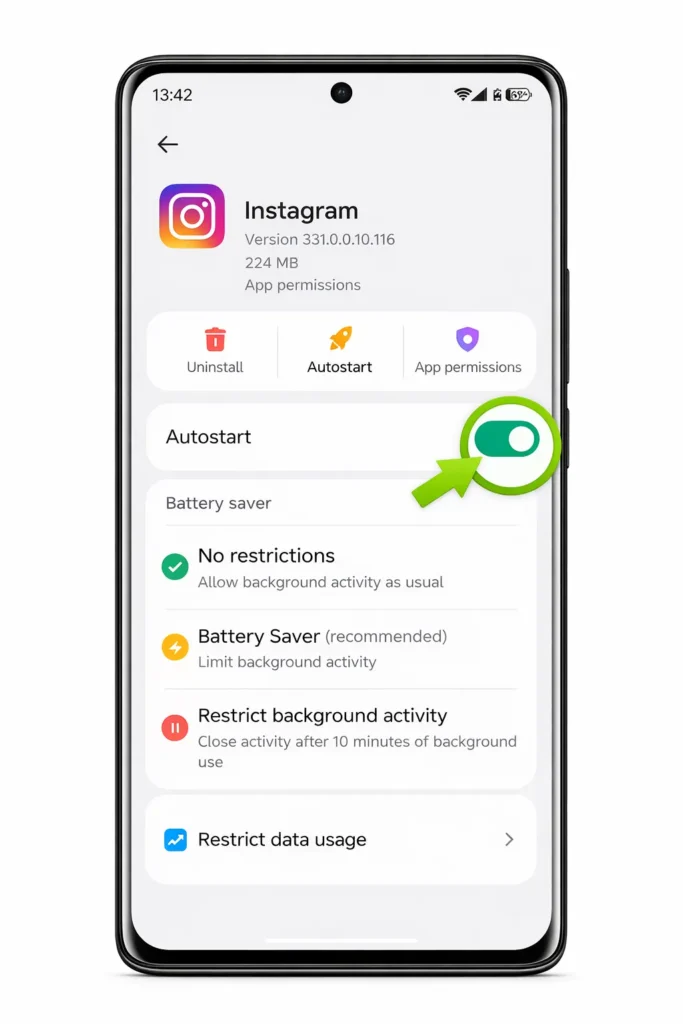
Why this works: This is the number one hidden cause of Instagram notifications not working on Android. Phones from Samsung, Xiaomi, Huawei, OnePlus, and Oppo aggressively kill background apps to save battery. When Instagram is killed in the background, it cannot receive or deliver push notifications.
On Samsung:
On Xiaomi / MIUI / HyperOS:
On Google Pixel / Stock Android:
On OnePlus:
⚠️ This fix alone solves Instagram notifications not working for a huge number of Android users. Do not skip it.
Why this works: Instagram push notifications are delivered over the internet. If your Wi-Fi or mobile data connection is weak, slow, or disconnected, Instagram will not send notifications to your device.
Quick tests:
If your connection is unstable:
Why this works: This resets all app permissions, default app selections, and background restrictions back to factory defaults — without deleting any personal data or files. It fixes hidden permission conflicts that silently prevent Instagram notifications from working on Android.
Why this works: System-level bugs can interfere with how your phone handles push notifications for all apps, not just Instagram. OS updates patch these core issues. If Instagram notifications are not working after a recent phone update, a newer patch may already contain the fix.
On iPhone:
On Android:
🔧 Instagram Notifications Not Working — Quick Checklist
Run through this checklist before trying advanced fixes:
- ✅ Instagram in-app notifications are ON for all categories
- ✅ Phone notification permissions for Instagram are ON
- ✅ Do Not Disturb / Focus Mode is OFF
- ✅ Battery optimization for Instagram is set to Unrestricted
- ✅ Instagram app is updated to the latest version
- ✅ Phone operating system is up to date
- ✅ Internet connection is stable and active
- ✅ You have restarted your phone after making changes
- ✅ Cache has been cleared
If you have checked every single box and Instagram is still not sending notifications, the issue may be a temporary server-side problem. Visit Downdetector’s Instagram page to check if other users are reporting the same issue. If they are, wait a few hours — Instagram’s team will fix it on their end.
When trying to fix Instagram notifications, avoid these errors that people commonly make:
Once you fix Instagram notifications, follow these habits to prevent the problem from returning:
The most common reason is battery optimization. Even if your notification settings are correct, your phone may be killing Instagram’s background process to save battery. Go to Settings → Apps → Instagram → Battery and set it to Unrestricted. Also verify that Do Not Disturb mode is not active. This combination solves most cases of Instagram notifications not working despite correct settings.
Go to Settings → Instagram → Notifications and toggle Allow Notifications ON. Check that Lock Screen, Notification Center, and Banners are all enabled. Then open Instagram → Settings and privacy → Notifications and enable all categories. If that does not work, offload and reinstall the app, then restart your iPhone. This resolves Instagram notifications not working on iPhone in nearly all cases.
Instagram notifications usually stop working after an app update, a phone software update, or when battery saver mode activates. Any of these events can reset notification permissions or block background activity without warning. Follow the step-by-step fixes in this guide to restore them.
Yes. Instagram push notifications work over both Wi-Fi and mobile (cellular) data. However, you need at least one active internet connection. If both Wi-Fi and mobile data are turned off, or if you have no signal, Instagram cannot deliver notifications to your device.
First, make sure your phone is not on Silent or Vibrate Only mode. Then go to your phone’s Settings → Instagram → Notifications and check that the notification sound is not set to “None.” Inside Instagram, go to Settings and privacy → Notifications and confirm everything is enabled. If the sound still does not work, reinstall the app. This specifically fixes Instagram notification sound issues on both iPhone and Android.
The Instagram notifications not working problem is frustrating, but it is almost always fixable. In the vast majority of cases, the cause is one of three things: incorrect in-app Instagram notification settings, phone-level notification permissions being disabled, or aggressive battery optimization killing the app in the background.
By working through the 12 fixes in this guide — from checking basic settings all the way to reinstalling the app — you can fix Instagram notifications on any device in just a few minutes. Remember to start with the simplest solutions first. Most people solve the problem within the first three fixes.
If absolutely nothing works after trying every method, the issue is likely a temporary server-side problem on Instagram’s end. In that case, wait a few hours and it will resolve on its own.
Bookmark this page so you can return to it quickly the next time Instagram notifications stop working after an update.



