If your laptop is not detecting WiFi, you are not alone. This is one of the most common wireless connectivity issues that Windows and Mac users face every day. You open your laptop, click the network icon, and no WiFi networks appear. It feels like your laptop has completely lost the ability to find wireless signals.
A laptop not detecting WiFi can happen suddenly after a system update, a restart, or even without any clear trigger. In most cases, the issue is related to a disabled WiFi adapter, an outdated driver, or a minor software glitch. Rarely does it mean your hardware is broken.
The good news is that you can fix a laptop not showing WiFi networks in minutes. This guide walks you through 10 beginner-friendly solutions, step by step. No technical experience needed. Let’s get your WiFi working again.
Quick Answer
When your laptop is not detecting WiFi, the fastest fixes are:
Turn Airplane Mode off and back on.
Restart your laptop and your router.
Run the built-in Network Troubleshooter (Windows) or Wireless Diagnostics (Mac).
These three steps resolve the problem for most users. If your laptop WiFi is still not working, continue to the full troubleshooting guide below.
Why Is Your Laptop Not Detecting WiFi?
Before jumping into fixes, it helps to understand why your laptop is not detecting WiFi. Here are the most common reasons:
Airplane Mode is enabled – This instantly disables all wireless connections, and your laptop can’t find WiFi.
WiFi adapter is turned off – The internal hardware responsible for wireless connectivity may be disabled in your settings.
Outdated or corrupted WiFi drivers – Drivers help your laptop communicate with the WiFi hardware. Broken drivers mean WiFi not showing on laptop.
Recent system update – A Windows or macOS update may have reset or replaced a network setting.
Router malfunction – Sometimes the problem is not your laptop. Your router may have stopped broadcasting the network.
Physical WiFi switch is off – Older laptops have a physical button that can disable wireless connectivity.
Network configuration errors – Incorrect settings can prevent your laptop from scanning for available networks, resulting in no WiFi networks found on laptop.
How to Fix Laptop Not Detecting WiFi (Step-by-Step Methods)
Follow these methods in order. Start with the simplest fixes first before moving to advanced solutions.
Fix 1: Toggle Airplane Mode Off and On
This is the quickest way to fix a laptop not detecting WiFi.
Click the Network icon in your taskbar (bottom-right on Windows).
Click Airplane Mode to turn it ON.
Wait 10 seconds.
Click Airplane Mode again to turn it OFF.
Check if WiFi networks now appear.
On Mac: Click the WiFi icon in the menu bar, select Turn WiFi Off, wait 10 seconds, then click Turn WiFi On.
Fix 2: Restart Your Laptop and Router
A restart clears temporary glitches causing your laptop wireless not working issue.
Save your work and shut down your laptop completely.
Unplug your router from the power outlet.
Wait 30 seconds.
Plug the router back in. Wait 1–2 minutes for all lights to stabilize.
Turn your laptop back on.
Check if your laptop is now detecting WiFi networks.
Fix 3: Enable the WiFi Adapter
Your WiFi adapter not working or being disabled is a top reason for this problem.
On Windows:
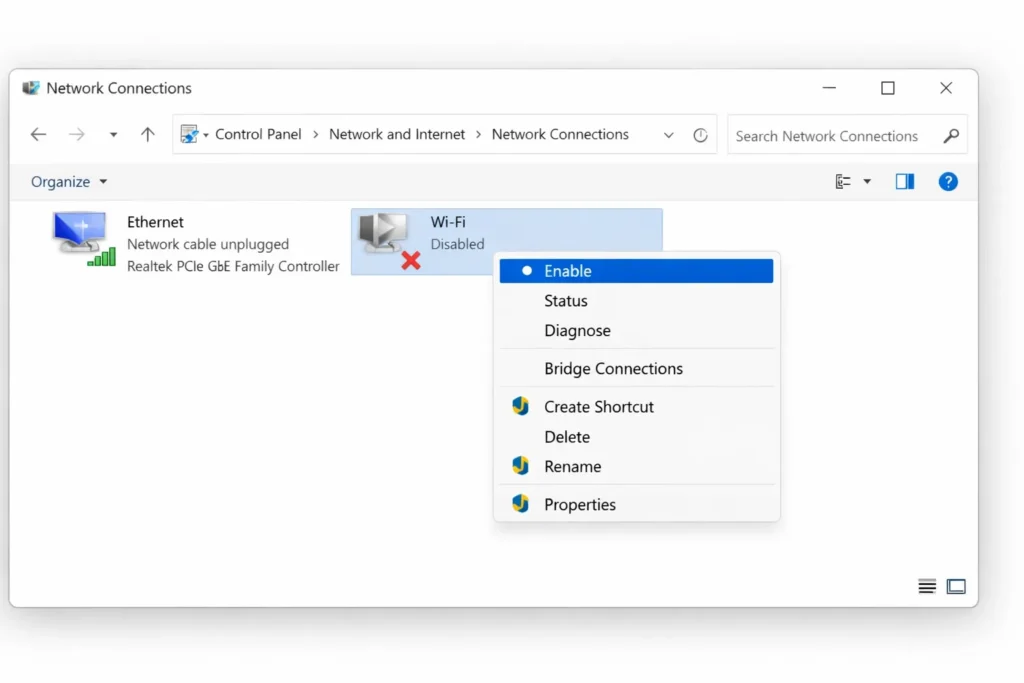
Press Windows + R to open the Run dialog.
Type ncpa.cpl and press Enter.
Look for your WiFi adapter (labeled “Wi-Fi” or “Wireless Network Connection”).
If it appears grayed out, right-click it and select Enable.
On Mac:
Go to Apple Menu > System Preferences > Network.
Select WiFi on the left side.
Click Turn WiFi On if it is off.
Fix 4: Run the Network Troubleshooter
Both Windows and Mac have built-in tools to automatically diagnose why your laptop is not detecting WiFi.
On Windows 10/11:
Go to Settings > System > Troubleshoot > Other troubleshooters.
Find Network Adapter or Internet Connections.
Click Run and follow the on-screen instructions.
On Mac:
Hold the Option key and click the WiFi icon in the menu bar.
Select Open Wireless Diagnostics.
Follow the prompts to identify and fix WiFi on laptop.
Fix 5: Update Your WiFi Driver
An outdated driver is one of the most common causes behind a laptop not detecting WiFi.
Right-click the Start button and select Device Manager.
Expand Network adapters.
Right-click your WiFi adapter (usually contains “Wireless” or “WiFi” in the name).
Click Update driver.
Select Search automatically for drivers.
Restart your laptop after the update completes.
Fix 6: Reinstall the WiFi Driver
If updating did not help and your laptop WiFi is not working, a clean reinstall can fix corrupted driver files.
Open Device Manager (right-click Start > Device Manager).
Expand Network adapters.
Right-click your WiFi adapter.
Select Uninstall device.
Check “Delete the driver software for this device” if the option appears.
Click Uninstall.
Restart your laptop. Windows will automatically reinstall the driver.
Note: You may need an Ethernet cable or a second device to download drivers manually if automatic reinstallation fails.
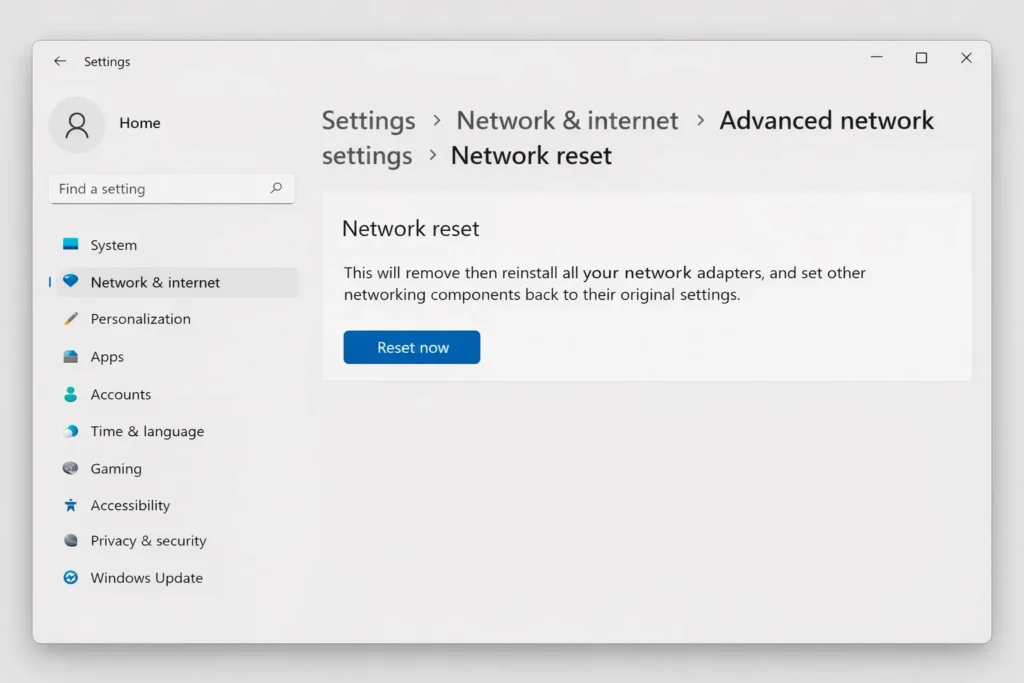
Fix 7: Reset Network Settings
A full network reset restores all configurations to default and often resolves persistent laptop not detecting WiFi issues.
On Windows:
Go to Settings > Network & Internet > Advanced network settings.
Click Network reset.
Click Reset now.
Your laptop will restart automatically.
On Mac:
Go to System Preferences > Network.
Select WiFi and click the minus (–) button to remove it.
Click Apply.
Click the plus (+) button, choose WiFi, and click Create.
Click Apply again.
Fix 8: Check for Windows or macOS Updates
System updates frequently include patches that fix bugs causing WiFi not showing on laptop.
Windows: Go to Settings > Windows Update > Check for updates.
Mac: Go to Apple Menu > System Preferences > Software Update.
Install all available updates.
Restart your laptop and check for WiFi.
Fix 9: Disable and Re-enable the WiFi Adapter in Device Manager
This forces your system to re-detect the WiFi hardware, which can fix a laptop not showing WiFi networks.
Open Device Manager.
Expand Network adapters.
Right-click your WiFi adapter.
Click Disable device. Confirm if prompted.
Wait 10 seconds.
Right-click the adapter again and click Enable device.
Check if WiFi networks now appear.
Fix 10: Check for a Physical WiFi Switch
Some older laptops from HP, Dell, Lenovo, and Toshiba have a physical WiFi toggle that can cause your laptop not detecting WiFi when accidentally switched off.
Look along the sides and front edge of your laptop for a small sliding switch.
Check your function keys (F1–F12) for a wireless/WiFi icon.
Press the correct Fn + WiFi key combination (commonly Fn + F2 or Fn + F5).
Troubleshooting Tips
🔧 Quick Diagnostic Checklist for Laptop Not Detecting WiFi
✅ Is Airplane Mode turned off?
✅ Is your router powered on and broadcasting?
✅ Can other devices (phone, tablet) see the WiFi network?
✅ Is the WiFi adapter enabled in Device Manager?
✅ Have you restarted both your laptop and router?
✅ Are your WiFi drivers up to date?
✅ Did you recently install any system updates?
If every box is checked and your laptop still can’t find WiFi, your internal wireless card may be faulty. Consider using a USB WiFi adapter as a quick workaround or contact your laptop manufacturer for support.
Common Mistakes to Avoid
When trying to fix a laptop not detecting WiFi, avoid these errors:
Skipping the restart. Restarting your laptop and router solves this problem more often than any other method.
Downloading drivers from unknown websites. Only use your laptop manufacturer’s official site or Windows Update. Random driver downloads can introduce malware.
Ignoring Airplane Mode. A single accidental keyboard shortcut can enable Airplane Mode and cause no WiFi networks found on laptop.
Blaming your laptop when the router is the problem. If no device in your home can connect, restart or reset your router first.
Applying multiple fixes at the same time. Try one method at a time so you know exactly what resolved your issue.
Additional Tips to Prevent the Issue
Keep your laptop connected reliably by following these habits:
Update WiFi drivers monthly. Outdated drivers are the number one cause of a laptop not detecting WiFi.
Install operating system updates promptly. These patches often fix wireless bugs.
Restart your router once a week. This clears minor firmware issues and keeps your connection stable.
Avoid force-shutting down your laptop. Holding the power button to turn off your laptop can corrupt system files, including network drivers.
Create a system restore point before major updates. This lets you roll back safely if WiFi stops working.
Use manufacturer support tools like Dell SupportAssist, HP Support Assistant, or Lenovo Vantage to keep all drivers current automatically.
Frequently Asked Questions
Why is my laptop not detecting WiFi but my phone can?
If your phone sees WiFi but your laptop is not detecting WiFi, the issue is specific to your laptop. The most likely causes are a disabled WiFi adapter, outdated driver, or Airplane Mode being on. Follow Fix 1, Fix 3, and Fix 5 in this guide to resolve it.
How do I fix no WiFi networks found on my laptop?
Start by restarting your laptop and router. Then check that Airplane Mode is off and your WiFi adapter is enabled. Run the Network Troubleshooter on Windows or Wireless Diagnostics on Mac. If the problem continues, update or reinstall your WiFi driver through Device Manager.
Can a Windows update cause my laptop to stop detecting WiFi?
Yes. Windows updates sometimes replace or reset WiFi drivers, which can cause your laptop not detecting WiFi suddenly. Updating your WiFi driver or rolling back to the previous version through Device Manager usually fixes this.
How do I reset my WiFi adapter when WiFi is not showing on laptop?
Go to Device Manager > Network adapters, right-click your WiFi adapter, and select Disable device. Wait 10 seconds, then right-click again and select Enable device. For a full reset, go to Settings > Network & Internet > Network reset.
Is a USB WiFi adapter a good solution if my laptop WiFi is not working?
A USB WiFi adapter is an excellent temporary or permanent solution when your built-in wireless card is damaged. They are affordable, plug directly into a USB port, and work instantly with most laptops. However, always try the software fixes in this guide first before purchasing one.
Conclusion
A laptop not detecting WiFi is a frustrating but almost always fixable problem. In most cases, the solution is as simple as toggling Airplane Mode, restarting your devices, or updating your WiFi driver. The 10 step-by-step methods in this guide cover every common cause—from simple setting changes to full network resets.
Start with Fix 1 and work your way down. If none of the software solutions help, your internal WiFi card may need replacement, and a USB WiFi adapter offers a quick and affordable alternative.
Keep your drivers updated, install system patches regularly, and restart your router weekly to prevent your laptop not detecting WiFi in the future.





[…] Laptop Not Detecting WiFi Fix: 10 Proven Methods That Actually Work (2026) […]
[…] Laptop Not Detecting WiFi Fix: 10 Proven Methods That Actually Work (2026) […]