Physical Address
304 North Cardinal St.
Dorchester Center, MA 02124
Physical Address
304 North Cardinal St.
Dorchester Center, MA 02124

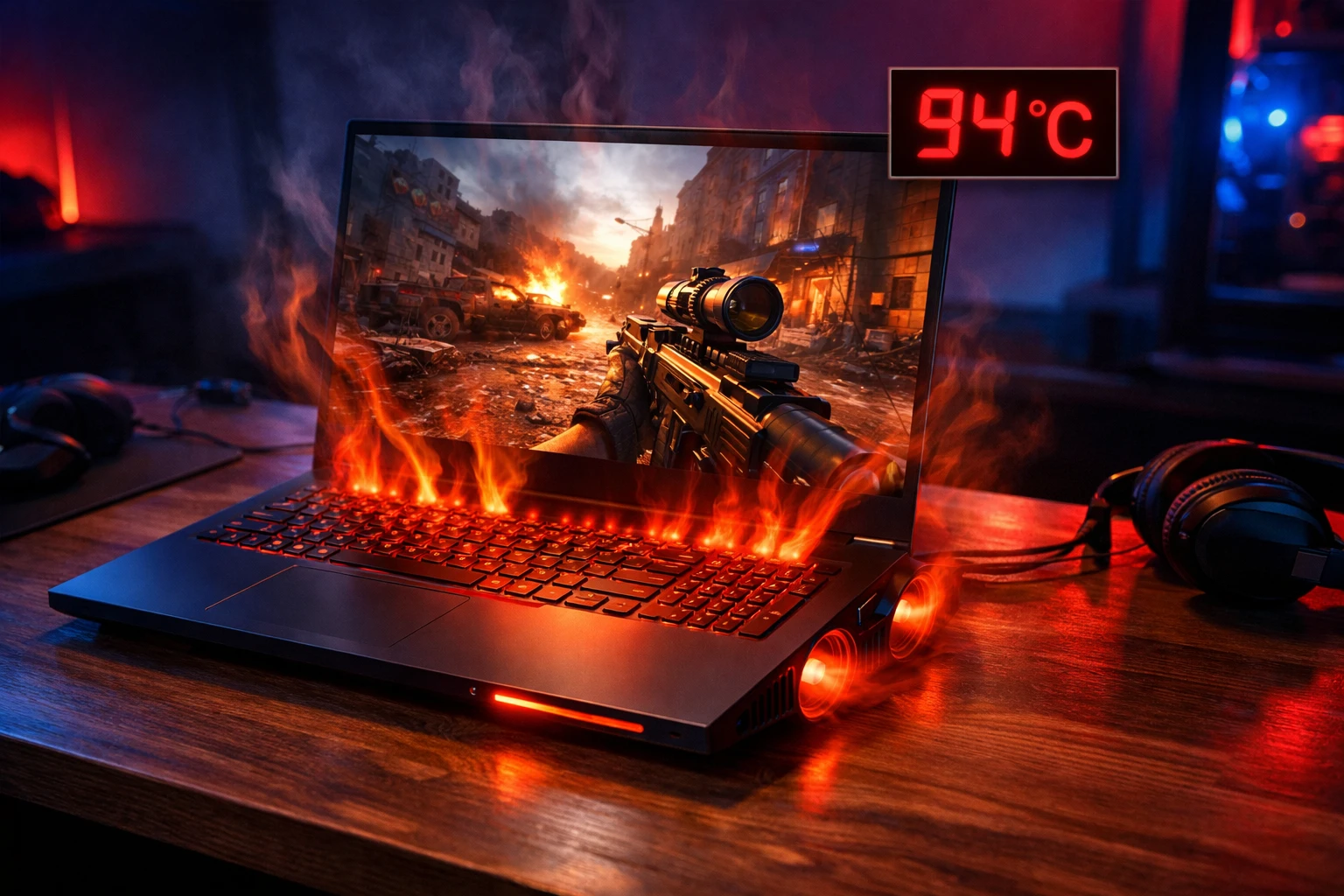
If your laptop overheats when gaming, you’re not alone. Laptop overheating while gaming is one of the most common complaints from gamers around the world — regardless of whether you own a Dell, HP, ASUS, Lenovo Legion, or MSI machine.
The problem usually starts the same way. You launch a game, play for 20–30 minutes, and suddenly your laptop starts getting hot while gaming. The fans spin louder, the performance drops, and in worst cases, your laptop shuts down while gaming due to overheating.
The good news? You don’t need to be a tech expert to solve this. This guide gives you 10 proven ways to fix laptop overheating during gaming, starting from the simplest and moving to more advanced solutions. Let’s cool down your laptop and get back to gaming.
If your laptop is overheating while gaming, do these three things immediately:
These three steps alone fix the gaming laptop overheating problem for most users. If they don’t, continue reading for deeper solutions.
Understanding why your laptop overheats while gaming helps you pick the right fix faster.
Gaming is the most hardware-intensive activity you can do on a laptop. Your CPU and GPU run at maximum capacity to render graphics, process game physics, and maintain smooth frame rates. That extreme workload generates a lot of heat.
Unlike desktop computers, laptops have very limited internal space. The cooling systems — small fans, thin heat pipes, and compact heatsinks — are designed mostly for everyday tasks like browsing and streaming. When you push them with hours of gaming, they often can’t keep up.
Here are the top reasons your laptop is heating up while gaming:
Here are 10 proven methods to fix laptop overheating during gaming, ordered from easiest to most advanced.
Why this works: Many laptops pull cool air from the bottom. If you game on a bed, pillow, or blanket, those intake vents get blocked completely — one of the fastest ways to cause laptop overheating while gaming.
Steps:
This single change can drop temperatures by 5–10°C and is the fastest way to cool down your laptop while gaming.
Why this works: Over time, dust, pet hair, and debris clog the vents and fan blades. This chokes airflow, which is the primary reason older laptops start overheating during gaming even though they used to run fine.
Steps:
Tip: Do this every 3–6 months. If you have pets or live in a dusty area, clean monthly.
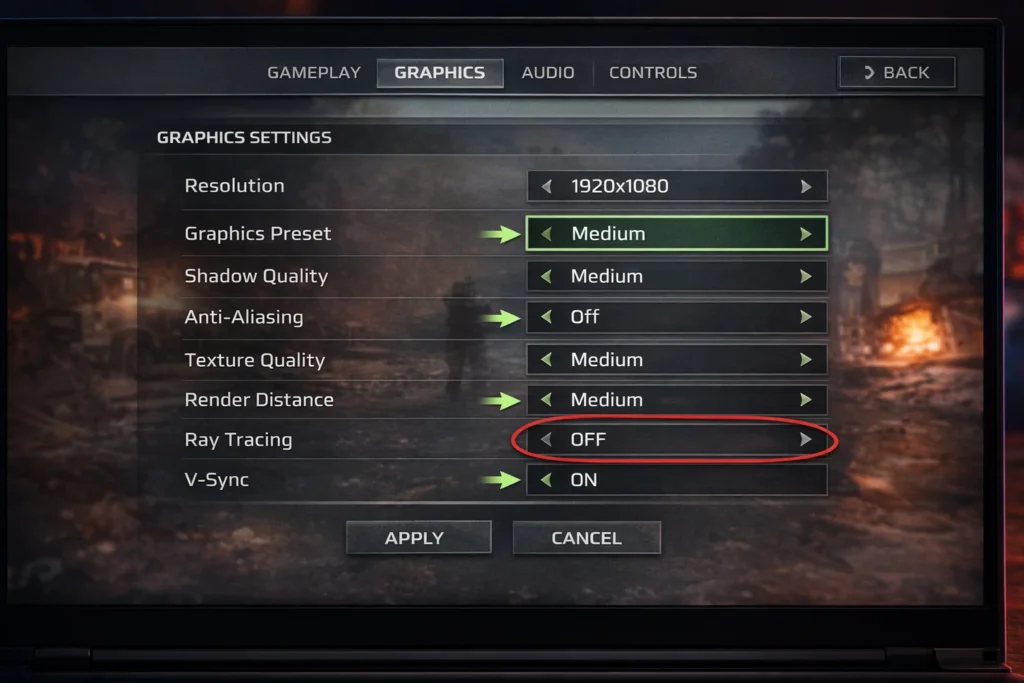
Why this works: Higher settings like Ultra or High demand maximum GPU power, which is a direct cause of your gaming laptop overheating. Dropping settings reduces the thermal load significantly.
Steps:
The visual difference between High and Medium is often minimal, but the temperature difference can be 10–15°C — a major step toward fixing laptop overheating while gaming.
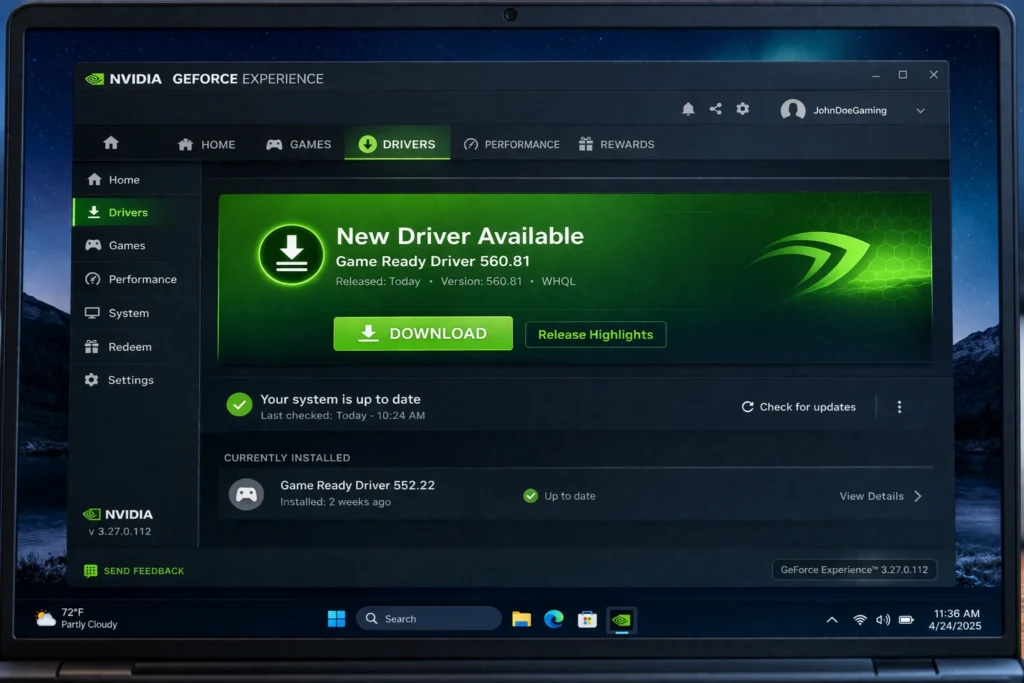
Why this works: Outdated drivers can cause your GPU to work harder than necessary. Driver updates from NVIDIA and AMD frequently include thermal optimizations and efficiency improvements that help prevent laptop overheating when playing games.
For NVIDIA GPUs:
For AMD GPUs:
Using Windows Update:
Why this works: The “High Performance” power plan pushes your CPU to 100% capacity at all times — even when the game doesn’t need it. Switching to a balanced plan and capping the processor speed is one of the most effective ways to stop your laptop from overheating while gaming.
Steps:
This reduces temperatures by 5–15°C with only a minor performance impact in most games
Why this works: A cooling pad adds external fans underneath your laptop, pushing more cool air into the intake vents. It also elevates the laptop, improving passive airflow. This is a popular solution for anyone whose laptop gets hot while gaming regularly.
Steps:
Recommended budget cooling pads: Kootek, Havit HV-F2056, Klim Wind. These typically cost $15–$30 and lower temperatures by 3–8°C.
Why this works: Background apps consume CPU and GPU resources, adding extra heat on top of your game’s workload. Closing them is a free and instant way to reduce laptop overheating during gaming.
Steps:
Common culprits:
Why this works: Your laptop expels hot air and pulls in cooler ambient air. If your room temperature is high, the cooling system becomes less effective, which directly contributes to your laptop overheating while gaming.
Steps:
Even a 3–5°C drop in room temperature can measurably improve laptop thermals.
Why this works: Undervolting reduces the electrical voltage supplied to your processor without reducing its speed. Less voltage means less heat. This is safe when done correctly and is a favorite technique among gamers dealing with laptop thermal throttling during gaming.
Steps (using ThrottleStop for Intel CPUs):
If your laptop crashes or freezes, the undervolt is too aggressive — reduce it by 10mV.
Why this works: Thermal paste conducts heat from your CPU/GPU to the heatsink. After 2–4 years, it dries out and loses effectiveness. Replacing it is the most impactful fix for laptop overheating while gaming on older machines, often dropping temperatures by 10–20°C.
Steps:
⚠️ Warning: This may void your warranty. If your laptop is still under warranty, contact the manufacturer first. Best suited for laptops older than 2 years.
Prevention is always better than a fix. Here’s how to keep your laptop cool while gaming long-term:
Avoid these errors that make the laptop overheating while gaming problem worse:
❌ Gaming on soft surfaces — beds, blankets, and couches are the #1 cause of blocked vents and gaming laptop overheating.
❌ Using a vacuum cleaner on vents — vacuums create static electricity that can damage internal components. Always use compressed air.
❌ Ignoring rising temperatures — prolonged overheating permanently degrades your CPU, GPU, battery, and solder connections.
❌ Blocking the exhaust vents — don’t push your laptop flush against a wall. Leave at least 4 inches of clearance behind and around exhaust ports.
❌ Assuming new laptops can’t overheat — even brand-new gaming laptops from ASUS ROG, MSI Stealth, Alienware, or Lenovo Legion can experience overheating during gaming if vents are blocked or settings are too high.
❌ Skipping driver updates — outdated drivers are a silent cause of excess heat and poor performance.
🔧 Quick Troubleshooting Reference for Laptop Overheating While Gaming:
Symptom Likely Cause Recommended Fix Laptop shuts down suddenly during gaming Thermal shutdown triggered Fixes 1, 2, 3 immediately Fans loud but laptop still extremely hot Thermal paste dried out Fix 10 Overheating started after a Windows update Driver or power setting changed Fix 4 + Fix 5 Temperatures consistently above 95°C Multiple issues combined Apply Fixes 1–6 together Only one specific game causes overheating Poorly optimized game Fix 3 + check game forums Laptop overheats within 5 minutes Severe dust buildup or fan failure Fix 2; if no improvement, seek professional repair
Some warmth is completely normal. Gaming laptops typically run between 70–85°C under heavy load. However, if your laptop overheats while gaming and reaches 90°C or above consistently, feels painful to touch, or shuts down unexpectedly, that’s a problem that needs fixing.
Download a free monitoring tool like HWMonitor, Core Temp, or MSI Afterburner. Run it in the background while gaming. These tools show real-time CPU and GPU temperatures. If you see numbers above 90°C consistently, your laptop is overheating during gaming and you should apply the fixes in this guide.
Yes. Prolonged laptop overheating when gaming can degrade your CPU and GPU performance over time, shorten battery lifespan, cause screen flickering, and even weaken solder joints on the motherboard. Thermal throttling protects against immediate damage, but repeated overheating causes cumulative long-term harm.
Cooling pads help, but they’re not a standalone miracle cure. A quality cooling pad lowers temperatures by 3–8°C. They work best combined with other fixes — cleaning vents, lowering game settings, and updating drivers. If your laptop gets hot while gaming despite a cooling pad, you need to address internal issues too.
Different games demand different hardware resources. Graphically intense titles like Cyberpunk 2077, Red Dead Redemption 2, or Hogwarts Legacy push your GPU and CPU much harder than lighter games like Minecraft or Valorant. Poorly optimized games can also cause unusual spikes in CPU usage that lead to laptop overheating during gaming.
Laptop overheating while gaming is frustrating, but it’s almost always fixable. Start with the simplest solutions — use a flat surface, clean your vents, and lower your graphics settings. These three steps alone solve the problem for most people.
If your laptop still overheats when gaming after those basics, work through the remaining fixes: update drivers, adjust your power plan, use a cooling pad, close background programs, and improve room airflow. For older laptops with persistent problems, undervolting and replacing thermal paste deliver the most dramatic results.
The key is to not ignore the problem. A cooler laptop games faster, lasts longer, and protects your investment. Bookmark this guide and revisit it anytime your laptop starts heating up while gaming again.



