Physical Address
304 North Cardinal St.
Dorchester Center, MA 02124
Physical Address
304 North Cardinal St.
Dorchester Center, MA 02124

When your laptop WiFi keeps disconnecting, everything grinds to a halt. Video calls freeze. Downloads fail. Web pages refuse to load. You reconnect, and two minutes later your laptop drops WiFi all over again.
This is one of the most common complaints among laptop users worldwide. Whether your WiFi keeps disconnecting on laptop running Windows 10, Windows 11, or macOS, the frustration is the same. It affects every brand — HP, Dell, Lenovo, ASUS, Acer, Samsung, and MacBook alike.
The good news? Most reasons your laptop keeps losing WiFi connection are easy to fix without calling a technician. This step-by-step guide covers every proven solution, starting from the easiest and moving toward advanced fixes. By the end, you will know exactly how to stop your laptop WiFi from disconnecting for good.
If your laptop WiFi keeps disconnecting, do these three things first: restart your router and laptop, update your WiFi adapter driver through Device Manager, and disable the power management setting that lets Windows turn off your wireless adapter. These three steps fix WiFi disconnecting on laptop for roughly 80% of users.
Before jumping to solutions, understanding why your laptop WiFi keeps dropping helps you pick the right fix faster. Here are the most common causes:
Below are 10 proven methods to fix WiFi disconnecting on laptop. Start with Fix 1 and work your way down.
This is the fastest way to fix a laptop that keeps dropping WiFi. Restarting clears temporary glitches in both devices.
Why it works: Routers accumulate small software errors after running continuously for days. A power cycle clears them and gives your laptop WiFi a fresh start
A corrupted saved network profile can cause your laptop WiFi to keep disconnecting repeatedly. Removing it forces a clean reconnection.
On Windows 10/11:
On Mac:
Why it works: Corrupted profiles store outdated security or configuration data. Starting fresh eliminates this common cause of WiFi dropping on laptop.
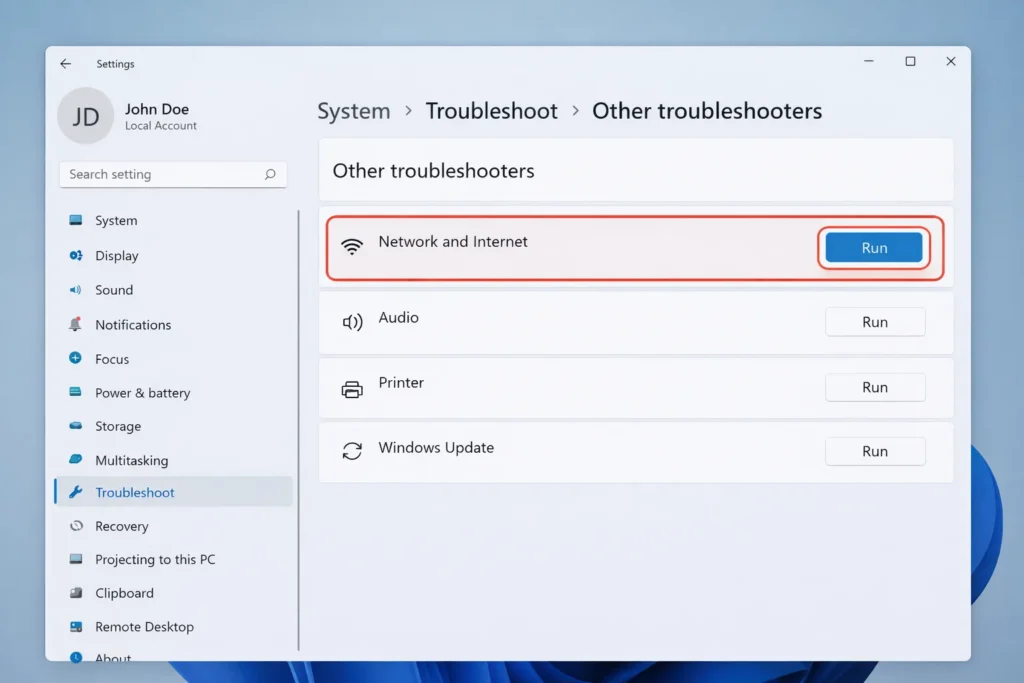
Windows includes a built-in tool specifically designed to detect and fix WiFi disconnecting issues on laptop automatically.
Why it works: The troubleshooter resets broken network components and applies known fixes that stop laptop WiFi from disconnecting.
This is the single most effective fix when your laptop WiFi keeps disconnecting. Windows allows the system to turn off your wireless adapter to conserve battery, and this directly causes random WiFi drops.
Why it works: When this box is checked, Windows shuts down the WiFi adapter during idle moments to save energy. This is the hidden reason most laptops keep losing WiFi connection — especially when on battery power. Disabling it keeps your wireless adapter permanently active.
An outdated wireless adapter driver is a leading cause of laptop WiFi keeps dropping problems on Windows 10 and Windows 11.
If Windows says your driver is up to date: Go to your laptop manufacturer’s support website (HP Support, Dell Support, Lenovo Support, ASUS Support) and search for your exact model. Download and manually install the latest WiFi driver.
Why it works: Driver updates fix known bugs and improve compatibility with modern routers. Many WiFi disconnecting issues on laptop disappear after a simple driver update.
Most modern routers broadcast two separate WiFi bands. If your laptop WiFi keeps disconnecting on one band, switching to the other often provides a stable connection.
Why it works: The 2.4 GHz band is crowded — microwaves, Bluetooth devices, baby monitors, and neighboring routers all compete on this frequency. Switching to 5 GHz eliminates interference and can fix WiFi dropping on laptop instantly.
Over time, your laptop’s network configuration can become corrupted. Resetting it clears errors that cause your laptop WiFi to disconnect randomly.
textnetsh winsock reset
netsh int ip reset
ipconfig /flushdns
ipconfig /release
ipconfig /renewWhy it works: These commands reset your entire network stack to factory defaults, removing corrupt data that causes your laptop WiFi connection to keep dropping.
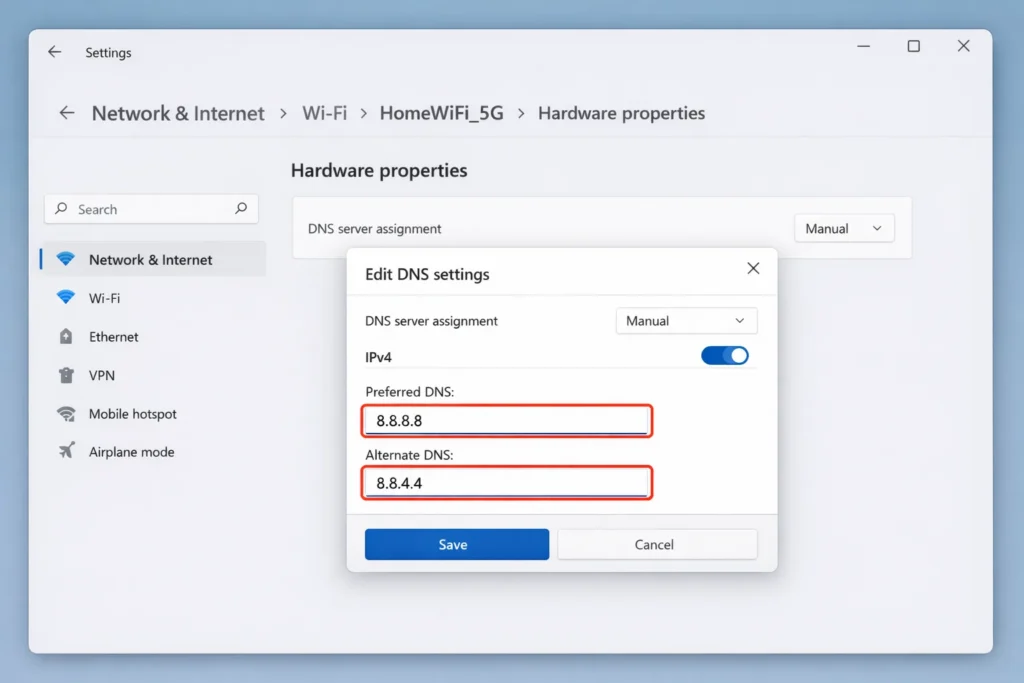
Your internet provider’s default DNS servers can be unreliable, causing timeout errors that make it seem like your laptop WiFi keeps disconnecting.
Why it works: Google’s public DNS servers are faster and more stable than most ISP defaults. This reduces timeout errors that mimic WiFi disconnecting on laptop.
The WLAN AutoConfig service manages all WiFi connections in Windows. If it stops, your laptop drops WiFi immediately.
Why it works: If this critical service stops running or crashes, your WiFi connection dies instantly. Making sure it is set to Automatic ensures your laptop WiFi stays connected.
If your laptop WiFi keeps disconnecting and other devices also experience drops, your router firmware may be outdated.
Why it works: Router manufacturers release firmware updates that fix connection stability bugs. Outdated firmware is a hidden cause of WiFi keeps disconnecting on laptop for the entire household.
🛠️ Quick Diagnostic Checklist Before You Start Fixing
- Test another device. Connect your phone to the same WiFi. If it also disconnects, the problem is your router — not your laptop.
- Move closer to the router. If your laptop WiFi stops disconnecting when you sit near the router, weak signal is the cause.
- Test on another network. If your laptop stays connected at a café but keeps dropping WiFi at home, your home router or ISP is the issue.
- Temporarily disable VPN and antivirus. Security software sometimes blocks or resets WiFi connections.
- Check for recent Windows updates. If WiFi started disconnecting on your laptop after an update, that update may have installed a faulty driver.
Follow these habits to stop your laptop WiFi from disconnecting in the future:
When your laptop WiFi keeps disconnecting every few minutes, the most likely cause is the Windows power management setting that turns off the WiFi adapter. Open Device Manager, find your wireless adapter, go to Properties > Power Management, and uncheck “Allow the computer to turn off this device to save power.” Outdated WiFi drivers are the second most common cause.
If only your laptop drops WiFi while phones and tablets remain connected, the problem is specific to your laptop. Update your WiFi driver, disable power management for the adapter, and run the Windows Network Troubleshooter. A laptop-specific issue usually traces back to drivers or power settings.
Windows turns off the WiFi adapter during sleep to save battery. When the laptop wakes up, the adapter sometimes fails to reconnect. To fix WiFi disconnecting on laptop after sleep, disable the power saving option in Device Manager (Fix 4) and set your power plan to High Performance.
If you have tried every fix in this guide and your laptop WiFi keeps disconnecting, your internal WiFi card may be faulty. Buy an inexpensive external USB WiFi adapter (under $15 on Amazon). If the external adapter works without disconnections, your built-in WiFi hardware needs to be replaced.
Yes. Certain Windows updates have been known to install incompatible WiFi drivers or change network settings that cause WiFi to disconnect randomly on laptop. If the problem started after an update, go to Device Manager, right-click your WiFi adapter, select Properties > Driver > Roll Back Driver. You can also uninstall the recent update through Settings > Windows Update > Update History > Uninstall Updates.
When your laptop WiFi keeps disconnecting, do not panic. The fix is almost always one of the solutions listed above. Start with the basics: restart your router and laptop, forget and reconnect to the network, and run the Windows troubleshooter. If the problem persists, disable the WiFi adapter power management setting and update your wireless driver. These five steps alone fix WiFi disconnecting on laptop for the vast majority of users.
For stubborn cases, reset your network settings using Command Prompt, switch to Google DNS, or update your router firmware. And if nothing works, an inexpensive USB WiFi adapter will confirm whether your internal hardware needs replacing.
Bookmark this guide. The next time your laptop WiFi keeps dropping, you will know exactly what to do.



