Physical Address
304 North Cardinal St.
Dorchester Center, MA 02124
Physical Address
304 North Cardinal St.
Dorchester Center, MA 02124

Your touch screen not working is one of the most stressful things that can happen to your phone. One moment everything is fine, and the next your screen completely ignores every tap, swipe, and press. You cannot make calls, reply to messages, or even unlock your device.
A phone touch screen not working can happen to any device — Samsung Galaxy, iPhone, Xiaomi, OnePlus, Google Pixel, or Motorola. Sometimes only a portion of the screen stops responding. Other times the entire display goes dead. It can happen after a drop, after an update, while charging, or completely out of nowhere.
Do not panic. In most cases you can fix a touch screen not working without visiting a repair shop. This step-by-step guide gives you 12 practical solutions arranged from simplest to advanced so you can get your phone working again in minutes.
If your touch screen is not working, force restart your phone by holding the Power button and Volume Down button together for 10–15 seconds. Then clean your screen with a dry microfiber cloth, remove your screen protector, and check for software updates. These four steps resolve the unresponsive touch screen issue for the majority of users.
Before jumping into fixes, it helps to understand why your touch screen is not responding. Knowing the cause helps you choose the right solution faster.
Here are the most common reasons your mobile touch screen is not working:
Follow these fixes in order. Start with the simplest and move toward advanced solutions only if needed.
Why it works: A force restart clears temporary memory and kills frozen processes. It is the fastest way to fix a touch screen not working due to software glitches.
Steps:
Release all buttons once the phone restarts. Test the touch screen immediately.
Why it works: Touch screens detect the tiny electrical charge from your fingertips. Grease, water, dirt, and sweat disrupt this signal and cause your touch screen not responding to any input.
Steps:
Why it works: A damaged, thick, or low-quality screen protector is one of the most overlooked causes of touch screen not working on phones. Cracks, air bubbles, or misalignment block touch signals.
Steps:
If the screen starts responding to touch again, replace the protector with a high-quality tempered glass version designed for your exact phone model.
Why it works: Bulky or ill-fitting cases can press against the screen edges, causing phantom touches or blocking real touch inputs. Removing the case eliminates this as a cause of your touch screen not working.
Why it works: When your battery drops below 5%, many phones disable or reduce touch screen functionality to conserve power. An unresponsive touch screen sometimes just needs a charge.
⚠️ Important: If your touch screen is not working only while charging, your charger is likely the problem. Cheap, ungrounded, or damaged chargers create electrical interference. Switch chargers immediately.
Why it works: Safe Mode disables all third-party apps. If your touch screen not working issue disappears in Safe Mode, a recently installed app is causing the conflict.
Android (Samsung, Xiaomi, Pixel, OnePlus):
If the touch screen works in Safe Mode:
iPhone: iPhones do not have a traditional Safe Mode. Instead, delete recently installed apps after performing a force restart.
Why it works: Manufacturers release software patches that specifically fix touch screen not responding bugs and driver issues. Running outdated software is a common cause of screen problems.
Android:
iPhone:
Test your touch screen after the update. Many users report that a touch screen not working on Android or iPhone was fixed simply by updating.
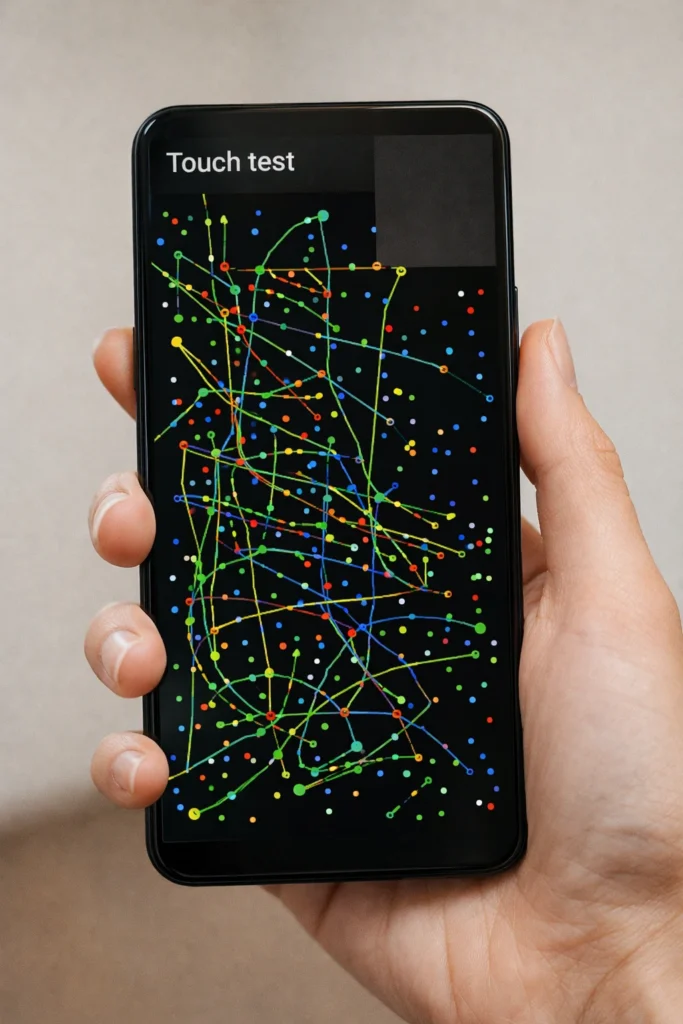
Why it works: Over time, touch accuracy can drift, causing the screen not to respond to touch correctly. Recalibrating realigns the input layer with the display.
Samsung:
Other Android phones:
If the test reveals large dead zones, the problem is hardware-related and needs professional repair.
iPhone: There is no built-in calibration tool. If the above fixes have not solved the touch screen not working on your iPhone, skip to Fix 11 or Fix 12.
Why it works: A phone with less than 10% free storage becomes severely slow. The system cannot process touch inputs properly, making your touch screen appear unresponsive.
Why it works: Even a tiny crack or minor water exposure can damage the digitizer — the layer beneath the glass that detects your touch. Physical damage is a leading cause of a touch screen not working that software fixes cannot resolve.
What to check:
If you find water damage:
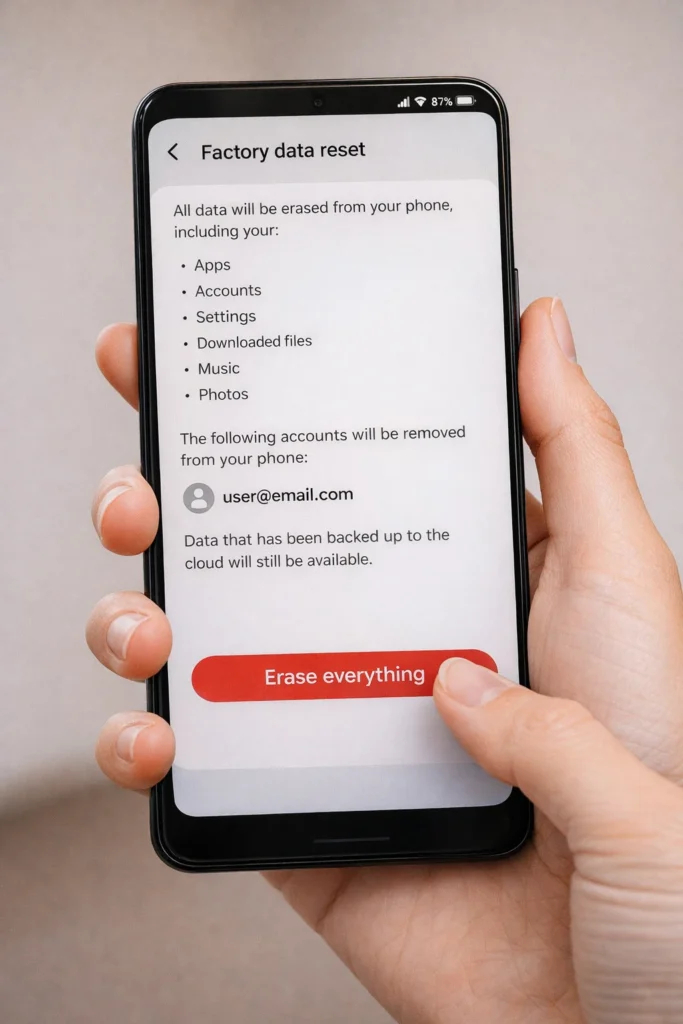
Why it works: A factory reset wipes everything and restores the phone to its original state. This eliminates any deep software corruption causing the touch screen not working problem.
⚠️ Warning: This erases all data. Back up your files before proceeding.
Android:
iPhone:
If your screen is completely unresponsive and you cannot navigate settings:
If every solution above has failed, your touch screen not working is almost certainly a hardware issue — a broken digitizer, loose display cable, or damaged internal component.
What to do:
Typical repair costs:
| Device | Estimated Screen Repair Cost |
|---|---|
| iPhone 14/15 | $200–$350 (Apple official) |
| Samsung Galaxy S24 | $150–$300 (Samsung official) |
| Xiaomi / Redmi | $50–$150 |
| Google Pixel | $100–$250 |
Use this quick checklist to narrow down why your touch screen is not working:
✅ Only part of the screen is dead? → Likely a hardware issue or screen protector problem.
✅ Screen works after restart but fails again? → Likely a software or app conflict. Try Safe Mode.
✅ Touch screen not working while charging? → Swap to the original charger immediately.
✅ Problem started after a drop? → Internal hardware damage. Seek repair.
✅ Problem started after a software update? → Check for a newer patch or perform a factory reset.
✅ Phone is very hot? → Let it cool down completely. Overheating causes temporary touch screen not responding issues.
✅ Touch screen not working on Android after installing an app? → Boot into Safe Mode and uninstall recent apps.
Many people make these errors when trying to fix a touch screen not working, which can make things worse:
Preventing your touch screen from not working in the future is much easier than fixing it. Build these habits:
Software glitches are the most common cause of a touch screen not working with no visible damage. A frozen app, a buggy update, or full storage can make the screen completely unresponsive. A force restart fixes this in most cases.
Force restart your Android phone by holding Power + Volume Down for 10–15 seconds. Then clean the screen, remove the screen protector, and check for software updates. If the touch screen is still not working on Android, boot into Safe Mode to check for app conflicts, or perform a factory reset as a last resort.
Sometimes a new iOS update contains bugs that cause the touch screen not responding correctly. Force restart your iPhone and check for a newer patch under Settings → General → Software Update. If no update is available, back up your data and perform a factory restore through Finder or iTunes.
Yes. The majority of touch screen not working issues are software-related and can be fixed at home. Force restarting, cleaning the screen, removing the screen protector, updating software, and factory resetting solve the problem in roughly 80% of cases. Only hardware damage requires professional repair.
This happens when you use a faulty, cheap, or ungrounded charger. The electrical interference disrupts your phone’s capacitive touch layer. Switch to your original charger or a certified replacement. If the touch screen is not working only during charging, the charger is almost always the cause.
A touch screen not working is alarming, but it is usually fixable at home without spending money. Start with the basics — force restart your phone, clean the screen, and remove your screen protector. Then work through the software fixes like Safe Mode, software updates, and storage cleanup. Only move to a factory reset or professional repair if the simpler solutions do not work.
Remember: most touch screen not responding problems come from minor software glitches, dirty screens, or faulty screen protectors. These take just minutes to resolve.
Bookmark this guide so you have it ready the next time your phone touch screen is not working. And if you found this helpful, share it with someone who might be struggling with the same problem.



