Physical Address
304 North Cardinal St.
Dorchester Center, MA 02124
Physical Address
304 North Cardinal St.
Dorchester Center, MA 02124

YouTube not loading. The screen just spins. Or maybe the app opens but the videos won’t play. It’s frustrating — especially when you just want to watch something quickly.
This problem is more common than you think. Millions of people run into YouTube not loading on their phone every day. It can happen on Android phones like Samsung or Xiaomi, and on iPhones too. The good news? Most of the time, it’s easy to fix.
In this guide, you’ll learn exactly why YouTube stops loading on your phone and how to fix it step by step — starting with the simplest solutions first.
If YouTube is not loading on your phone, try these three things first:
If none of those work, keep reading. This guide covers every possible fix.
YouTube not loading on your phone is almost never caused by just one thing. It can be caused by several different issues happening at the same time.
Here are the most common reasons:
Understanding the cause helps you fix it faster. Let’s go through every solution now.
Why it works: YouTube is a streaming service. Without a good internet connection, it simply cannot load.
Steps:
Why it works: Restarting clears temporary files and refreshes your phone’s memory. Many small bugs disappear after a simple restart.
Steps:
This works on all phones — Samsung, iPhone, Xiaomi, OnePlus, and others.
Why it works: Sometimes the app gets stuck in the background. Force stopping it gives it a fresh start.
Steps (Android):
Steps (iPhone):
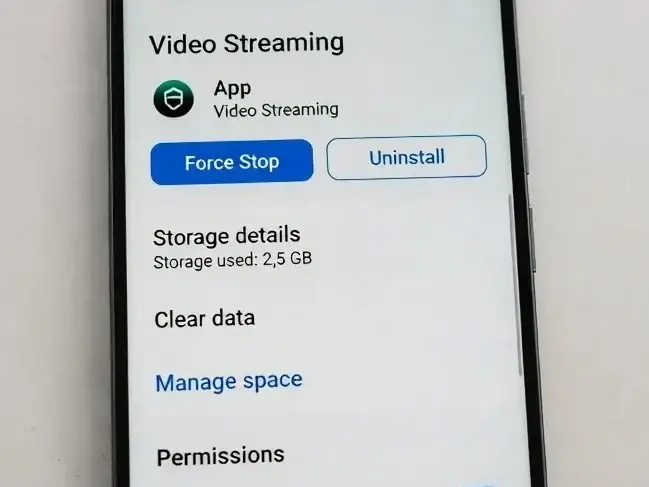
Why it works: The cache is temporary data stored on your phone to help apps load faster. Over time, this data can get corrupted and actually slow things down or cause errors.
Steps (Android):
Note: Clearing cache does NOT delete your account, videos, or subscriptions. It only removes temporary files.
iPhone users: iPhones don’t have a direct “clear cache” option. Instead, you can offload the app (see Fix 9).
Why it works: Older versions of YouTube may have known bugs. Developers release updates to fix these problems.
Steps (Android):
Steps (iPhone):
Why it works: Your phone’s operating system (Android or iOS) needs to stay updated. An old OS can cause apps like YouTube to behave incorrectly.
Steps (Android):
Steps (iPhone):
Why it works: When your phone’s storage is almost full, apps cannot store temporary files they need to run. This causes apps like YouTube to crash or not load.
Steps:
Why it works: A VPN changes your internet traffic route. Some VPN servers block or slow down access to YouTube.
Steps:
If YouTube loads after turning off the VPN, try switching to a different VPN server location or contact your VPN provider.
Why it works: A fresh install removes any corrupted files inside the app that clearing the cache might not fix.
Steps (Android):
Steps (iPhone):
Why it works: Sometimes the problem isn’t your phone at all — YouTube’s own servers may be having issues.
Steps:
You can also check YouTube’s official @TeamYouTube Twitter/X account for any announcements.
If YouTube is down globally, all you can do is wait. It usually comes back within an hour.
Why it works: Resetting network settings clears all saved Wi-Fi passwords, Bluetooth pairings, and network configurations — and fixes hidden connection errors.
⚠️ Warning: You will need to re-enter your Wi-Fi passwords after this.
Steps (Android):
Steps (iPhone):
Why it works: YouTube uses secure HTTPS connections. If your phone’s date and time are wrong, the security certificate check fails, and YouTube cannot connect properly.
Steps:
Follow these habits to avoid YouTube not loading problems in the future:
| Problem | Most Likely Cause | Best Fix |
|---|---|---|
| App opens but videos don’t play | Slow internet | Switch to mobile data or faster Wi-Fi |
| App crashes immediately | Corrupted cache | Clear app cache |
| Black screen in app | App bug | Force stop + restart app |
| “No connection” error | Network issue | Reset network settings |
| YouTube works on Wi-Fi but not data | Mobile data settings | Check mobile data permissions for YouTube |
| YouTube works on laptop but not phone | App-specific issue | Reinstall the app |
Many people try to fix YouTube not loading on their phone but make these mistakes:
Buffering usually means your internet connection is too slow for the video quality you’re watching. Try lowering the video quality inside YouTube: tap the three dots on a video, then tap Quality, and choose 360p or 480p.
This usually means your mobile data settings are blocking YouTube. Go to Settings > Apps > YouTube > Permissions and make sure it has permission to use mobile data. Also check if you have any data-saving mode turned on.
Start with clearing the app cache (Fix 4), then force stop the app (Fix 3), then check for updates (Fix 5). Most of the time, these three steps fix the problem without needing to delete the app.
This can happen because of a VPN, wrong date/time settings, or a corrupted cache. Try disabling your VPN first (Fix 8), then check your date and time settings (Fix 12).
No. Clearing the cache only removes temporary files. Your watch history, liked videos, subscriptions, and account data are all stored on YouTube’s servers — not on your phone.
YouTube not loading on your phone is annoying, but it’s almost always fixable. Start with the simple steps — check your internet, restart your phone, and clear the app cache. These three fixes solve the problem for most people.
If those don’t work, move through the list: update the app, free up storage, disable your VPN, or reinstall the app. And if everything on your phone looks fine, check whether YouTube itself is down.
The key is to go step by step instead of jumping around. Bookmark this page so you can come back to it the next time YouTube stops working on your phone.




[…] YouTube Not Loading on Phone? […]
[…] YouTube Not Loading on Phone? […]
[…] YouTube Not Loading on Phone? […]
[…] YouTube Not Loading on Phone? […]
[…] YouTube Not Loading on Phone? Here’s How to Fix It Fast […]