
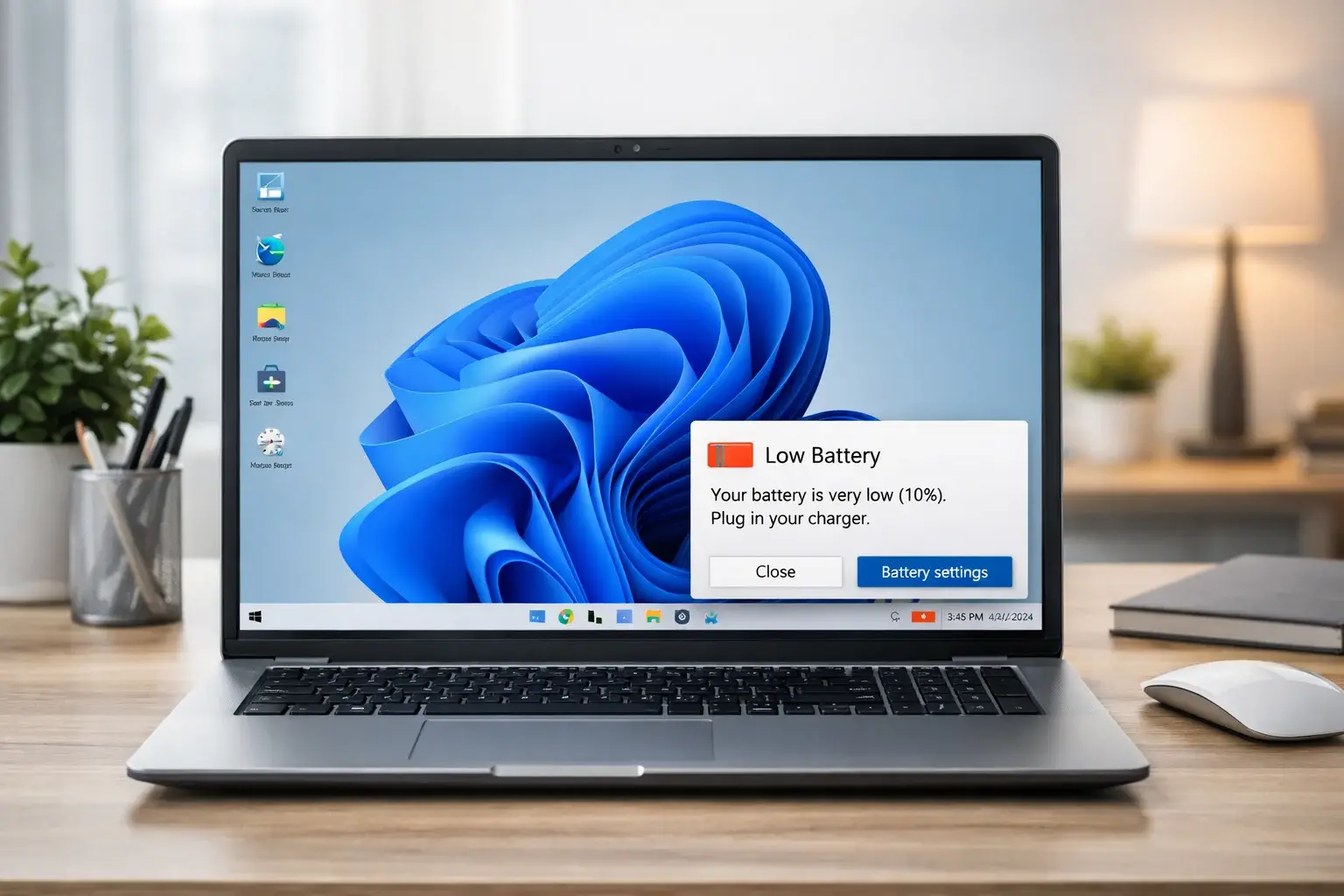
Is your laptop battery draining fast on Windows 11? Does your battery drop from 100% to 40% in just a couple of hours?
You’re not alone. Many Windows 11 users notice battery drain after updates, background apps, or incorrect power settings. The good news is — you can fix it.
This guide will show you simple, beginner-friendly steps to solve the laptop battery draining fast Windows 11 fix issue quickly.
✅ Quick Answer: Laptop Battery Draining Fast Windows 11 Fix
If your Windows 11 laptop battery drains quickly:
- Turn on Battery Saver
- Reduce screen brightness
- Close background apps
- Change Power Mode to Best power efficiency
- Update Windows and drivers
These steps solve most battery drain problems immediately.
Why This Problem Happens
Before applying the Laptop Battery Draining Fast Windows 11 Fix, it helps to understand the cause.
Common reasons include:
- Too many background apps running
- High screen brightness
- Old or corrupted drivers
- Windows updates running in background
- Startup programs launching automatically
- Bluetooth and Wi-Fi always on
- Power mode set to “Best performance”
- Battery health getting weaker
Now let’s fix it step by step.
How to Fix Laptop Battery Draining Fast Windows 11 (Step-by-Step Methods)
✅ Fix 1: Turn On Battery Saver
Battery Saver reduces background activity and saves power.
Steps:
- Click the Start button
- Go to Settings
- Click System
- Select Power & Battery
- Click Battery Saver
- Turn it On
You can also set it to turn on automatically at 20% battery.
✅ Fix 2: Change Power Mode to Best Power Efficiency
Windows 11 has different power modes.
Steps:
- Open Settings
- Click System
- Select Power & Battery
- Under Power Mode, choose:
- ✅ Best power efficiency
This simple change can extend battery life immediately.
✅ Fix 3: Reduce Screen Brightness
The screen uses the most battery power.
Steps:
- Press Windows + A
- Lower the brightness slider
- Keep brightness around 50% or lower
You can also enable:
- ✅ Lower screen brightness when using battery
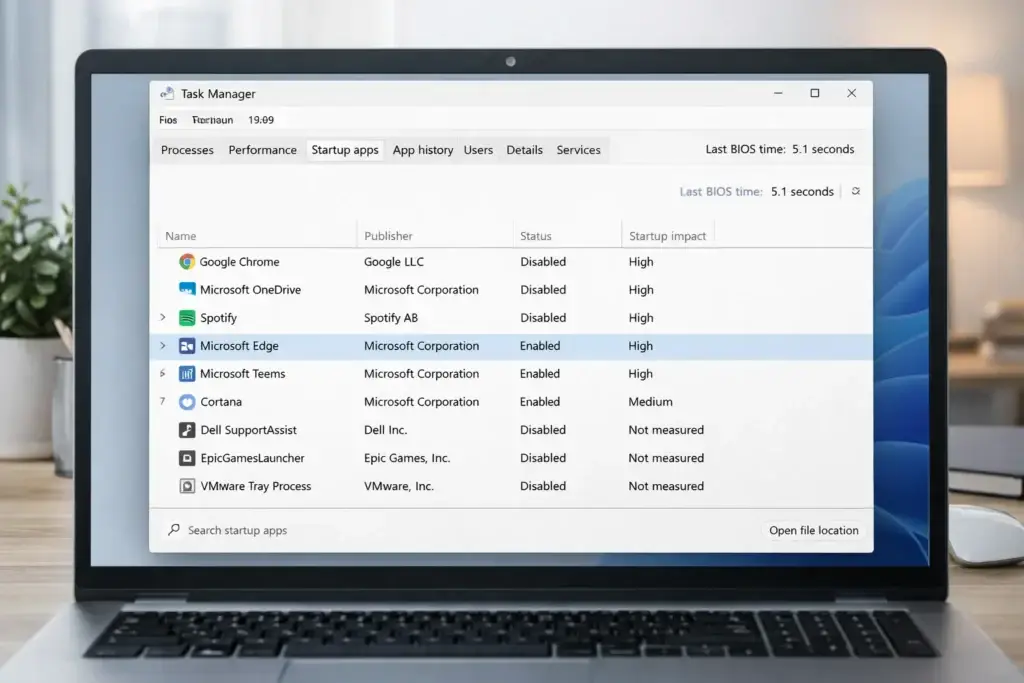
✅ Fix 4: Disable Startup Apps
Some apps start automatically and drain battery.
Steps:
- Press Ctrl + Shift + Esc
- Click Startup Apps
- Right-click apps you don’t need
- Click Disable
Disable apps like:
- Game launchers
- Chat apps
- Music apps
- Auto updaters
✅ Fix 5: Close Background Apps
Apps running in background drain battery silently.
Steps:
- Open Settings
- Click Apps
- Select Installed Apps
- Click three dots next to an app
- Choose Advanced Options
- Under Background apps permissions:
- Select Never
Repeat for apps you don’t use often.
✅ Fix 6: Check Battery Usage
Find which app is draining power.
Steps:
- Go to Settings
- Click System
- Select Power & Battery
- Click Battery Usage
You will see:
- Apps using the most battery
- Screen usage
- Background activity
Uninstall or restrict high-drain apps.
✅ Fix 7: Update Windows 11
Updates fix battery drain bugs.
Steps:
- Open Settings
- Click Windows Update
- Select Check for Updates
- Install available updates
- Restart your laptop
✅ Fix 8: Update Drivers
Old drivers can cause power problems.
Steps:
- Right-click Start
- Click Device Manager
- Expand Batteries
- Right-click battery driver
- Select Update Driver
Also update:
- Display drivers
- Network drivers
✅ Fix 9: Turn Off Bluetooth & Wi-Fi When Not Needed
Wireless features use battery.
Steps:
- Press Windows + A
- Turn off:
- Bluetooth
- Wi-Fi (if not needed)
- AirDrop-like features
Turn them on only when required.
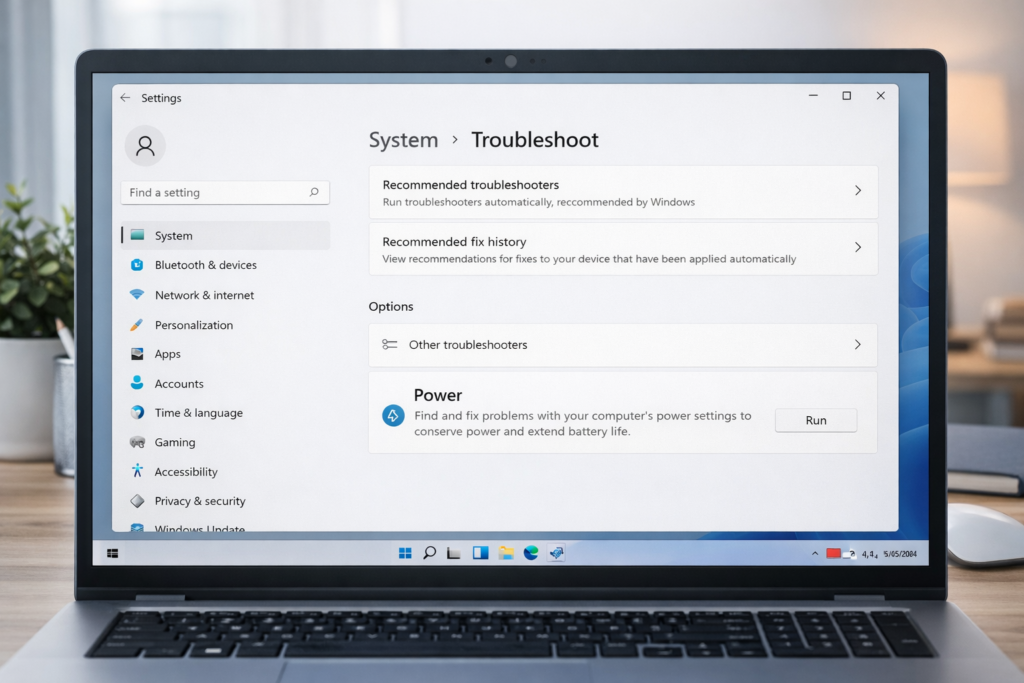
✅ Fix 10: Run Power Troubleshooter
Windows has a built-in fix tool.
Steps:
- Open Settings
- Click System
- Select Troubleshoot
- Click Other Troubleshooters
- Find Power
- Click Run
Windows will automatically detect and fix problems.
📦 Troubleshooting Tips
If the laptop battery is still draining fast on Windows 11:
- Restart your laptop
- Remove external USB devices
- Check for overheating
- Run antivirus scan
- Calibrate the battery (charge to 100%, drain to 10%, recharge fully)
If nothing works, your battery may need replacement.
⚠️ Common Mistakes
Avoid these errors:
❌ Keeping brightness at 100%
❌ Using “Best performance” mode on battery
❌ Never updating Windows
❌ Running too many browser tabs
❌ Leaving laptop plugged in 24/7
❌ Ignoring overheating problems
These habits reduce battery life over time.
Additional Tips to Prevent the Issue
To avoid searching again for Laptop Battery Draining Fast Windows 11 Fix, follow these habits:
- Keep battery between 20%–80%
- Use dark mode
- Enable sleep mode after 5–10 minutes
- Shut down instead of sleep overnight
- Clean dust from vents
- Avoid heavy gaming on battery
Healthy charging habits improve long-term battery life.
Frequently Asked Questions
1. Why is my laptop battery draining so fast Windows 11?
It may be due to background apps, high brightness, outdated drivers, or power mode settings.
2. Does Windows 11 drain more battery than Windows 10?
In some cases yes, especially after updates. Adjusting power settings usually fixes it.
3. How do I check battery health in Windows 11?
- Press Windows + X
- Click Terminal (Admin)
- Type:text
powercfg /batteryreport - Open the generated report file.
4. How long should a laptop battery last?
Most laptops last 4–8 hours depending on usage and battery health.
5. When should I replace my laptop battery?
If:
- Battery drops quickly
- Laptop shuts down suddenly
- Battery health is below 50%
Then replacement may be needed.
✅ Conclusion
If your laptop battery is draining fast on Windows 11, don’t worry. In most cases, the problem is caused by power settings, background apps, or outdated drivers.
Start with:
- Turning on Battery Saver
- Changing power mode
- Reducing brightness
- Updating Windows
These steps solve the issue for most users.
Follow this complete Laptop Battery Draining Fast Windows 11 Fix guide, and your battery life should improve immediately.
- Microsoft Support – Windows Battery Saving Tips https://support.microsoft.com
- Microsoft – Improve Battery Performance in Windows https://learn.microsoft.com
- Intel Support – Power Management Information https://www.intel.com/support




[…] Laptop Battery Draining Fast? 9 Easy Fixes That Actually Work (2026) […]
[…] Laptop Battery Draining Fast? 9 Easy Fixes That Actually Work (2026) […]
[…] Laptop Battery Draining Fast? 9 Easy Fixes That Actually Work (2026) […]
[…] Laptop Battery Draining Fast? 9 Easy Fixes That Actually Work (2026) […]
[…] Laptop Battery Draining Fast? 9 Easy Fixes That Actually Work (2026) […]
[…] Laptop Battery Draining Fast? 9 Easy Fixes That Actually Work (2026) […]
[…] Laptop Battery Draining Fast? 9 Easy Fixes That Actually Work (2026) […]
[…] Laptop Battery Draining Fast? 9 Easy Fixes That Actually Work (2026) […]
[…] Laptop Battery Draining Fast? 9 Easy Fixes That Actually Work (2026) […]