
Introduction
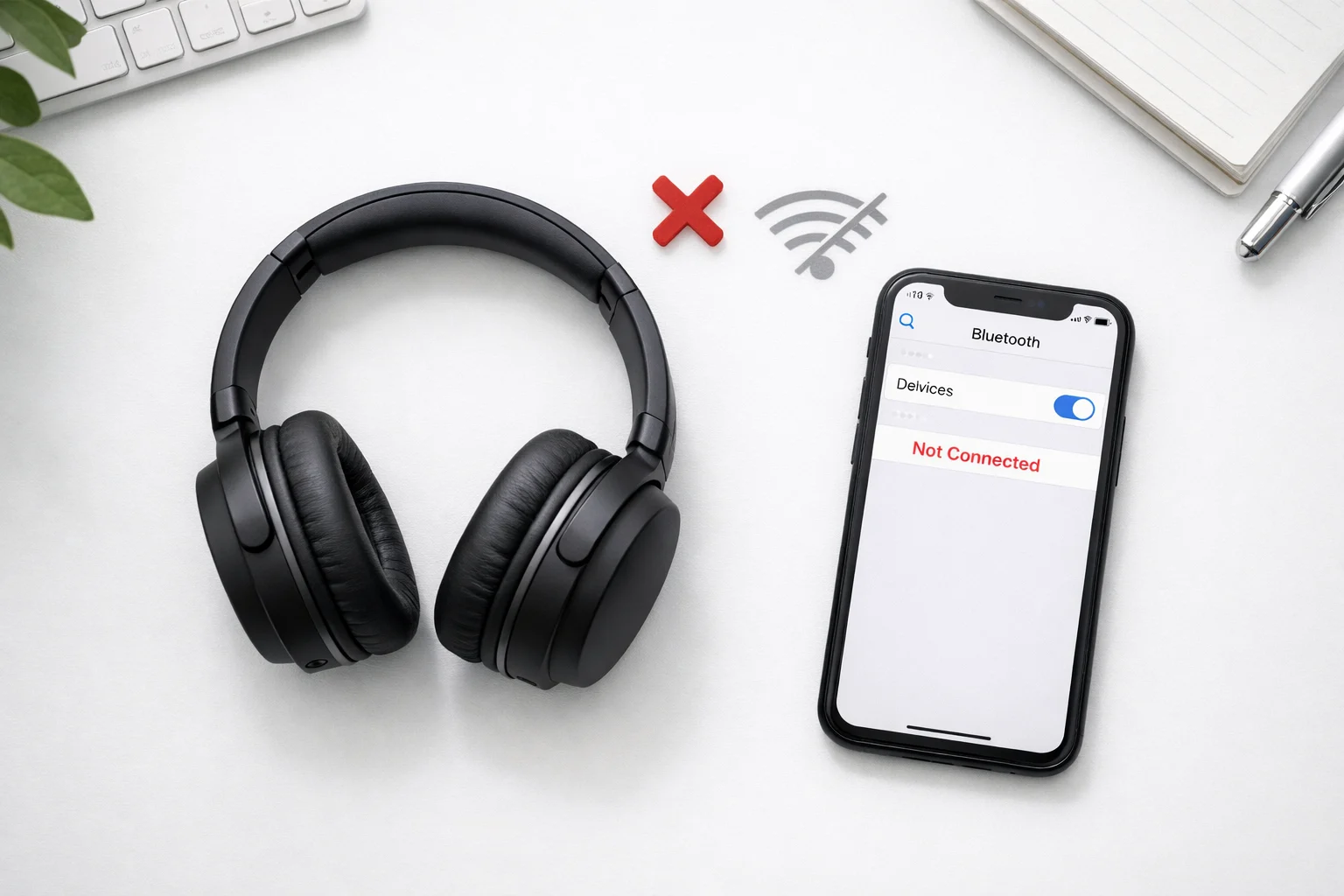
Bluetooth headphones not connecting is one of the most common tech frustrations people face daily. You turn on your headphones, expect them to pair automatically, and nothing happens. No sound. No connection. Just silence and confusion.
Whether your Bluetooth headphones won’t connect to your iPhone, Android phone, Windows laptop, or tablet, you’re not alone. Millions of users search for a fix to this Bluetooth pairing problem every single month. The issue can happen with any brand — Sony, Bose, JBL, Apple AirPods, Samsung Galaxy Buds, or budget wireless earbuds.
The good news? When Bluetooth headphones are not connecting, the solution is usually quick and simple. This guide gives you 12 proven fixes in plain, easy-to-follow language. No technical background needed. Let’s get your headphones working again.
Quick Answer
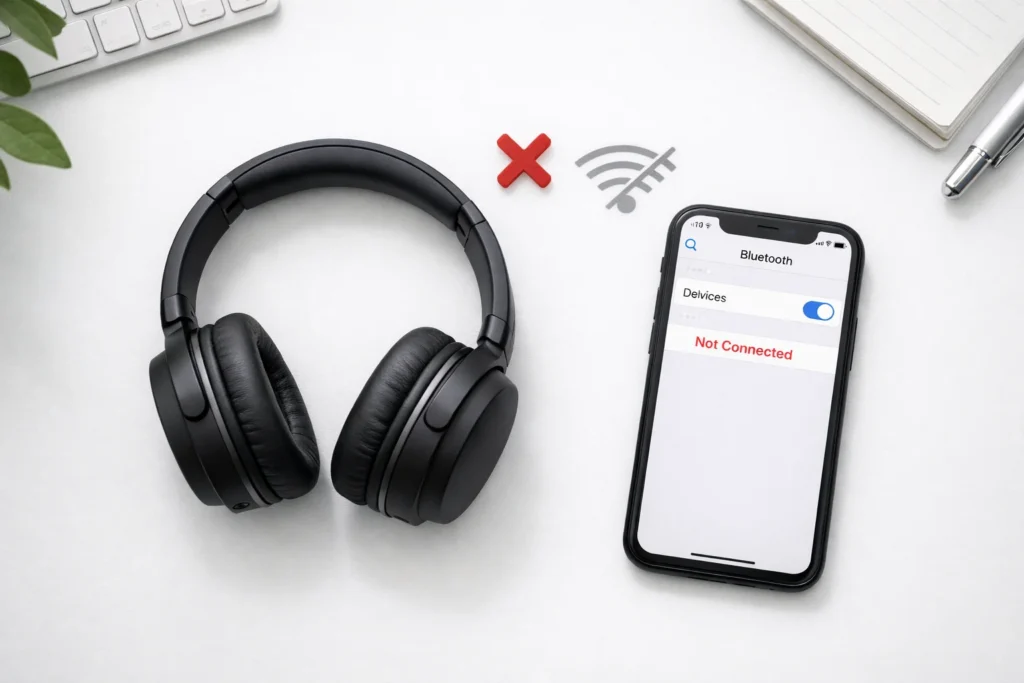
If your Bluetooth headphones are not connecting, follow these three steps first: (1) Turn Bluetooth off and back on. (2) Restart both your headphones and your device. (3) Forget the headphones from your saved devices list and pair them again from scratch. This simple process fixes Bluetooth headphones not connecting about 80% of the time.
Why Bluetooth Headphones Are Not Connecting
Understanding why Bluetooth headphones are not connecting helps you choose the right fix faster. Here are the most common causes behind this Bluetooth pairing problem:
- Software glitches — Temporary bugs in your phone or computer interrupt the Bluetooth connection.
- Outdated firmware or drivers — Old software causes Bluetooth not working errors on many devices.
- Too many paired devices — Bluetooth headphones remember multiple devices, creating conflicts when trying to connect.
- Low battery — Headphones with very low battery often fail to maintain a stable Bluetooth connection.
- Out of range — Bluetooth works within about 30 feet (10 meters). Walls and obstacles shorten this range.
- Wireless interference — Wi-Fi routers, microwaves, and other Bluetooth devices interfere with the signal.
- Already connected elsewhere — Your headphones may be connected to a different nearby device.
- Pairing mode not activated — Many headphones require you to manually enter pairing mode, and skipping this step means Bluetooth headphones won’t pair with a new device.
How to Fix Bluetooth Headphones Not Connecting (12 Step-by-Step Methods)
Work through these fixes in order. Start from the top — the simplest solutions fix the problem most often.
Fix 1: Toggle Bluetooth Off and On
This is the fastest fix for Bluetooth headphones not connecting, and it works more often than you’d expect.
- Open Settings on your phone or computer.
- Find Bluetooth and turn it off.
- Wait 10 seconds.
- Turn Bluetooth back on.
- Try connecting your headphones again.
This simple reset refreshes the Bluetooth radio and clears minor communication errors.
Fix 2: Restart Your Headphones
When Bluetooth headphones won’t connect, a quick restart can clear internal glitches.
- Turn your headphones off completely.
- Wait 15–20 seconds.
- Turn them back on.
- Check if they appear in your device’s Bluetooth list.
Fix 3: Restart Your Phone or Computer
Restarting your device refreshes all wireless services, including Bluetooth.
- Power off your phone, tablet, or computer completely.
- Wait 30 seconds.
- Turn the device back on.
- Open Bluetooth settings and try pairing again.
This is a critical step in Bluetooth troubleshooting that many people skip.
Fix 4: Forget the Device and Re-Pair
Corrupted saved connections are a top reason Bluetooth headphones are not pairing correctly. Removing and re-adding the headphones creates a fresh link.
On iPhone:
- Go to Settings > Bluetooth.
- Tap the “i” icon next to your headphones’ name.
- Tap Forget This Device.
- Put headphones in pairing mode.
- Select them from the available devices list.
On Android:
- Go to Settings > Connected Devices > Bluetooth.
- Tap the gear icon next to your headphones.
- Tap Unpair or Forget.
- Activate pairing mode and reconnect.
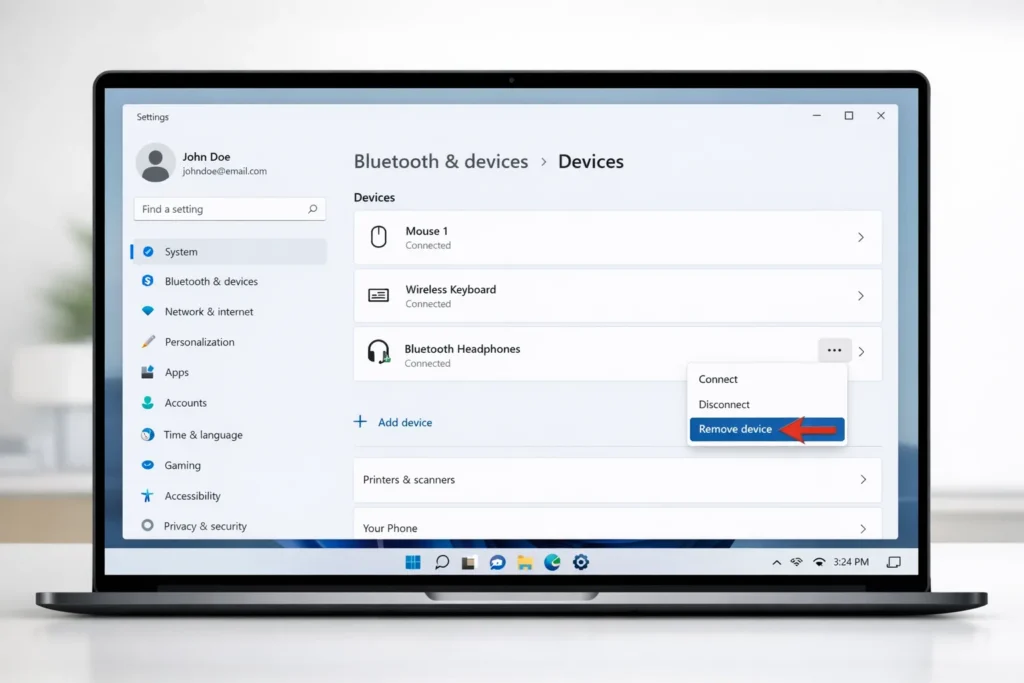
On Windows:
- Go to Settings > Bluetooth & Devices.
- Find your headphones and click Remove Device.
- Click Add Device > Bluetooth.
- Select your headphones when they appear.
This is the single most effective method to fix Bluetooth headphones not connecting.
Fix 5: Make Sure Headphones Are in Pairing Mode
If your Bluetooth headphones won’t pair, you may have skipped pairing mode entirely. Simply turning headphones on is NOT always enough.
- Press and hold the power button for 5–7 seconds on most headphones.
- Look for a flashing blue and red light (or rapidly flashing blue light).
- Your headphones’ user manual will confirm the exact method for your model.
Without activating pairing mode, your device simply won’t find the headphones.
Fix 6: Check Battery Levels
Low battery is a sneaky cause of Bluetooth headphones not connecting.
- Charge your headphones for at least 15–20 minutes before retrying.
- Check your phone or laptop battery too — some devices disable Bluetooth in extreme low-power mode.
- For true wireless earbuds, make sure the charging case also has charge.
Fix 7: Disconnect From Other Devices
Your headphones might already be connected to another nearby device, which is why they’re not connecting to yours.
- Identify all devices previously paired with your headphones (old phones, tablets, laptops).
- Turn off Bluetooth on those devices or manually disconnect.
- Now try connecting from the device you want to use.
💡 Troubleshooting Tip: Many older headphones only support one connection at a time. If you own multipoint headphones, use the manufacturer’s app to manage active connections.
Fix 8: Move Closer and Reduce Interference
Sometimes Bluetooth not working is simply a distance or interference issue.
- Stay within 3 feet (1 meter) of your device during initial pairing.
- Move away from Wi-Fi routers, USB 3.0 hubs, microwaves, and other Bluetooth devices.
- Remove physical obstacles like walls or large furniture between your headphones and device.
Fix 9: Update Your Device Software
Outdated operating systems contain Bluetooth bugs that cause Bluetooth connection failed errors. Updating often resolves these issues silently.
On iPhone:
- Go to Settings > General > Software Update.
- Install any available update.
On Android:
- Go to Settings > System > Software Update.
- Download and install.
On Windows:
- Go to Settings > Windows Update.
- Click Check for Updates and install.
Keeping software updated is one of the best ways to prevent Bluetooth headphones not connecting in the future.
Fix 10: Update or Reinstall Bluetooth Drivers (Windows)
On Windows PCs, outdated Bluetooth drivers are a frequent reason Bluetooth headphones are not connecting.
- Right-click the Start button and select Device Manager.
- Expand the Bluetooth section.
- Right-click your Bluetooth adapter and select Update Driver.
- Choose Search automatically for drivers.
- Restart your computer.
If updating doesn’t help, select Uninstall Device, then restart. Windows will reinstall the driver automatically.
Fix 11: Reset Your Headphones to Factory Settings
When nothing else solves Bluetooth headphones not connecting, a factory reset wipes all saved data and gives you a clean start.
- Most headphones: Hold the power button for 10–15 seconds until LEDs flash a specific pattern.
- Apple AirPods: Place in case, open lid, hold setup button on back for 15 seconds until light flashes amber then white.
- Sony headphones: Hold power button for 7+ seconds while headphones are off.
- JBL headphones: Hold volume up + volume down buttons simultaneously for 5 seconds.
After resetting, pair your headphones as if they were brand new.
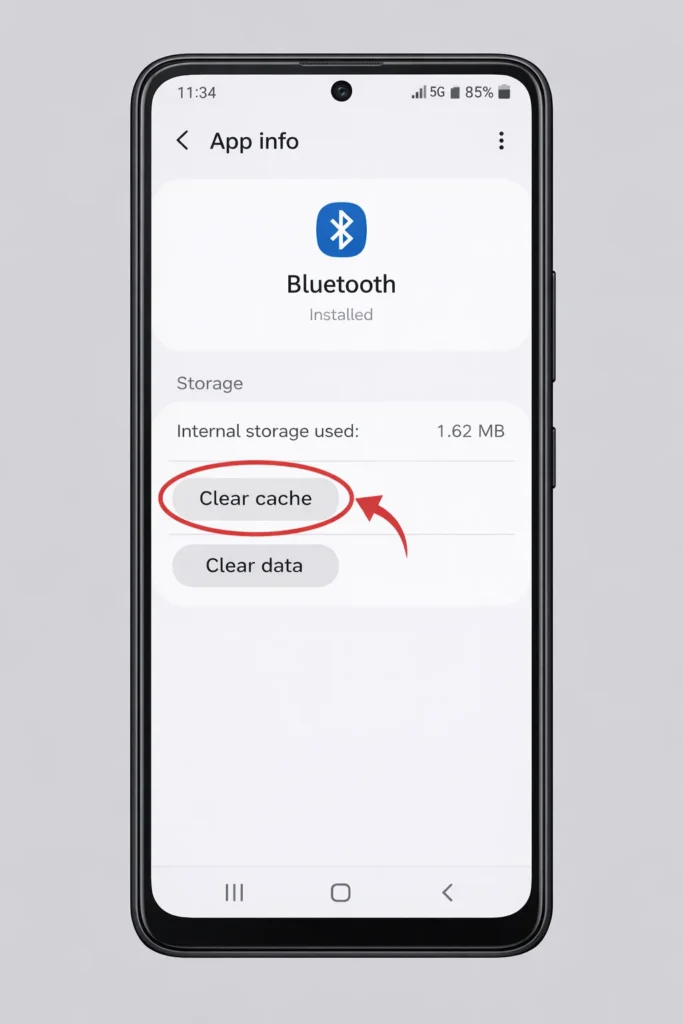
Fix 12: Clear Bluetooth Cache (Android Only)
Android stores temporary Bluetooth data that can become corrupted, causing Bluetooth not finding devices.
- Go to Settings > Apps.
- Tap the three dots menu and select Show System Apps.
- Find Bluetooth or Bluetooth Share.
- Tap Storage > Clear Cache.
- Restart your phone.
- Try connecting your headphones again.
This fix is specifically effective for recurring Android Bluetooth pairing problems.
🔧 Troubleshooting Tips Box
| Situation | Quick Fix |
|---|---|
| Headphones not appearing in Bluetooth list | Activate pairing mode on headphones |
| Connected but no audio | Check audio output settings on your device |
| Keeps disconnecting after pairing | Charge headphones fully; update device software |
| Paired but says “connection failed” | Forget device and re-pair from scratch |
| Bluetooth option greyed out | Restart your device; check for software updates |
| Works with one device but not another | Reset headphones to factory settings |
Common Mistakes to Avoid
🚫 Pairing while headphones are inside the charging case — Most earbuds only enter pairing mode when removed from the case.
🚫 Standing too far from the device during setup — Stay within 3 feet for the initial pairing process.
🚫 Skipping pairing mode — Turning headphones on is not the same as activating pairing mode. This mistake is the #1 reason Bluetooth headphones won’t pair.
🚫 Ignoring headphone firmware updates — Brands like Sony, Bose, Jabra, and Apple release firmware updates through companion apps. Skipping these updates causes ongoing Bluetooth connection issues.
🚫 Keeping a long list of old saved Bluetooth devices — Too many saved pairings confuse some phones. Delete old devices you no longer use.
🚫 Trying to connect during a phone call or while streaming — Some devices struggle to establish new Bluetooth connections during active audio use. Close all audio apps first.
Additional Tips to Prevent the Issue
Prevention saves you from dealing with Bluetooth headphones not connecting in the future. Follow these habits:
- Update all devices regularly. Software updates patch known Bluetooth bugs.
- Charge headphones before they die completely. Deep battery drain stresses internal components.
- Store headphones in a cool, dry place. Extreme heat and moisture damage Bluetooth hardware.
- Remove old Bluetooth pairings. Keep your saved devices list clean to avoid connection conflicts.
- Restart your phone and headphones weekly. Regular restarts prevent glitches from building up.
- Use manufacturer companion apps. Apps like Sony Headphones Connect, Bose Music, Beats, or Galaxy Wearable give you better control over Bluetooth settings, firmware updates, and Bluetooth troubleshooting.
- Turn off Bluetooth on devices you’re not using. This prevents your headphones from auto-connecting to the wrong device.
Frequently Asked Questions
Why won’t my Bluetooth headphones connect even though they are paired?
Paired and connected are two different states. Your headphones may be saved (paired) on your device but not actively connected. Go to Bluetooth settings, tap your headphones’ name, and select Connect. If that fails, forget the device and pair again to fix the Bluetooth connection.
How do I reset my Bluetooth headphones?
Most Bluetooth headphones reset when you hold the power button for 10–15 seconds. Some models require holding specific button combinations. After resetting, all saved pairings are erased, and you’ll need to pair your headphones again. This is one of the most reliable fixes when Bluetooth headphones are not connecting.
Why does my phone say “Bluetooth pairing rejected”?
This Bluetooth pairing problem usually means your headphones are still connected to another device, or the saved pairing data is corrupted. Turn off Bluetooth on all other nearby devices, forget the headphones from your phone’s saved list, then enter pairing mode and try again.
Can I connect my Bluetooth headphones to two devices at the same time?
Some modern headphones support multipoint Bluetooth connection, allowing simultaneous connection to two devices. Check your headphones’ specifications. If multipoint is not supported, you must disconnect from one device before connecting to another.
Why is Bluetooth not finding any devices on my phone?
If your phone shows Bluetooth not finding devices, make sure the headphones are in active pairing mode (not just turned on). Toggle Bluetooth off and on, restart your phone, and on Android, clear the Bluetooth cache. If the problem continues, check for software updates or contact your device manufacturer.
Conclusion
Bluetooth headphones not connecting is a frustrating but highly fixable problem. In most cases, the solution takes less than two minutes. Start with the basics: toggle Bluetooth, restart your devices, and forget then re-pair your headphones. These three steps resolve the vast majority of Bluetooth pairing problems.
If those don’t work, move to software updates, driver reinstalls, factory resets, or cache clearing. Follow the 12 fixes in this guide in order, and you’ll almost certainly get your Bluetooth headphones connected and working again.
Bookmark this page so the next time your Bluetooth headphones won’t connect, you’ll have every solution ready at your fingertips.
- Apple Support — If your AirPods won’t connect
- Microsoft Support — Fix Bluetooth problems in Windows
- Google Android Help — Troubleshoot Bluetooth on Android




[…] Bluetooth Headphones Not Connecting: 12 Easy Fixes That Actually Work […]
[…] Bluetooth Headphones Not Connecting: 12 Easy Fixes That Actually Work (2026) […]
[…] Bluetooth Headphones Not Connecting: 12 Easy Fixes That Actually Work (2026) […]
[…] Bluetooth Headphones Not Connecting: 12 Easy Fixes That Actually Work (2026) […]