
Introduction
You grab your phone to snap a photo, install an app, or accept a software update — and suddenly a warning pops up: “Storage Almost Full.” Your phone storage is full, and you have no idea why. You didn’t download anything new. So what happened?
A phone storage full problem is one of the most common issues people deal with every day. It happens on iPhones, Samsung Galaxy devices, Xiaomi, Google Pixel, and virtually every smartphone on the market. Sometimes your phone storage gets suddenly full overnight without any obvious explanation.
The good news? You don’t need to be a tech expert to fix phone storage full issues. Most solutions take less than 10 minutes, and this guide walks you through every single one — step by step, in plain English.
⚡ Quick Answer: How to Fix Phone Storage Full
If your phone storage is full, start by clearing your app cache, deleting old photos and videos, and removing unused apps. Go to Settings > Storage to see what’s eating up your space. Cached data, messaging apps (especially WhatsApp), and automatic downloads are the biggest reasons your phone memory gets full. Follow the detailed steps below to free up phone storage in minutes.
Why Is My Phone Storage Full? {#why-is-my-phone-storage-full}
Your phone storage didn’t fill up by magic. Even when it feels sudden, there’s always a reason your phone memory is full. Here are the most common causes:
- App cache buildup — Apps like Instagram, TikTok, Facebook, and Chrome store temporary data called “cache” every time you use them. Over months, this can silently grow to several gigabytes, making your phone storage full without you realizing it.
- WhatsApp and messaging apps — Every photo, video, GIF, and voice message shared in your groups gets automatically saved. This is a top reason people find their phone storage suddenly full.
- Automatic app updates — Updated apps sometimes keep old installation files behind.
- System updates — Your phone may have downloaded a large update file in the background, taking up significant space.
- Photos and videos — High-resolution photos and 4K videos are massive. A single minute of 4K video uses 300–400 MB. If you take lots of photos, your phone storage fills up fast.
- Duplicate files — Screenshots, saved images, and duplicate downloads quietly pile up.
- “Other” or “System” storage — This mysterious category includes logs, temp files, and background data that’s difficult to identify.
Understanding why your phone storage is full helps you choose the right fix below.
How to Fix Phone Storage Full (Step-by-Step Methods) {#how-to-fix-phone-storage-full}
Here are 11 proven methods to fix phone storage full problems. We’ll start with the easiest and move to advanced solutions. Try each one in order.
Fix 1: Check What’s Using Your Storage
Before you delete anything, find out what’s actually making your phone storage full. This tells you exactly where to focus your effort.
On Android (Samsung, Xiaomi, Google Pixel):
- Open Settings.
- Tap Storage (or Battery and Device Care > Storage on Samsung).
- You’ll see a breakdown: Apps, Images, Videos, Audio, Documents, System.
On iPhone:
- Open Settings.
- Tap General > iPhone Storage.
- Wait for the bar chart to load. It shows each app’s storage usage ranked by size.
Why this works: You can’t fix phone storage full issues if you don’t know the cause. This step reveals the biggest storage hogs on your device instantly.
Fix 2: Clear App Cache to Free Up Phone Storage
This is the single most effective fix when your phone storage is suddenly full. App cache is temporary data that builds up silently behind the scenes.
On Android:
- Go to Settings > Storage > Apps (or Settings > Apps).
- Tap on a large app (e.g., Chrome, Instagram, TikTok, Facebook).
- Tap Storage.
- Tap Clear Cache.
- Repeat for every large app on the list.
On Samsung devices:
- Go to Settings > Apps.
- Tap the app name.
- Tap Storage > Clear Cache.
On iPhone:
iPhones don’t have a direct “clear cache” button. Instead:
- Go to Settings > General > iPhone Storage.
- Tap on the app consuming the most space.
- Tap Offload App (this removes the app but keeps your data).
- Reinstall the app from the App Store.
Why this works: Cache files can grow to 1–5 GB per app. Clearing them instantly helps free up phone storage without deleting any of your personal data, photos, or login info.
Fix 3: Delete Old Photos and Videos
Photos and videos are usually the number one reason your phone storage is full. They take up more space than almost anything else.
- Open your Gallery or Photos app.
- Sort by size or browse old albums.
- Delete blurry photos, duplicate shots, and old screenshots.
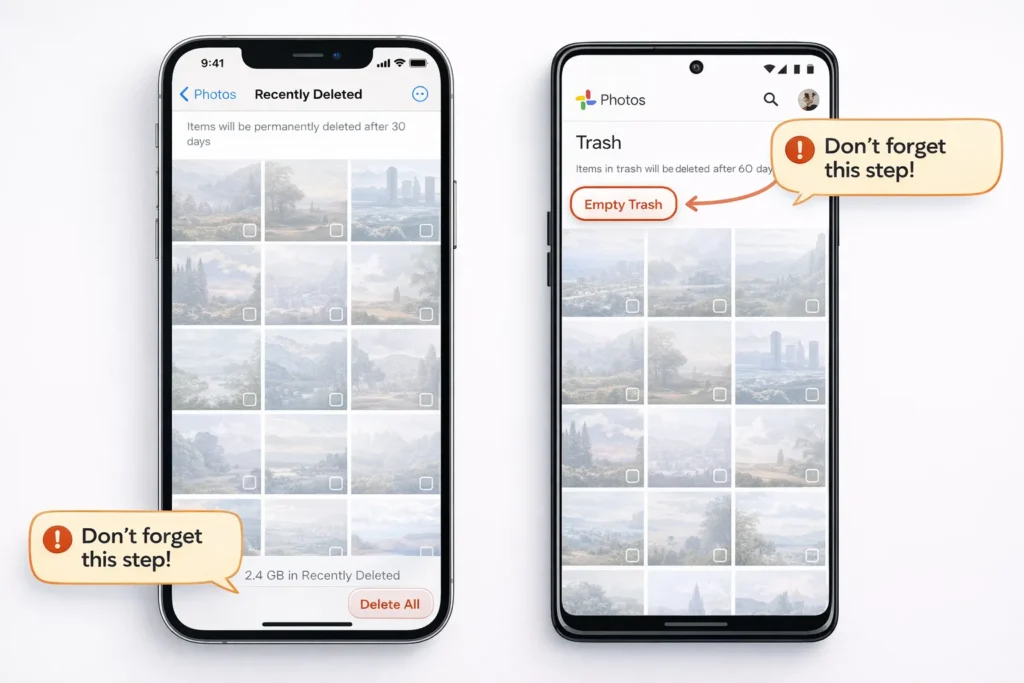
- Empty the Trash / Recently Deleted folder — deleted items sit here for 30 days and still occupy phone storage.
On iPhone: Go to Settings > General > iPhone Storage > tap Review Personal Videos if the option appears.
On Android: Open Google Photos > Library > Trash > Empty Trash.
Why this works: Many people delete photos but forget that they remain in the trash. Until you empty that folder, your phone storage stays full.
Fix 4: Remove Unused Apps
That game you played once six months ago? It’s still sitting on your phone using 2 GB of your limited storage.
On Android:
- Go to Settings > Apps.
- Sort by Size.
- Tap any app you no longer use.
- Tap Uninstall.
On iPhone:
- Go to Settings > General > iPhone Storage.
- Scroll through the app list (sorted by size).
- Tap unused apps and select Delete App.
iPhone Pro Tip: Enable Offload Unused Apps under Settings > App Store. This automatically removes apps you rarely use while keeping their data — a great way to prevent phone storage full situations in the future.
Why this works: Unused apps waste precious storage. Removing them is one of the fastest ways to clear phone storage.
Fix 5: Clear Messaging App Data (WhatsApp, Telegram, Messenger)
Messaging apps are secret storage killers and a very common reason your phone storage is full but you don’t know why. WhatsApp alone can use 5–15 GB on an active phone.
For WhatsApp:
- Open WhatsApp > Settings > Storage and Data > Manage Storage.
- You’ll see files sorted by size, including forwarded media.
- Select and delete large videos and media you don’t need.
For Telegram:
- Open Telegram > Settings > Data and Storage > Storage Usage.
- Tap Clear Cache.
- Set automatic cache clearing to keep things lean.
Why this works: Every meme, video, and voice note shared in group chats gets downloaded and stored locally. Cleaning messaging app data can free up phone storage by several gigabytes instantly.
Fix 6: Delete Downloaded Files
Your Downloads folder is probably full of forgotten PDFs, APK files, old documents, and random images.
- Open the Files app (or My Files on Samsung).
- Navigate to the Downloads folder.
- Select all files you no longer need.
- Delete them and empty the trash.
Why this works: Downloads accumulate over months and are easy to forget. This hidden folder is a common reason your phone memory is full.
Fix 7: Move Data to Cloud Storage
Instead of storing everything locally, move files to the cloud. This is one of the best long-term solutions to fix phone storage full problems.
- Google Photos — Free 15 GB of storage. Backs up your photos automatically.
- iCloud — Free 5 GB for iPhone users (upgradeable plans available).
- OneDrive / Dropbox — Good alternatives with free tiers.
Steps for Google Photos backup:
- Open Google Photos.
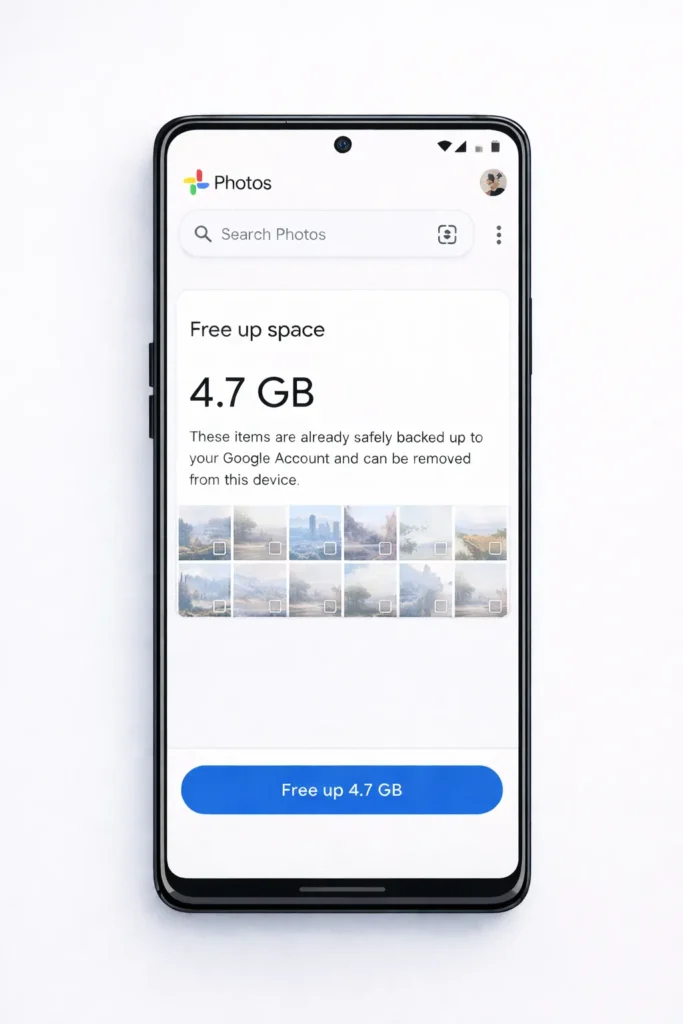
- Tap your profile icon > Photos Settings > Backup.
- Turn backup On.
- Once everything is backed up, tap Free Up Space to remove local copies.
Why this works: Cloud storage keeps your files safe online while freeing up phone storage locally. You can access your photos anytime with an internet connection.
Fix 8: Clear the Downloads Folder on Your Browser
Your browser’s internal download history and cached web pages also eat storage. This is separate from your phone’s Downloads folder.
On Chrome (Android):
- Open Chrome.
- Tap the three dots menu > Settings > Privacy and Security > Clear Browsing Data.
- Select Cached images and files.
- Tap Clear Data.
On Safari (iPhone):
- Go to Settings > Safari.
- Tap Clear History and Website Data.
Why this works: Browser cache can quietly grow to 1–2 GB. Clearing it helps when your phone storage is full and you need quick space.
Fix 9: Delete Offline Content (Spotify, Netflix, YouTube)
Downloaded music playlists, movies, and YouTube videos for offline use consume huge amounts of storage.
- Open Spotify, Netflix, or YouTube.
- Go to Downloads or Library.
- Remove content you’ve already watched or listened to.
Why this works: A single Netflix movie can use 1–3 GB. If you’ve downloaded several, that explains why your phone storage is suddenly full.
Fix 10: Check for Failed or Pending System Updates
Your phone may have downloaded a large system update (1–5 GB) in the background but failed to install it. That file stays on your device, wasting storage.
On Android:
- Go to Settings > System > Software Update.
- If an update is pending, either install it or delete the downloaded file.
On iPhone:
- Go to Settings > General > iPhone Storage.
- Look for a software update file in the app list.
- Tap it and select Delete Update.
Why this works: A stuck update file is a hidden reason your phone storage fills up without explanation. Removing or installing it immediately reclaims that space.
Fix 11: Factory Reset (Last Resort to Fix Phone Storage Full)
If you’ve tried everything and your phone storage is still full, a factory reset wipes your device completely and gives you a fresh start.
⚠️ Warning: This erases ALL data. Back up everything first.
- Back up your data to Google Drive, iCloud, or a computer.
- On Android: Go to Settings > General Management > Reset > Factory Data Reset.
- On iPhone: Go to Settings > General > Transfer or Reset iPhone > Erase All Content and Settings.
- Follow the on-screen instructions and set up your phone as new.
Why this works: A factory reset removes all hidden junk files, corrupted cache, system bloat, and leftover data that normal methods can’t reach. It’s the ultimate phone storage full fix.
Additional Tips to Prevent Phone Storage Full Problems {#additional-tips-to-prevent-phone-storage-full}
Once you’ve fixed the phone storage full issue, use these habits to keep it from happening again:
- Turn off auto-download in WhatsApp. Go to WhatsApp > Settings > Storage and Data > disable auto-download for photos, videos, and documents.
- Review your storage monthly. Set a calendar reminder to check Settings > Storage once a month.
- Use Lite versions of apps — Facebook Lite, Instagram Lite, and Twitter/X Lite use far less storage and data.
- Shoot photos in standard resolution instead of the highest setting if your phone has limited storage.
- Use a microSD card if your Android phone has an SD card slot (Samsung Galaxy A-series, Xiaomi Redmi, and Motorola phones often support this).
- Enable automatic cloud backups and regularly delete local copies of photos and videos.
- Regularly clear app cache — Make it a monthly habit.
Common Mistakes When Fixing Phone Storage Full {#common-mistakes}
🚫 Deleting photos without emptying the trash — Files remain in the Recently Deleted folder for 30 days, so your phone storage stays full.
🚫 Ignoring app cache — People delete personal files but overlook cache data, which can use more space than the files themselves.
🚫 Only clearing one app — Check ALL your large apps, not just one. Multiple apps contribute to a phone memory full situation.
🚫 Buying more cloud storage instead of fixing the root cause — iCloud or Google One storage doesn’t fix a full phone. You still need to clear phone storage locally.
🚫 Deleting system apps or unknown files — This can cause bigger problems. Stick to the safe steps listed in this guide.
🚫 Not restarting after clearing storage — Some freed space doesn’t register until you reboot.
🛠️ Troubleshooting Tips {#troubleshooting-tips}
Phone storage still full after trying everything? Try these extra steps:
✅ Restart your phone after clearing cache and deleting files. Some space won’t show as available until you reboot.
✅ Connect your phone to a computer and manually browse files to find hidden large folders you can’t see on the device.
✅ Use “Files by Google” (Android) — it has a built-in duplicate finder and junk cleaner that identifies files making your phone storage full.
✅ “Other” storage too large on iPhone? Back up to a computer using Finder (Mac) or iTunes (Windows), then restore. This often compresses the mysterious “Other/System Data” category.
✅ Phone storage full but nothing is there? This usually means hidden system cache or corrupt app data. A factory reset (Fix 11) is the most reliable solution.
✅ Check for hidden apps — Some pre-installed bloatware runs in the background and stores data. Disable or uninstall them.
Frequently Asked Questions {#frequently-asked-questions}
Why is my phone storage full when I have nothing on it?
Your phone storage can be full even without many visible personal files. The culprits are usually app cache, system files, messaging app media (WhatsApp, Messenger), browser data, and hidden temporary files. Go to Settings > Storage to see the real breakdown and start clearing space.
How do I free up storage on my phone without deleting anything?
You can free up phone storage without losing files by moving photos and videos to cloud services like Google Photos or iCloud. Clearing app cache also works because it only removes temporary data — not your personal content. On iPhone, use the Offload App feature to reclaim space without losing app data.
Why does my phone keep saying storage is full after I delete everything?
This happens because deleted files often remain in the Trash or Recently Deleted folder for up to 30 days. Additionally, app cache rebuilds quickly after you clear it. To truly fix phone storage full issues, empty the trash, clear cache across multiple apps, and restart your phone.
What is taking up all my phone storage?
The biggest phone storage consumers are usually: photos and videos (especially 4K), app cache data, messaging app media (WhatsApp groups are notorious), downloaded files, offline music/video content, and pending system updates. Checking Settings > Storage gives you a complete picture.
Does clearing cache delete my personal data?
No. Clearing cache only removes temporary files that apps use to load faster. Your personal data, login credentials, photos, messages, and saved progress remain completely untouched. The app might load slightly slower the first time afterward, but it quickly rebuilds its cache. This is the safest way to fix phone storage full problems.
Conclusion
Dealing with a phone storage full warning is frustrating — but it’s almost always fixable in minutes. Start with the three most impactful steps: check your storage breakdown, clear app cache, and clean out messaging app data. These alone can free up phone storage by several gigabytes on most devices.
For a permanent solution, enable cloud backups, disable auto-downloads in messaging apps, and check your storage once a month. You don’t need to buy a new phone or pay for expensive storage plans to fix phone storage full issues.
Follow the steps in this guide, and your phone will feel fast and spacious again.
- Google Support — Free up storage space (Android)
- Apple Support — How to check storage on your iPhone
- Samsung Support — Free up memory and storage



