
Introduction
If Bluetooth is not working on Windows 10, you are not alone. Thousands of users report this exact problem every day. You try to connect your wireless headphones, keyboard, or mouse, and nothing happens. Sometimes the Bluetooth toggle is missing entirely.
Bluetooth not working on Windows 10 can happen for many reasons — outdated drivers, disabled services, or a bad Windows update. The problem may seem complicated, but the fix is usually simple.
This step-by-step guide will show you exactly how to fix Bluetooth on Windows 10 using 12 proven methods. Every instruction is written in plain, easy-to-follow language. No tech experience needed.
Quick Answer: Fix Bluetooth Not Working Windows 10
Try this 60-second fix first:
- Press Windows + I to open Settings.
- Go to Devices → Bluetooth & other devices.
- Toggle Bluetooth Off, wait 10 seconds, then toggle it On.
- If the Bluetooth toggle is missing on Windows 10, open Device Manager, expand Bluetooth, right-click your adapter, and select Enable device.
- Still broken? Right-click the adapter and select Update driver.
If this quick fix does not resolve Bluetooth not working on Windows 10, follow the complete methods below.
Why Bluetooth Is Not Working on Windows 10
Before you fix Bluetooth on Windows 10, it helps to understand what causes the problem. Here are the most common reasons Bluetooth stops working on Windows 10:
- Outdated Bluetooth driver on Windows 10 — This is the #1 cause of Bluetooth failure.
- Windows Update conflicts — A recent update may have corrupted or removed your Bluetooth driver on Windows 10.
- Bluetooth Support Service stopped — Windows requires this background service for all Bluetooth connections.
- Airplane mode is on — This silently disables Bluetooth.
- Bluetooth adapter disabled — The adapter may be turned off in Device Manager, causing Bluetooth to disappear on Windows 10.
- Corrupted system files — Damaged Windows files can break Bluetooth functionality.
- Hardware failure — Rarely, the Bluetooth adapter itself is faulty.
- Power management settings — Windows may be turning off your Bluetooth adapter to save battery.
How to Fix Bluetooth Not Working on Windows 10 (12 Step-by-Step Methods)
Method 1: Toggle Bluetooth Off and On
The easiest way to fix Bluetooth not working on Windows 10 is a simple toggle reset.
- Press Windows + I to open Settings.
- Click Devices.
- Click Bluetooth & other devices.
- Turn the Bluetooth toggle Off.
- Wait 10 seconds.
- Turn it back On.
- Try connecting your device again.
Method 2: Disable Airplane Mode
Airplane mode disables all wireless connections. If Bluetooth is not connecting on Windows 10, check this first.
- Click the notification icon (bottom-right corner of taskbar).
- Look for the Airplane mode tile.
- If it is highlighted blue, click it to turn it off.
- Check if Bluetooth reappears in Settings.
Method 3: Run the Bluetooth Troubleshooter Windows 10
Windows 10 includes a built-in Bluetooth troubleshooter that detects and fixes problems automatically.
- Press Windows + I to open Settings.
- Go to Update & Security → Troubleshoot.
- Click Additional troubleshooters.
- Select Bluetooth.
- Click Run the troubleshooter.
- Follow the on-screen instructions and apply all recommended fixes.
The Bluetooth troubleshooter on Windows 10 resolves many common issues without any manual work.
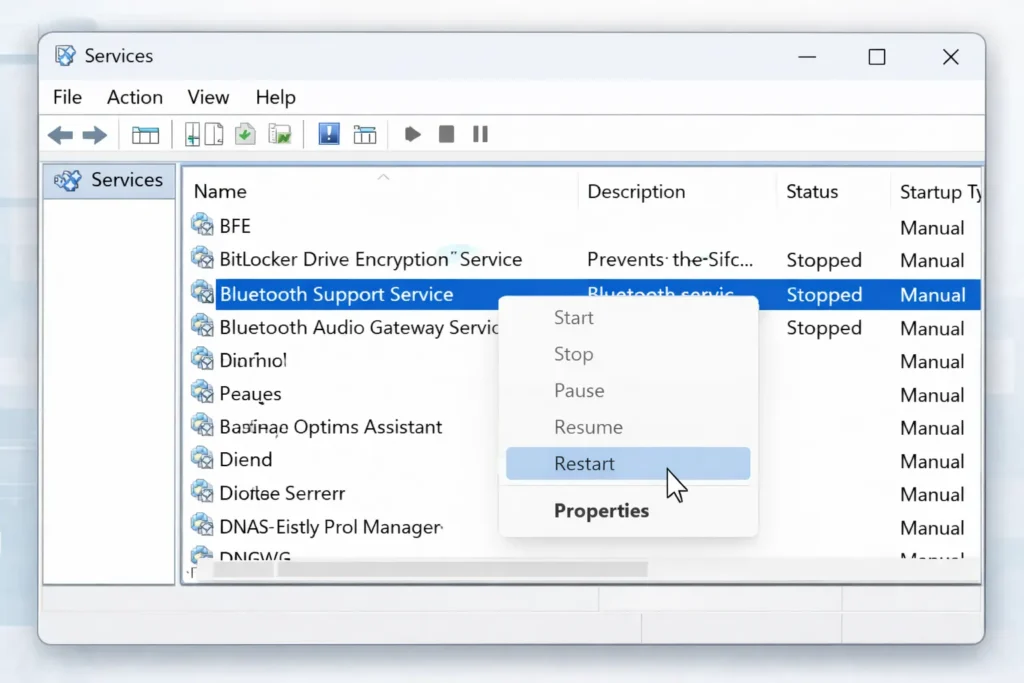
Method 4: Restart the Bluetooth Support Service
If the Bluetooth service has crashed, your Windows 10 Bluetooth will not turn on.
- Press Windows + R to open the Run dialog.
- Type services.msc and press Enter.
- Scroll down and find Bluetooth Support Service.
- Right-click it and select Restart.
- If it is stopped, right-click and select Start.
- Double-click it, set Startup type to Automatic, and click OK.
- Restart your computer.
Method 5: Update Bluetooth Driver Windows 10
An outdated Bluetooth driver on Windows 10 is the most common cause of this problem. Updating it is critical.
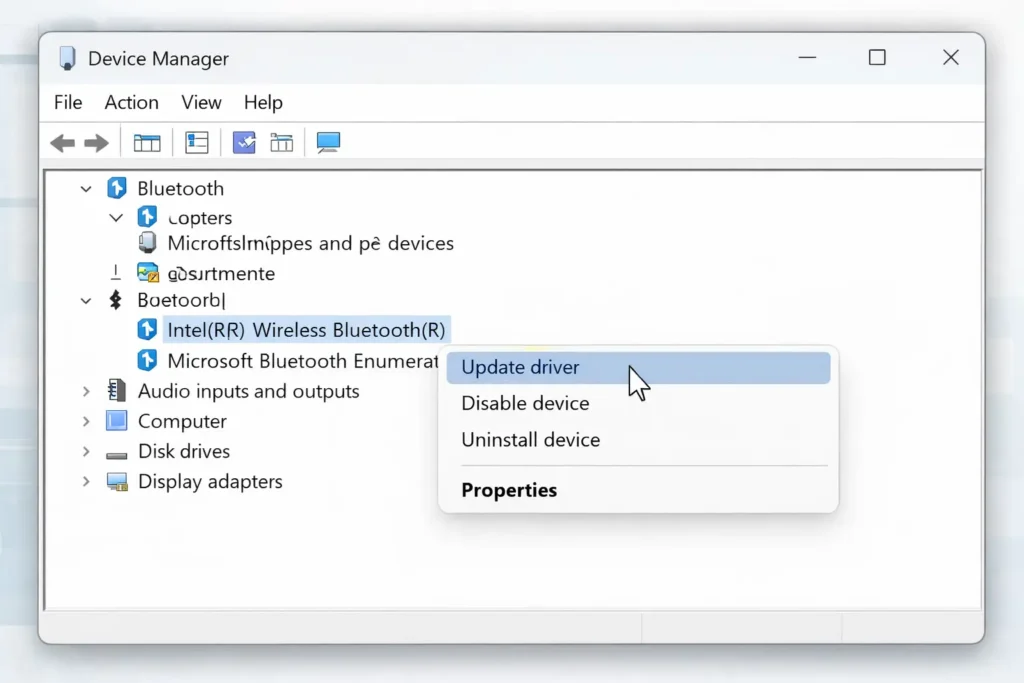
- Right-click the Start button and select Device Manager.
- Expand the Bluetooth section.
- Right-click your Bluetooth adapter (may say Intel, Realtek, or Qualcomm).
- Select Update driver.
- Choose Search automatically for drivers.
- Let Windows find and install the latest driver.
- Restart your computer.
If Windows says the driver is already up to date, visit your laptop manufacturer’s website to download the latest Bluetooth driver for Windows 10 manually.
Method 6: Reinstall the Bluetooth Driver
If updating does not help fix Bluetooth on Windows 10, a clean reinstall often works.
- Open Device Manager.
- Expand the Bluetooth section.
- Right-click your Bluetooth adapter.
- Select Uninstall device.
- Check Delete the driver software for this device if the option appears.
- Click Uninstall.
- Restart your computer.
Windows will automatically reinstall the Bluetooth driver on restart.
Method 7: Install Windows Updates
A pending update might contain a critical Bluetooth fix for Windows 10.
- Press Windows + I to open Settings.
- Go to Update & Security → Windows Update.
- Click Check for updates.
- Install all available updates.
- Restart your computer.
Method 8: Enable Bluetooth in Device Manager
If Bluetooth has disappeared on Windows 10, the adapter may be disabled.
- Open Device Manager.
- Expand the Bluetooth section.
- If you see a down arrow on the adapter icon, it is disabled.
- Right-click it and select Enable device.
Cannot find the Bluetooth section? Click View → Show hidden devices. If it still does not appear, your Bluetooth adapter on Windows 10 may need a driver reinstall (Method 6).
Method 9: Run System File Checker (SFC Scan)
Corrupted system files can cause Bluetooth not working on Windows 10.
- Type cmd in the Windows search bar.
- Right-click Command Prompt and select Run as administrator.
- Type this command and press Enter:text
sfc /scannow - Wait for the scan to finish (5–15 minutes).
- Restart your computer.
Method 10: Remove and Re-Pair the Bluetooth Device
If Bluetooth is not connecting on Windows 10 to a specific device, the pairing may be corrupted.
- Go to Settings → Devices → Bluetooth & other devices.
- Find the problematic device.
- Click it and select Remove device.
- Put your Bluetooth device into pairing mode.
- Click Add Bluetooth or other device → Bluetooth.
- Select your device and pair again.
Method 11: Adjust Power Management Settings
Windows may be turning off your Bluetooth adapter to save power, causing Bluetooth to stop working on Windows 10 intermittently.
- Open Device Manager.
- Expand Bluetooth.
- Right-click your Bluetooth adapter → Properties.
- Click the Power Management tab.
- Uncheck “Allow the computer to turn off this device to save power.”
- Click OK and restart.
Method 12: Perform a System Restore
If Bluetooth stopped working on Windows 10 after a recent change, restore your system to an earlier date.
- Type System Restore in the Windows search bar.
- Click Create a restore point.
- Click System Restore.
- Choose a restore point from before the problem started.
- Follow the prompts and restart.
This will not delete your personal files.
🔧 Troubleshooting Tips Box
- Restart your PC after every driver change.
- Ensure your Bluetooth device is charged and within 30 feet.
- Test your Bluetooth device on another computer to rule out hardware failure.
- If your PC lacks built-in Bluetooth, buy a USB Bluetooth adapter.
- Check your laptop for a physical wireless switch or function key (Fn + F2 or similar).
- After each fix, check if Bluetooth is working on Windows 10 before moving to the next method.
Common Mistakes to Avoid
- Not restarting after driver changes. Most fixes require a reboot to take effect.
- Ignoring Windows Updates. Microsoft regularly releases patches that fix Bluetooth on Windows 10.
- Installing wrong drivers. Always match drivers to your exact Bluetooth adapter model.
- Having too many paired devices. Remove old devices you no longer use.
- Forgetting pairing mode. Your headphones or speaker must be discoverable for Windows to find them.
- Skipping the Bluetooth Support Service check. This is one of the most overlooked causes of Bluetooth not working on Windows 10.
Additional Tips to Prevent the Issue
- Update your Bluetooth driver on Windows 10 at least once a month.
- Never skip Windows Updates. Set them to install automatically.
- Disable Fast Startup: Go to Control Panel → Power Options → Choose what the power buttons do → Uncheck Turn on fast startup. This prevents many Bluetooth conflicts.
- Keep Bluetooth device firmware updated. Check the manufacturer’s app or website.
- Avoid placing USB 3.0 devices near your Bluetooth adapter. USB 3.0 causes radio frequency interference.
- Regularly clear old paired devices from your Bluetooth settings to prevent connection conflicts.
Frequently Asked Questions
Why has Bluetooth disappeared from my Windows 10 PC?
Bluetooth missing on Windows 10 usually means the driver is corrupted or the adapter is disabled. Open Device Manager, look under Bluetooth, and enable or reinstall the driver. See Methods 5, 6, and 8 above.
How do I turn on Bluetooth on Windows 10?
Go to Settings → Devices → Bluetooth & other devices and toggle Bluetooth On. If the Bluetooth toggle is missing on Windows 10, you need to fix the driver first.
Why is Bluetooth not finding any devices on Windows 10?
If Bluetooth is not connecting on Windows 10, make sure the target device is in pairing mode, Bluetooth is turned on, and the device is within range. Try removing and re-pairing (Method 10).
Can I add Bluetooth to a computer that does not have it?
Yes. Buy a USB Bluetooth adapter (dongle) for $10–$15. Plug it in, install the driver, and your PC will have full Bluetooth functionality on Windows 10.
How do I update my Bluetooth driver on Windows 10?
Open Device Manager → Bluetooth → right-click your adapter → Update driver → Search automatically for drivers. You can also download the latest Bluetooth driver for Windows 10 from your laptop manufacturer’s website.
Conclusion
Bluetooth not working on Windows 10 is frustrating but almost always fixable. Start with the simple fixes: toggle Bluetooth off and on, disable airplane mode, and run the Bluetooth troubleshooter on Windows 10. If those do not work, update your Bluetooth driver on Windows 10, restart the Bluetooth Support Service, or reinstall the driver completely.
The 12 methods in this guide cover every common scenario. Follow them in order, and one will solve your problem. Keep your drivers and Windows updated to prevent Bluetooth problems on Windows 10 from returning.
If nothing works after trying every method, your Bluetooth hardware may be faulty. A cheap USB Bluetooth adapter will get you back up and running instantly.
- Microsoft — Fix Bluetooth Problems in Windows: https://support.microsoft.com/en-us/windows/fix-bluetooth-problems-in-windows
- Microsoft — Update Drivers in Windows: https://support.microsoft.com/en-us/windows/update-drivers-manually-in-windows
- Intel — Bluetooth Driver Downloads: https://www.intel.com/content/www/us/en/support/articles/000005489/wireless.html



