Last Updated: November 23, 2026
Introduction
Is GTA 6 not launching on your PS5 or Xbox Series X|S? Does the game crash immediately after opening, get stuck on the loading screen, or close unexpectedly while you are playing? These GTA 6 startup problems can be frustrating, especially when you have just installed the game and are ready to play.
There can be several reasons why GTA 6 is not opening correctly. Common causes include incomplete installation, outdated game updates, insufficient storage, corrupted game files, account license problems, and temporary console errors.
The good news is that there are several troubleshooting methods you can try at home. In this guide, we will explain 10 possible fixes for GTA 6 not launching or crashing, with simple, step-by-step instructions for beginners.
Important: GTA 6 officially launched on November 19, 2026, for PlayStation 5 and Xbox Series X|S. Rockstar has not listed an official PC, Android, or iPhone version as of this article’s update date. The instructions below focus on supported consoles.
Quick Answer: How to Fix GTA 6 Not Launching
If GTA 6 is not launching or keeps crashing, try these solutions first:
- Restart your PS5 or Xbox Series X|S.
- Check PlayStation Network or Xbox service status.
- Update GTA 6 to the latest version.
- Check whether the game has finished installing.
- Free up console storage space.
- Restore game licenses on PS5.
- Check your internet connection.
- Clear the PS5 cache or power cycle your Xbox.
- Reinstall GTA 6 if necessary.
- Check for overheating or other console problems.
Try each solution separately and launch the game again after completing it.
Why Is GTA 6 Not Launching or Crashing?
Before trying different solutions, it is important to understand what might be causing the problem.
Here are some common reasons behind GTA 6 startup issues:
- Incomplete installation: Some required game files may not have downloaded properly.
- Outdated game version: An older version may contain bugs that have been fixed in a newer update.
- Insufficient storage: Your console may not have enough available space for installation or updates.
- Corrupted game data: Damaged files may prevent the game from opening.
- License problems: Your gaming account may not correctly verify ownership of the game.
- Internet connection problems: Network interruptions can affect downloads and account verification.
- Console overheating: Excessive heat can lead to unexpected performance problems or shutdowns.
- Temporary system errors: Background software problems can sometimes prevent a game from starting.
Now let’s look at how to fix GTA 6 not launching step by step.
How to Fix GTA 6 Not Launching: 10 Possible Methods
1. Restart Your PS5 or Xbox Console
The first thing you should try when GTA 6 is not launching is restarting your console.
Sometimes, temporary system errors or background processes can prevent a game from opening correctly.
For PlayStation 5:
- Press the PS button on your controller.
- Open the Control Center.
- Select Power.
- Choose Restart PS5.
- Wait until the console restarts completely.
- Open GTA 6 again.
For Xbox Series X|S:
- Press the Xbox button on your controller.
- Open Profile & System.
- Select Power.
- Choose Restart Console.
- Wait for the console to restart.
- Try launching GTA 6 again.
Why does this work?
Restarting refreshes the console’s system processes and can clear temporary errors that interfere with game startup.
2. Check PlayStation Network and Xbox Service Status
Sometimes GTA 6 startup problems are related to platform services rather than the game itself.
If PlayStation Network or Xbox services are experiencing an outage, you may have problems signing in, verifying game ownership, or downloading updates.
For PlayStation users:
- Visit the official PlayStation Network status page.
- Check whether account management and gaming services are working.
- If an outage is reported, wait until the service is restored.
- Restart your console and try again.
For Xbox users:
- Visit the official Xbox status page.
- Check for reported service problems.
- Wait if Microsoft reports an outage.
- Try opening GTA 6 again.
Why does this work?
Checking service status helps you identify whether the problem is caused by a temporary platform outage instead of your console.
3. Update GTA 6 and Your Console
Outdated software can sometimes cause compatibility and performance problems.
Game updates can contain bug fixes, stability improvements, and solutions for known startup errors.
How to update GTA 6 on PS5:
- Go to the PS5 home screen.
- Highlight Grand Theft Auto VI.
- Press the Options button on your controller.
- Select Check for Update.
- Install any available update.
How to update GTA 6 on Xbox:
- Press the Xbox button.
- Open My Games & Apps.
- Select Manage.
- Open Updates.
- Check whether a GTA 6 update is available.
- Install the update.
Also check your console’s system software:
- PS5: Settings > System > System Software > System Software Update and Settings.
- Xbox: Settings > System > Updates.
Why does this work?
Updates can fix known software bugs and compatibility problems that may cause GTA 6 to crash or fail to launch.
4. Check Whether GTA 6 Is Fully Installed
Another possible reason for GTA 6 not opening is an incomplete installation.
This can happen if your internet connection disconnects during a download or the console is switched off before installation finishes.
On PS5:
- Open Downloads/Uploads from the Control Center.
- Find GTA 6.
- Check its download progress.
- Wait for all installation and update activities to finish.
- Try launching the game again.
On Xbox Series X|S:
- Open My Games & Apps.
- Go to Manage.
- Select Queue.
- Check whether GTA 6 is still downloading or installing.
- Wait until the process is completed.
Why does this work?
The game needs its required files to be installed correctly. Missing or incomplete files can prevent it from starting.
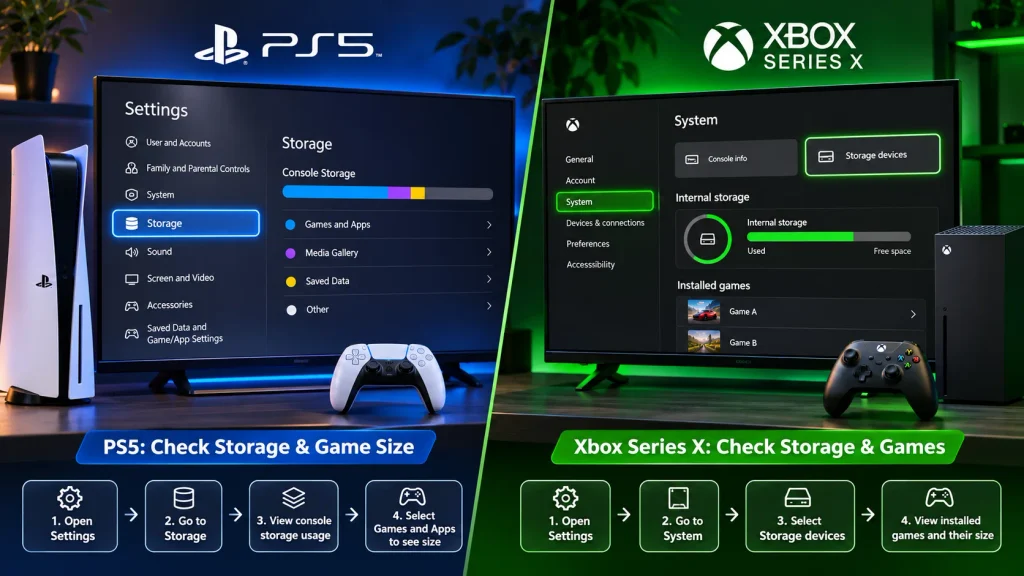
5. Free Up Storage Space on Your Console
Insufficient storage can cause download, installation, and update problems.
According to Rockstar’s official installation information, GTA 6 requires up to 212 GB of available storage, depending on the device.
Make sure your console has enough space for the installation and additional updates.
Free up storage on PS5:
- Open Settings.
- Select Storage.
- Check available console storage.
- Delete games or applications you no longer use.
- Remove unnecessary media files if required.
- Restart your PS5 and try again.
Free up storage on Xbox:
- Open Settings.
- Select System.
- Choose Storage Devices.
- Check the available storage.
- Remove unwanted games or applications.
- Try launching GTA 6 again.
For PS5, make sure GTA 6 is installed on supported console storage. PS5 games cannot be played directly from USB extended storage.
Why does this work?
Games need available space for installation, updates, and temporary data. A lack of free storage can interrupt these processes and cause errors.
6. Restore Game Licenses on PlayStation 5
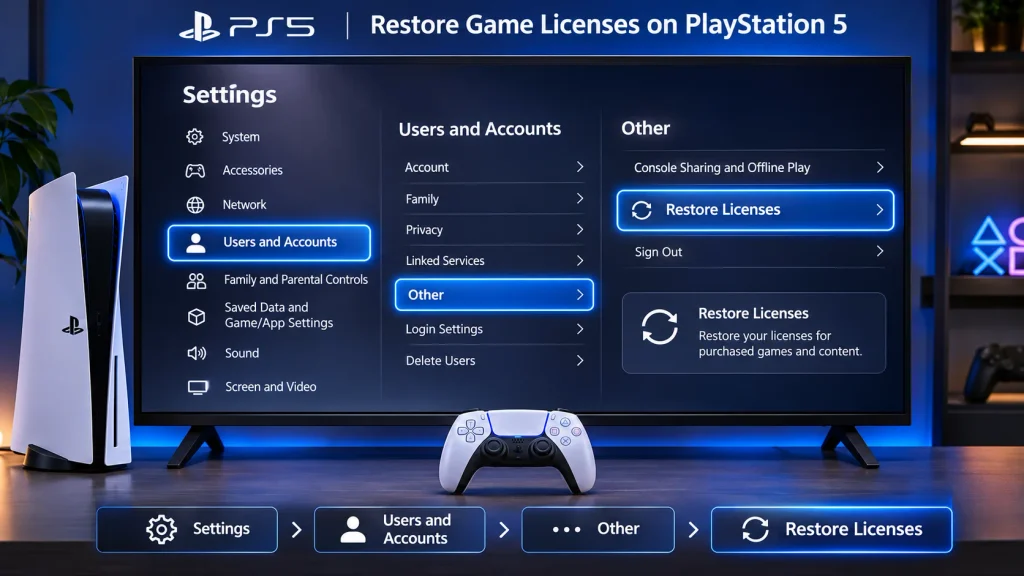
If GTA 6 displays a locked icon or refuses to open after a digital purchase, there may be a license verification issue.
Restoring licenses can help your PlayStation recognize your digital game ownership.
Follow these steps:
- Open Settings on your PS5.
- Select Users and Accounts.
- Choose Other.
- Select Restore Licenses.
- Select GTA 6 if it appears.
- Wait for the process to finish.
- Try opening the game again.
Make sure you are signed in with the PlayStation account used to purchase or redeem GTA 6.
Why does this work?
Restoring licenses refreshes your digital ownership information and can resolve certain access problems.
7. Check Your Internet Connection
A weak or unstable internet connection can interrupt game downloads, updates, and account verification.
Even when you are playing a single-player game, internet access may be required for certain account and licensing operations.
Try these steps:
- Check whether other applications are connecting to the internet.
- Restart your Wi-Fi router.
- Disconnect and reconnect your console to Wi-Fi.
- Run the console’s internet connection test.
- Try using an Ethernet cable if available.
- Check whether GTA 6 opens after your connection becomes stable.
Why does this work?
A stable connection helps prevent interrupted downloads and problems with online account verification.
8. Clear the System Cache or Power Cycle Your Console
Temporary system data can sometimes contribute to freezing, performance problems, or game startup errors.
The troubleshooting method is different for PS5 and Xbox.
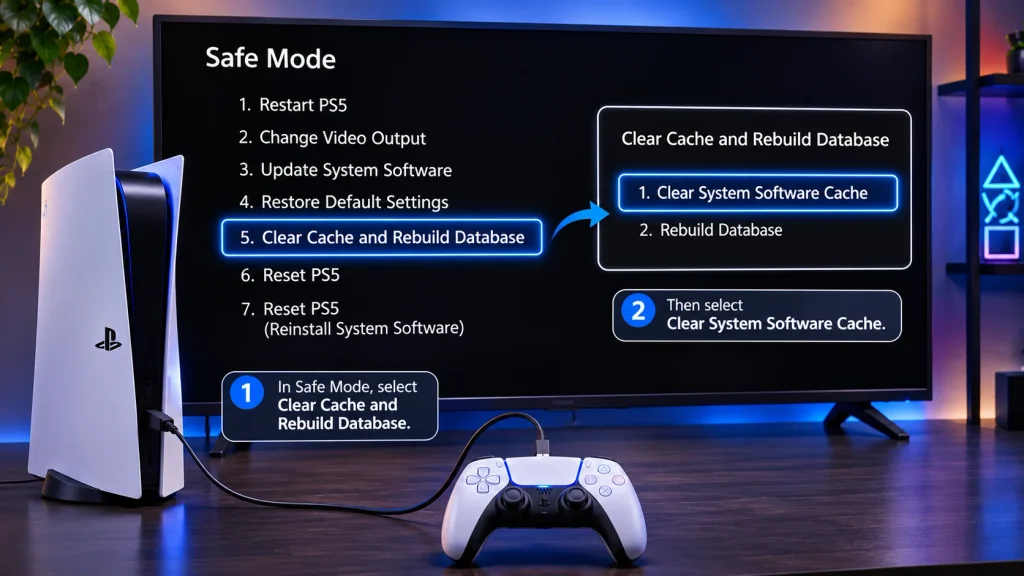
Clear cache on PS5:
- Turn off your PS5 completely.
- Press and hold the console’s power button.
- Release it after hearing the second beep.
- Connect your controller using a USB cable.
- Press the PS button.
- Select Clear Cache and Rebuild Database.
- Choose Clear System Software Cache.
- Restart your console and test GTA 6.
If the problem continues, you can consider the Rebuild Database option.
Power cycle Xbox Series X|S:
- Turn off your Xbox completely.
- Hold the console’s power button for approximately 10 seconds if necessary.
- Disconnect its power cable after shutdown.
- Wait for about 30 seconds.
- Reconnect the power cable.
- Turn on your Xbox.
- Try launching GTA 6.
Why does this work?
Clearing temporary system cache or performing a full power cycle can resolve certain temporary software and system problems without deleting your saved game progress.
9. Reinstall GTA 6
If GTA 6 is still not launching after trying the previous solutions, its installation files may be damaged.
Reinstalling the game can replace potentially corrupted or incomplete files.
Steps to reinstall GTA 6:
- Open your game library.
- Find Grand Theft Auto VI.
- Open the game’s options menu.
- Select Delete or Uninstall.
- Confirm the removal of the game application.
- Open your purchased game library.
- Download GTA 6 again.
- Wait until the installation finishes.
- Launch the game.
Important: Before reinstalling, make sure your saved game progress is backed up or synchronised with cloud storage. Do not accidentally select an option that deletes saved data.
Why does this work?
A fresh installation replaces the existing game files and can resolve problems caused by corrupted installation data.
10. Check Console Overheating and Hardware Problems
If GTA 6 opens but crashes after a few minutes of gameplay, your console may be experiencing overheating or another hardware problem.
Modern games place considerable demands on gaming hardware. Poor ventilation can affect console performance.
Try these steps:
- Turn off your console.
- Allow it to cool down.
- Place it in an open, well-ventilated area.
- Make sure the air vents are not blocked.
- Remove dust from accessible ventilation areas.
- Avoid placing the console inside a closed cabinet.
- Restart the console and test GTA 6.
Also try running another game. If multiple games crash or your console shuts down unexpectedly, the problem may not be limited to GTA 6.
Note the exact error code and when the crash happens. Contact official PlayStation, Xbox, or Rockstar support if the issue continues.
Why does this work?
Checking ventilation and hardware helps identify whether crashes are caused by environmental or console-related problems rather than game installation issues.
Additional Tips to Prevent GTA 6 Startup Problems
Follow these simple habits to reduce future game startup problems:
- Keep your console system software updated.
- Install GTA 6 game updates when available.
- Maintain sufficient free storage.
- Avoid switching off the console during downloads or updates.
- Use a stable internet connection when downloading games.
- Keep your console properly ventilated.
- Download games only from official stores.
- Back up your saved game progress.
- Avoid suspicious third-party launchers and unofficial game files.
These precautions can help reduce common installation and performance issues.
Common Mistakes to Avoid
While fixing GTA 6 not launching problems, avoid these common mistakes:
- Repeatedly opening the game: Restart your console and check for updates instead of repeatedly trying to launch it.
- Deleting saved game data: Delete the game application only when reinstalling. Do not accidentally remove your saved progress.
- Ignoring storage requirements: Make enough space before downloading updates.
- Downloading unofficial game files: Avoid suspicious PC installers, mobile APKs, and unofficial launchers.
- Factory resetting too early: Try basic troubleshooting methods before considering a full console reset.
- Ignoring error codes: Record any displayed error code because it can help support teams identify the problem.
Troubleshooting Tips: Quick Solutions
| Problem | Recommended Solution |
|---|---|
| GTA 6 won’t open | Restart your console |
| GTA 6 stuck on loading screen | Check installation and updates |
| Black screen during startup | Restart and update system software |
| Locked game icon on PS5 | Restore game licenses |
| Download keeps stopping | Check internet and storage |
| Game crashes repeatedly | Clear cache and check for updates |
| Console shuts down unexpectedly | Check ventilation and hardware |
| Game still crashes after reinstalling | Record the error code and contact support |
Frequently Asked Questions (FAQs)
1. Why is GTA 6 not launching on PS5?
GTA 6 may fail to launch because of incomplete installation, outdated software, insufficient storage, corrupted files, or license problems. Restart your PS5, check for game updates, and restore licenses if necessary.
2. Why does GTA 6 keep crashing on Xbox Series X?
Repeated crashes can be related to temporary system errors, outdated software, installation problems, or overheating. Restart your Xbox, check for updates, and make sure the console has enough ventilation.
3. How much storage space does GTA 6 require?
According to Rockstar’s official installation information, GTA 6 requires up to 212 GB of available storage, depending on the device. Check your console’s available storage before installing the game.
4. Will reinstalling GTA 6 delete my saved progress?
Removing the game application does not normally require deleting your separate saved game data. However, make sure your saves are synchronised or backed up before reinstalling. Avoid selecting any option that deletes saved data.
5. Is GTA 6 available on PC?
As of November 23, 2026, Rockstar officially lists GTA 6 for PlayStation 5 and Xbox Series X|S. An official PC release has not been listed. Avoid downloading unofficial PC versions or mobile installation files.
Where to Add Screenshots in This Article
Adding screenshots will make your troubleshooting guide easier for beginners to follow.
Recommended screenshot placements:
- After Fix 1: PS5 Power menu showing Restart PS5 and the Xbox Restart Console option.
- After Fix 3: GTA 6 game update screen.
- After Fix 4: Game download and installation progress screen.
- After Fix 5: PS5 and Xbox storage management screens.
- After Fix 6: PS5 Restore Licenses settings screen.
- After Fix 8: PS5 Safe Mode menu showing Clear Cache and Rebuild Database.
- After Fix 9: GTA 6 game library showing the uninstall and reinstall options.
Use your own console screenshots whenever possible. Add descriptive ALT text to each image.
Conclusion
GTA 6 not launching or crashing can be frustrating, especially when you are ready to explore the game’s world. However, the problem may be caused by a simple issue such as an incomplete installation, insufficient storage, outdated software, or temporary console errors.
Start with basic solutions such as restarting your console, checking updates, and verifying the installation. If those methods do not work, move towards advanced solutions such as restoring licenses, clearing the system cache, or reinstalling GTA 6.
Follow these 10 methods one by one. If GTA 6 keeps crashing even after trying these solutions, record the error code and contact official support for further assistance.
SEO Settings for WordPress
Focus Keyword: GTA 6 not launching
SEO Title: GTA 6 Not Launching? 10 Fixes for Crashes
Meta Description: GTA 6 not launching or crashing on PS5 or Xbox? Try 10 practical fixes for updates, storage, licenses, cache, installation errors and startup problems.
URL Slug: gta-6-not-launching-fixes
Secondary Keywords:
- GTA 6 keeps crashing
- GTA 6 not opening
- GTA 6 startup issues
- GTA 6 crashing on PS5
- GTA 6 crashing on Xbox Series X
- GTA 6 stuck on loading screen
- How to fix GTA 6 crashes
Internal Linking Suggestions
Add links to these related troubleshooting articles on your website:
- How to Fix Steam Games Not Launching on Windows 11
- How to Fix Game Lag on Android: 11 Proven Methods (Step-by-Step)
External Authority Sources
- Rockstar Games – GTA 6 Error Troubleshooting
- PlayStation – Troubleshoot Issues When Starting a Game
- Xbox – Error Code Troubleshooting
Official installation information: Rockstar Games – GTA 6 Installation Requirements