
Introduction
Is your phone screen keeps turning on by itself no matter what you do? You put it down on the table, and seconds later, the display lights up again — with no call, no alarm, and no reason. This is one of the most frustrating smartphone problems, and it drains your battery fast.
The issue of a screen turning on by itself affects nearly every brand. Samsung, Xiaomi, Pixel, OnePlus, and even iPhones all suffer from this. It usually starts after a software update, after installing a new app, or completely out of nowhere.
Here’s what matters: when your phone screen keeps turning on, it’s almost always a settings problem — not broken hardware. This guide gives you every fix you need to stop your phone screen from turning on randomly, starting with the easiest solutions first.
Quick Answer
If your phone screen keeps turning on by itself, the most likely cause is a feature called “Lift to Wake” or “Ambient Display.” Open Settings > Display and disable these options. Also check for apps sending constant notifications that wake the screen. Disabling these features will usually fix your phone screen turning on randomly in under 60 seconds.
Why Your Phone Screen Keeps Turning On by Itself {#why-this-problem-happens}
Before jumping into fixes, it helps to understand why your phone screen keeps turning on by itself. When you know the cause, you pick the right solution faster.
Here are the most common reasons your screen keeps waking up on its own:
- Motion-detection features: Modern phones use sensors to detect movement. Features like “Lift to Wake” activate the display whenever motion is detected — even from a slight bump on your desk.
- Incoming notifications: Every text, email, and app alert can cause your phone screen to turn on by itself. High-notification apps are the biggest offenders.
- Ambient Display / Always-On Display: These features periodically wake or keep parts of the screen active, making it seem like your screen lights up by itself.
- Tap to Wake sensitivity: Some phones have ultra-sensitive screens. Nearby vibrations or accidental touches trigger the display.
- Faulty screen protectors or cases: A badly fitted protector causes phantom touches — ghost inputs that make the phone display keep turning on without you touching it.
- Third-party apps: Certain apps run aggressive background processes that repeatedly wake the screen.
- Software bugs: A recent OS update may have re-enabled display settings or introduced a glitch that makes the screen keep turning on by itself.
How to Fix Phone Screen Keeps Turning On by Itself (Step-by-Step Methods) {#how-to-fix}
These 10 fixes are arranged from simplest to most advanced. Most users fix their phone screen turning on problem within the first three methods.
Fix 1: Disable Lift to Wake / Raise to Wake
This is the number one reason your phone screen keeps turning on by itself. The motion sensor thinks you’re picking up the phone, so it wakes the display automatically.
Why this works: Disabling this feature stops the accelerometer from activating the screen when it detects any movement.
On iPhone:
- Open Settings.
- Tap Display & Brightness.
- Toggle off Raise to Wake.
On Samsung Galaxy:
- Open Settings.
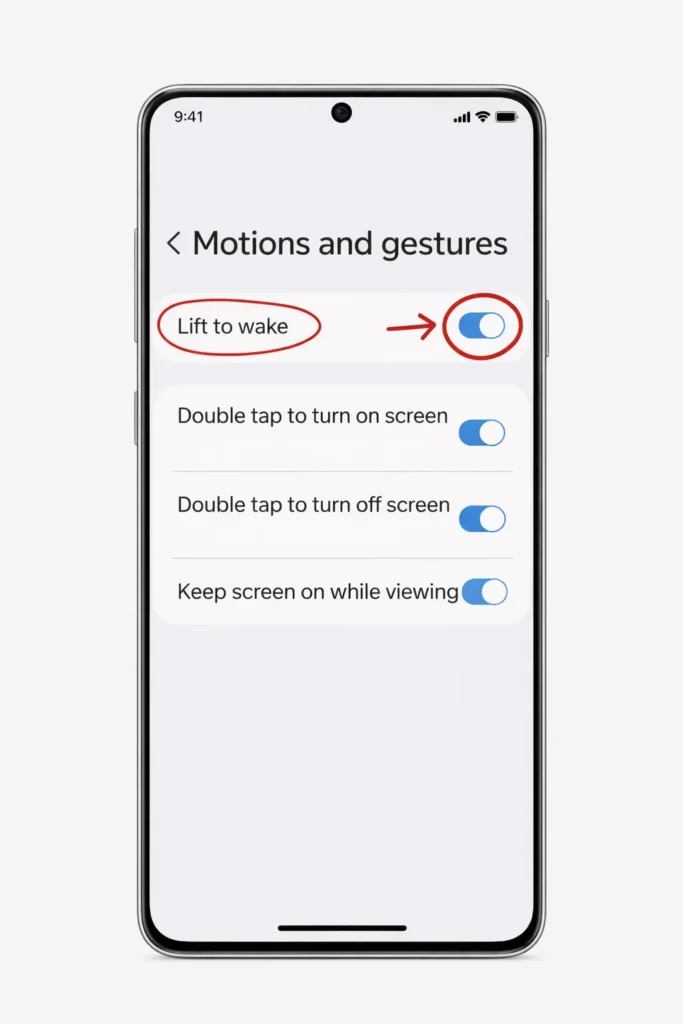
- Go to Advanced Features > Motions and Gestures.
- Turn off Lift to Wake.
On Xiaomi (MIUI/HyperOS):
- Open Settings.
- Tap Always-on Display & Lock Screen.
- Disable Raise to Wake.
On Google Pixel:
- Go to Settings > Display.
- Tap Lock Screen.
- Toggle off Lift to check phone.
After disabling this, place your phone down and wait. If the screen no longer turns on by itself, you’ve found the fix.
Fix 2: Turn Off Ambient Display / Always-On Display
If your phone screen keeps turning on even while lying flat and untouched, Ambient Display is likely the cause. This feature wakes the screen briefly whenever a new notification arrives or at set intervals.
Why this works: Turning off Ambient Display prevents the screen from lighting up for incoming alerts and periodic time checks.
On Stock Android / Google Pixel:
- Go to Settings > Display.
- Tap Lock Screen.
- Turn off Wake screen for notifications.
- Also toggle off Always show time and info.
On Samsung Galaxy:
- Go to Settings > Lock Screen.
- Tap Always On Display and switch it Off.
On iPhone (14 Pro and later):
- Go to Settings > Display & Brightness.
- Toggle off Always On Display.
This fix alone resolves the screen keeps waking up issue for a huge number of users.
Fix 3: Manage Notification Wake Settings
Notifications are a hidden cause when your phone screen keeps turning on by itself. Every single incoming alert — from WhatsApp, Instagram, email, even system updates — can wake your display.
Why this works: Restricting which notifications can wake the screen dramatically reduces how often your screen lights up by itself.
On Android:
- Go to Settings > Notifications.
- Tap Lock screen notifications.
- Select Don’t show notifications or Show silently.
- Alternatively, open individual app settings and disable Wake screen for each app.
On iPhone:
- Go to Settings > Notifications.
- Select the problematic app (e.g., Instagram, Gmail).
- Under Alerts, disable Lock Screen.
- Repeat for every app that sends frequent notifications.
Pro tip: Enable Do Not Disturb or Focus Mode at night to completely stop your phone screen from turning on while you sleep.
Fix 4: Disable Tap to Wake / Double Tap to Wake
If your phone screen turns on by itself when lying on a table, the Tap to Wake feature may be picking up vibrations or accidental touches.
Why this works: Disabling tap detection ensures only the power button can wake the screen — no more phantom activations.
On iPhone:
- Go to Settings > Accessibility > Touch.
- Toggle off Tap to Wake.
On Android (varies by brand):
- Go to Settings > Display or Settings > Advanced Features > Motions and Gestures.
- Turn off Double Tap to Turn On Screen or Double Tap to Wake.
This setting is particularly common on OnePlus, Xiaomi, and Samsung devices. Turning it off is one of the fastest ways to fix a phone screen that keeps turning on.
Fix 5: Turn Off Scheduled Alarms and Reminders
Does your phone screen turn on by itself at the same time every day? A forgotten alarm or recurring calendar reminder may be the culprit.
Why this works: Alarms and reminders are designed to wake the screen. Removing unnecessary ones eliminates timed screen activations.
- Open your Clock app and review all active alarms.
- Open your Calendar app and check for recurring reminders.
- Check apps like WhatsApp, Telegram, or email clients for scheduled notification summaries.
- Disable or delete any alerts you no longer need.
If the screen keeps turning on by itself only at specific times, this fix is almost certainly your answer.
Fix 6: Check for a Faulty Phone Case or Screen Protector
Sometimes the reason your phone screen keeps turning on by itself is physical, not digital. A poorly fitted screen protector or magnetic case can create ghost touches that wake the display.
Why this works: Removing the physical obstruction eliminates false touch inputs that trigger the screen.
- Remove your phone case completely.
- Peel off the screen protector carefully.
- Clean the screen with a microfiber cloth.
- Place the phone on a flat, stable surface for 10–15 minutes.
- Observe whether the screen still turns on by itself.
If the problem stops, replace the case or screen protector with a properly fitted, high-quality one. This is an overlooked but surprisingly common reason a phone display keeps turning on.
Fix 7: Disable Smart Stay or Attention-Aware Features
Samsung’s Smart Stay and Apple’s Attention Aware Features use the front camera to detect your face. When they misfire, they can make your phone screen keep turning on or prevent it from going to sleep.
Why this works: Disabling camera-based detection stops the phone from mistakenly thinking someone is looking at the screen.
On Samsung:
- Go to Settings > Advanced Features > Motions and Gestures.
- Disable Smart Stay.
On iPhone:
- Go to Settings > Face ID & Passcode.
- Toggle off Attention Aware Features.
Fix 8: Boot Into Safe Mode
If your phone screen keeps turning on by itself and none of the above fixes work, a third-party app may be causing the problem. Safe Mode disables all downloaded apps so you can test this.
Why this works: If the screen behaves normally in Safe Mode, you know for certain that a downloaded app is making the screen wake up on its own.
On most Android phones:
- Press and hold the Power button.
- When the power menu appears, tap and hold the Power Off option.
- Tap OK when prompted to enter Safe Mode.
- Observe the phone for 10–15 minutes.
- If the screen stays off properly, uninstall recently downloaded apps one by one.
On iPhone: There is no traditional Safe Mode. Instead, check Settings > Battery for apps with abnormally high background activity. Delete recently installed apps one at a time until the screen stops turning on by itself.
Fix 9: Update or Roll Back Software
Software bugs can cause your phone screen to turn on by itself after an update. Installing the latest patch often includes a fix for display-related glitches.
Why this works: Manufacturers regularly release updates that patch sensor and display bugs.
- Go to Settings > System > Software Update (Android) or Settings > General > Software Update (iPhone).
- Download and install any available update.
- Restart your phone after updating.
If the screen keeps waking up only since a recent update, search forums for your specific phone model to see if others report the same issue. A future patch will likely resolve it.
Fix 10: Factory Reset (Last Resort)
If absolutely nothing else has worked and your phone screen keeps turning on by itself, a factory reset will eliminate any software-related cause by returning your device to its original state.
⚠️ Back up all your data before proceeding.
On Android:
- Go to Settings > System > Reset Options.
- Tap Erase All Data (Factory Reset).
- Confirm and wait for the process to complete.
On iPhone:
- Go to Settings > General > Transfer or Reset iPhone.
- Tap Erase All Content and Settings.
After resetting, set up your phone fresh and monitor it before reinstalling apps. If the phone screen still turns on by itself even after a factory reset, the issue is likely hardware-related and requires professional repair.
Common Mistakes to Avoid {#common-mistakes}
🚫 Only changing display settings — Many users adjust display options but forget that notifications are the primary reason the screen keeps turning on by itself.
🚫 Ignoring the screen protector — Ghost touches from a cheap screen protector perfectly mimic a software problem. Always test without it.
🚫 Jumping straight to factory reset — A reset is unnecessary 95% of the time. Simple setting changes usually fix the phone screen turning on issue.
🚫 Not restarting the phone — A basic restart clears temporary glitches. Always restart after changing any setting.
🚫 Changing everything at once — Adjust one setting at a time. Otherwise, you won’t know which fix actually stopped your phone screen from turning on by itself.
🛠️ Troubleshooting Tips {#troubleshooting-tips}
Run Through This Checklist Before Trying Any Fix:
✅ Restart your phone first. This alone fixes many cases where the screen keeps waking up randomly.
✅ Note when the screen turns on. Is it random? At specific times? When moved? When notifications arrive? This tells you exactly which fix to use.
✅ Check battery usage. Go to Settings > Battery and look for apps with unusually high background activity — they may be waking the screen.
✅ Test with and without your phone case and screen protector.
✅ Try one fix at a time and wait 10–15 minutes before moving to the next.
✅ Write down what you changed so you can reverse it if needed.
Additional Tips to Prevent the Issue {#prevention-tips}
Once you fix your phone screen turning on by itself, use these tips to prevent it from happening again:
- Keep your phone software updated. Manufacturers patch display and sensor bugs in every release.
- Limit app notifications. Only allow notifications from apps you truly need. Fewer notifications mean fewer times your screen lights up by itself.
- Schedule Do Not Disturb. Set DND to activate automatically every night so your phone screen won’t turn on while you sleep.
- Invest in quality accessories. Cheap screen protectors and cases cause phantom touches. Buy well-reviewed, properly fitted ones.
- Avoid vibrating surfaces. Don’t place your phone on washing machines, speakers, or unstable tables — vibrations trigger motion-based wake features.
- Review settings after every update. OS updates sometimes re-enable features like Lift to Wake or Ambient Display that you previously turned off, causing the phone screen to keep turning on again.
- Periodically audit installed apps. Remove apps you no longer use, especially those with aggressive notification and background activity patterns.
Frequently Asked Questions {#faqs}
Why does my phone screen keep turning on by itself?
The most common reasons your phone screen keeps turning on by itself are motion-detection features (Lift to Wake, Raise to Wake), incoming notifications waking the display, Ambient Display or Always-On Display settings, and Tap to Wake sensitivity. Disabling these features in your settings solves the problem in most cases.
How do I stop my Android phone screen from turning on by itself?
Go to Settings > Display and disable Ambient Display, Lift to Wake, and Tap to Wake. Then go to Settings > Notifications and restrict lock screen notifications. These steps will stop your Android phone screen from turning on randomly.
Why does my iPhone screen keep lighting up for no reason?
Your iPhone likely has Raise to Wake or Always On Display enabled, or notifications are waking the screen. Go to Settings > Display & Brightness, turn off Raise to Wake and Always On Display. Then manage individual app notifications under Settings > Notifications to stop the iPhone screen from turning on by itself.
Can a screen protector cause my phone screen to turn on by itself?
Yes. A poorly fitted or low-quality screen protector can cause ghost touches — false inputs the phone registers as taps. These phantom touches wake the display and make it seem like your phone screen turns on by itself. Remove the protector to test, and replace it with a properly fitted one.
Should I factory reset if my phone screen won’t stay off?
A factory reset should only be your last resort. First, disable Lift to Wake, Ambient Display, Tap to Wake, and notification wake settings. Test in Safe Mode to rule out third-party apps. Only perform a factory reset if every other method fails to fix the phone screen that keeps turning on.
Conclusion
When your phone screen keeps turning on by itself, the solution is almost always hiding in your settings. You don’t need to be a tech expert, and you probably don’t need a repair shop.
In most cases, disabling Lift to Wake, Ambient Display, and notification wake settings will completely fix your phone screen turning on randomly. These three changes alone solve the problem for the vast majority of Android and iPhone users.
Start from Fix 1 and work your way down. Pay close attention to when and how often the screen turns on by itself — that pattern points you directly to the cause.
If you’ve tried all 10 fixes and your phone screen still keeps turning on by itself, visit an authorized service center. There may be a faulty proximity sensor or display component that needs professional attention. But for 9 out of 10 users reading this, the answer is already sitting in your settings menu.
- Google Pixel Help – Manage lock screen notifications: https://support.google.com/pixelphone/answer/9510897
- Apple Support – Change Lock Screen settings on iPhone: https://support.apple.com/guide/iphone/change-lock-screen-settings-iph385dd498a/ios
- Samsung Support – Always On Display settings: https://www.samsung.com/us/support/troubleshooting/TSG01203568/



