
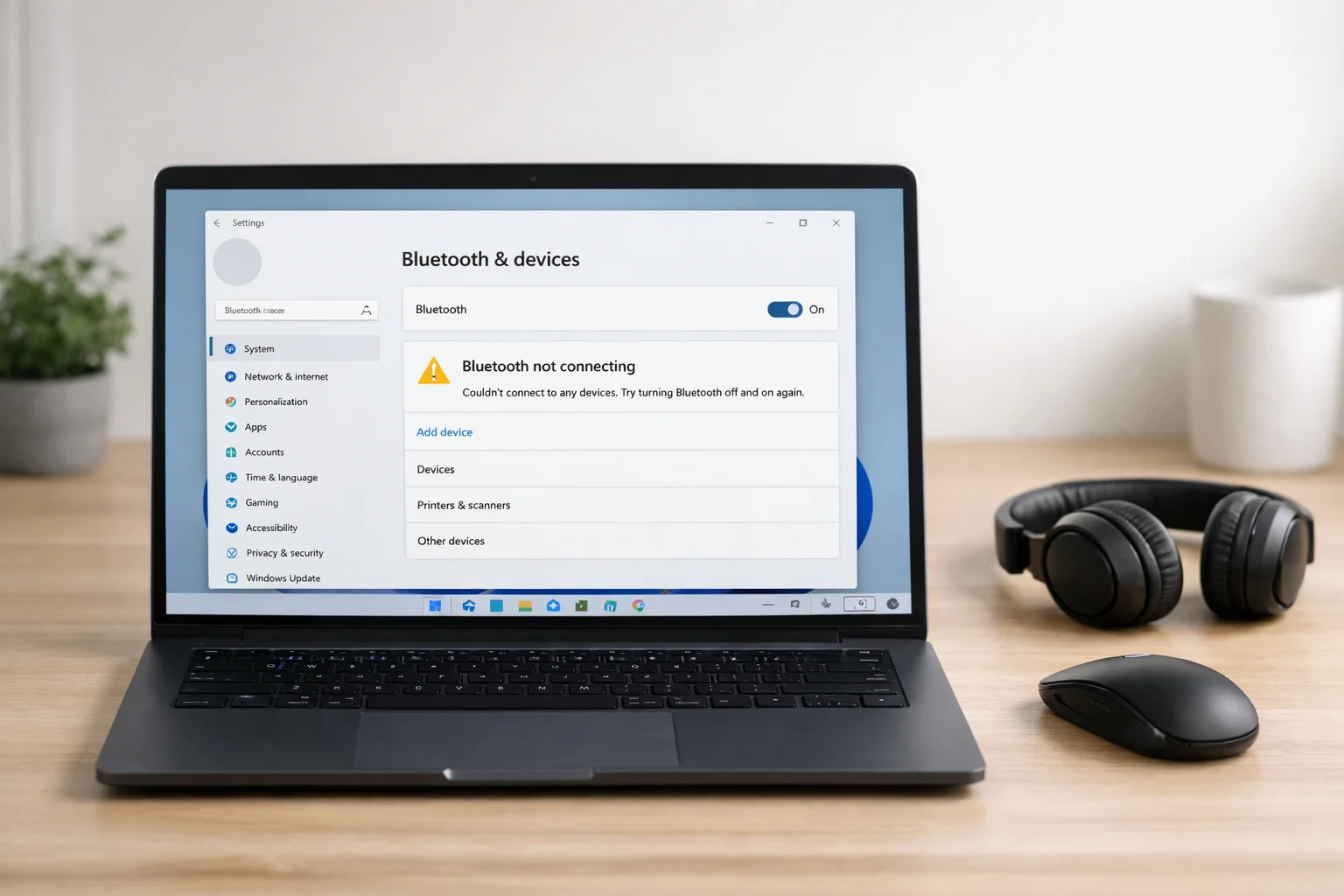
Is your Bluetooth not working on your laptop? You’re not alone. Many users face this issue when trying to connect wireless headphones, a mouse, a keyboard, or other Bluetooth devices.
Sometimes Bluetooth disappears completely. Other times, it won’t connect or keeps disconnecting. The good news? In most cases, the problem is easy to fix.
In this guide, you’ll learn simple, step-by-step solutions to fix Bluetooth not working on a laptop — even if you’re not tech-savvy.
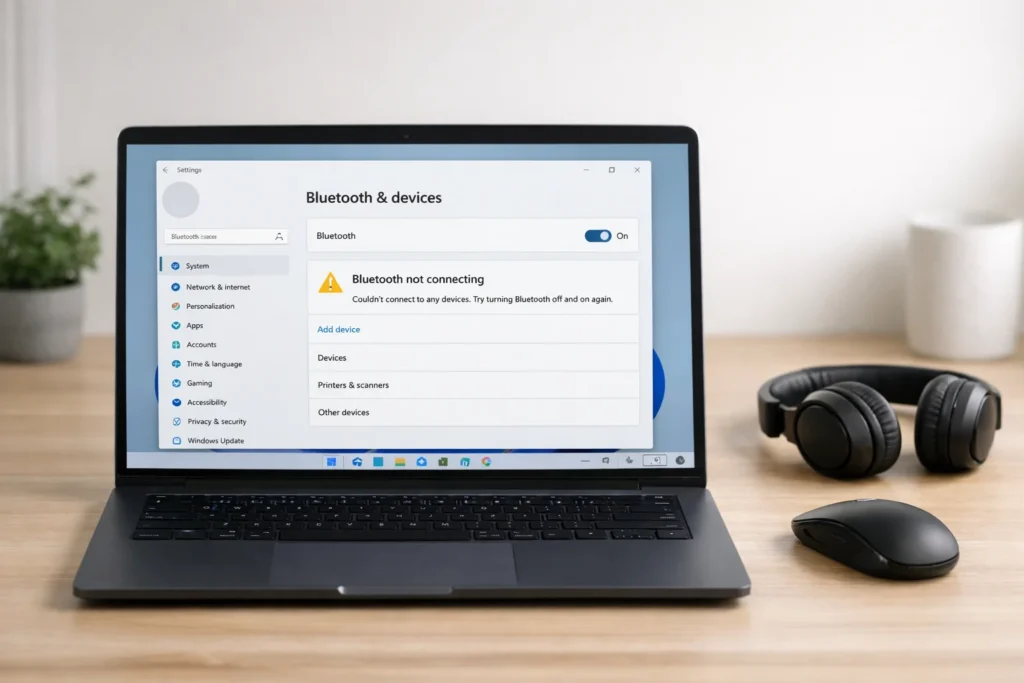
Quick Answer: Bluetooth Not Working on Laptop Fix
If Bluetooth is not working on your laptop, try this quick fix:
- Restart your laptop.
- Turn Bluetooth off and back on.
- Run the Bluetooth troubleshooter.
- Update the Bluetooth driver.
- Remove and reconnect the device.
If that doesn’t work, follow the detailed fixes below.
Why This Problem Happens
Understanding why Bluetooth not working on laptop happens can help you fix it faster.:
- Outdated or corrupted drivers
- Bluetooth accidentally turned off
- Airplane mode enabled
- Windows update issues
- Device compatibility problems
- Disabled Bluetooth services
- Hardware issues
Most of these problems are software-related and can be fixed in minutes.
How to Fix Bluetooth Not Working on Laptop (Easy Methods That Work)
Follow these step-by-step methods. Try them one by one.
Fix 1: Restart Your Laptop
This may sound simple, but it works often.
Steps:
- Click Start.
- Select Power.
- Click Restart.
- After restart, try connecting Bluetooth again.
Restarting refreshes system processes and fixes minor glitches.
Fix 2: Turn Bluetooth Off and On
Sometimes Bluetooth just needs a reset.
Steps (Windows 10/11):
- Press Windows + I to open Settings.
- Click Bluetooth & devices.
- Turn Bluetooth off.
- Wait 10 seconds.
- Turn it back on.
Try connecting your device again.
Fix 3: Check Airplane Mode
If Airplane mode is on, Bluetooth won’t work.
Steps:
- Press Windows + A.
- Check if Airplane mode is enabled.
- If yes, click it to turn it off.
Now test Bluetooth.
Fix 4: Run the Bluetooth Troubleshooter
Windows has a built-in troubleshooter.
Steps:
- Open Settings.
- Click System.
- Select Troubleshoot.
- Click Other troubleshooters.
- Find Bluetooth.
- Click Run.
Follow the on-screen instructions.
This tool automatically finds and fixes common Bluetooth problems.
Fix 5: Update Bluetooth Drivers
Updating drivers is one of the most effective solutions when Bluetooth not working on laptop becomes a frequent problem
Steps:
- Right-click Start.
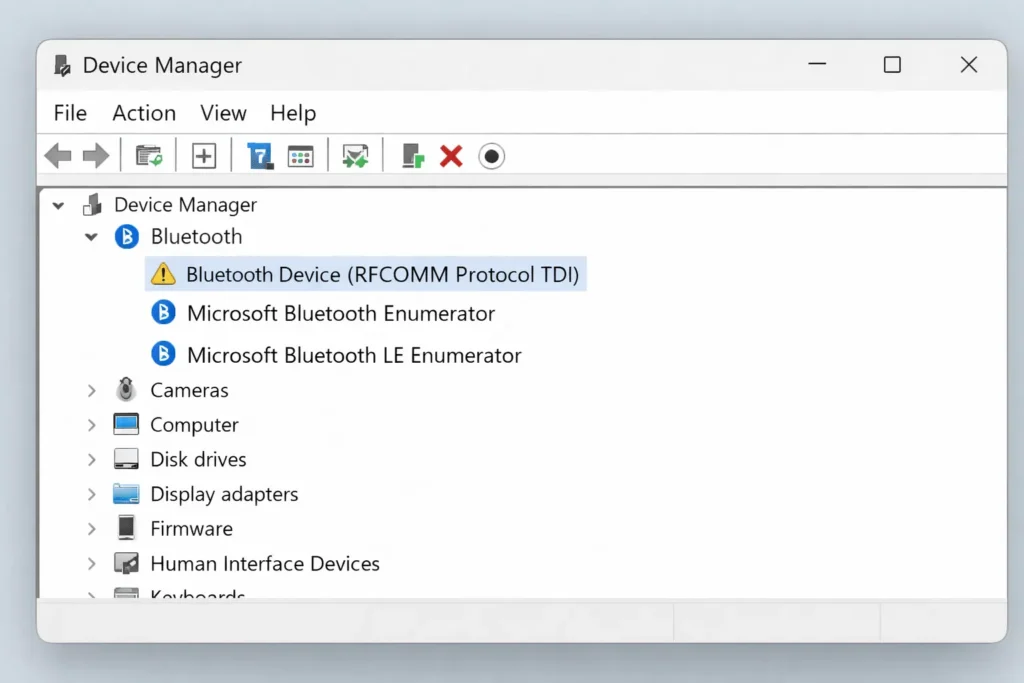
- Select Device Manager.
- Expand Bluetooth.
- Right-click your Bluetooth device.
- Click Update driver.
- Choose Search automatically for drivers.
Restart your laptop after updating.
Fix 6: Enable Bluetooth in Device Manager
Sometimes Bluetooth gets disabled.
Steps:
- Open Device Manager.
- Expand Bluetooth.
- If your device shows a down arrow:
- Right-click it.
- Select Enable.
Check if Bluetooth works now.
Fix 7: Restart Bluetooth Services
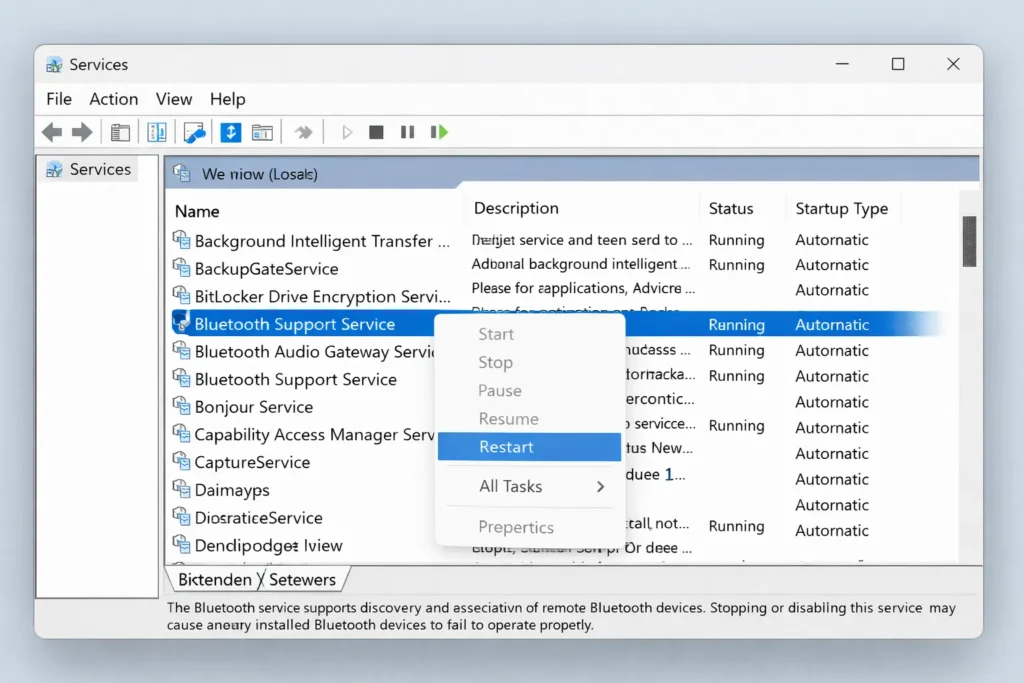
Bluetooth depends on background services.
Steps:
- Press Windows + R.
- Type services.msc and press Enter.
- Find Bluetooth Support Service.
- Right-click it.
- Click Restart.
- Make sure Startup type is set to Automatic.
Close the window and test Bluetooth.
Fix 8: Remove and Reconnect the Device
If Bluetooth not working on laptop continues even after updating drivers, removing and reconnecting the device can help.
Steps:
- Open Settings.
- Click Bluetooth & devices.
- Click your device.
- Select Remove device.
- Restart your laptop.
- Pair the device again.
Fix 9: Check Windows Updates
Many users report Bluetooth not working on laptop after a Windows update.
Steps:
- Open Settings.
- Click Windows Update.
- Select Check for updates.
- Install any available updates.
- Restart your laptop.
Fix 10: Check Hardware Switch or BIOS
Some laptops have:
- A physical wireless switch
- A function key (like Fn + F2)
- BIOS settings that control Bluetooth
What to do:
- Look for a wireless key on your keyboard.
- Restart your laptop and enter BIOS (usually F2, F10, or Delete).
- Make sure Bluetooth is enabled there.
If Bluetooth does not appear in Device Manager at all, it could be a hardware issue.
Additional Tips to Prevent the Issue
- Keep Windows updated.
- Update drivers regularly.
- Avoid installing unknown driver software.
- Don’t use too many Bluetooth devices at once.
- Keep your laptop away from strong Wi-Fi interference.
These steps reduce future Bluetooth connection problems.
Troubleshooting Tips
✅ Keep your Bluetooth device fully charged.
✅ Stay within 10 meters of your laptop.
✅ Remove old unused paired devices.
✅ Try connecting the device to another laptop to test it.
✅ Disable and re-enable Wi-Fi if connection is unstable.
Common Mistakes
Avoid these errors:
- ❌ Installing random driver software from unknown websites
- ❌ Ignoring Windows updates
- ❌ Forgetting to restart after updating drivers
- ❌ Trying to connect while Airplane mode is on
- ❌ Assuming hardware is broken before trying software fixes
Most Bluetooth not working on laptop issues are software-related.
Frequently Asked Questions
1. Why did Bluetooth disappear from my laptop?
It may be disabled in Device Manager, turned off in BIOS, or affected by a Windows update. Updating drivers usually fixes this.
2. How do I reinstall Bluetooth on my laptop?
Go to Device Manager, uninstall the Bluetooth driver, then restart your laptop. Windows will automatically reinstall it.
3. Why is my laptop Bluetooth connected but not working?
Your device may be paired but not properly connected. Remove the device and reconnect it.
4. How do I know if my laptop has Bluetooth hardware?
Check Device Manager under Bluetooth. If nothing appears, check your laptop specifications on the manufacturer’s website.
5. Can Windows updates break Bluetooth?
Yes, sometimes updates cause driver conflicts. Updating drivers again usually solves the issue.
Conclusion
If Bluetooth is not working on your laptop, don’t panic. In most cases, the issue is caused by:
- Disabled settings
- Outdated drivers
- Airplane mode
- Minor system glitches
Start with simple fixes like restarting your laptop and turning Bluetooth off and on. Then move to updating drivers and running the troubleshooter.
By following this step-by-step Bluetooth not working on laptop fix guide, you should be able to solve the issue quickly — even as a beginner.
- Microsoft Support – Fix Bluetooth Problems in Windows
- Windows Update Official Guide
- Intel Driver & Support Assistant




[…] Bluetooth Not Working on Laptop Fix (Step-by-Step Guide) […]
[…] Bluetooth Not Working on Laptop Fix (Step-by-Step Guide) […]
[…] Bluetooth Not Working on Laptop Fix (Step-by-Step Guide) […]
[…] Bluetooth Not Working on Laptop Fix (Step-by-Step Guide) […]
[…] Bluetooth Not Working on Laptop Fix (Step-by-Step Guide) […]