
Introduction
If your laptop speaker is not working, you’re not alone. This is one of the most searched audio problems on the internet, and it can happen suddenly without any warning. One moment everything sounds fine, the next — complete silence.
A laptop speaker not working issue affects every major brand — Dell, HP, Lenovo, ASUS, Acer, Samsung, and more. It appears on Windows 10, Windows 11, and sometimes macOS. Whether your laptop sound stopped working after an update, after plugging in headphones, or for no clear reason at all, this guide has you covered.
The truth is, when there’s no sound on a laptop, the cause is almost always software-related. That means you can fix your laptop speaker yourself in minutes — no technician needed. Follow this step-by-step guide from the easiest fix to the most advanced.
Quick Answer
When your laptop speaker is not working, do this first: check that the volume is not muted and that no headphones or Bluetooth devices are connected. Then right-click the sound icon on your taskbar, open Sound Settings, and make sure your laptop’s built-in speakers are selected as the output device. If there’s still no sound on your laptop, run the Windows Audio Troubleshooter or update your audio driver. These basic steps solve the laptop speaker problem for about 90% of users.
Why This Problem Happens
Before jumping into fixes, it helps to understand why your laptop speaker is not working. Knowing the root cause lets you choose the right solution faster.
Here are the most common reasons for laptop audio not working:
- Muted volume or very low volume — the simplest and most overlooked reason for no sound on a laptop.
- Headphones or Bluetooth devices still connected — your laptop sends audio to the last connected device instead of the built-in speakers.
- Wrong output device selected — Windows sometimes switches the default playback device, causing the laptop speaker to stop working unexpectedly.
- Outdated or corrupted audio drivers — drivers are small software programs that let Windows communicate with your speaker hardware. When they break, your laptop sound stops working.
- Windows update conflicts — a system update can override audio settings and create a laptop speaker problem.
- Disabled Windows Audio service — the background service responsible for sound may have crashed.
- Hardware failure — in rare cases, the physical speaker is damaged. But always rule out software causes first.
How to Fix Laptop Speaker Not Working (Step-by-Step Methods)
Below are 10 proven methods to fix a laptop speaker that is not working. They are arranged from simplest to most advanced. Start at Fix 1 and work your way down.
Fix 1: Check the Volume and Mute Settings
Why this works: A shocking number of laptop speaker not working cases are simply caused by a muted or extremely low volume setting.
- Look at the speaker icon in the bottom-right corner of your taskbar.
- Click on it.
- Make sure the volume slider is turned up to at least 50%.
- Make sure there is no “X” next to the speaker icon (the X means muted).
- Check your keyboard. Most laptops have a dedicated mute button (often F1, F2, or a key with a speaker icon). Press it to toggle mute off.
- Also try pressing Fn + the volume up key on brands like Lenovo, ASUS, and Acer.
Fix 2: Disconnect External Audio Devices
Why this works: When headphones, earbuds, or a Bluetooth speaker are connected, your laptop automatically redirects audio away from the built-in speakers — making it seem like your laptop speaker is not working.
- Unplug any headphones or external speakers from the headphone jack and USB ports.
- Turn off Bluetooth temporarily: Go to Settings > Bluetooth & devices and toggle Bluetooth off.
- Test your laptop speakers by playing a video or audio file.
Pro tip for HP and Dell users: The headphone jack sensor sometimes gets stuck, making the laptop “think” headphones are still plugged in. Insert and remove the headphone plug 3–4 times to reset the sensor.
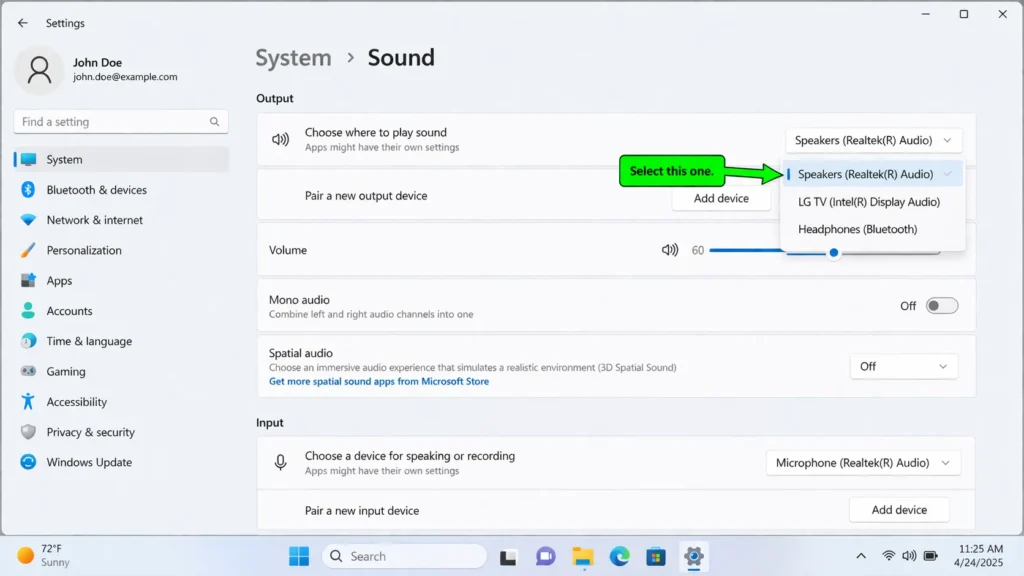
Fix 3: Select the Correct Audio Output Device
Why this works: Windows sometimes sends audio to the wrong device — like an HDMI monitor or an old Bluetooth speaker — which makes it look like your laptop speakers are not working when they’re actually fine.
- Right-click the speaker icon in the taskbar.
- Click Sound settings.
- Under Output, find the dropdown menu labeled “Choose where to play sound.”
- Select your built-in speakers (usually labeled Speakers (Realtek Audio) or Speakers (High Definition Audio Device)).
- Play audio to test.
This is one of the fastest ways to fix laptop speaker issues, especially after connecting an external monitor.
Fix 4: Run the Windows Audio Troubleshooter
Why this works: Windows includes a built-in diagnostic tool specifically designed to detect and fix laptop audio not working problems automatically.
On Windows 11:
- Go to Settings > System > Troubleshoot > Other troubleshooters.
- Find Playing Audio and click Run.
- Follow the on-screen prompts.
On Windows 10:
- Go to Settings > Update & Security > Troubleshoot > Additional troubleshooters.
- Click Playing Audio > Run the troubleshooter.
The tool scans for common issues and applies fixes. It will report what it found and whether the laptop speaker problem was resolved.
Fix 5: Restart the Windows Audio Service
Why this works: A background service called “Windows Audio” controls all sound on your laptop. If this service crashes or stops, your laptop sound will not work until the service is restarted.
- Press Windows + R to open the Run dialog box.
- Type services.msc and press Enter.
- Scroll down and find Windows Audio.
- Right-click it and select Restart.
- Also find Windows Audio Endpoint Builder and restart that service too.
- Close the Services window and test your speakers.
This is a powerful laptop speaker fix that most beginners overlook.
Fix 6: Update Your Audio Driver
Why this works: An outdated audio driver may not work properly with your current version of Windows, causing your laptop speaker to stop working.
- Right-click the Start button and select Device Manager.
- Expand Sound, video and game controllers.
- Right-click your audio device (e.g., Realtek High Definition Audio).
- Select Update driver.
- Choose Search automatically for drivers.
- If a new driver is found, install it and restart your laptop.
For Samsung, Lenovo, ASUS, or HP laptops: Visit the manufacturer’s official support website, enter your laptop model number, and download the latest audio driver directly. This often resolves laptop audio not working issues faster than Windows Update.
Fix 7: Roll Back Your Audio Driver
Why this works: If your laptop speaker stopped working right after a Windows update, the newly installed driver may be incompatible. Rolling back restores the previous working version.
- Open Device Manager.
- Expand Sound, video and game controllers.
- Right-click your audio device and select Properties.
- Go to the Driver tab.
- Click Roll Back Driver.
- If the button is greyed out, no previous driver version is available — skip to Fix 8.
- Restart your laptop and check if the laptop speaker is now working.
Fix 8: Reinstall Your Audio Driver
Why this works: If the audio driver is corrupted beyond repair, neither updating nor rolling back will help. Uninstalling and reinstalling forces Windows to set everything up fresh — often the definitive laptop speaker fix.
- Open Device Manager.
- Expand Sound, video and game controllers.
- Right-click your audio device and select Uninstall device.
- Check the box “Attempt to remove the driver for this device” if available.
- Click Uninstall.
- Restart your laptop. Windows will automatically detect the hardware and reinstall the driver.
- Test your speakers.
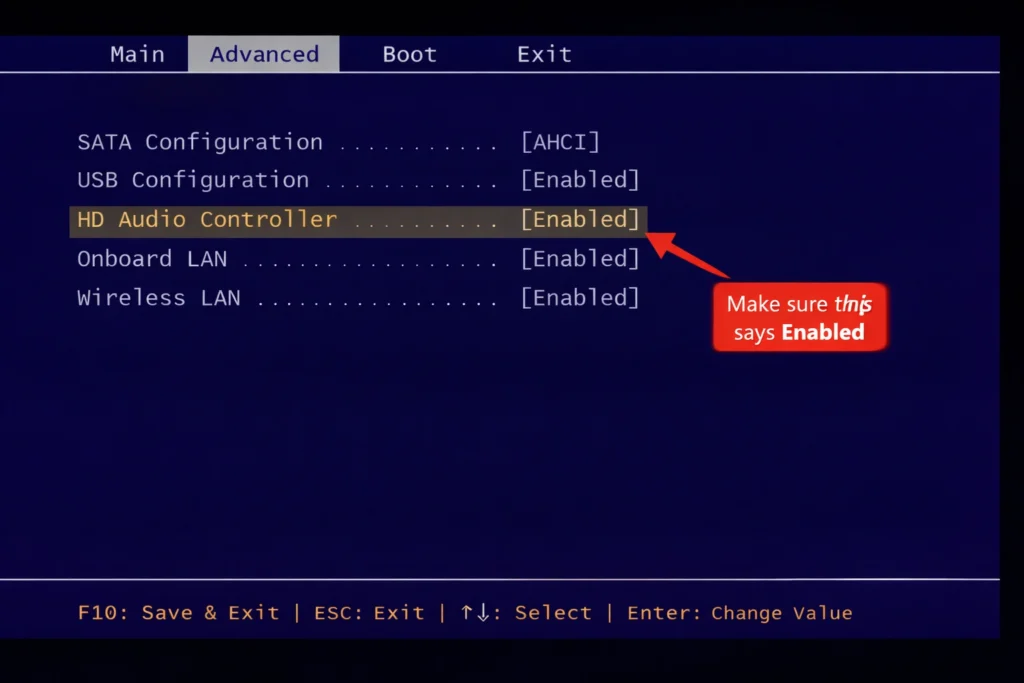
Fix 9: Check BIOS Audio Settings
Why this works: Some laptops have an option in BIOS to enable or disable the onboard audio chip. If this setting was accidentally switched off, no software fix will resolve your laptop speaker not working problem.
- Restart your laptop.
- Immediately press the BIOS key repeatedly:
- Dell: F2
- HP: F10
- Lenovo: F2 or Fn + F2
- ASUS: F2 or Del
- Acer: F2 or Del
- Navigate to the Advanced or Integrated Peripherals tab.
- Look for Onboard Audio, HD Audio Controller, or similar.
- Make sure it is set to Enabled.
- Press F10 to save and exit.
Fix 10: Perform a System Restore
Why this works: If your laptop speakers were working before a specific date and then stopped, System Restore takes your settings and drivers back to that point — without deleting personal files.
- Type “System Restore” in the Windows search bar.
- Click Create a restore point.
- Click the System Restore button.
- Choose a restore point from a date when your laptop sound was working.
- Follow the prompts and let your laptop restart.
This is the last resort software fix before considering hardware repair.
Common Mistakes to Avoid
When trying to fix a laptop speaker that is not working, beginners often make these mistakes:
- ❌ Installing random driver tools from unknown websites. These can install malware. Only use your laptop manufacturer’s official site or Windows Update.
- ❌ Skipping the simple fixes. Always check mute, volume, and output device before touching drivers.
- ❌ Forgetting about Bluetooth. A Bluetooth speaker you paired days ago might still be stealing your audio.
- ❌ Not restarting after driver changes. Many driver updates won’t take effect until you fully restart.
- ❌ Assuming hardware failure too quickly. Software causes laptop speaker problems far more often than broken speakers.
- ❌ Changing multiple settings at once. Change one thing at a time so you know what actually fixed the issue.
Troubleshooting Tips
🔧 Quick Diagnostic Checklist for Laptop Speaker Not Working
Use this checklist to narrow down the problem fast:
- ✅ Is the volume up and unmuted?
- ✅ Are all headphones and Bluetooth devices disconnected?
- ✅ Is the correct output device selected in Sound Settings?
- ✅ Have you restarted your laptop recently?
- ✅ Is your audio driver up to date?
- ✅ Does audio work through headphones but not speakers? → This confirms the audio system works — the issue is speaker output selection or hardware.
- ✅ Did the laptop speaker stop working right after a Windows update? → Try rolling back the driver (Fix 7).
- ✅ Does sound work in one app but not another? → Check the app’s own volume/audio settings.
Additional Tips to Prevent the Issue
Once you fix your laptop speaker, follow these tips so the problem doesn’t come back:
- Keep audio drivers updated. Check for updates once a month or turn on automatic driver updates.
- Create a restore point before major Windows updates. This gives you a rollback option if the update causes your laptop sound to stop working.
- Disconnect Bluetooth devices properly. Go to Settings and disconnect — don’t just walk away.
- Avoid inserting and removing the headphone jack frequently. This can wear out the jack sensor, creating phantom connection issues.
- Shut down your laptop properly instead of holding the power button, which can corrupt system services including audio.
- Run the audio troubleshooter periodically as a preventive check, even when sound is working fine.
Frequently Asked Questions
1. Why is my laptop speaker not working but headphones work?
If headphones produce sound but your laptop speaker is not working, the issue is usually the output device setting. Go to Sound Settings and change the output to your built-in speakers. Also check the headphone jack for debris — a stuck sensor can trick your laptop into thinking headphones are still plugged in.
2. How do I fix no sound on my laptop after a Windows 11 update?
When laptop sound is not working after a Windows update, the most effective fix is rolling back the audio driver. Open Device Manager > Sound, video and game controllers, right-click your audio device, select Properties > Driver > Roll Back Driver. You can also run the Windows Audio Troubleshooter.
3. Why did my laptop speaker suddenly stop working?
A laptop speaker that suddenly stopped working is usually caused by a driver update, a changed output device, an accidental mute, or a connected Bluetooth device intercepting the audio. Work through the fixes in this guide starting from Fix 1.
4. Can I fix laptop speakers not working without going to a repair shop?
Absolutely. The vast majority of laptop speaker not working issues are software-related and can be fixed at home. The 10 methods in this guide cover everything from basic settings to driver reinstallation. Only consider a repair shop if none of the software fixes work, which may indicate physical speaker damage.
5. How do I test if my laptop speaker is physically damaged?
To test if your laptop speaker hardware is broken:
- Boot into Safe Mode and play audio. If sound works in Safe Mode, the problem is software.
- Try a Linux Live USB — if sound works there, it’s a Windows issue, not hardware.
- If there’s no sound in any environment, the speaker may be physically damaged and needs professional repair.
Conclusion
A laptop speaker not working is frustrating, but it’s almost always fixable. In the vast majority of cases, the problem is a muted volume, wrong output device, or outdated audio driver — not broken hardware.
Start with the simple fixes: check your volume, disconnect headphones and Bluetooth devices, and verify your output settings. If those don’t resolve your laptop sound not working issue, move to driver updates, service restarts, and system restore.
This guide covered 10 proven methods to fix laptop speakers not working on any Windows laptop. Bookmark this page so it’s ready the next time your audio disappears.
If you’ve tried all 10 fixes and still have no sound on your laptop, it’s time to contact your laptop manufacturer’s support team or visit a certified repair center



